Object Storage (S3)
Object Storage gives you your own S3-compatible storage, spread across your Cosmos servers. Anything that can talk to Amazon S3 (backup tools, media apps, Nextcloud, your own code) can store its files in it, and every file is automatically copied to another server so that losing one does not lose your data.
Under the hood it is powered by SeaweedFS, but you never have to deal with it: Cosmos deploys it, spreads it on the nodes you choose, keeps it healthy and backs it up.
Before you start
- Your cluster needs at least three Cosmos Server (Manager) nodes online. See Cluster and Deployments for how nodes and tags work.
- Decide which nodes will store the data, and give them a tag (for example
object-storage) from the Affinity Tags column of the Constellation page. Any node with the tag stores data; tag more nodes later to grow the storage.
Where to find it
Go to Constellation > S3 / Object Storage. The page has three tabs: the list of your storages, Monitoring and Events.
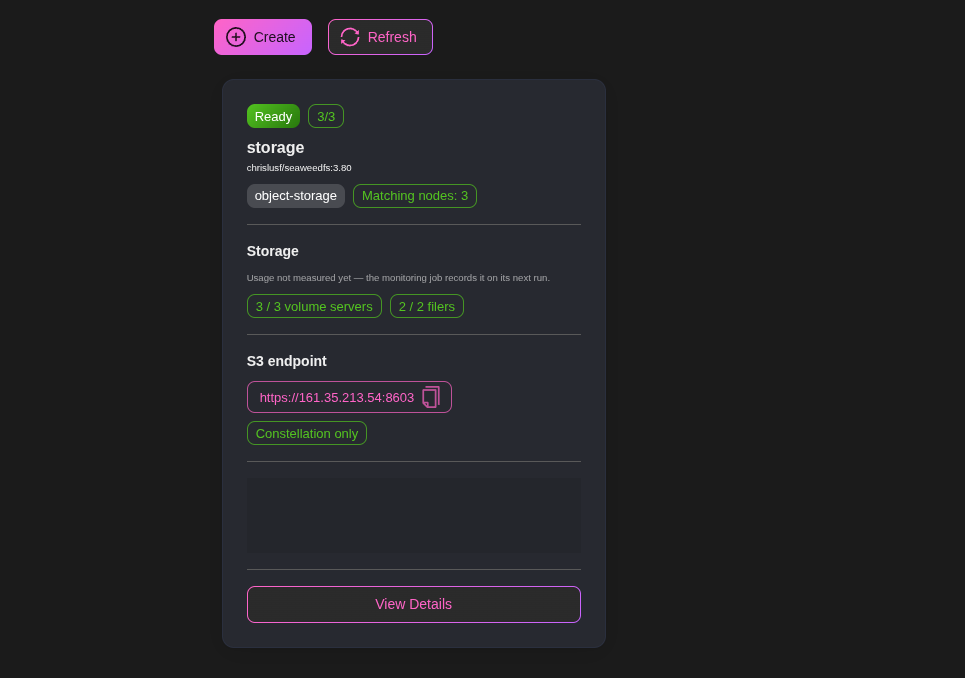
Each card shows the status of the storage, how much space is used and free, how many nodes are storing data, the S3 endpoint (click to copy) and whether it is Constellation only or Public. View Details opens the storage page.
Creating a storage
Click Create.
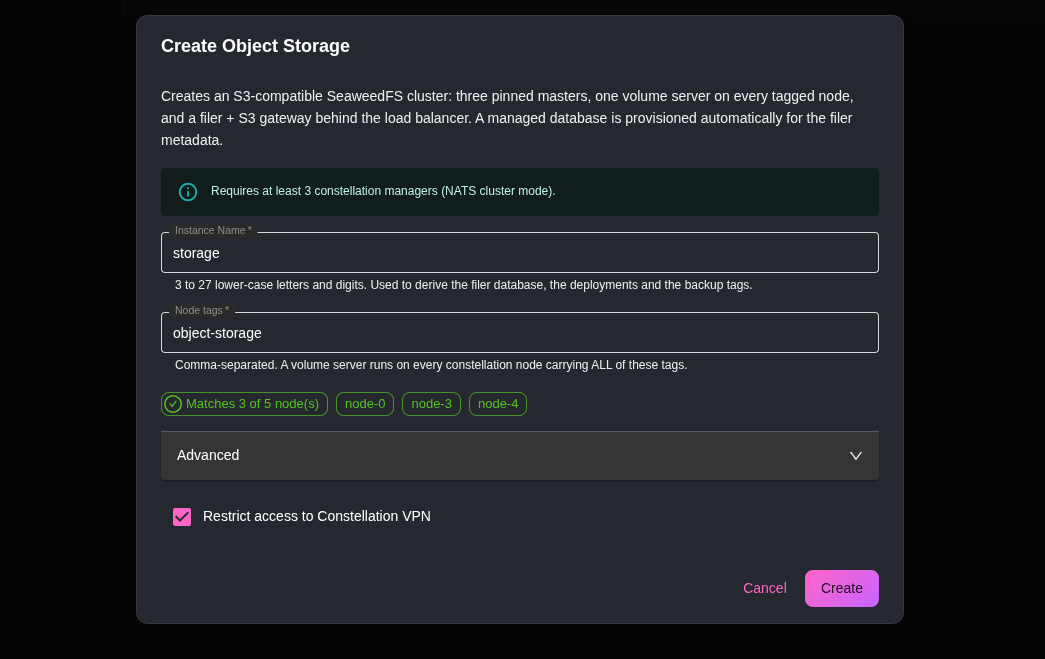
- Instance Name: 3 to 27 lower-case letters and digits (for example
media,backups). - Node tags: the nodes carrying all these tags store the data. The dialog tells you how many nodes match as you type.
The Advanced section is fine on its defaults, but here is what it controls:
- Filer replicas: how many S3 gateways to run. With two or more, the S3 endpoint stays available while one restarts. Needs as many matching nodes.
- Default replication: how many extra copies of each file are kept on other nodes.
001(one copy, survives losing one node) is the default;002survives losing two nodes;000keeps a single copy. This is fixed once the storage is created. - Volume size limit and Minimum free space: how files are packed on disk and how much disk each node keeps free. The defaults suit most uses.
- Max storage per node (GB): cap the disk space used on each node.
0means no cap. You can change this later. - Image: the SeaweedFS version to run.
- Restrict access to Constellation VPN: ticked by default, the S3 endpoint only answers from inside your Constellation. See Public access.
Click Create. Cosmos then creates, on your behalf, a small managed database to hold the file index, three coordinators on three of your managers, a storage server on every tagged node, and the S3 gateways behind your load balancer. The storage shows as Provisioning for a minute or two, then Ready.
Connecting to your storage
Open the storage. The S3 access card on the Overview tab shows the S3 endpoint, the Access key and the Secret key, with reveal and copy buttons. You need your admin privileges enabled to see the keys.
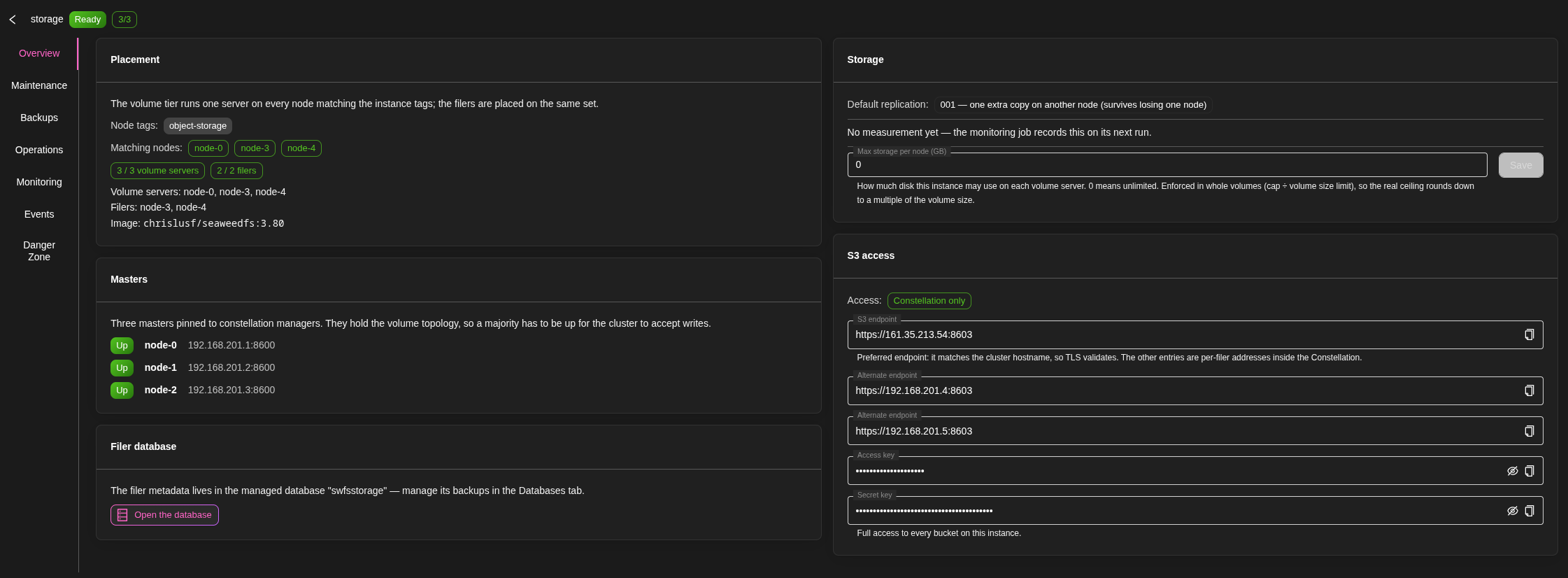
Use them in any S3 client. Buckets are created by the client, there is nothing to declare in Cosmos first. Two things to know for S3 clients:
- Use the path style of addressing (most tools have a "force path style" or "path style access" option).
- The region does not matter, but most tools require one: use
us-east-1.
With the AWS command line:
aws configure set aws_access_key_id YOUR_ACCESS_KEY
aws configure set aws_secret_access_key YOUR_SECRET_KEY
aws configure set default.region us-east-1
aws configure set default.s3.addressing_style path

aws --endpoint-url https://cosmos.mydomain.com:8600 s3 mb s3://photos
aws --endpoint-url https://cosmos.mydomain.com:8600 s3 cp holiday.jpg s3://photos/
aws --endpoint-url https://cosmos.mydomain.com:8600 s3 ls s3://photos/
Recent versions of the AWS tools and SDKs add extra checksums that not every S3 server understands. If uploads fail or come out corrupted, set these two environment variables (or the equivalent SDK options):
export AWS_REQUEST_CHECKSUM_CALCULATION=when_required
export AWS_RESPONSE_CHECKSUM_VALIDATION=when_required
With rclone, which also lets you mount the storage as a folder:
[cosmos-s3]
type = s3
provider = SeaweedFS
access_key_id = YOUR_ACCESS_KEY
secret_access_key = YOUR_SECRET_KEY
endpoint = https://cosmos.mydomain.com:8600
force_path_style = true
The endpoint uses your cluster's hostname, so HTTPS certificates validate like on your other URLs. The Alternate endpoint entries are the addresses of the individual gateways inside the Constellation, useful if an application runs on a node and you want to skip the load balancer.
Using it from your applications
Inside a compose file, whether for a ServApp or a deployment, reference the storage with template variables instead of pasting the keys:
"environment": [
  "S3_ENDPOINT=${s3.media.endpoint}",
  "S3_ACCESS_KEY=${s3.media.accessKey}",
  "S3_SECRET_KEY=${s3.media.secretKey}",
  "S3_BUCKET=uploads"
]
Here media is the name of the storage. The endpoint resolved this way points straight at a gateway inside the Constellation.
Growing and adjusting
- More space: tag another node. A storage server starts on it automatically and new files start landing there. Untag a node to stop storing data on it.
- Per-node cap: the Storage card on the Overview tab lets you change Max storage per node (GB) and Save. The storage servers restart one node at a time to apply it. Lowering the cap never deletes data, the node just stops taking new files.
- Replace a master: the Masters card lists the three coordinators. If one of their nodes is gone for good, click Replace master next to it and let Cosmos pick another manager, or choose one.
Maintenance jobs
The Maintenance tab schedules the housekeeping of the storage. The defaults are sensible, and each job can be toggled and rescheduled:
- Vacuum deleted space: reclaims the space of deleted files. Runs nightly by default, once a volume has more than 30% of deleted data.
- Erasure-code cold volumes: turns rarely-touched data into a more compact form that still survives node failures, using less disk than full copies. Off by default; turn it on for large archives. It needs free space to convert a volume, so it skips nodes below the configured free disk.
- Repack erasure-coded volumes: cleans up deleted data inside erasure-coded volumes. Shown when erasure coding is on.
- Health check: checks the cluster every few minutes and raises an alert above the configured disk usage (70% by default).
- Scrub replicas: reads every copy and checks it against the others to catch silent disk corruption. Monthly by default.
These jobs appear in the Scheduler page under Object Storage Jobs.
Backups
Your files are protected by replication across nodes. What a backup adds is a copy of the file index (which file is where, with its metadata), so the storage can be rebuilt after a serious incident.
The file index lives in a managed database named swfs followed by your storage's name. The Filer database card on the Overview tab opens it; configure its backups from there, exactly like any managed database.
The Backups tab of the storage offers a second, independent backup of the same index into a restic repository, with the same options as database backups (repository, schedule, cleanup and retention) and a Backup now button.

Operations
The Operations tab groups the actions on the storage as a whole:
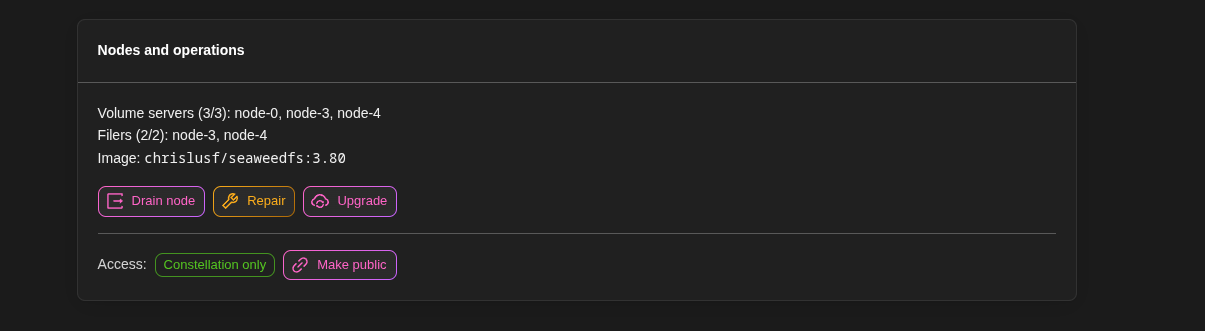
- Make public / Restrict to Constellation: see Public access. The gateways restart briefly when you switch.
- Drain: moves all the data off a node before you take it out of the cluster, so no copy is lost.
- Repair: checks that every file has the number of copies it should, and recreates missing ones. Use it after a node has been down for a while.
- Upgrade: rolls a new SeaweedFS version across every node, one at a time. Downgrading is not supported by SeaweedFS, so pick the version carefully.
Public access
By default the S3 endpoint only answers from inside your Constellation. If a service hosted elsewhere needs to reach it, click Make public on the Operations tab: the endpoint then accepts requests from any network that can reach your load balancer. Your access keys are still required. Click Restrict to Constellation to close it again.
Deleting a storage
The Danger zone tab deletes the storage on every node. By default the files stay on the disks of the nodes, so recreating a storage with the same name brings them back. Tick Also purge data volumes on every node to erase them. You can also choose to keep the file index database.
If a Package Registry uses this storage, delete the registry first.
Monitoring and events
The Monitoring tab of a storage graphs the stored objects, disk usage per node, cluster health (live coordinators, missing copies) and S3 traffic. The Events tab keeps its history: creation, credentials applied, backups, repairs, drains and upgrades. The page-level tabs show the same for all your storages.