
Groups and Permissions
By default, Cosmos has two kinds of users: Users, who can log in and use the applications you share with them, and Admins, who can do everything. Cosmos Pro lets you create your own Groups in between: a group is a name and a set of permissions, and every user you put in that group gets exactly those permissions.
This is how you give a family member the ability to restart a container without letting them touch your configuration, or let a colleague manage users without seeing your passwords.
Where to find it
Go to Management > Users. Next to the usual Users tab, you will find a Groups tab.
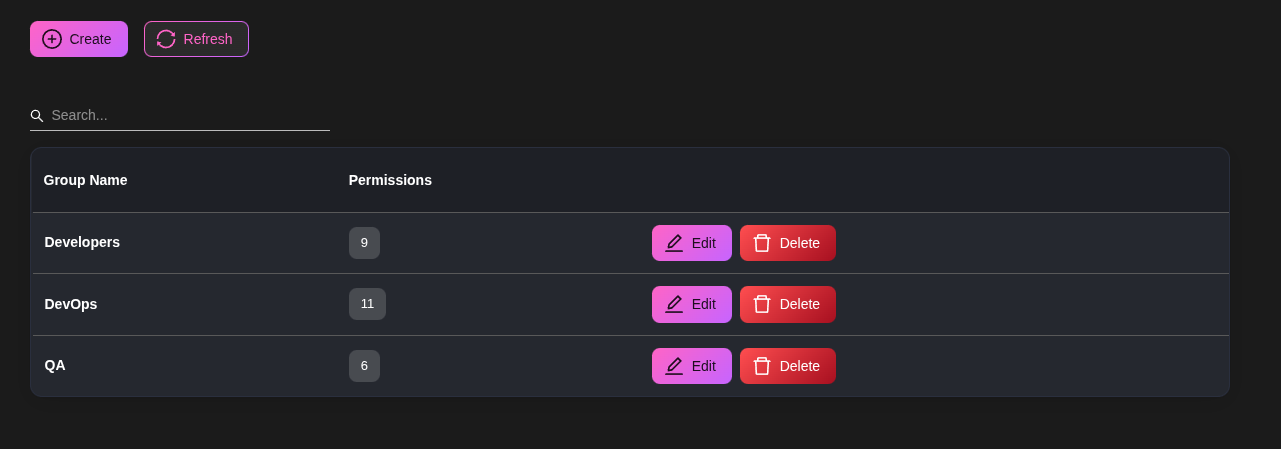
The table lists your groups with the number of permissions each one has. From here you can Create, Edit or Delete a group.
Creating a group
Click Create. Give the group a name and tick the permissions you want it to have.
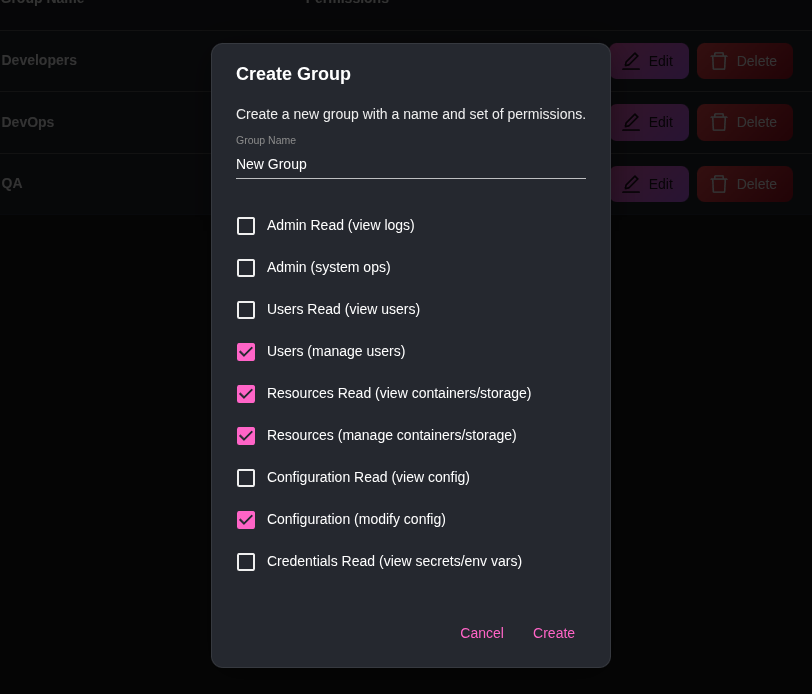
Every group can log in, that permission is always included. The others are:
| Permission | What it allows | |---|---| | Admin Read (view logs) | Read the server logs, and access URLs marked as "Admin only" | | Admin (system ops) | Restart, shut down and update the server, open the terminal, create API tokens | | Users Read (view users) | See the list of users and groups | | Users (manage users) | Create, edit and delete users, reset their 2FA, manage groups | | Resources Read (view containers/storage) | See containers, storage, backups, scheduled jobs and monitoring | | Resources (manage containers/storage) | Manage all of the above: install apps, restart containers, format disks, run backups... | | Configuration Read (view config) | See the configuration pages | | Configuration (modify config) | Change the configuration, including URLs and DNS | | Credentials Read (view secrets/env vars) | See secrets in clear: environment variables, passwords, API keys |
"Read" permissions only let you look. The corresponding full permission lets you act. You usually want to give both, a group with "Resources" but not "Resources Read" would be able to restart a container but not see the list of containers.
The menu adapts to the group: someone without "Resources Read" will not see the ServApps, Storage or Backups pages at all.
Examples
- Family: no permission ticked. Members can log in and use the apps behind Cosmos authentication, nothing else. This is the same as the built-in "User" role.
- Helpdesk: Users Read and Users (manage users). Members can invite people, resend invites and reset 2FA, but cannot touch the server.
- Operators: Resources Read and Resources. Members can install and restart applications, manage storage and run backups, but cannot change the URLs or the configuration.
- Auditors: Admin Read, Users Read, Resources Read and Configuration Read. Members see everything and can change nothing.
Assigning users to a group
Groups are assigned from the Users tab. When you create a user, or when you click on an existing user to edit it, the Role dropdown lists the two built-in roles (User, Admin) followed by all your groups. Pick one and save.
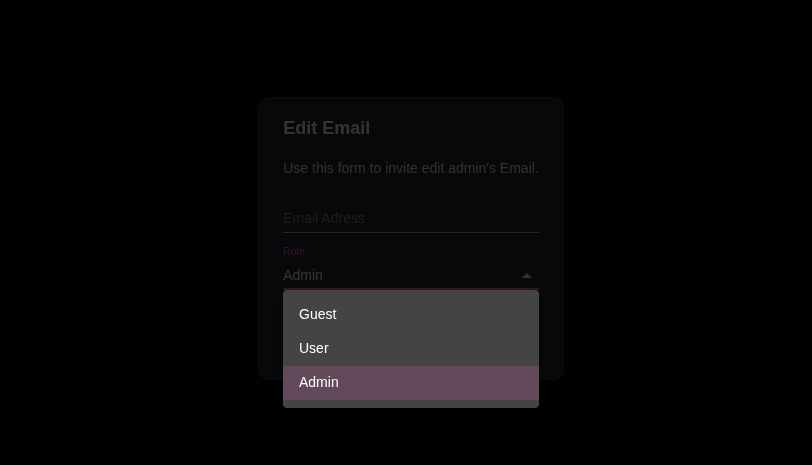
A user belongs to one group at a time. The change takes effect immediately, the user does not need to log out and back in.
You can only give a user permissions that you hold yourself. A member of the Helpdesk group can add users to the Family group, but cannot make anyone an Admin.
Editing and deleting a group
Editing a group changes the permissions of every member right away, which makes it easy to adjust things as your needs evolve.
To delete a group, first move its members to another group. Cosmos refuses to delete a group that still has users in it, so nobody ends up without a role.
Admin privileges (sudo)
Permissions that can change your server (Admin, Users, Resources, Configuration and Credentials Read) are not active all the time. When a member of a group with one of those permissions logs in, they browse with read-only access until they enable their privileges, a bit like sudo on Linux.
An Admin chip in the top-right corner of the page opens the Enable Admin Privileges dialog. Enter your password, and the privileges stay active for 2 hours of inactivity. Buttons that need privileges are greyed out until then, with a tooltip reminding you to enable them.
This applies to Admins too, it is not specific to groups.
Groups and URLs
On a URL's Security tab, the Admin only option restricts the URL to people with the Admin Read permission. Give a group Admin Read and its members can open your admin-only applications (Cosmos itself, monitoring tools, your NAS interface...), without necessarily being able to manage the server.
Groups and Constellation
Groups are shared across all the Cosmos servers of your Constellation. Create a group on one server and it exists on all of them, with the same permissions.
API tokens
If you use scripts or the Terraform provider, you can create API tokens from Configuration > API Tokens. A token is either Read only (it can list and view everything) or full access, and can be restricted to an IP whitelist, to the Constellation network, and given an expiry date. As with users, you can only create a token with permissions you hold.