
Cluster and Deployments
A Deployment is an application that runs on several Cosmos servers at once. You describe the application once, say how many copies (replicas) you want, and Cosmos takes care of the rest: it picks which servers run it, restarts it elsewhere if a server goes down, adds or removes copies when the load changes, and serves all the copies behind a single URL.
Your Cosmos servers connected together through Constellation form the cluster. No extra software to install: if your servers are in the same Constellation, you already have a cluster.
Setting up your cluster
Nodes
Each Cosmos server in your Constellation is a node. When you add a server to your Constellation (Constellation > Add Device), you choose its type:
- Cosmos Server (Manager): a full Cosmos server. Managers share your users, groups and licence, and one of them is elected Leader: the leader is the node that decides where deployments run. If it goes down, another manager takes over within seconds.
- Cosmos Server (Agent): a lighter server managed by the others. Agents run deployments like managers do, they just never become leader.
You need at least one manager for deployments to work. For a resilient cluster, use three managers, so a leader is always available even when one is down.
The device list on the Constellation page shows which node is the current leader with a Leader chip.
A new server joins by uploading its constellation file during its first setup. It gets the hostname <device name>.<cluster domain> automatically, and the certificates and DNS records of your domains are shared with it, see Domains and HTTPS.
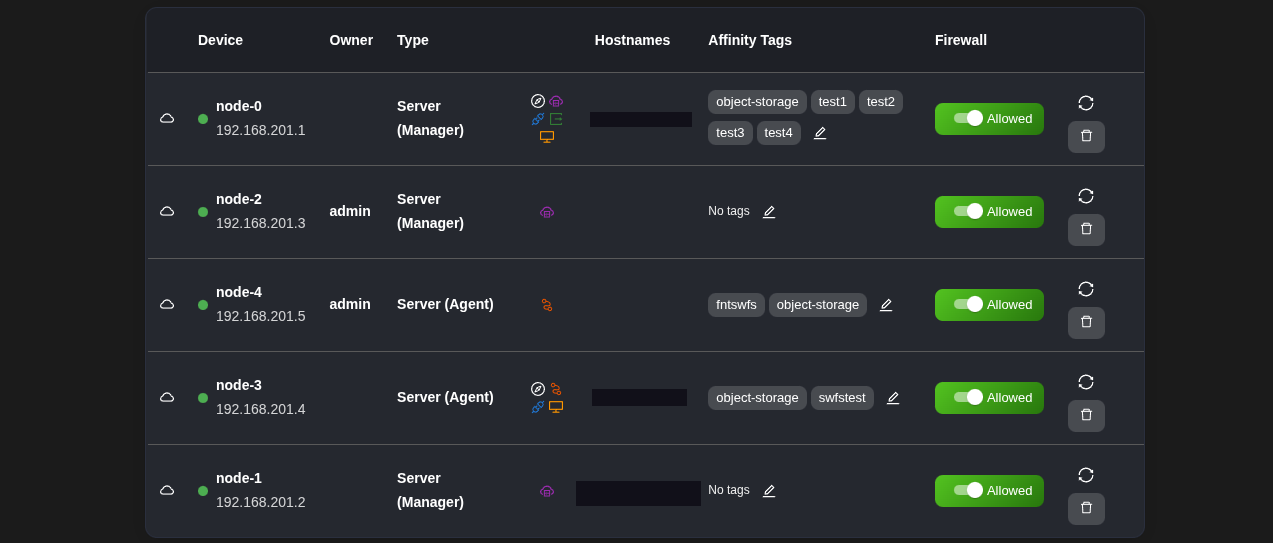
Tags
Tags are labels you attach to nodes to describe them: gpu, nvme, zone-eu, home, backup... Deployments can then ask to run only on nodes carrying certain tags.
To tag a node, use the pencil in the Affinity Tags column of the device list, and enter a comma-separated list. You can also set tags when adding a device.
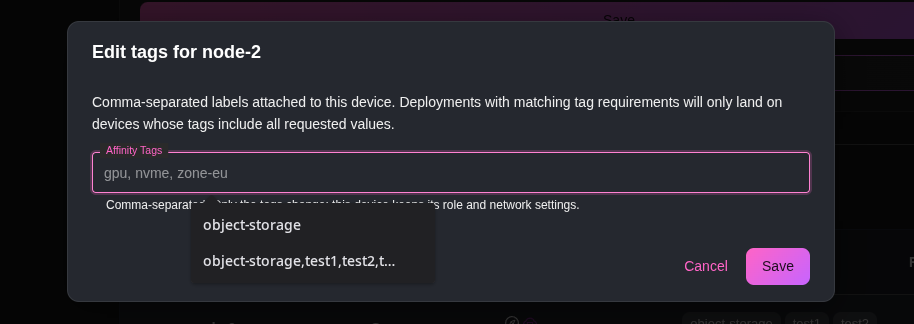
Tags are just words, pick whatever makes sense for you. Good tags describe what a node has (gpu, bigdisk) or where it is (office, hetzner).
Load balancer
For a deployment to answer on a single URL wherever its replicas run, at least one node must be able to receive the requests and forward them. Enable Load Balancer / Tunnel Input Point on that node, on the Constellation page. This is typically your public server, or the server your domain name points to. You can enable it on several nodes.
Creating a deployment
Go to Constellation > Deployments and click Create.
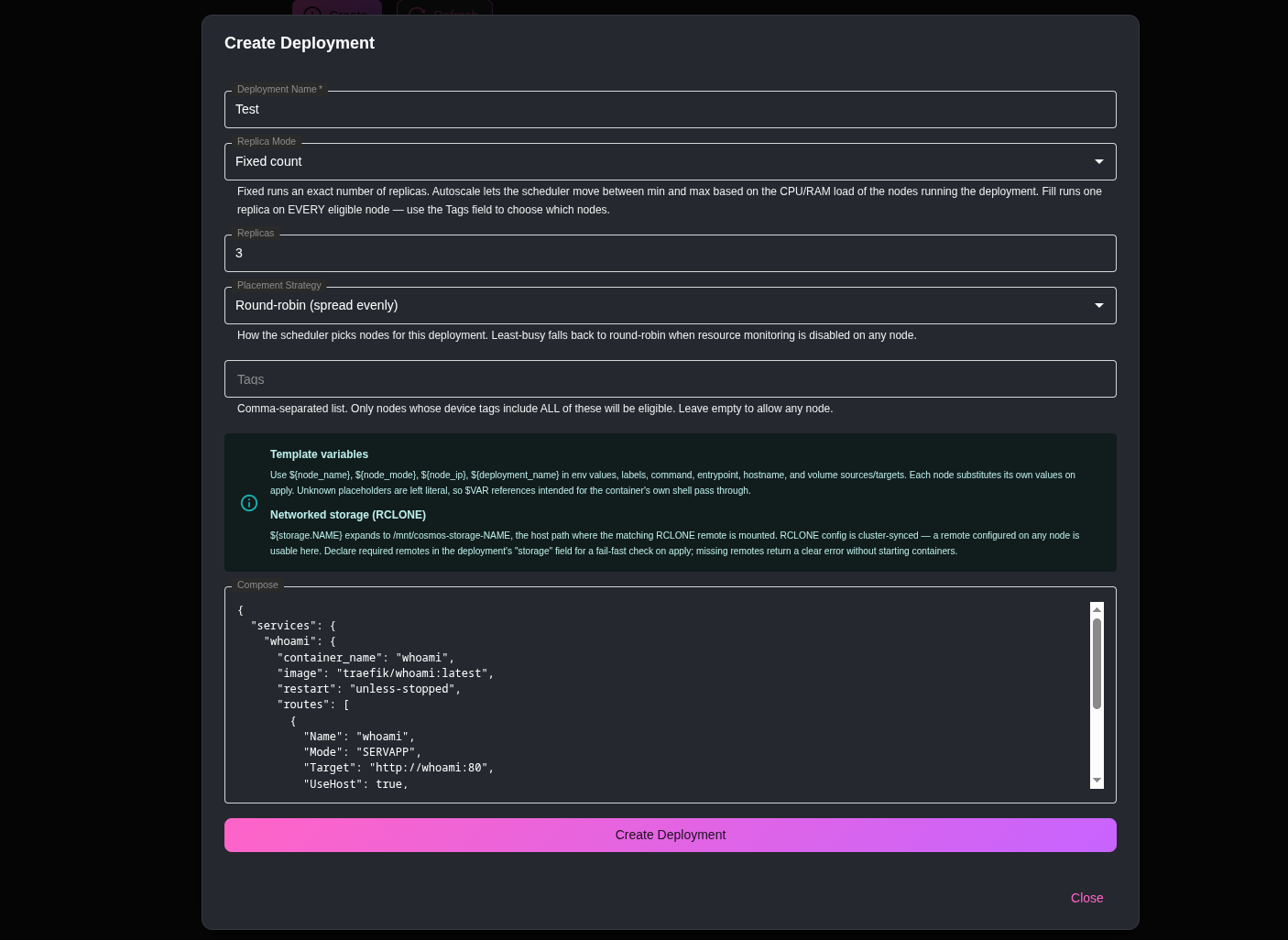
The form has two parts: the settings that tell Cosmos where and how many to run, and the compose that tells it what to run.
- Deployment Name: a unique name made of letters and digits (for example
whoami,blog2). - Replica Mode: Fixed count, Autoscale (min / max) or Fill (one per eligible node). Depending on the mode, the form asks for Replicas, Min Replicas / Max Replicas, or a Fill Mode. See Replica modes below.
- Placement Strategy: how Cosmos chooses nodes. Round-robin spreads replicas evenly, Least-busy prefers the nodes with the most spare CPU and memory.
- Tags: comma-separated. Only nodes carrying all of these tags are eligible. Leave empty to allow any node.
- Compose: the application itself, as a Cosmos-Compose file in JSON. This is the same format as the ServApps you install from the market, including the
routessection that gives your application a URL.
Your first deployment
Let's run a small web service on two nodes, behind one URL. Fill the form like this:
| Setting | Value |
|---|---|
| Deployment Name | whoami |
| Replica Mode | Fixed count |
| Replicas | 2 |
| Placement Strategy | Round-robin |
| Tags | (empty, any node) |
And paste this compose:
{
  "services": {
    "whoami": {
      "container_name": "whoami",
      "image": "traefik/whoami:latest",
      "restart": "unless-stopped",
      "routes": [
        {
          "Name": "whoami",
          "Mode": "SERVAPP",
          "Target": "http://whoami:80",
          "UseHost": true,
          "Host": "whoami.mydomain.com",
          "Tunnel": "_ANY_",
          "AuthEnabled": true
        }
      ]
    }
  }
}
The "Tunnel": "_ANY_" line is what makes the URL reach the deployment on any node, see URLs and load balancing. Click Create Deployment, and within a minute the cards on the Deployments page show two replicas starting on two different nodes. Open https://whoami.mydomain.com and refresh a few times: the page prints the name of the container answering, and you will see it alternate between the two nodes.
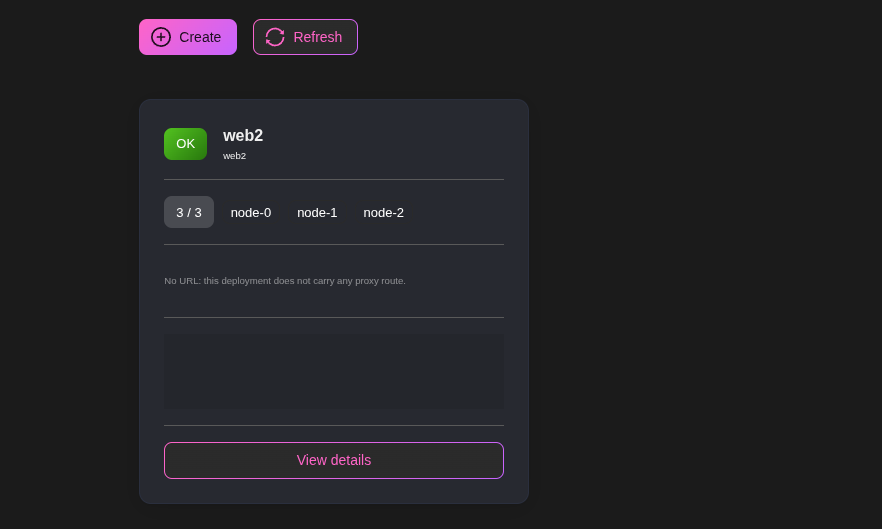
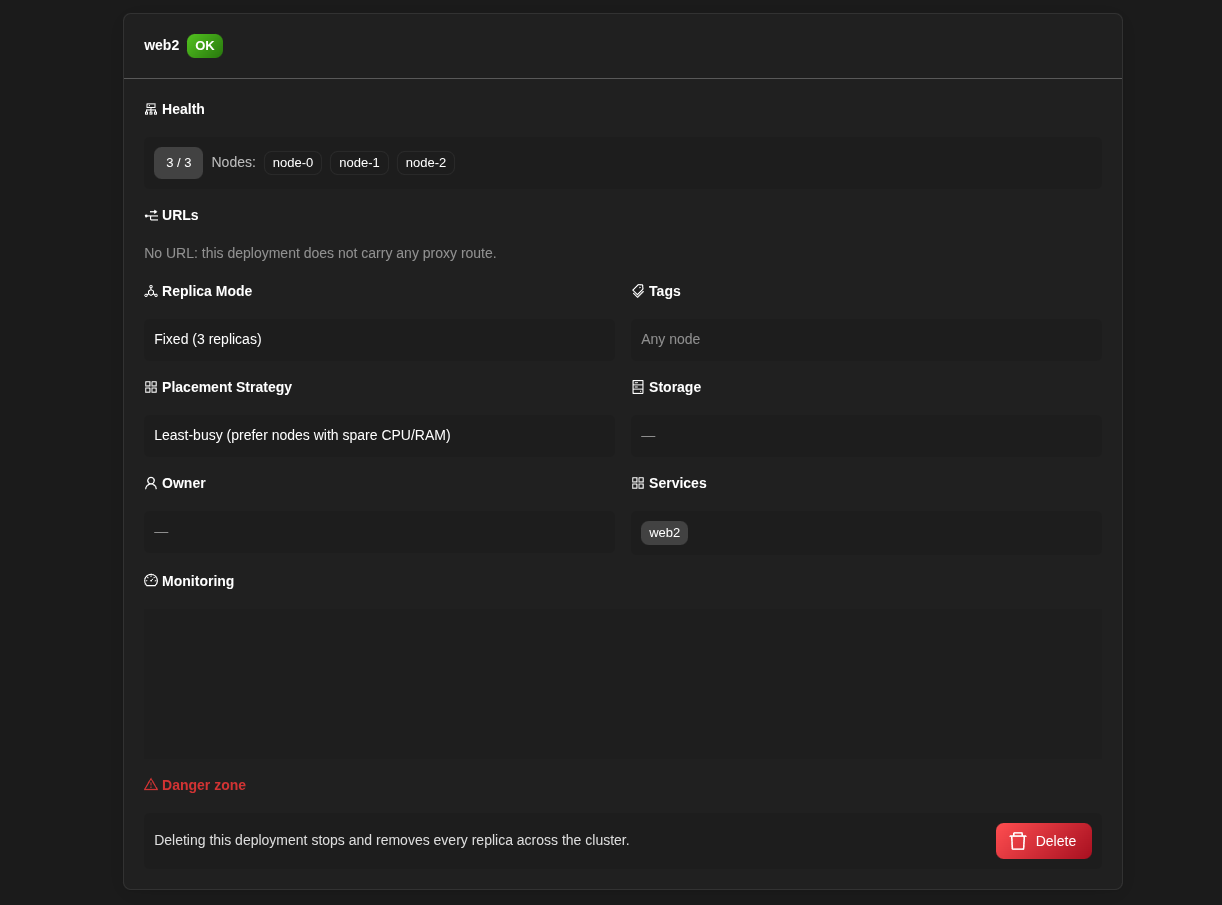
Each card shows the status of the deployment, how many replicas are running out of how many are wanted, which nodes run them, its URLs and a small CPU/RAM graph. View details opens the deployment page with its Overview, Edit, Monitoring and Events tabs.
Examples
Here are a few typical deployments. Each one is just the form settings plus a compose, exactly like the first one.
A web app that grows with the traffic
An application that runs on one node when nobody uses it, and on up to four nodes when it is busy. It stores its data in a managed database so every replica sees the same data, sends each new visitor to the least busy node, and keeps them on that replica with sticky sessions.
| Setting | Value |
|---|---|
| Deployment Name | wiki |
| Replica Mode | Autoscale (min / max) |
| Min Replicas | 1 |
| Max Replicas | 4 |
| Placement Strategy | Least-busy |
| Tags | web |
{
  "services": {
    "wiki": {
      "container_name": "wiki",
      "image": "requarks/wiki:2",
      "restart": "unless-stopped",
      "environment": [
        "DB_TYPE=postgres",
        "DB_HOST=${db.maindb.wiki.host}",
        "DB_PORT=${db.maindb.wiki.port}",
        "DB_USER=${db.maindb.wiki.user}",
        "DB_PASS=${db.maindb.wiki.password}",
        "DB_NAME=${db.maindb.wiki.dbname}"
      ],
      "routes": [
        {
          "Name": "wiki",
          "Mode": "SERVAPP",
          "Target": "http://wiki:3000",
          "UseHost": true,
          "Host": "wiki.mydomain.com",
          "Tunnel": "_ANY_",
          "LBMode": "load_based",
          "LBStickyMode": true,
          "AuthEnabled": false,
          "SmartShield": { "Enabled": true }
        }
      ]
    }
  }
}
Only nodes tagged web are considered. When those nodes get busy, Cosmos adds a replica on another web node, one every three minutes at most; when they go quiet, it removes one, down to a single replica.
Something on every node
A monitoring agent that must run on each and every server. Fill does exactly that, and ${node_name} lets each replica report under the name of its node. The port is bound to ${node_ip}, so the agent is only reachable from inside the Constellation.
| Setting | Value |
|---|---|
| Deployment Name | nodeexporter |
| Replica Mode | Fill (one per eligible node) |
| Fill Mode | Full |
| Placement Strategy | Round-robin |
| Tags | (empty, every node) |
{
  "services": {
    "nodeexporter": {
      "container_name": "nodeexporter",
      "image": "prom/node-exporter:latest",
      "restart": "unless-stopped",
      "hostname": "${node_name}",
      "command": "--path.rootfs=/host",
      "ports": ["${node_ip}:9100:9100"],
      "volumes": [
        { "Type": "bind", "Source": "/", "Target": "/host", "ReadOnly": true }
      ]
    }
  }
}
Add a server to your Constellation and the agent appears on it without you doing anything.
Only on the nodes that have the hardware
A transcoding worker that needs a GPU. Tag your GPU nodes gpu and let the deployment pick among them. With two GPU nodes and one replica, Cosmos moves the worker to the other node if the first one goes down.
| Setting | Value |
|---|---|
| Deployment Name | transcoder |
| Replica Mode | Fixed count |
| Replicas | 1 |
| Placement Strategy | Least-busy |
| Tags | gpu |
{
  "services": {
    "transcoder": {
      "container_name": "transcoder",
      "image": "myorg/transcoder:latest",
      "restart": "unless-stopped",
      "devices": ["/dev/dri:/dev/dri"],
      "environment": [
        "S3_ENDPOINT=${s3.media.endpoint}",
        "S3_ACCESS_KEY=${s3.media.accessKey}",
        "S3_SECRET_KEY=${s3.media.secretKey}",
        "S3_BUCKET=videos"
      ]
    }
  }
}
The worker reads and writes its files in your object storage, so it does not matter which node it runs on.
Available everywhere at peak, cheap when idle
A public API that should be able to use every edge node during the day, but only one at night. Fill with the Bare mode scales between one replica and all the tagged nodes, based on the load.
| Setting | Value |
|---|---|
| Deployment Name | api |
| Replica Mode | Fill (one per eligible node) |
| Fill Mode | Bare |
| Placement Strategy | Least-busy |
| Tags | edge |
{
  "services": {
    "api": {
      "container_name": "api",
      "image": "myorg/api:1.4",
      "restart": "unless-stopped",
      "environment": ["DATABASE_URL=${db.maindb.api.url}"],
      "routes": [
        {
          "Name": "api",
          "Mode": "SERVAPP",
          "Target": "http://api:8080",
          "UseHost": true,
          "Host": "api.mydomain.com",
          "Tunnel": "_ANY_",
          "LBMode": "round_robin"
        }
      ]
    }
  }
}
A tool you use once in a while
An internal tool that nobody opens for days. With the Empty fill mode, the last replica is a lazy container: Cosmos stops it after an hour without requests, and the next visit to the URL starts it again. You get the URL, always ready, at zero cost while idle.
| Setting | Value |
|---|---|
| Deployment Name | pgadmin |
| Replica Mode | Fill (one per eligible node) |
| Fill Mode | Empty |
| Placement Strategy | Round-robin |
| Tags | home |
{
  "services": {
    "pgadmin": {
      "container_name": "pgadmin",
      "image": "dpage/pgadmin4:latest",
      "restart": "unless-stopped",
      "environment": [
        "PGADMIN_DEFAULT_EMAIL=me@mydomain.com",
        "PGADMIN_DEFAULT_PASSWORD=changeme"
      ],
      "routes": [
        {
          "Name": "pgadmin",
          "Mode": "SERVAPP",
          "Target": "http://pgadmin:80",
          "UseHost": true,
          "Host": "pgadmin.mydomain.com",
          "Tunnel": "_ANY_",
          "AuthEnabled": true
        }
      ]
    }
  }
}
The first request after a pause takes a few seconds longer while the container starts. That is the only difference you will notice.
Replica modes
Fixed count
Runs an exact number of replicas, each on a different node. This is the mode to use for most applications: 2 for something that should survive a server going down, 3 for something important.
Cosmos places each replica on a different node, so choose a number that is at most your number of eligible nodes.
Autoscale (min / max)
Cosmos moves the number of replicas between Min Replicas and Max Replicas depending on the load of the nodes running the deployment. When those nodes are busy (over 80% CPU or under memory pressure), Cosmos adds a replica; when they are idle (under 30%), it removes one. It changes by one replica at a time and waits 3 minutes between two changes, so a short spike does not trigger a cascade.
Example: a web application with Min 1 / Max 4 runs on one node overnight and grows to four nodes during the day.
Fill (one per eligible node)
Runs one replica on every eligible node. Combined with the Tags field, this is how you run something "on every node that has X": a log collector on every node, a cache on every edge node, a worker on every gpu node. When you tag a new node, the deployment automatically extends to it.
Fill Mode refines this:
- Full: always every eligible node. The default.
- Bare: between one replica and every eligible node, scaling with the load like Autoscale does. Great for an application you want available everywhere at peak time, without paying for it when idle.
- Empty: like Bare, but the last replica is a lazy container: after an hour without requests it is stopped, and the next request starts it again. This lets a deployment scale from zero. Perfect for tools you use once in a while.
Placement and tags
The tags you set on a deployment are matched against the tags of your nodes: a node is eligible only if it carries all the deployment's tags.
- Tags
gpu: runs only on nodes taggedgpu. - Tags
gpu, zone-eu: runs only on nodes tagged with both. - No tags: runs on any node.
Once the eligible nodes are known, the Placement Strategy picks among them. Cosmos keeps existing replicas where they are and only chooses nodes for new ones, so editing a deployment does not shuffle everything around.
Template variables
Each node fills a few variables into the compose when it starts a replica, so the same compose adapts to where it runs. Use them in environment variables, labels, commands, hostnames, ports and volume paths:
| Variable | Value |
|---|---|
| ${deployment_name} | The name of the deployment |
| ${node_name} | The name of the node running this replica |
| ${node_ip} | The Constellation IP of the node |
| ${storage.NAME} | The mount path of the remote storage NAME (see Remote Storage) |
| ${db.NAME.APP.url} | The connection URL of application database APP on managed database NAME (also .host, .port, .user, .password, .dbname) |
| ${s3.NAME.endpoint} | The endpoint of object storage NAME (also .host, .port, .accessKey, .secretKey, .url) |
For example, to run an application that stores its data in a managed database and its uploads in your object storage:
"environment": [
  "DATABASE_URL=${db.maindb.myapp.url}",
  "S3_ENDPOINT=${s3.media.endpoint}",
  "S3_ACCESS_KEY=${s3.media.accessKey}",
  "S3_SECRET_KEY=${s3.media.secretKey}",
  "NODE=${node_name}"
]
Any $VARIABLE that Cosmos does not know is left untouched, so variables meant for the container's own shell keep working.
URLs and load balancing
A deployment gets its URLs from the routes of its compose, exactly like a ServApp. What differs is that the replicas live on several nodes, so the URL needs to reach all of them.
Setting the route's tunnel to Any Node ("Tunnel": "_ANY_" in JSON, or the Tunnel via the Constellation cluster load balancer option when editing the URL) tells your load balancer nodes to spread the requests across every node running a replica. Replicas that stop answering are taken out of rotation within seconds and put back when they recover.
Once created, the URL appears in Management > URLs on your load balancer nodes, where the Load Balancing section lets you fine tune it:

- Load Balancing Mode: how the load balancer picks a replica for each request.
- Default: always the first healthy replica, which is the local one when the node receiving the request runs a replica. The other replicas only serve when that one is down. Simple and predictable, good for a small cluster where one node does most of the work.
- Round Robin: each request goes to the next replica in turn, so all replicas get the same number of requests. Good when your nodes are similar.
- Load Based: each request goes to the replica whose node currently has the most spare CPU and memory. Nodes report their load to the cluster every couple of seconds, so a node that is busy with something else (a backup, a transcoding job, another deployment) automatically receives fewer requests, and a bigger server naturally takes a larger share. This is the best choice when your nodes have different sizes or run other things on the side. It relies on monitoring: if a node has monitoring disabled, requests fall back to round robin until it reports again.
- Sticky Sessions: a given visitor always reaches the same replica, whatever the mode. Enable this for applications that keep sessions in memory. When the replica goes away, the visitor is reassigned to another one.
If you leave the tunnel empty, each replica only answers on its own node's URL.
Updating a deployment
Open the deployment and go to the Edit tab. Change anything (more replicas, a new image tag, an extra environment variable) and click Save Changes.
Cosmos rolls the change out one node at a time: it updates a replica, waits for it to be running, then moves on to the next one. The other replicas keep serving during the update. If a replica fails to start with the new version, the rollout pauses so the remaining healthy replicas stay untouched while you fix the compose.
Every save is rolled out this way, even when you only change the number of replicas, so the deployment always runs a single version of your compose.
When a node goes down
Cosmos notices within a few seconds that a node stopped reporting, and starts the missing replicas on other eligible nodes. When the node comes back, the extra replica is removed so the count matches what you asked. Meanwhile the deployment shows as Degraded with the number of running replicas.
If the leader itself goes down, another manager becomes leader within about ten seconds and picks up where it left off.
Quarantine
If a replica fails to start again and again on a node, Cosmos stops trying there and moves to another node. When every attempt fails, the deployment is marked Quarantined with the reason (usually a wrong image name or a mount that does not exist). Fix the compose and click Clear quarantine on the card to try again.
Similarly, a node where deployments keep failing is quarantined and skipped for new placements. A banner at the top of the Deployments page lists these nodes with a Clear node quarantine button.
The Events tab keeps a history of everything the cluster did: replicas deployed and removed, quarantines, leader changes.
Deleting a deployment
From the deployment's Overview tab, the Danger zone section has a Delete button. All replicas are stopped and removed on every node, along with their volumes.
Some deployments are created by other Pro features (for example the volume servers of an object storage). They show a managed by badge and are edited from their own page.
Monitoring
The Monitoring tab of the Deployments page graphs the replicas, CPU, memory and network of all your deployments. Each deployment page has its own Monitoring tab with the same graphs for that deployment only, plus the traffic of its URLs.