# Cosmos Cloud documentation
> Cosmos Cloud is a secure, self-hosted platform to run your apps and services at home or in your business, with a reverse proxy, automatic HTTPS, SmartShield, a built-in VPN and backups.
---
# Getting Started
Welcome to the Cosmos documentation. There are two ways to run Cosmos
* as a standalone service on your system. This will be the recommended way to run Cosmos moving forward. Go to the [standalone service](#install-cosmos-as-a-standalone-service) section to learn how to install Cosmos this way.
* as a Docker container. This is the easiest way to run Cosmos, but it will limit some of its features. Especially for the storage management. Go to the [Docker container](#install-cosmos-as-a-docker-container) section to learn how to install Cosmos this way.
The two version are interopaerables, you can switch from one to the other without any issue, just make sure they have the same env variables and config folder.
## Install Cosmos as a standalone service
### Automatic installation
You can install Cosmos with the following command. If you don't know what OS to chose, the recommended one is Debian or Ubuntu Server. Fedora will also work.
```bash
# IF YOU NEED TO CHANGE THE PORTS, DO IT BEFORE RUNNING THE COMMAND
# You can overwrite any other env var by adding them here
export COSMOS_HTTP_PORT=80
export COSMOS_HTTPS_PORT=443
# You can run a dry run to see what will be installed
curl -fsSL https://cosmos-cloud.io/get.sh | sudo -E bash -s -- --dry-run
# If you are happy with the result, you can run the command
curl -fsSL https://cosmos-cloud.io/get.sh | sudo -E bash -s
```
This command will install/update dependencies such as Snapraid, Avahi, Docker, Docker-Compose, ... and finally install Cosmos as a service. It will also check your firewall setup and start the service. You can check the script [here](https://cosmos-cloud.io/get.sh). Before running it.
You can also skip the docker install with --no-docker and the dependency install with --no-dep. Use --beta to install the latest (unstable) beta instead of the stable release.
If Cosmos is already installed, the script asks whether to update, reinstall from scratch or cancel. You can skip the question with --update (stop, replace Cosmos, restart, keeping your config) or --fresh (**deletes /opt/cosmos and /var/lib/cosmos, including your config**, then reinstalls).
**Cosmos Pro** is installed the same way, with the `get-pro.sh` script instead (it accepts the same flags and env variables). Once installed, enter your licence key in **Configuration > General**. See the [Cosmos Pro](/docs/cosmos-pro) page for details.
```bash
curl -fsSL https://cosmos-cloud.io/get-pro.sh | sudo -E bash -s
```
You can install a beta version with `--beta` flag.
If Cosmos fails to start, you can either check the logs with `sudo journalctl -u CosmosCloud` or check the logs in the config folder at `/var/lib/cosmos/cosmos.log`.
Finally, you can see the logs directly by starting Cosmos manually with
```bash
cd /opt/cosmos
sudo cosmos
```
### Uninstalling
```bash
# Only uninstall
curl -fsSL https://cosmos-cloud.io/remove.sh | sudo -E bash -s
# Uninstall and remove all configurations folder
curl -fsSL https://cosmos-cloud.io/remove.sh | sudo -E bash -s -- --full
```
### Manual installation
If you prefer to install Cosmos manually, you can follow the following steps:
1. Install Docker and Docker-Compose. You can find the installation instructions on the [official Docker website](https://docs.docker.com/engine/installation/).
2. Install dependencies
```bash
# for debian/ubuntu
sudo apt-get update
sudo apt-get install -y ca-certificates openssl snapraid curl unzip wget avahi-daemon avahi-utils iptables-persistent samba fuse3
# for centos
sudo yum install -y ca-certificates openssl snapraid curl unzip wget avahi-daemon iptables-services avahi-tools samba
# for fedora
sudo dnf install -y ca-certificates openssl snapraid curl unzip wget avahi-daemon iptables-services avahi-tools samba
```
Then install `fdisk` if missing,
and finally install mergerfs from
```
https://github.com/trapexit/mergerfs/releases
```
Finally, start avahi
```bash
sudo systemctl enable avahi-daemon
sudo systemctl start avahi-daemon
```
3. Download the latest release of Cosmos from the [GitHub releases page](https://github.com/azukaar/Cosmos-Server/releases) and extract it to a folder of your choice.
4. Run the following command to start Cosmos:
```bash
cd /path/to/cosmos
sudo ./cosmos service install
sudo systemctl daemon-reload
sudo systemctl start CosmosCloud
```
This will create a systemd service for Cosmos and start it.
### Management
The resulting Cosmos daemon is a systemd service. You can manage it with the following commands:
```bash
sudo systemctl start CosmosCloud
sudo systemctl stop CosmosCloud
sudo systemctl restart CosmosCloud
sudo systemctl status CosmosCloud
# If you want to see the system logs
sudo journalctl -u CosmosCloud
```
You can also find the logs directly **in the config page** OR in the config folder:
```bash
# If you want to see the Cosmos logs (use more for scroll, or tail -f for live logs)
cat /var/lib/cosmos/cosmos.log
# If you want to see the plain logs (without the terminal formatting)
cat /var/lib/cosmos/cosmos.plain.log
```
## Install Cosmos as a Docker Container
Installation is simple using Docker:
```
sudo docker run -d --network host --privileged --name cosmos-server -h cosmos-server --restart=always -v /var/run/docker.sock:/var/run/docker.sock -v /var/run/dbus/system_bus_socket:/var/run/dbus/system_bus_socket -v /:/mnt/host -v /var/lib/cosmos:/config azukaar/cosmos-server:latest
```
**DO NOT USE UNRAID TEMPLATES, CASAOS OR PORTAINER STACKS TO INSTALL COSMOS IF YOU DON'T USE the --network host mode. IT WILL NOT WORK PROPERLY. JUST RUN THE `DOCKER RUN` COMMAND!**
**IF YOU ARE USING WINDOWS OR MAC OS YOU CANNOT USE THE HOST MODE OF DOCKER WITH DOCKER DESKTOP. Please replace `--network host` with `-p 80:80 -p 443:443 -p 4242:4242/udp` or use an alternative software like **
You can use Docker-Compose **but** if you are on mac or windows (so **no host mode**) **without a domain**, that will prevent Cosmos from binding ports to itself! (preventing ip:port from working properly)
```yaml
version: '3.7'
services:
cosmos-server:
image: azukaar/cosmos-server:latest
container_name: cosmos-server
restart: always
privileged: true
volumes:
- /var/run/docker.sock:/var/run/docker.sock
- /var/run/dbus/system_bus_socket:/var/run/dbus/system_bus_socket
- /:/mnt/host
- /var/lib/cosmos:/config
network_mode: host
```
if you do not have docker installed, you can first easily install it this way on Linux, or with the [official documentation](https://docs.docker.com/engine/installation/) for windows.
Linux command:
```
curl -fsSL https://get.docker.com | sudo sh
```
Once installed, simply go to `http://your-server-ip` and follow the instructions of the setup wizard.
Make sure you expose the right ports (by default 80 / 443). It is best to keep those ports intact, as Cosmos is meant to run as your reverse proxy. Trying to setup Cosmos behind another reverse proxy is possible but will only create headaches.
You also need to keep the docker socket mounted, as Cosmos needs to be able to manage your containers. Don't expect to be able to run this container as non-root.
## Compatibility
Cosmos-Server is compatible with AMD64 and ARM64 architectures (both your OS and CPU have to be 64bits). If you are using a Raspberry Pi, you need at least a Raspberry Pi 3 or Zero 2 W. Once again, check you are using a 64bits OS.
## Other settings
in this command, `-v /:/mnt/host` is optional and allow to manage folders from Cosmos, you can remove it if you don't want it but you will have to create your container's bind folders manually.
`--privileged` is also optional, but it is required if you use hardening software like AppArmor or SELinux, as they restrict access to the docker socket. It is also required for Constellation to work. If you don't want to use it, you can add the following capabilities: NET_ADMIN for Constellation.
You can change the destination folder of the config file by changing the `-v /var/lib/cosmos:/config` part of the command. You can also change the name of the container by changing the `--name cosmos-server` part of the command.
Port 4242 is a UDP port used for the Constellation VPN. For HTTP(S) it uses 80/443 by default but this can be changed with the environment variables COSMOS_HTTP_PORT and COSMOS_HTTPS_PORT. (ex. `-e COSMOS_HTTP_PORT=8080 -e COSMOS_HTTPS_PORT=8443`)
Finally, if you are using Cosmos from one of the countries considered "high risk," you can prevent Cosmos from blocking your IP by adding the following environment variable to your Docker run command: `-e COSMOS_SERVER_COUNTRY=IN`. Replace "IN" with your country code. The following countries are blocked by default: China (CN), Russia (RU), Turkey (TR), Brazil (BR), Bangladesh (BD), India (IN), Nepal (NP), Pakistan (PK), Sri Lanka (LK), Vietnam (VN), Indonesia (ID), Iran (IR), Iraq (IQ), Egypt (EG), Afghanistan (AF), and Romania (RO). Please note that this choice is neither political nor personal; it is solely based on past attack statistics. If you are from one of these countries and want to use Cosmos, we sincerely apologize for the inconvenience. If you are having issues with this, please contact us on Discord!
You can tweak the config file accordingly. Some settings can be changed before end with env var. [See here](https://cosmos-cloud.io/doc/9%20Other%20Setups/#env-var).
if you are having issues with the installation, please contact us on [Discord](https://discord.gg/PwMWwsrwHA)!
## Your first ServApp
In Cosmos, Servapps are the applications running on your server. In reality they represent Docker containers (or mini virtual machines, for complete isolation). They are the building blocks of your server.
You can install them in many ways:
* From the Cosmos App Store (the Market tab on the left)
* From the create Servapp form (The Create Servapp button on the servapp tab)
* From the import compose function (the Import Compose button on the servapp tab)
* From the command line (using docker CLI)
* From any other application (ex. Portainer)
Once created, the servapp will appear in the servapp tab. You can then click on it to access its settings.
There is a "New +" button in the URL sub-category of your servapps. that's where you can create new URLs for your servapp. Those URLs will allow you to access your servapp through Cosmos' proxy. Click on it, and you will be greated with a mostly pre-configured form. Check that all is fine, and click on "Create URL" to create your URL. After restart, your URL will appear on the home page.
## Licence
Cosmos is using the Apache 2.0 Licence with the Commons Clause 1.0. This is a common clause among open source infrastructure software, such as databases, reverse proxies, etc...
The TL;DR is: You can use it freely. You can also fork it and redistribute it, But you are not allowed to sell it, a derivative or to sell a service based on it (ex. SaaS or PaaS).
Note that **you are allowed** to use it to host a monetized business website, a blog etc... as long as your business does not involve selling Cosmos or its features.
## Backups
Cosmos exports all your containers in a single file in the config folder (by default `/var/lib/cosmos`), you can use this file to restore your server in case of a crash. You can also use it to migrate your server to another machine.
---
# First Setup
You have successfully installed Cosmos! Now, let's get it up and running.
You first need to access your server to do the setup! You can do so by going to `http://your-server-ip` or `http://your-server-domain` if you have one. If you are using a local domain, but the easiest is to use `http://setup-cosmos.local` if you have Avahi installed (see below).
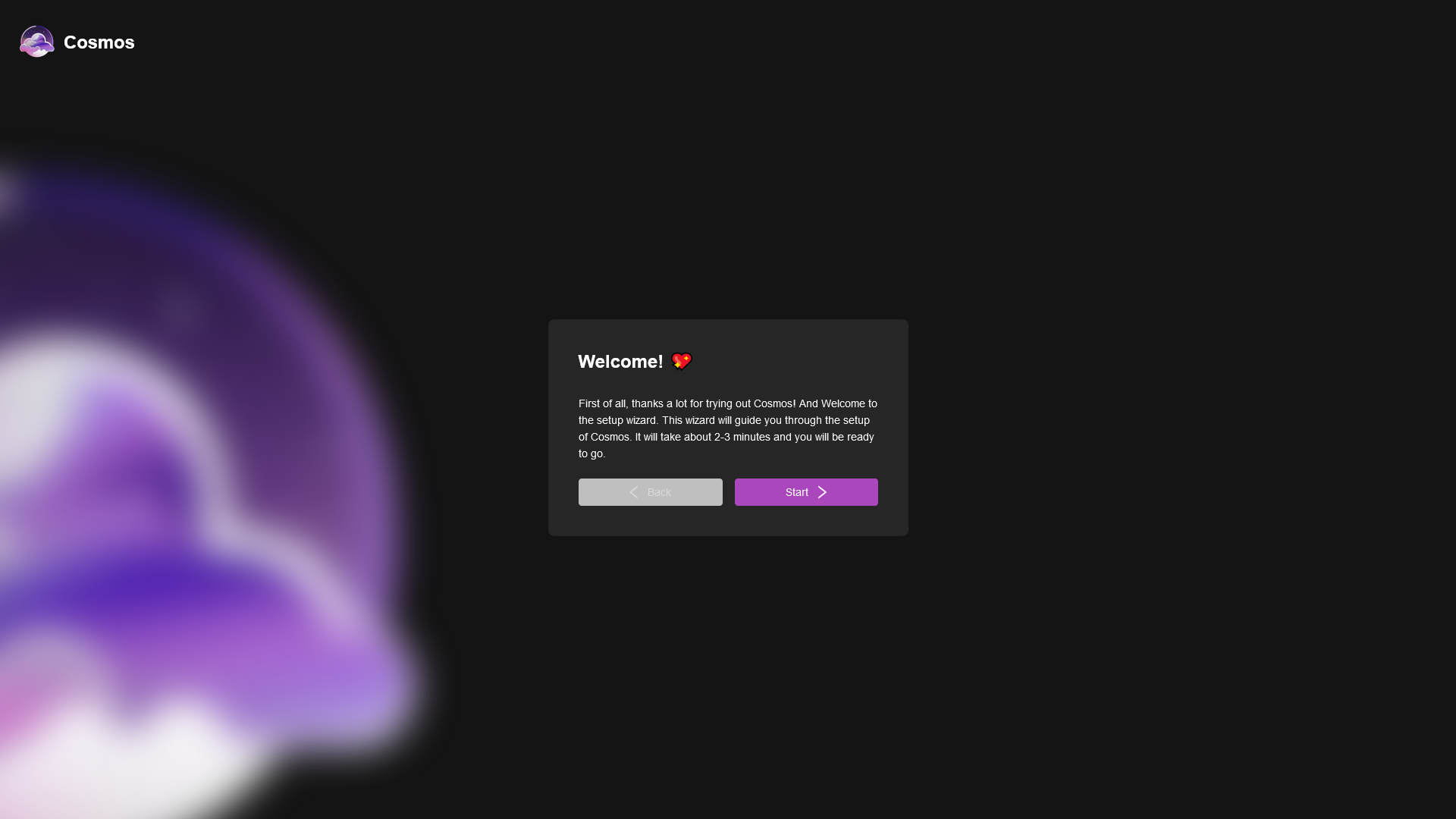
To follow make sure you are on the main screen, and see this:
## Optional: Local Domains
Starting from version 0.16.0, Cosmos supports Local Domains. It is a service that allows you to discover services on your local network. For example, your Cosmos instance could be accessible at `cosmos.local` on your local network, and all your apps will be available under individual domains like `app1.local`, `app2.local`, etc. Those domains are free and private, and Cosmos manages them for you. You will also be able to access the setup via `http://setup-cosmos.local` instead.
Keep in mind that this is a **local network only** feature, and it will not work over the internet (eg. from a VPS). Constellation will let you use that feature over the internet. The fact that it is local only also mean that **any VPN that overlay your local network will break this feature** (except Constellation). There are also various limitations with local domains that are independant of Cosmos (such as availability on certain platform and performance) so it is not a full replacement for an actual domain.
If you haven't used the automatic install, you can install Avahi on Ubuntu/Debian:
```bash
sudo apt-get install avahi-daemon avahi-utils
```
and then enable and start the service:
```bash
sudo systemctl start avahi-daemon
sudo systemctl enable avahi-daemon
```
you can check the satuts with
```bash
sudo systemctl status avahi-daemon
```
Also, if you are using Windows you need to install the Bonjour service to enable compatibility: [Download Bonjour](https://support.apple.com/kb/DL999?locale=en_US)
**Finally, if you installed Cosmos prior to 0.16, and are running cosmos as a docker container, you need to mount an additional volume for this to work! Check the new "docker run" command. (Yes you can safely delete the old container and image to re-run it, Cosmos will keep your data).**
## Step 1: Docker
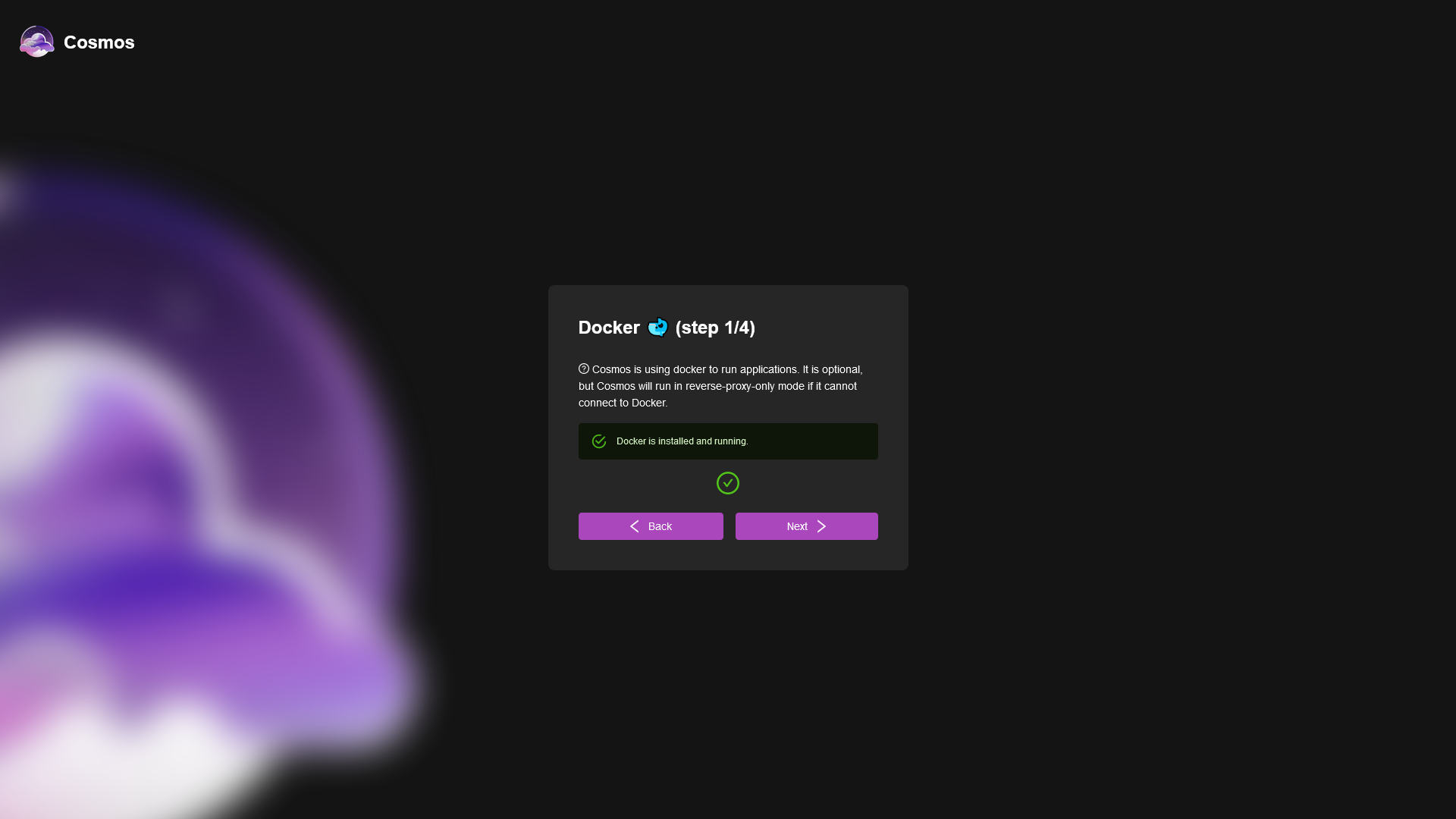
First, we need to make sure Docker is installed and running, and that Cosmos has access to the Docker socket. In the original command, we added `-v /var/run/docker.sock:/var/run/docker.sock`. This is what allows Cosmos to manage your containers. If you did that properly, you should see this. If not, go back and make sure you did it right. If you are using a remote daemon, you will need to use the environment variable `DOCKER_HOST` to point to the remote daemon. Make sure the remote deamon accepts connections from the Cosmos server.
If you do not intend to use Cosmos to manage your containers, you can skip this step. But you should know that if you do this **Cosmos will not be able to communicate with your containers securely**. This is not recommended as you will need to use proxy routes rather that direct containers connections when setting up the reverse proxy.
## Step 2: Database
Next, we need a MongoDB database for our Cosmos data. Cosmos can create a secure MongoDB instance for you (if you properly did the last step of course). Simply click on "create secure database" and it should take around 20-30 seconds. If it ever fails, feel free to restart the setup process, it is completely safe to do so.
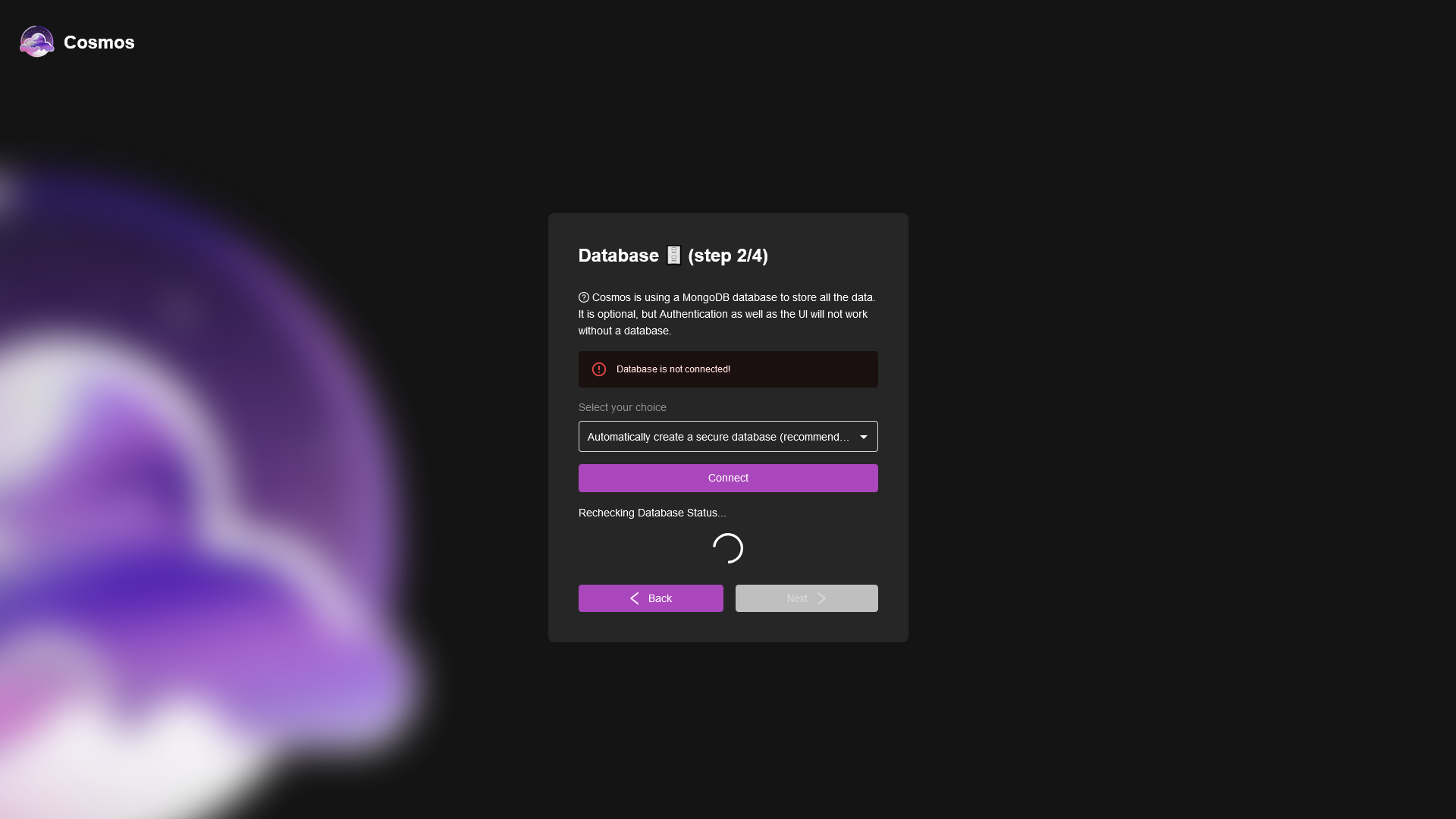
If you want to use a remote database, you will need to provide the connection string. This is the string MongoDB provides you when using their assistant. It looks like this:
```
mongodb+srv://:@
```
Finally, you might decide not to use a database at all. This is not recommended, but if you do so, you will not be able to use any authentication at all, and the UI will be disabled.
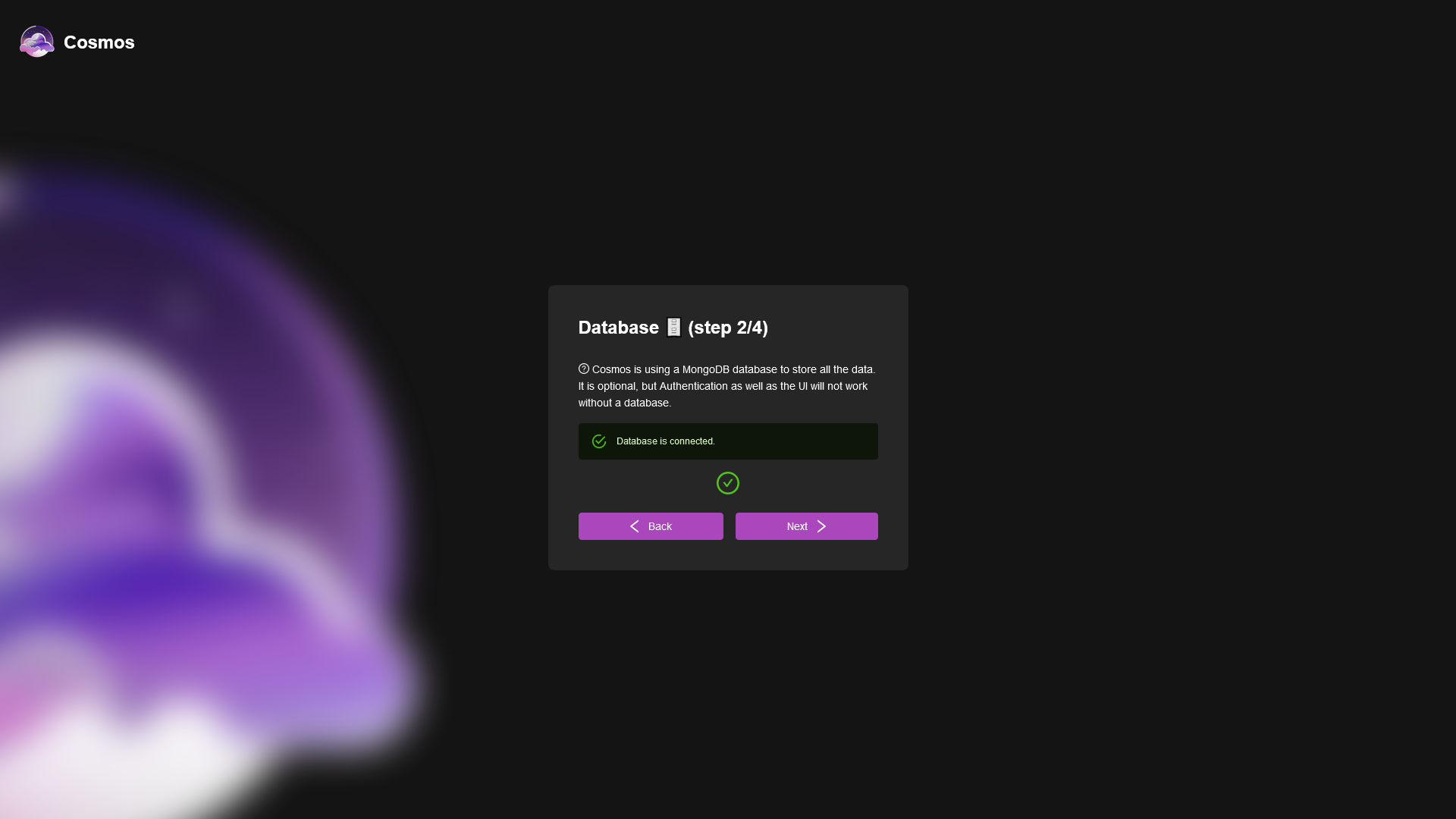
Once you have your database setup, you should see this, and you can move on to the next step:
## Step 3: HTTPS
In this step we can setup the HTTPS certificate Cosmos will use. There are multiple options for encryption:
* Use Let's Encrypt: This is the recommended method, it will automagically get certificates for you, and renew them automatically. It is the easiest method, and the most secure. There are two caveats, see below.
* Supply My Own: If you already have a certificate, you can simply copy paste them in the Text Box that appear when you choose this method.
* Generate a self-signed certificate: Although it's not as secure, This is very useful to use this option. When you do so, Cosmos will generate all your certificates itself, and renew them as well. It is usefull as you can generate certificates for private networks, IPs, or even localhost.
* Use HTTP: This is not recommended, as it will not encrypt your traffic. It is only useful for testing purposes.
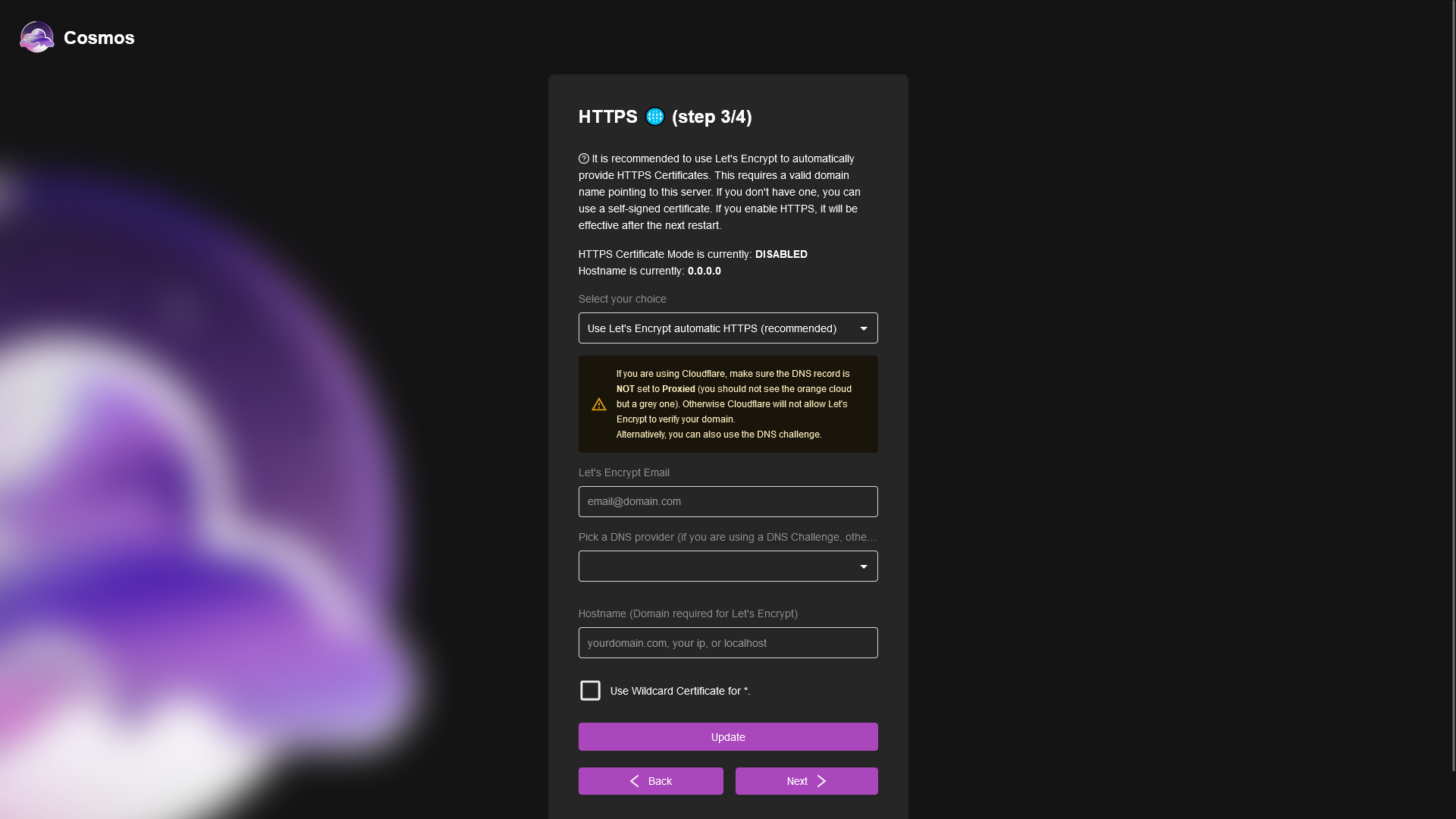
If you choose to do Let's Encrypt it is very important to note that:
* It will not work behind the Cloudflare proxy, please disable it (the orange cloud) before continuing. If you want to use the cloudflare proxy, you will need to use the DNS challenge, see below.
* Cosmos supports the DNS challenge. In order to activate it, you need to select your DNS provider and provide the proper api keys and tokens. You can find the list of supported providers here: https://go-acme.github.io/lego/dns/ as well as some docs about them. Note that you do not need to setup environment variables like with vanilla LEGO, you can simply provide the keys and tokens in the setup screen:
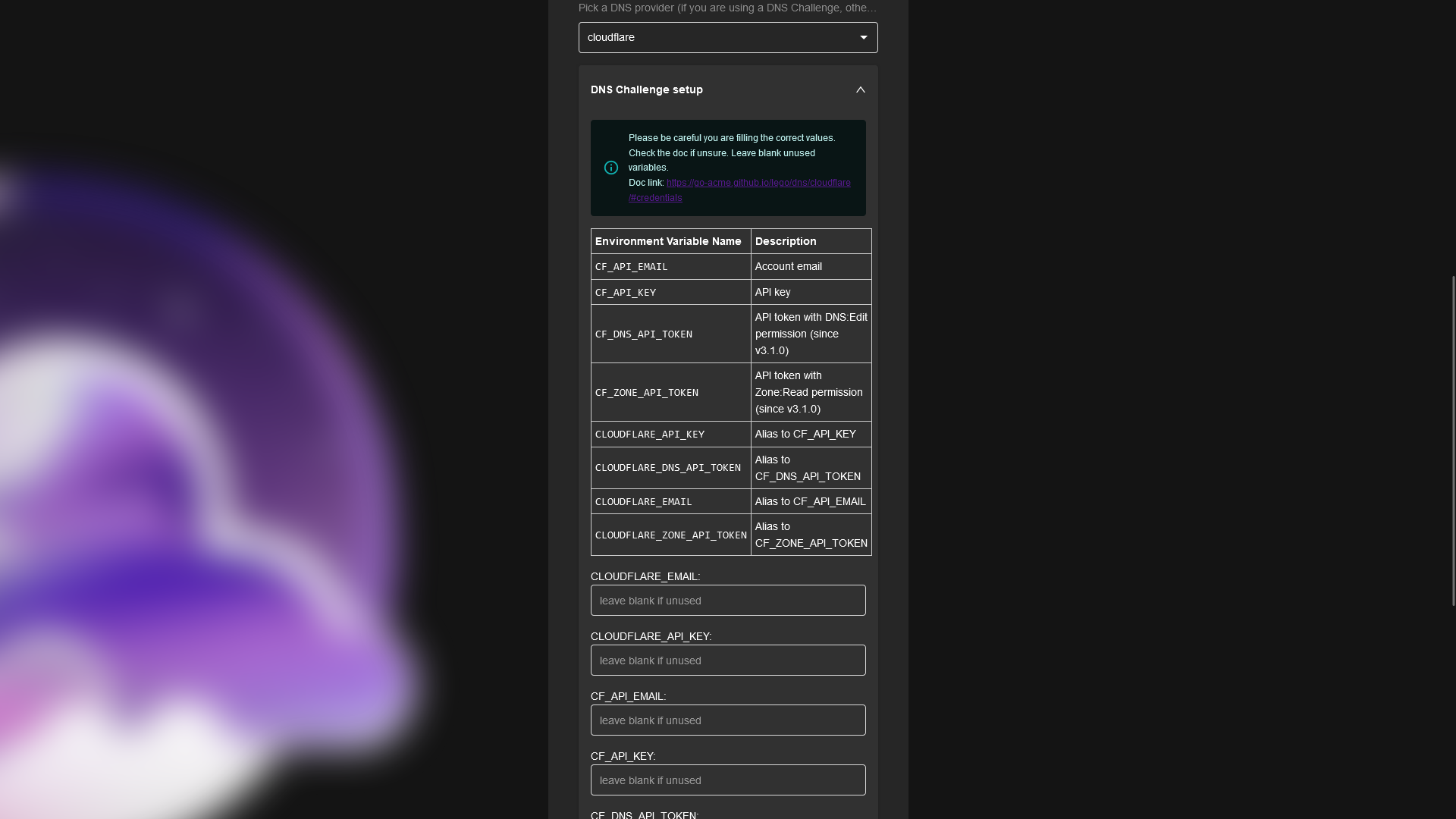
Small warning about cloudflare DNS, there are a lot of different values but you do not need all of them. You also need to be careful to use an API key in the KEY field OR a token in the TOKEN field. If you exchange them, you will see and error. Refer to the docs for more info.
If you pick a DNS provider, Cosmos creates the matching entry on the **Domains** tab of the configuration page, with DynDNS on: it will keep the DNS records of your URLs pointed at your server. You can review or change all of this later, see [Domains and HTTPS](/docs/domains).
Once you have set up HTTPS (please note that it is only effective after you restart Cosmos), you can continue to the final step!
## Step 4: Admin Account
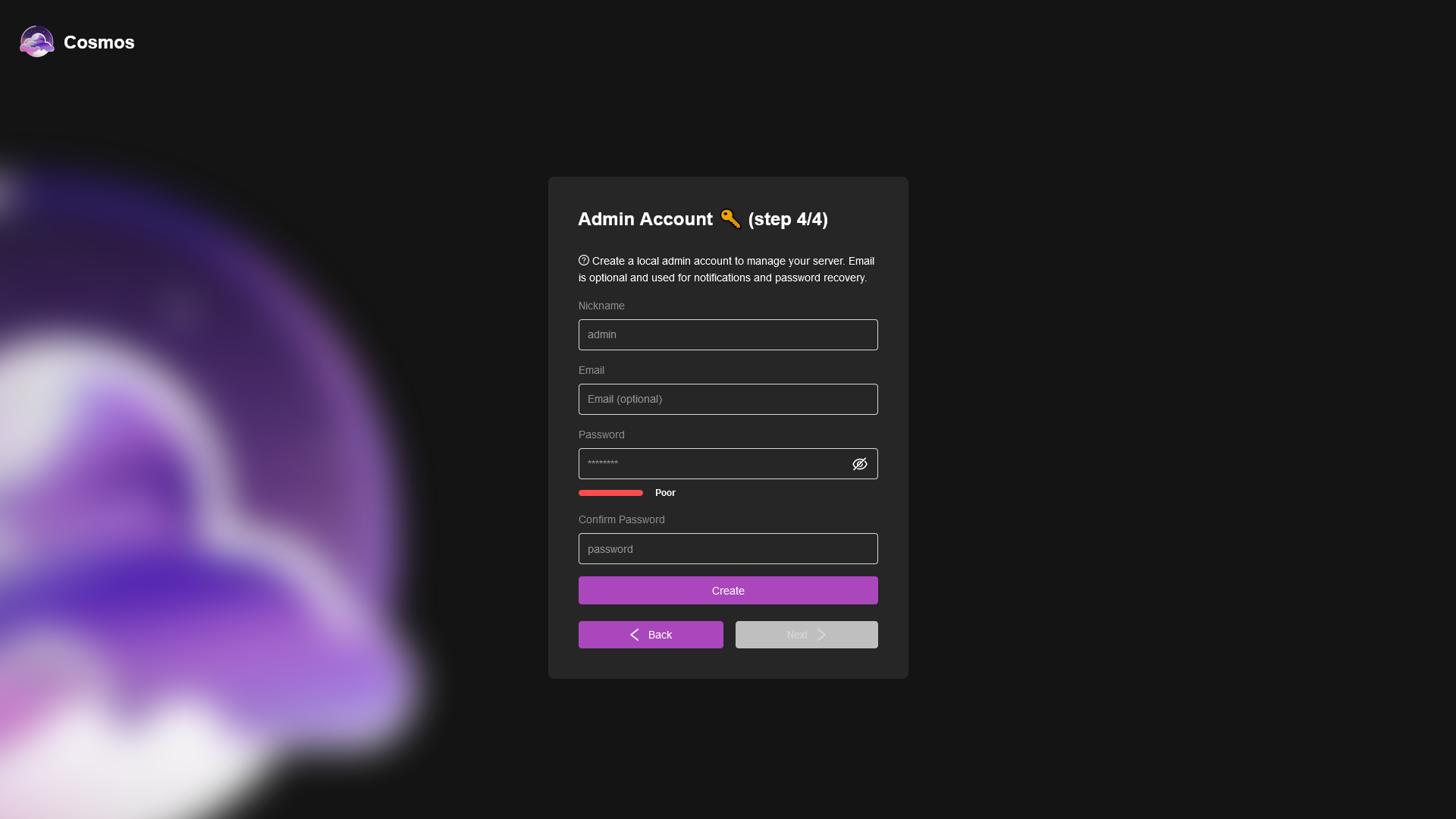
Finally, we need to setup the admin account. This account will have access to all the features of Cosmos, and will be able to create other users. It is very important to keep this account secure, and to not share it with anyone.
You have the choice to set an optional email, this is very useful as it will allow you to reset your password if you ever forget it. If you do not set an email, you will not be able to reset your password (see doc).
You cannot setup MFA at this point, but you can do it later in the settings (see doc).
## Congratulations!
You have successfully setup Cosmos! You can now login with your admin account, and start using Cosmos!
In the rest of the doc we will go through the different features, as well as how to setup emails, MFA, and other features.
If this didn't go well, checkout the troubleshooting section. If you still have issues, feel free to open an issue on GitHub, or join the Discord server!
---
# Cosmos Market
The cosmos market is a place for you to find pre-configured cosmos-compose files that you can install on your servers. Most applications can be installed as-is directly from the market. The installation will cater for setting up container (or containers, if it needs a DB for example), networks, volumes, links, and even reverse-proxy routes.
## How to use the market
First select the market tab on the left.
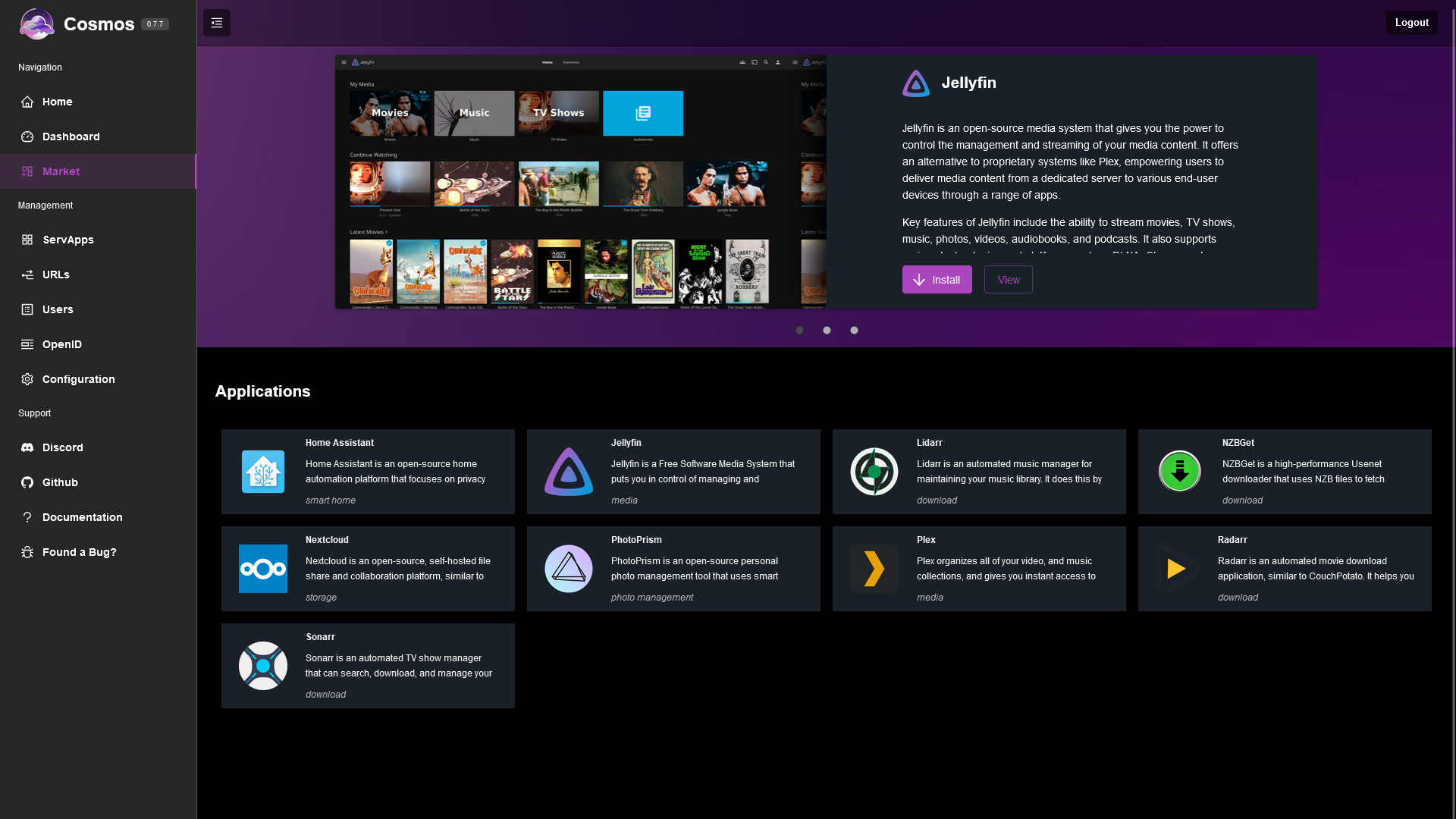
Here you can see the highlighted applications on the top, and the available applications on the bottom. By clicking one application you will be directed toward the application page.

Here on the right you will see details about the application:
* The name
* The tags
* the supported CPUs and architectures
* the repository link, docker hub link, and compose file link
* The description
* The install button
## Review the application
You can easily review what sources Cosmos is using to install the applications
* The repository link will take you to the repository where the application is hosted. You can review the code, the compose file, and the dockerfile.
* The docker hub link will take you to the docker hub page of the application. You can review the dockerfile, the tags, and the docker hub description.
* The compose file link will take you to the compose file that Cosmos will use to install the application. You can review the compose file and make sure it is safe to use.
More details about cosmos-compose files can be found [here](/doc/7 Cosmos-compose/).
## Install the application
Once you are satisfied with the application, you can click the install button. This will take you to the installation page.
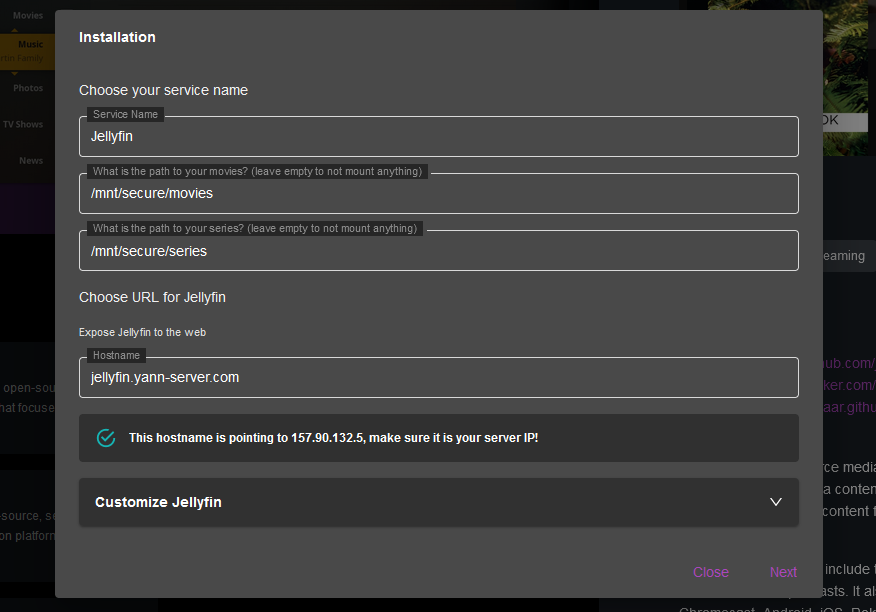
This form will allow you to configure the application before installing it. You can change the name, the network, the volumes, the ports, and the environment variables.
The top part of the installation is the installation form, those are parameters that the cosmos-compose file is asking for. Usually the most important part are going to be the file paths, as those will usually create binds to those paths for your containers.
After the form, each container as an advanced customization panel that you can expand to review the details of your installation. You can review and customize the volumes, the labels and the environment variables. Note that any change made in this panel will be overwritten if you change the form above again.
Before clicking install, make sure you are happy with the configured hostname, and that this hostname exist in your DNS entries!
## Post-installation
After the install is done, your application will be ready to use. Note that some application can provide a few extra step or informations after the install, please make sure you read and follow them carefully!
For example a container might ask you to setup something in them, or they might give you the admin password of your application. If you didn't see those, they usually appear in the env var of your container (see the servapp page), so no worry!
Finally Cosmos will ask you to restart if it added any new routes to your reverse-proxy. You can do that by clicking the restart button on the top right of the popup.
---
# ServApps
This is the name Cosmos gives to your selfhosted servers application, aka. your docker containers.
If you go to the Servapps management screen, you can see all your servapps, with some interesting infos:
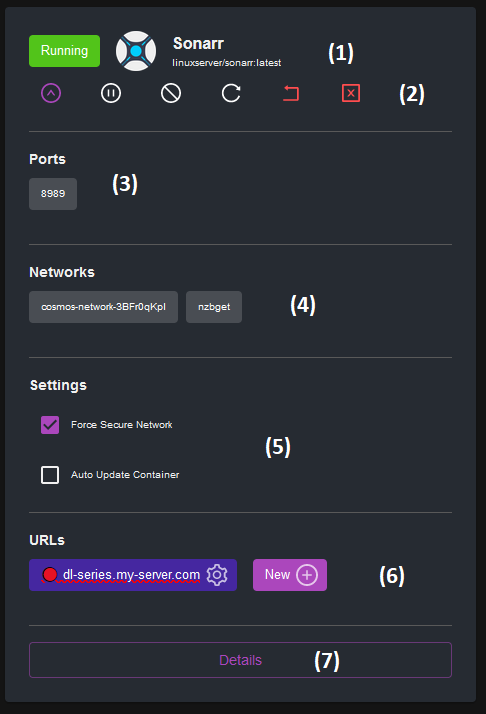
* (1) The name, and docker image of the running container, as well as its status
* (2) Actions on status (see below)
* (3) Those are the URLs exposed from the reverse proxy. You can directly edit them by clicking the gear icon, or create a new one (see below). The ports exposed by the container publicly will appear here in orange. It means that the port is accessible from the internet which is not secure. You should never have any HTTP port opened, and let Cosmos expose your applications for you. You can use the New button to create URLs
* (4) Auto update the container when a new version is available
* (5) CPU and RAM usage
* (6) Edit details of the container (see below)
## Containers Actions
The different actions possible are:
* **Start**: Start the container
* **Stop**: Stop the container
* **Restart**: Restart the container
* **Pause**: Pause the container
* **Unpause**: Unpause the container
* **Recreate**: Recreate the container from scratch. If you have any temporary data in the container, it will be lost.
* **Kill**: Kill the container. This is the same as stopping it, but it is immediate and does not wait for the container to stop gracefully.
* **Update**: Update the container to the latest version of the image. This will recreate the container after pulling the image.
## Container updates
Cosmos has a built-in update checker. Every 6h it will check if there is a new version of the image of your container. If there is, it will either update it (when the container is in auto-update mode) or just keep track of it. In order for updates to be available your container needs to use an "updatable" Docker tag, such as image:latest. If you use a specific version, Cosmos will not be able to check for updates.
## Creating a new URL
To create a new URL to access your containers, simply click on the "New" button in the URL part of a container, and you will see this:
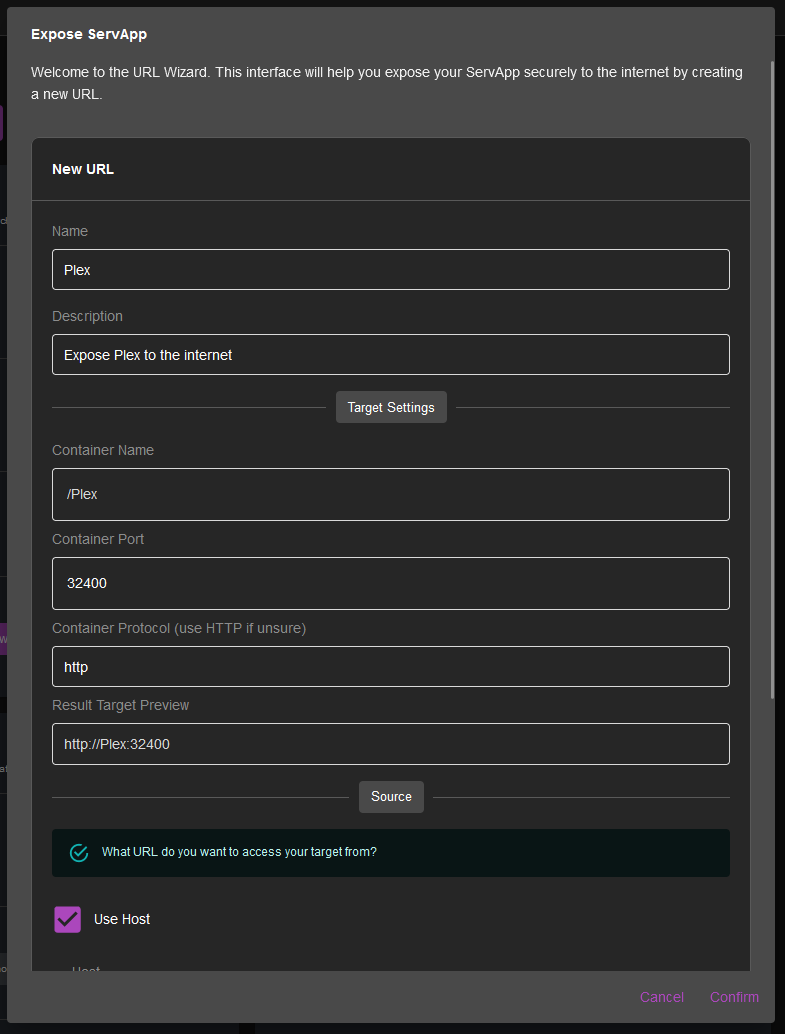
More details on URL creations in the next section.
## Servapp Status
Servapps can have different status based on Docker status:
* **Running**: The container is running
* **Stopped**: The container is stopped
* **Restarting**: The container is restarting
* **Paused**: The container is paused
* **Exited**: The container has exited
You can act on thos using the buttons below the name of the servapp (section 2). This includes pausing, restarting and stopping the container.
You can also **Recreate** the container: This means that the container is first going to be completely stopped, and then restarted. This is useful if you want to apply changes to the container, or if you want to force a restart.
The **Kill** button will completely shutdown the container immediatly, without waiting for it to stop gracefully. This is useful if the container is blocked.
## Servapp Details
### Overview
This screen mostly repeats the same informations and has the same functionalities as the servapp list.
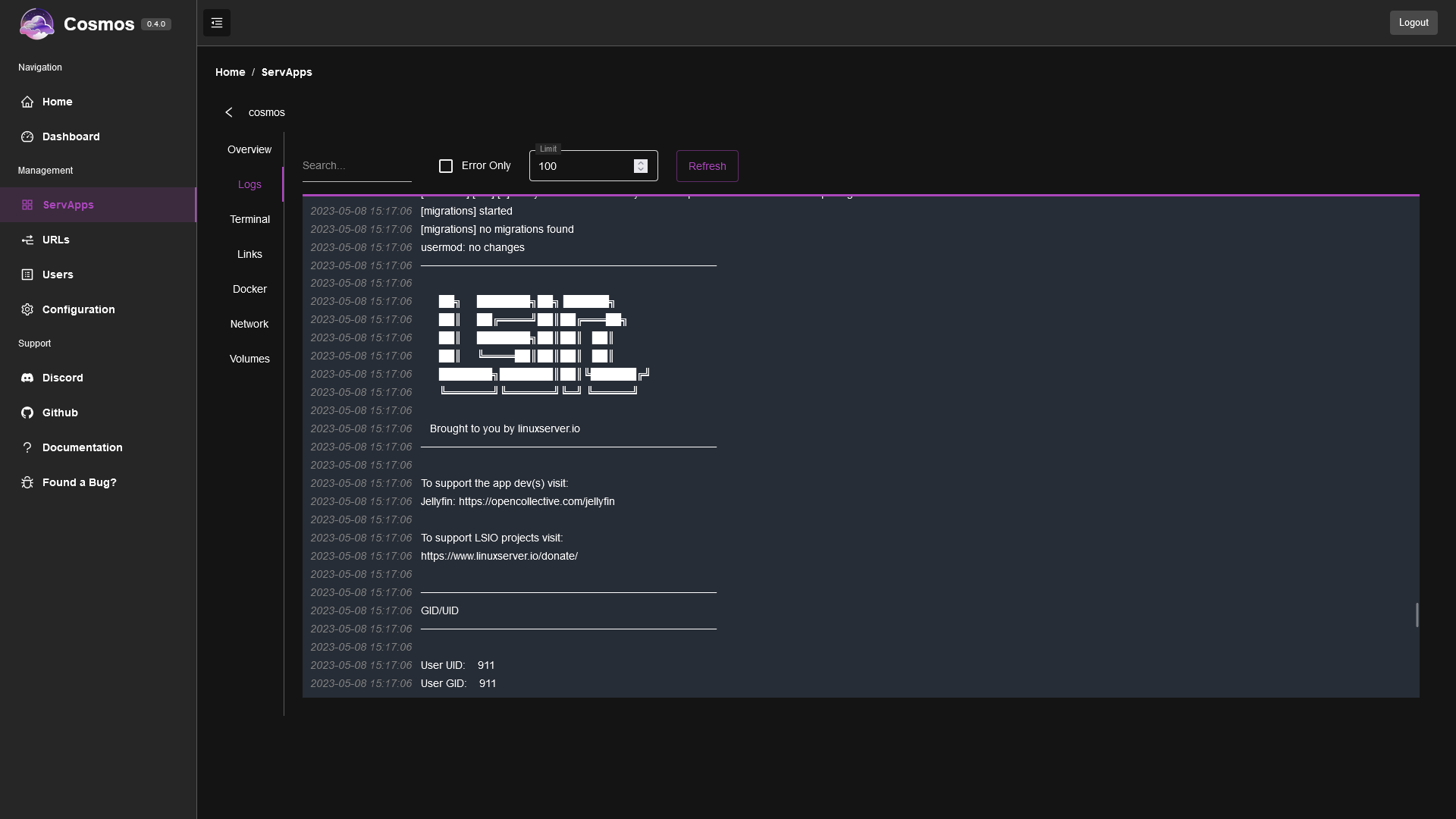
### Logs
This screen shows the logs of the container. You can filter the logs with the search (1), and by level (2). Note that enabling "Error Only" Might not show anything if the container is not logging errors properly (it filters logs to STDERR). In this case, use the search with a keyword like "error" or "exception" depending on the app.
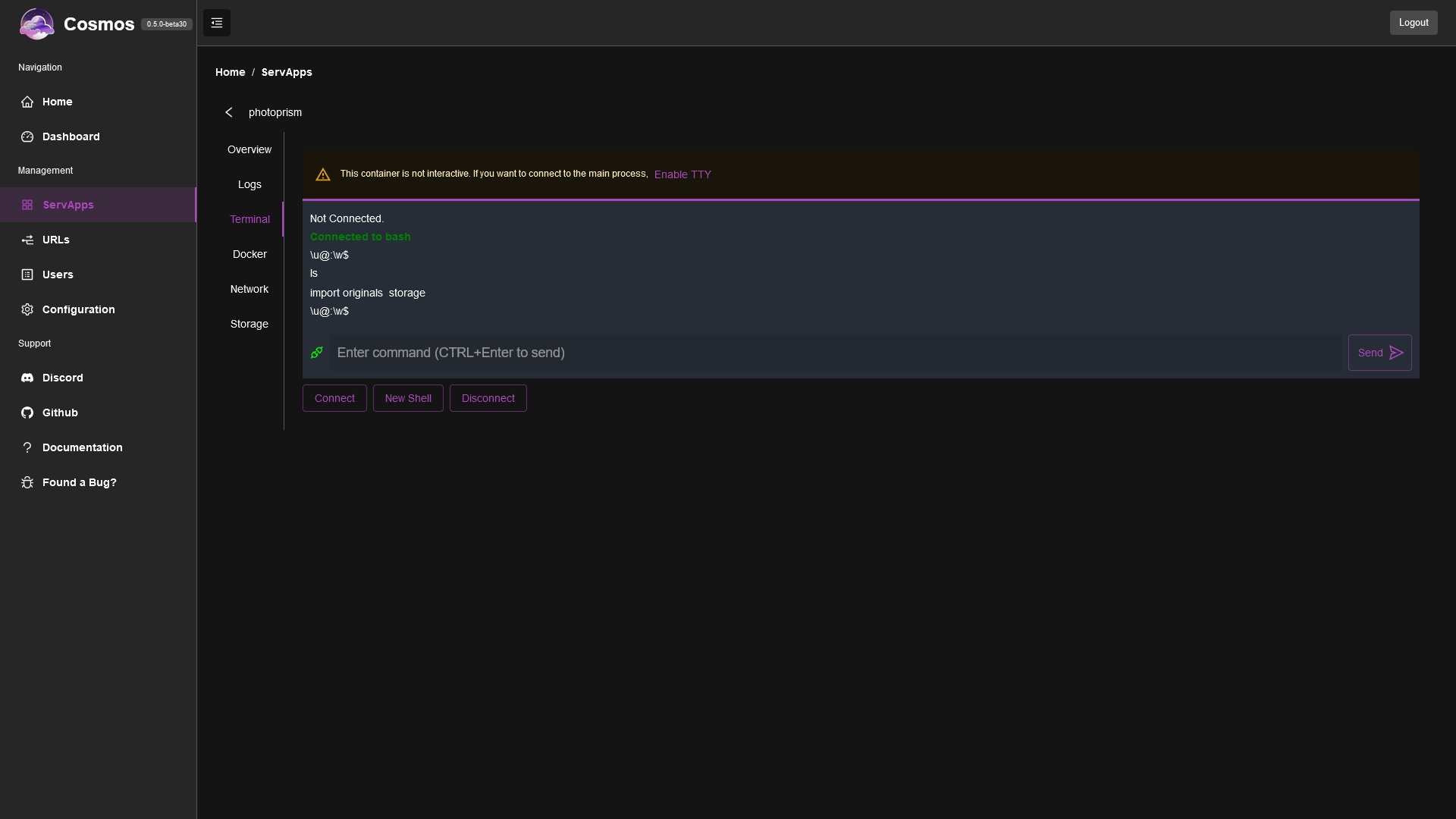
### Terminal
This allows you to attach a terminal to the container. You have two choices, either attach the main process TTY (**Connect** button), which means whatever your container is running will be attached via STDIN/STDOUT/STDERR to this cosmos terminal, OR you can create a new Bash instance within the container (**New Shell** button) which will allow you to execute commands such as ls or cat.
Note that in order to attach to the main process your container needs two things
* Be interactive, which you can easily enable from Cosmos itself
* Have a TTY, which means the process is expecting inbound command. For example the minecraft server has a TTY, you can input commands such as stop or restart, but the nginx web server does not. You can still attach to it, but you will not be able to type anything.
### Docker
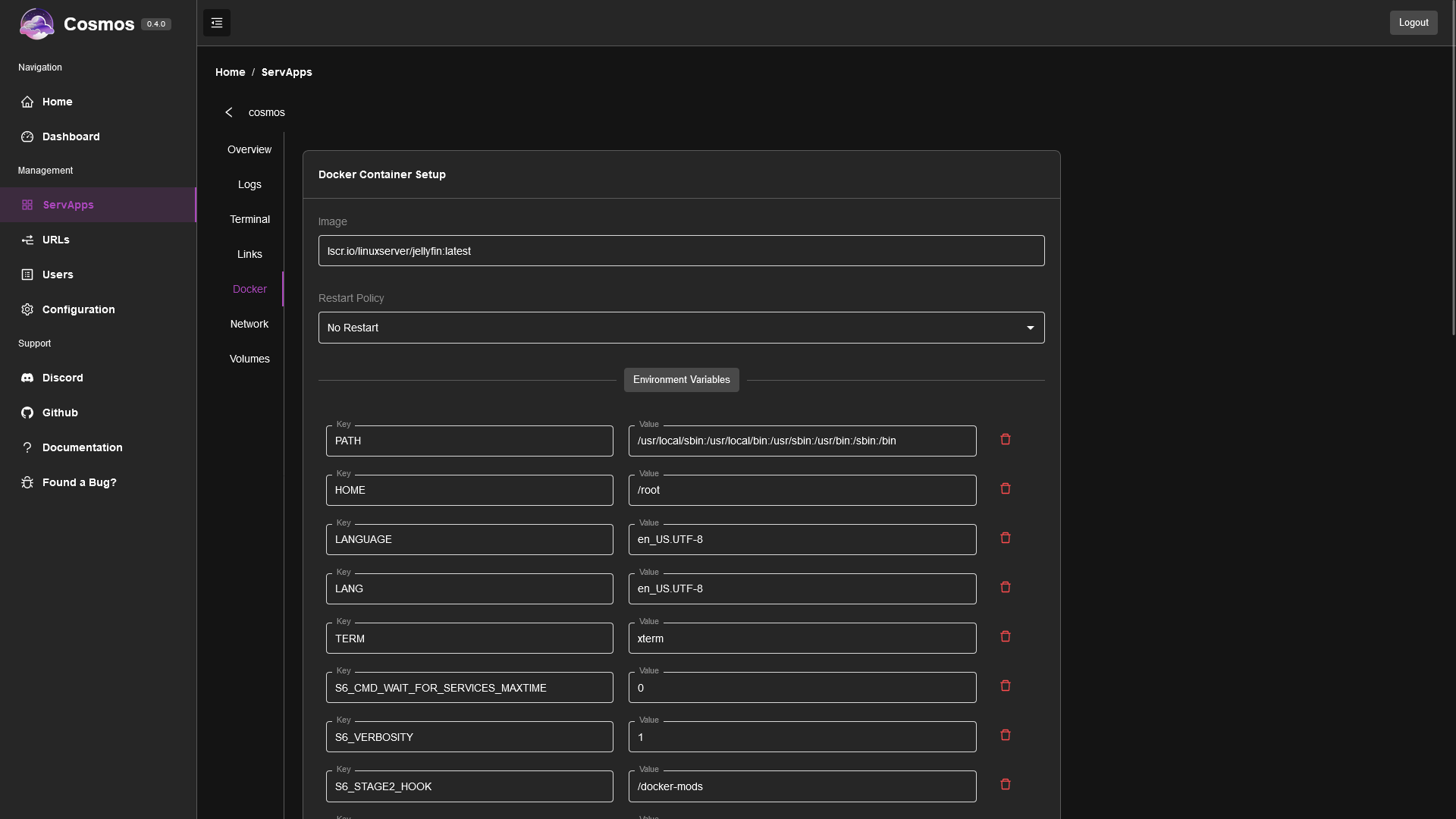
This allow you to edit the details of the container. You can change image used, the restart policy, the environment variables, and the labels.
* **Image**: The docker image used for the container. You can change it, but it will only be applied when you recreate the container.
* **Restart Policy**: The restart policy of the container. You can change it, but it will only be applied when you recreate the container. Possible values are "Always", "Unless Stopped", "On Failure", and "Never". It is recommended to use "Always" or "Unless Stopped" as it will restart the container if it crashes, or if the host is rebooted.
* **Environment Variables**: You can add, edit or remove environment variables here. They will be applied when you recreate the container.
* **Labels**: You can add, edit or remove labels here. They will be applied when you recreate the container.
### Networks
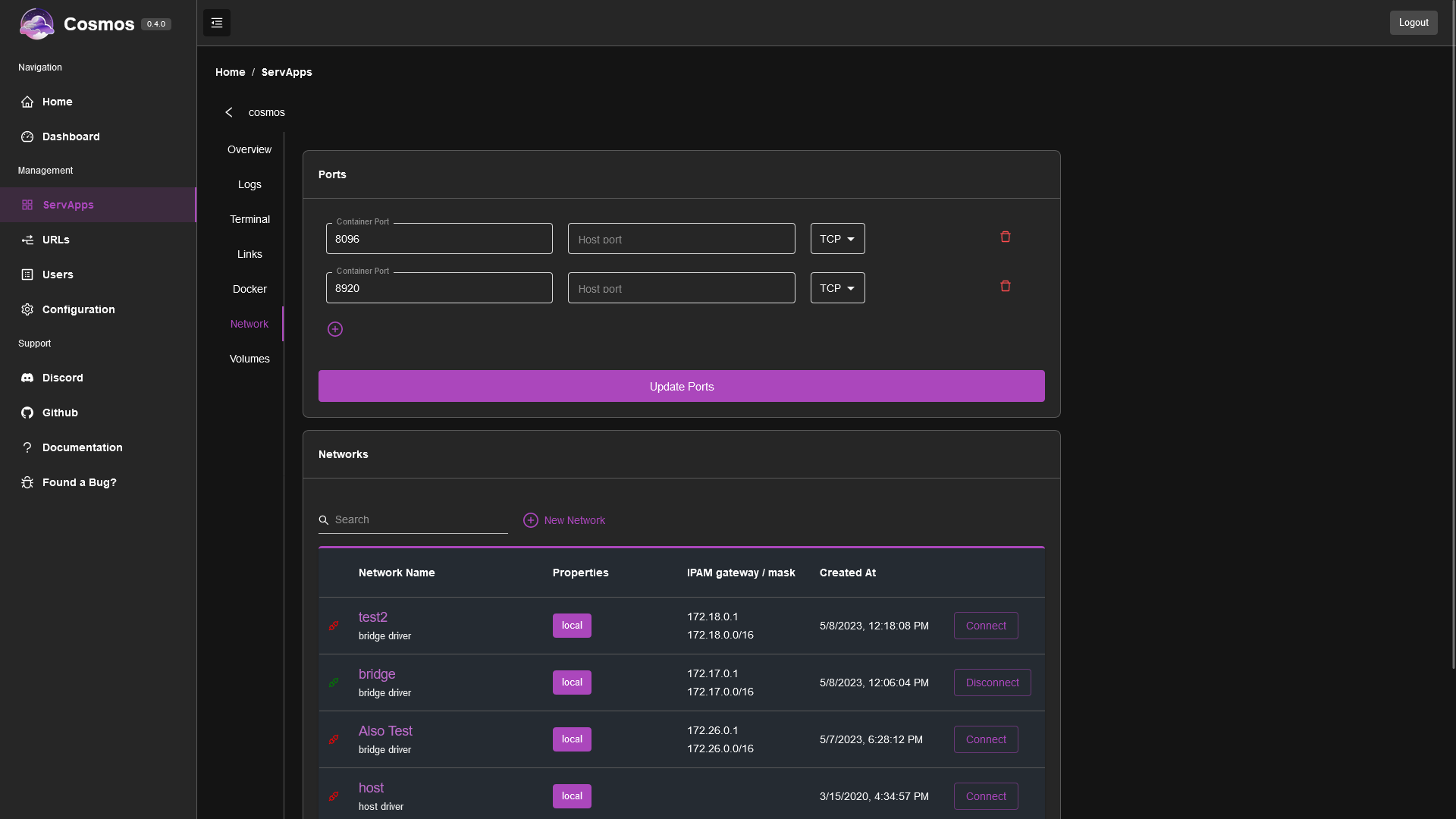
This allow you to edit the networks the container is connected to. You can add or remove networks, and change the alias of the container on the network. You can also use this screen to expose ports.
Please note that it is not recommended to expose any ports unless truly necessary. You should always use the reverse proxy to expose your applications. However, as Cosmos does not (yet) have a TCP reverse proxy, you can use this to expose TCP ports (ex. VNC, RDP, a minecraft server, etc.).
### Volumes
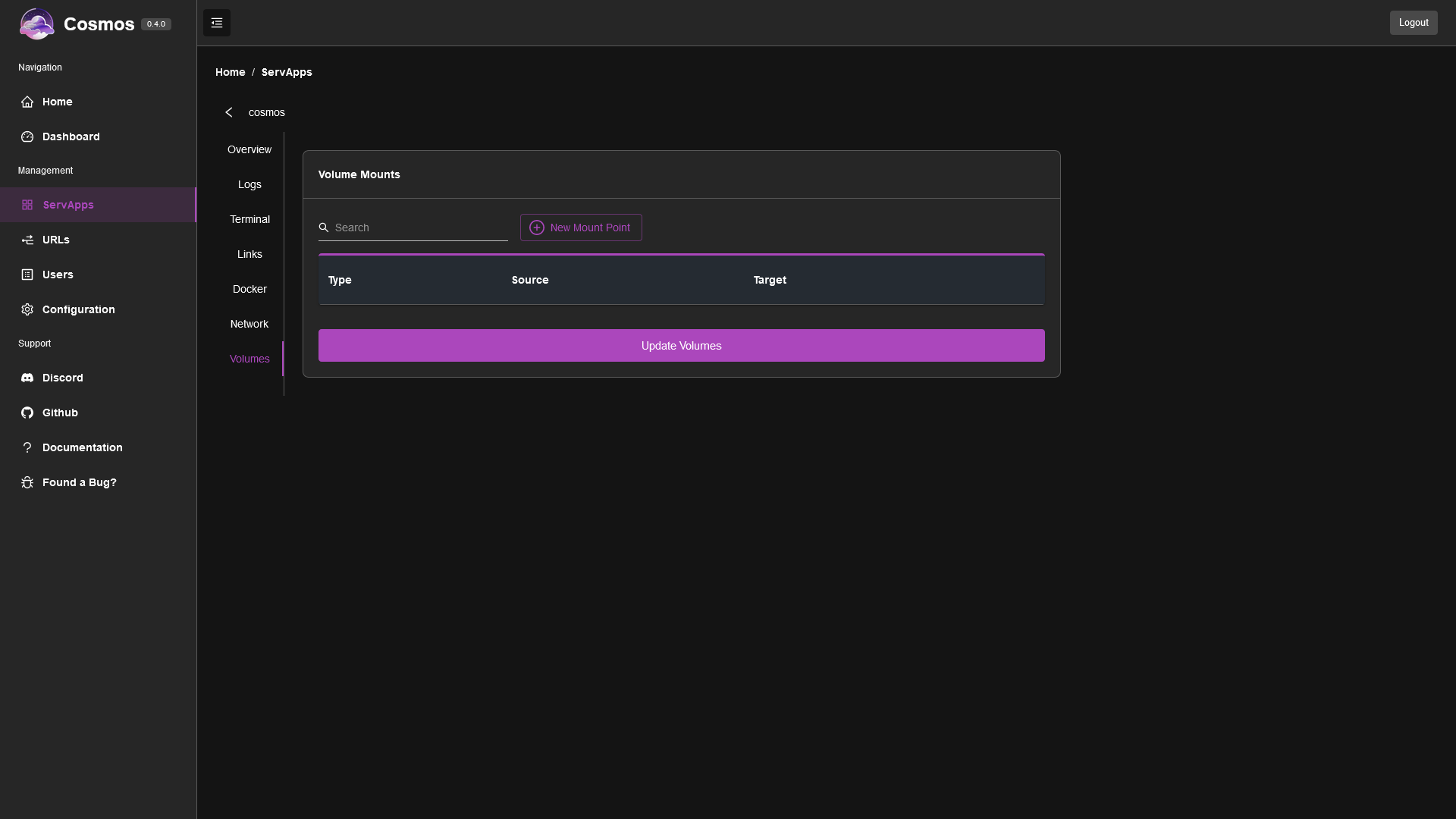
This allow you to edit the volumes the container is using. You can add or remove volumes, and change the mount point of the volume in the container. There are two types of volumes: **Bind** and **Volume**. Bind volumes are folders on the host that are mounted in the container. Volume volumes are volumes created by Docker. You can read more about volumes [here](https://docs.docker.com/storage/volumes/).
## Lazy start
On the Overview screen, **Lazy start (stop when idle)** lets Cosmos stop the container when nobody uses it, and start it again when someone opens its URL. A sleeping container appears as **Dormant** in the list. See [Lazy Containers](/docs/lazy-containers) for the details.
## Create Servapp
Cosmos allow you to create docker containers directly. In order to do so, you have to different ways.
### From the Create Servapps Form
This form is going to be very similar to the Edit Container form, except that you will have to provide the name of the container, and the image to use. You can also choose to expose ports, and connect the container to networks.
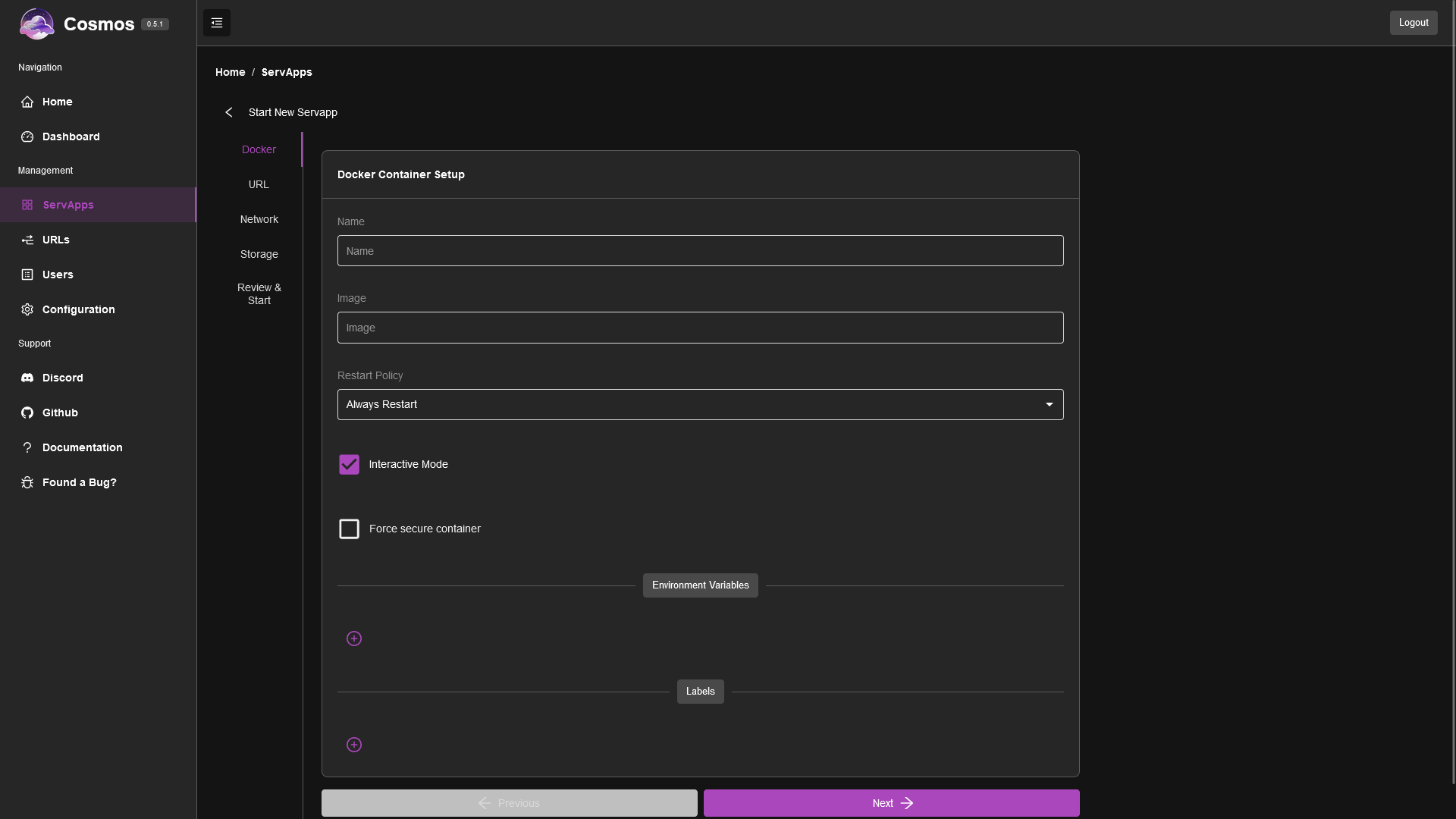
At the end of the form, you will see the cosmos-compose JSON that will be used to create the service (see later).
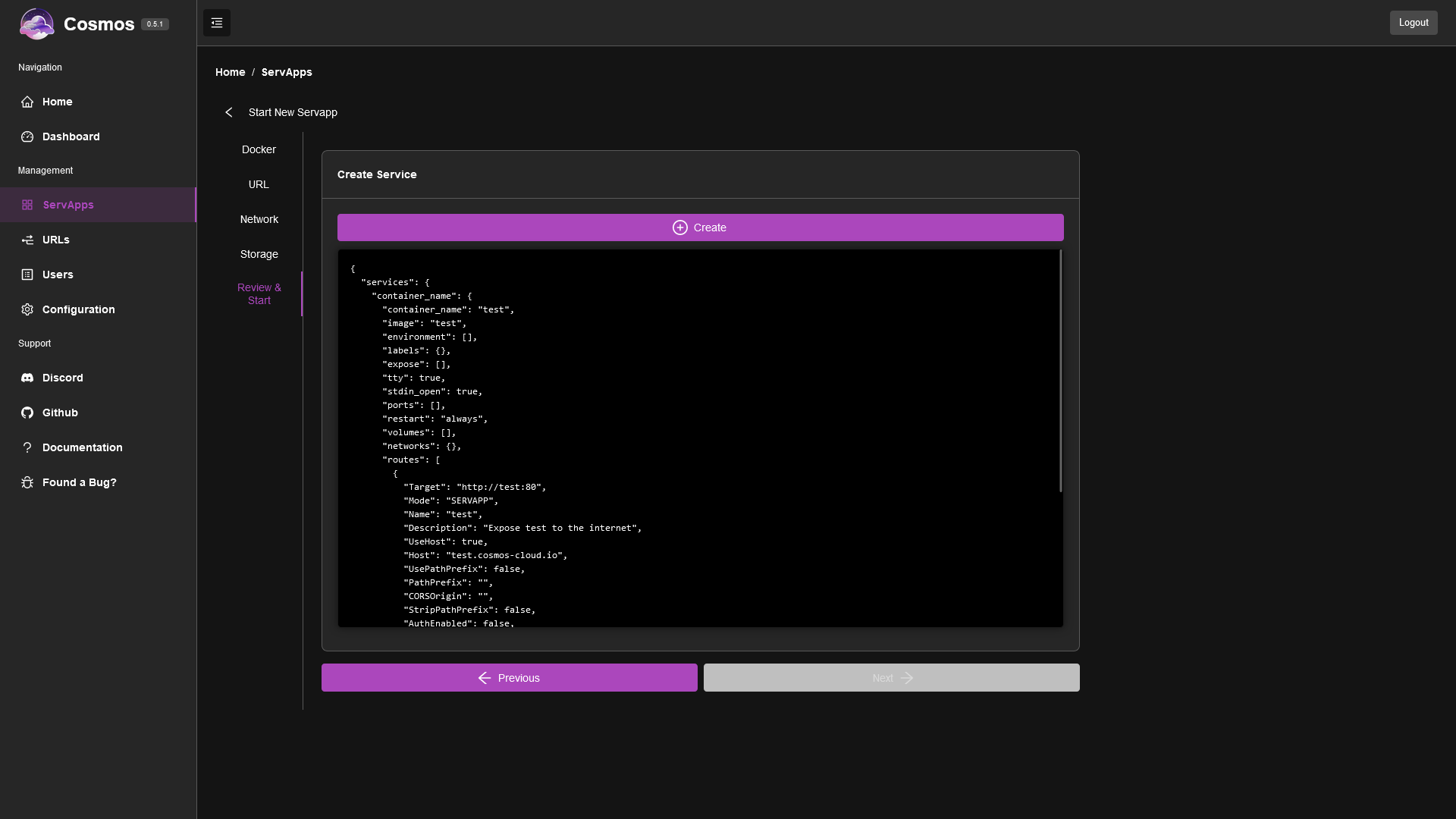
Once you have review it and you are happy, simply press "create" and Cosmos will report all the logs from the container creation and the interactions with Docker. **It is possible that the container creation failed here**. Comon reasons could be that you have made a mistake in your volume bindings, you have an issue with file permission, or that you tried to expose a port that is already used by another service. Simply review the logs and edit your form before trying again. Eventually, once you succeed, you will see the confirmation screen.
### Form a Docker-Compose or Cosmos-Compose yml file
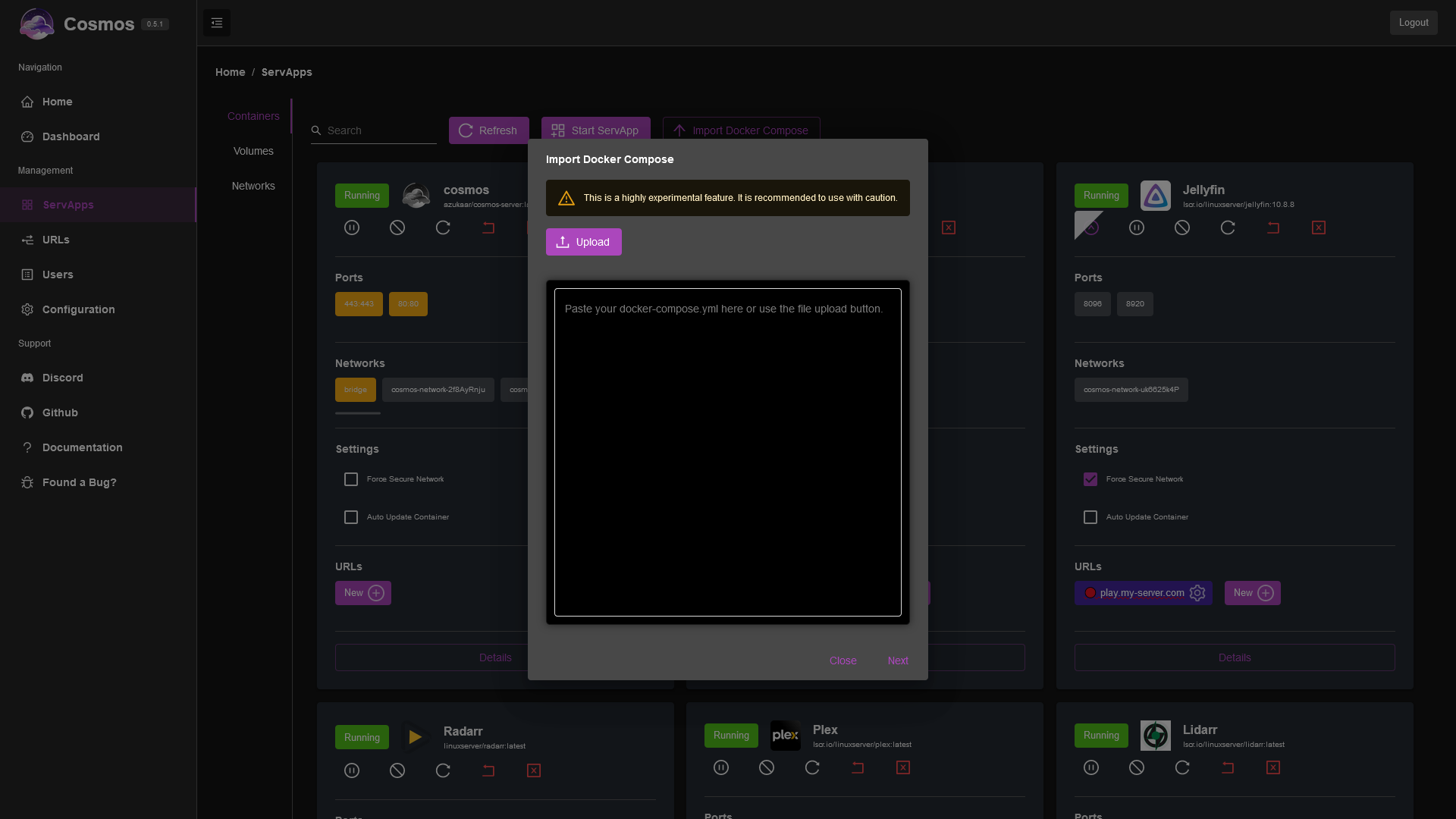
You can directly import a docker-compose file into Cosmos with the button "Import Docker Compose", and Cosmos will create the containers for you. You can also import a cosmos-compose file, which is a Cosmos specific extension of docker-compose. See the documentation on [docker-compose](https://docs.docker.com/compose/) and [cosmos-compose](https://cosmos-cloud.io/doc/7%20Cosmos-compose/) for more details. Note that a docker-compose feature that is not supported by cosmos-compose will be ignored in this importer.
---
# URLS
Cosmos embeds a reverse proxy, which allows you to expose your applications to the internet, without having to open ports on your router. It also allows you to use HTTPS, and to use a single domain name for all your applications. Finally it allows you to use subdomain (ex. plex.mydomain.com) instead of ports (ip:1234) to access your apps.
The advantages of Cosmos' reverse proxy are:
* It's easy to use and to setup via the UI
* It's secure
* Has SSO support
* Has automatic HTTPS support
## How does it work?
From the URLs page you can manage all your open routes:
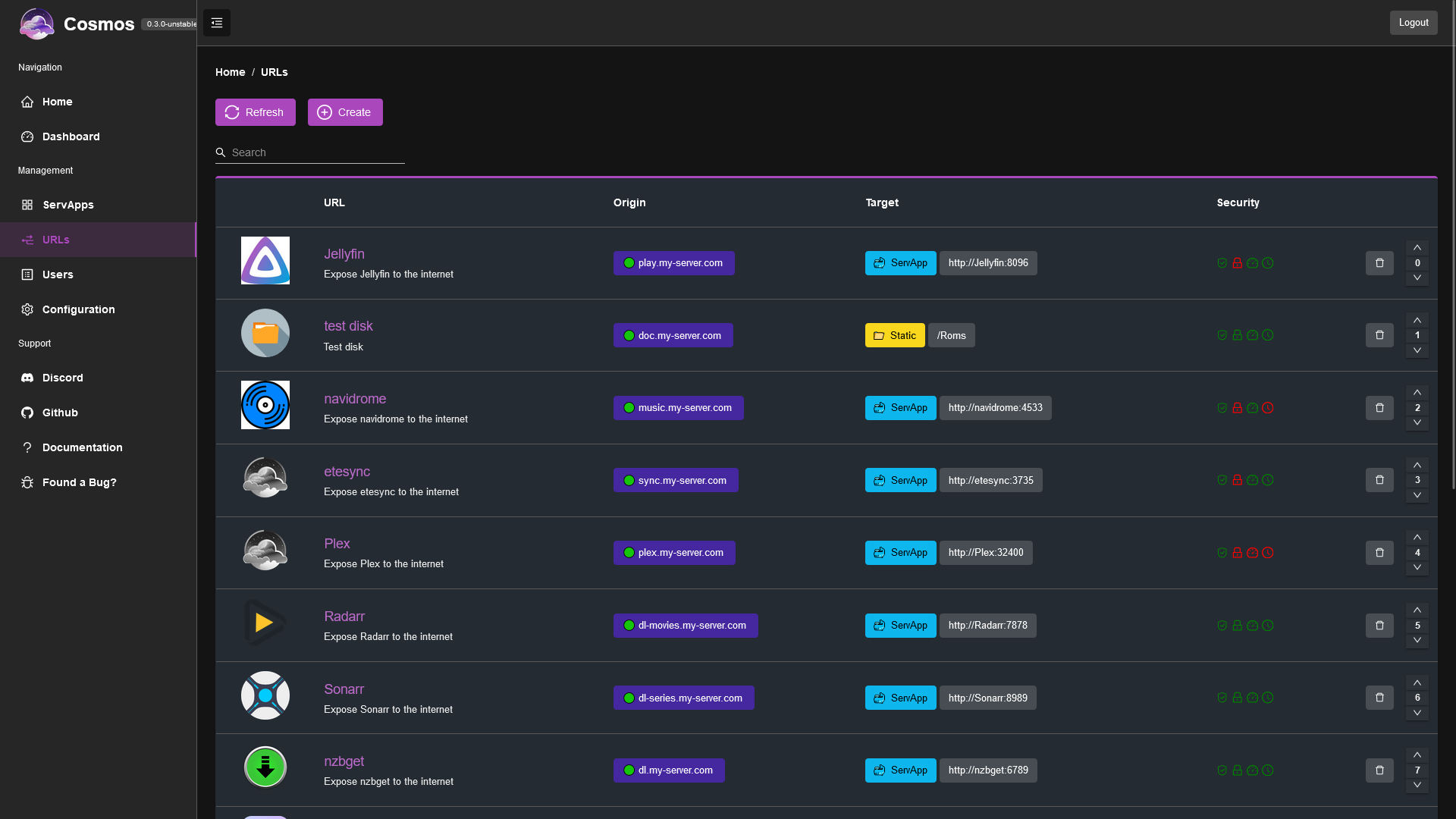
Each of those represent a URL you can use to access your resources. From this page you can delete them, or order them. Remember to press the "Save" button to apply your changes.
The order is important, as the first URL that matches the request will be used. If you have two URLs that match the same request, the last one will override the first one. This is useful to overwrite settings for sub-path of an application.
You can click on the row to edit the URL more in details.
There are also a few icons for security, they represents:
* The smart-shield: if it is green, it means that the URL is protected by the smart-shield. The smart-shield is a security feature that will block malicious actors. It is recommended to always enable it.
* Authentication: if it is green, it means that the URL is protected by authentication. Only logged in users will be able to access it.
* Rate-limit: if it is green, it means that the URL is protected by rate-limit. Only a limited number of requests will be allowed per minute.
* Timeout: if it is green, it means that the URL is protected by timeout. If the request takes too long to complete, it will be aborted.
## URL types
There are multiple types of URLs:
* SERVAPP: This is the most common type of URL. It is used to expose a servapp to the internet. You can create a SERVAPP URL from the servapp management page or from this page.
* PROXY: This is used to proxy a request to another URL. This is useful to expose a URL that is not managed by Cosmos. For example, if you have a NAS, you can create a PROXY URL to expose it to the internet.
* REDIRECT: This is used to redirect a request to another URL.
* STATIC: This is used to serve static files. This is can serve a static website, or you can also use this to expose Open Directory in a secure manner.
* SPA: This is used to serve a single page application. This is basically the same as a STATIC URL, but it will redirect all requests to the index.html file.
## Create a URL
To create a URL, click on the "Create" button on the URLs page. You will see this:
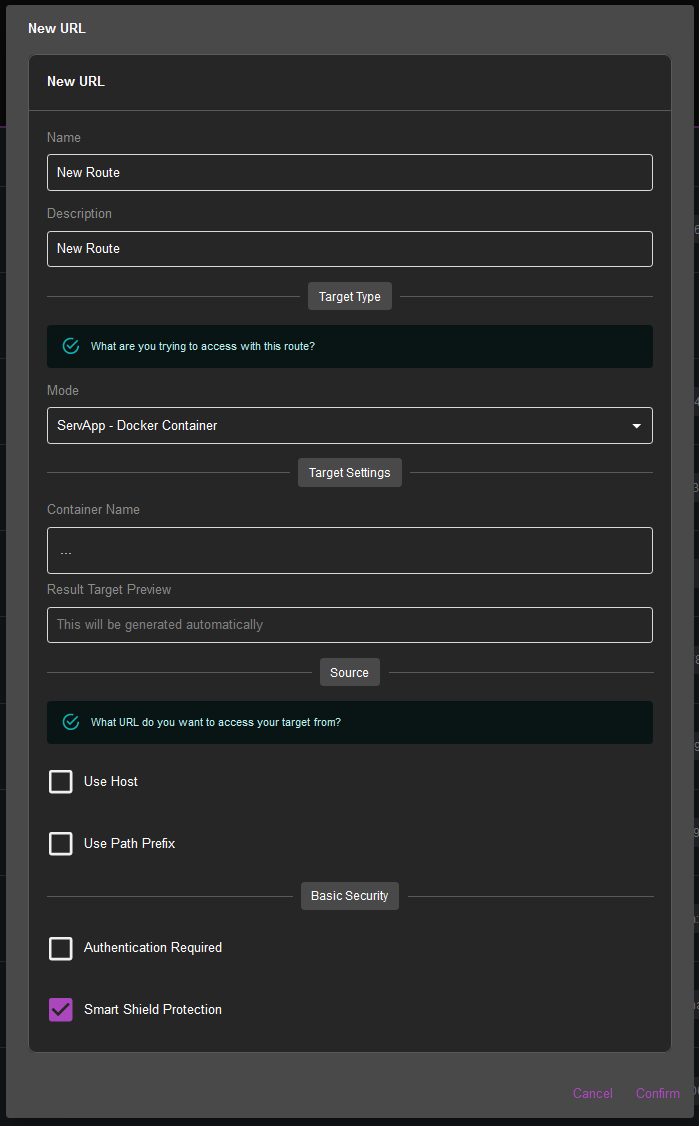
It is pretty self-explanatory, but here are some details:
* You can name and decribe the URL. The name needs to be unique.
* You can choose the type of URL you want to create. The type will determine the rest of the form. Note that if you choose SERVAPP, Cosmos will automatically list all your servapps, and you will be able to choose one. It will also automatically choose the best port to use, but feel free to change it if you need.
* You can then change the source. This is the URL you will be using to access this route. You can enable a hostname and a path prefix. The hostname is the domain name you will be using to access this route. The path prefix is the path that will be added to the URL. For example, if you choose the hostname "mydomain.com" and the path prefix "/myapp", the URL will be "mydomain.com/myapp". Note that the path prefix is optional, and you can leave it empty. It is recommended to not use a path prefix if you are using a SERVAPP or a PROXY as it can mess with the application. If you do anyway, it is recommended to check "strip prefix" so that the path prefix is removed before the request is forwarded. The domain of the hostname decides which certificate serves it and whether Cosmos writes its DNS record, see [Domains and HTTPS](/docs/domains).
* Finally you can enable authentication and the smart shield on this route. It is recommended to always enable the smart shield, and to enable authentication if you need to restrict access to this route.
* In general you want to proxy your requests to an HTTP route when using secured Docker containers. In case you have to use HTTPS as a target (especially for Proxying outside of Docker), by default Cosmos will reject connecting to an unsecure HTTPS target. Unfortunatly some docker containers (Yes, I am looking at you Unifi) will force you to use an **unsecure** HTTPS connection and do not even support HTTP. In this case you can enable "Allow insecure HTTPS target" to allow Cosmos to connect to an unsecure HTTPS target. Note that this is not recommended and should only be used as a last resort, as an unsecure HTTPS connection is as opened as using an HTTP connection.
* At the bottom, you see
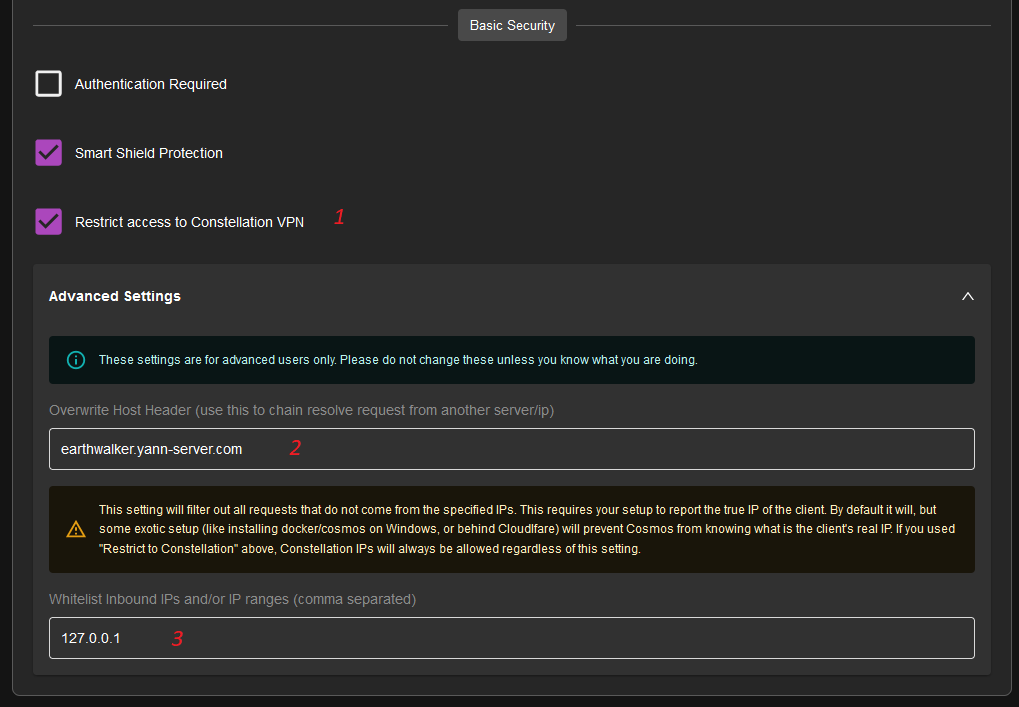
1. This will restrict the URL to your Constellation network, so no users will be able to access this URL unless they are connected to the VPN. This is useful to expose private URLs to your network.
2. This is the Overwrite Host Header setting, which is useful when chaining proxies. See the section below for more info. It is an advanced setting and should not be used unless you know what you are doing.
3. This is a whitelist of ip and ip ranges. If you set this, then only those IPs will be able to access this URL. Note that if you enable both this option and "restrict to constellation network", then the whitelisted IP will still be able to access the URL even if they are not connected to the VPN.
## Edit a URL
If you click on a row, you can edit the URL in more details. You will see the same form you just did, as well as a new tab with more security options:
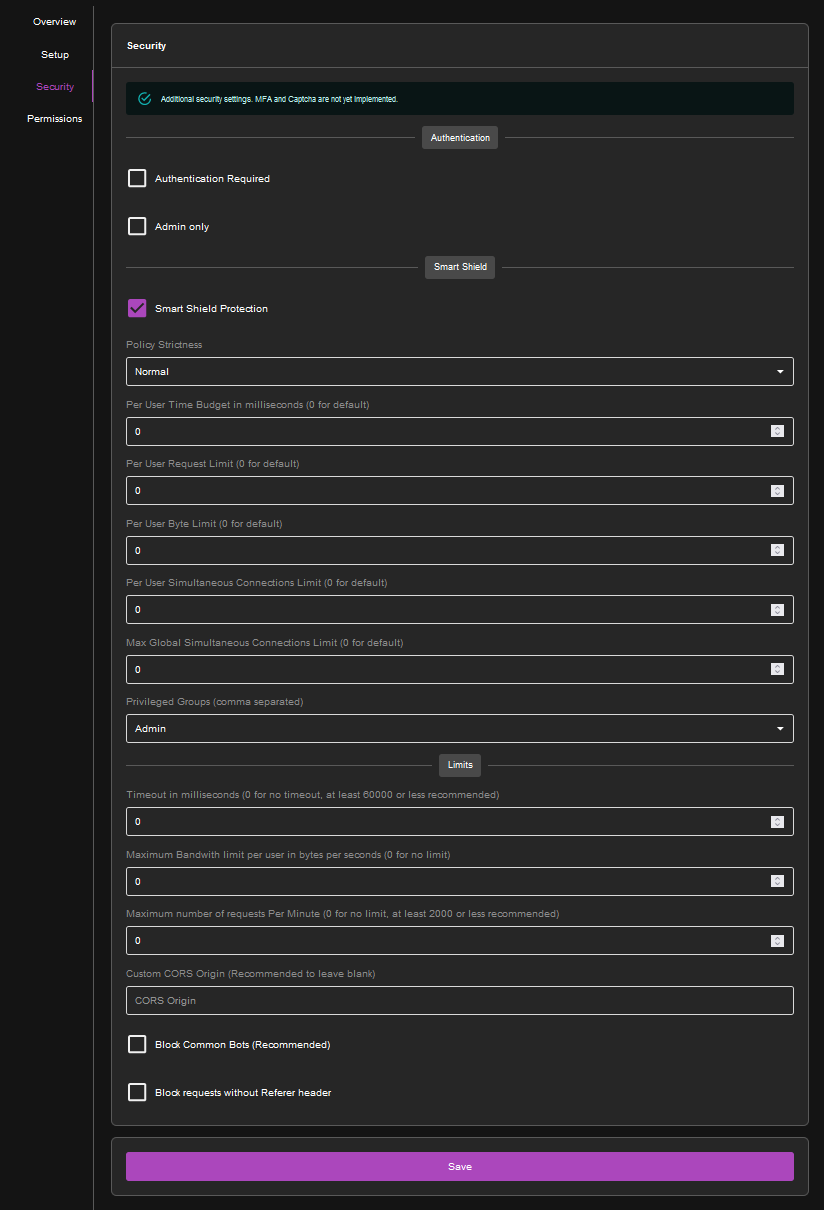
Here you can enable rate-limit and timeout. By default they will have high limit so that it doesn't affect your normal usage. You can also customize the smart shield with different values:
* Policy Strictness: This is the strictness of the smart shield. If you choose Normal or Lenient, it will throttle requests that are suspicious and only block them if the number becomes too high. If you choose Strict, it will block them. It is recommended to use Normal.
* Time budget: This is the amount of time a user is allowed to consume per hour, in milliseconds. By default it is unlimited.
* Request limit: This is the number of requests a user is allowed to do per hour. The default is 18000
* Byte Budget: This is the amount of data a user is allowed to consume per hour. The default is 200GB
* Per user Simultaneous requests: This is the number of requests a user is allowed to do at once. The default is 100
* Global Simultaneous requests: This is the number of requests all users are allowed to do at once. The default is 2000
Leave a value on 0 to use the default. The [SmartShield](/docs/smartshield) page explains how the shield decides to block someone, and how to use the **Bans** and **Whitelist** tabs of this page to see who was blocked, unban them, or exempt your own IPs.
* Privileged groups: This is the group of users that are not affected by the smart shield. By default it is only admins, but you can include users too.
In this same screen you can also use
* Admin Only: restrict access to this URL to admins only
* Block common bots: block common bots from accessing this URL
* Block requests without referrer: block requests without a referrer. This can prevent direct API calls but will block some legitimate requests coming from mobile apps for example. It is not recommended to enable this.
## Chaining proxies and hiding your IP
It is fully possible using a proxy to hide the IP of your main server if you wish to do so (akin to Cloudflare Proxy). In order to do so, you need to chain two proxies together:
First, assume we have Server A (private) and Server B (public). Server A is the main server, and Server B is the proxy server.
We want jellyfin.domain.com to go through Server B to Server A, and we want to hide the IP of Server A.
First create a A record for jellyfin.domain.com pointing to Server B.
Then create a URL on Server B with the following settings:
* Type: PROXY
* Source: jellyfin.domain.com
* Target: http://ServerAIP:8096 (here you can use anything as long as it reaches your server)
* OverwriteHostHeader: jellyfin.domain.com
The last bit is the most important: It tells Server A that whatever we request, is actually meaning to go to jellyfin.domain.com.
**Warning**: It is highly advisable that you have an HTTPS domain on Server A, otherwise the connection between Server B and Server A will be unsecure. The easiest way to secure the connection is to use Constellation. In this case, instead of using the IP of Server A, you can use the Constellation IP of Server A (normally it should be 192.168.201.1 if it is your main server). This way, the connection will be secured by a VPN tunnel.
---
# Users
This is a simple user management screen. You can create new users, and edit existing ones.
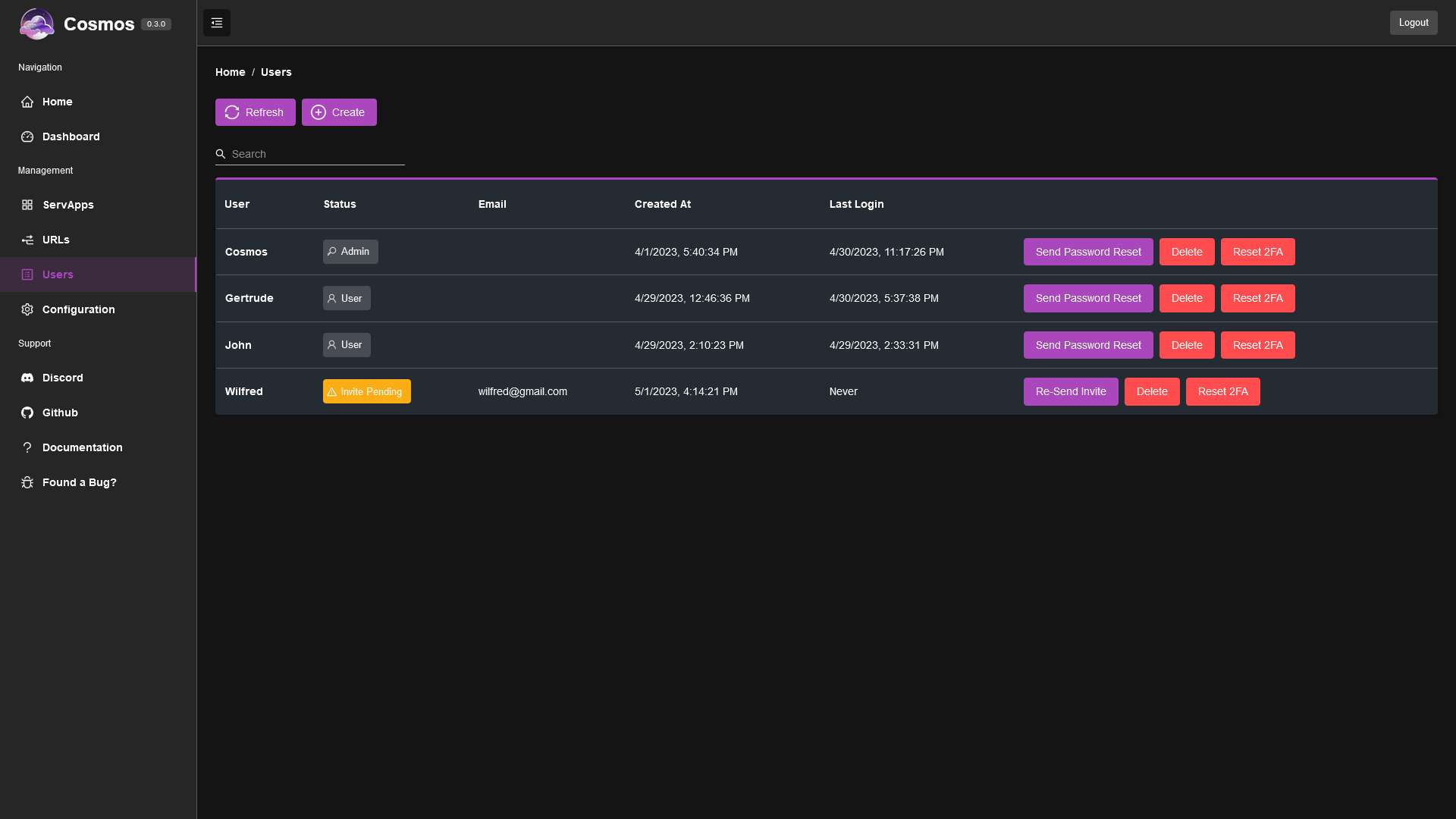
If you click on a row, a modal allow you to change the email address of the user, it is the email used to send invites and password reset.
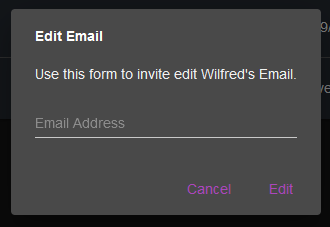
If you create a new user, it will either send an invite directly to them, or simply display an invite link that you can send to them. If you do not have emails setup, please copy and send the link manually. If you forgot to copy it, you can generate a new one with the button "re-send invite". this button is also useful if the user lost the invite link, or it expired.
You can also generate password reset links for existing users, in case you haven't setup emails yet.
Finally you can delete a user or reset their 2FA if they lost their device.
---
# Cosmos-Compose
Cosmos-Compose files are a derivative of Docker-Compose. They can be described as both JSON or YML. They are used to describe the services that Cosmos will manage. They are very similar to Docker-Compose files, but with some Cosmos specific extensions, as well as some unsupported features removed.
The main difference is the addition of the `routes` section which is used to describe the reverse proxy configuration. The `routes` section is a list of `route` objects, which is the exact same than the one you will find in the configuration file.
Another difference, when using `Links`, Cosmos does not actually create docker links but instead creates a network and adds the containers to it. This is because docker links are deprecated and will be removed in the future.
Finally, cosmos-compose support an entire templating system called Whiskers. It is used to generate the final cosmos-compose file. You can see many examples of this in the [marketplace repository](https://github.com/azukaar/cosmos-Servapps-official)
Here's the complete description of Cosmos-Compose, and all supported parameters:
```go
type DockerServiceCreateRequest struct {
Services map[string]ContainerCreateRequestContainer `json:"services"`
Volumes []ContainerCreateRequestVolume `json:"volumes"`
Networks map[string]ContainerCreateRequestNetwork `json:"networks"`
}
type ContainerCreateRequestContainer struct {
Name string `json:"container_name"`
Image string `json:"image"`
Environment []string `json:"environment"`
Labels map[string]string `json:"labels"`
Ports []string `json:"ports"`
Volumes []mount.Mount `json:"volumes"`
Networks map[string]struct {
Aliases []string `json:"aliases,omitempty"`
IPV4Address string `json:"ipv4_address,omitempty"`
IPV6Address string `json:"ipv6_address,omitempty"`
} `json:"networks"`
Routes []utils.ProxyRouteConfig `json:"routes"`
RestartPolicy string `json:"restart,omitempty"`
Devices []string `json:"devices"`
Expose []string `json:"expose"`
DependsOn []string `json:"depends_on"`
Tty bool `json:"tty,omitempty"`
StdinOpen bool `json:"stdin_open,omitempty"`
Command string `json:"command,omitempty"`
Entrypoint string `json:"entrypoint,omitempty"`
WorkingDir string `json:"working_dir,omitempty"`
User string `json:"user,omitempty"`
Hostname string `json:"hostname,omitempty"`
Domainname string `json:"domainname,omitempty"`
MacAddress string `json:"mac_address,omitempty"`
Privileged bool `json:"privileged,omitempty"`
NetworkMode string `json:"network_mode,omitempty"`
StopSignal string `json:"stop_signal,omitempty"`
StopGracePeriod int `json:"stop_grace_period,omitempty"`
HealthCheck struct {
Test []string `json:"test"`
Interval int `json:"interval"`
Timeout int `json:"timeout"`
Retries int `json:"retries"`
StartPeriod int `json:"start_period"`
} `json:"healthcheck,omitempty"`
DNS []string `json:"dns,omitempty"`
DNSSearch []string `json:"dns_search,omitempty"`
ExtraHosts []string `json:"extra_hosts,omitempty"`
Links []string `json:"links,omitempty"`
SecurityOpt []string `json:"security_opt,omitempty"`
StorageOpt map[string]string `json:"storage_opt,omitempty"`
Sysctls map[string]string `json:"sysctls,omitempty"`
Isolation string `json:"isolation,omitempty"`
CapAdd []string `json:"cap_add,omitempty"`
CapDrop []string `json:"cap_drop,omitempty"`
SysctlsMap map[string]string `json:"sysctls,omitempty"`
}
type ContainerCreateRequestVolume struct {
// name must be unique
Name string `json:"name"`
Driver string `json:"driver"`
Source string `json:"source"`
Target string `json:"target"`
}
type ContainerCreateRequestNetwork struct {
// name must be unique
Name string `json:"name"`
Driver string `json:"driver"`
Attachable bool `json:"attachable"`
Internal bool `json:"internal"`
EnableIPv6 bool `json:"enable_ipv6"`
IPAM struct {
Driver string `json:"driver"`
Config []struct {
Subnet string `json:"subnet"`
} `json:"config"`
} `json:"ipam"`
}
```
---
# OpenID
## Introduction
Cosmos supports OAuth 2.0 and OpenID to authenticate users. This allows your installed servapps to login users using your Cosmos account. This is a great way to centralize your user management and to avoid having to create a new account for each servapp.
## Setup
There are two steps to setup OpenID:
1. Setup the OpenID provider: In the Cosmos UI, go to the OpenID submenu and create a client
2. Setup the servapps: Depends greatly on the app. See below for more details with common apps
## Gitea
This is an example configuration that will work to setup Gitea with Cosmos OpenID.
This guide assumes you have gitea up and running on the subdomain gitea.my-domain.com
### Step 1: Create the Gitea client
First, visit the OpenID tab, and click create.
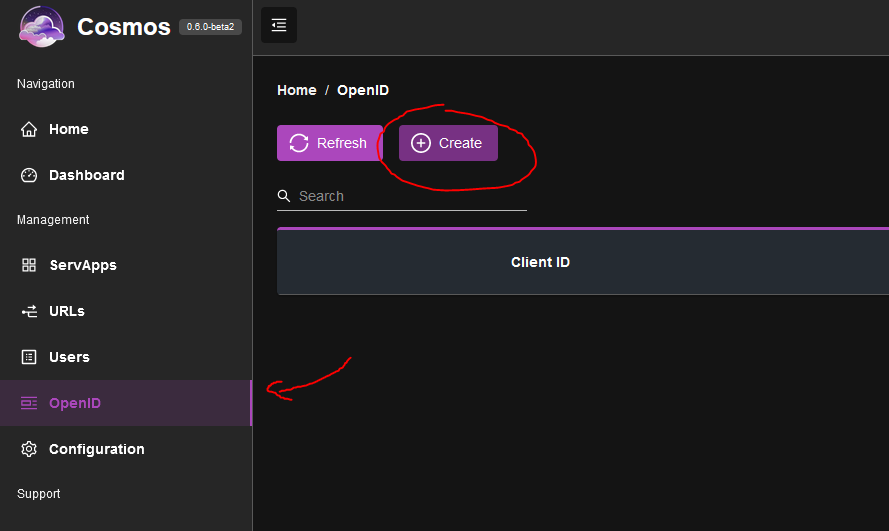
Then, fill in the form:
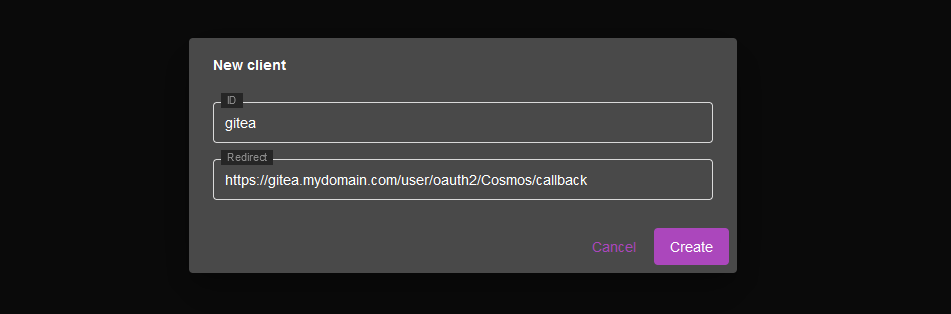
The infos are:
* ClientID: gitea
* Redirect: https://gitea.my-domain.com/user/oauth2/Cosmos/callback
### Step 2: Create Secret
Press the "Reset Secret" button to generate a secret. Copy the secret somewhere safe, you will need it later.
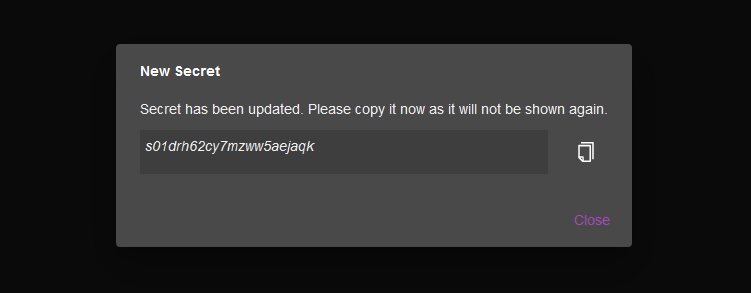
### Step 3: Setup Gitea
Assuming you already created the main Admin account, login and access the admin panel.
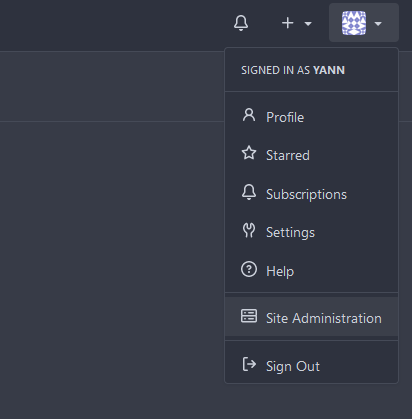
Then, go to the "Authentication Sources" tab

and fill in the form:
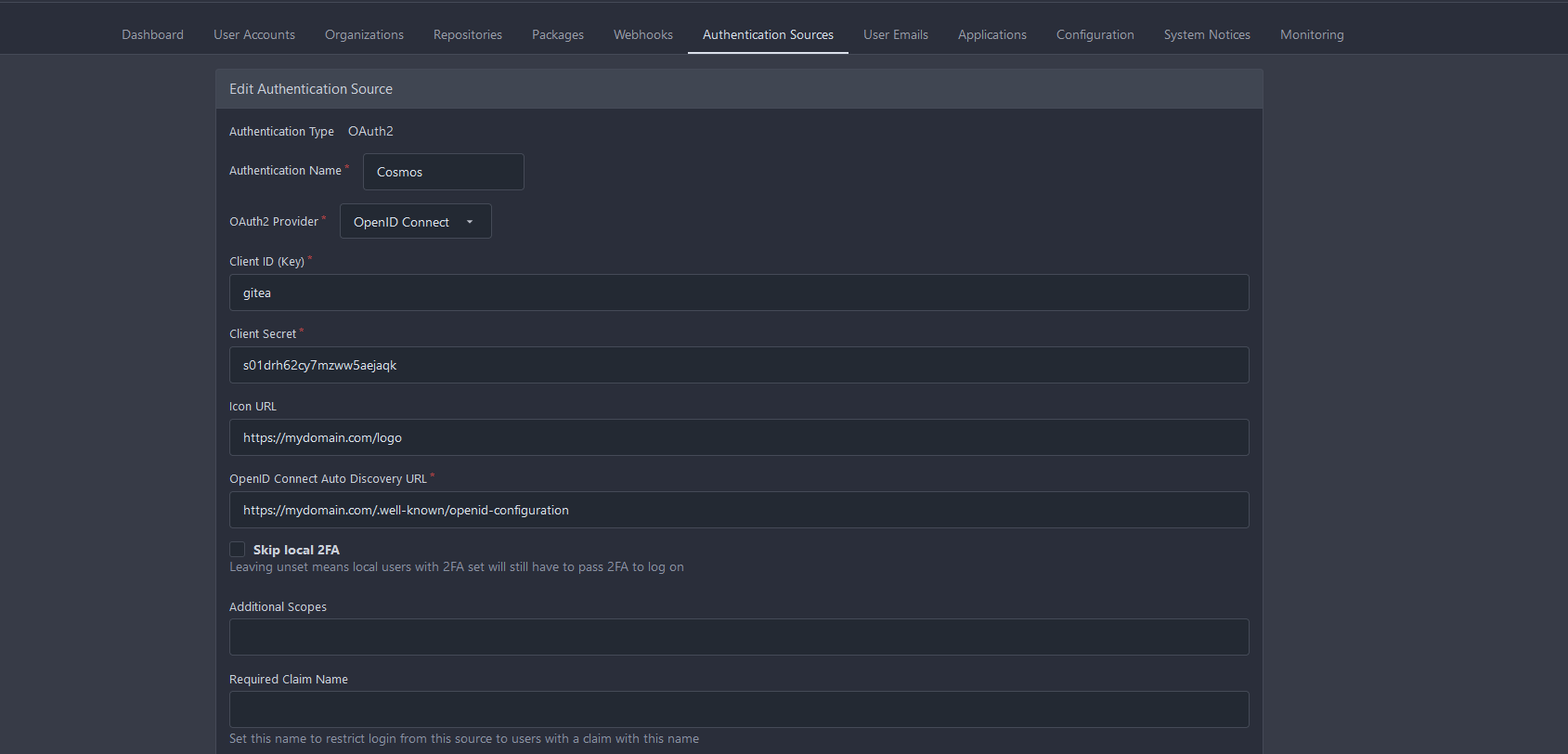
The infos are:
* Authentication Type: Oauth2
* Authentication Name (don't forget the capital case) : Cosmos
* OAuth2 Provider: OpenID Connect
* Client ID: gitea
* Client Secret: the secret you copied earlier
* Icon URL: https://my-domain.com/logo
* OpenID Connect Auto Discovery URL: https://mydomain.com/.well-known/openid-configuration
You can ignore the rest and press "Add Authentication Source" at the bottom of the page
### Try to login
Open a private navigation window and go to https://gitea.my-domain.com/user/login you will be prompted with the following screen:
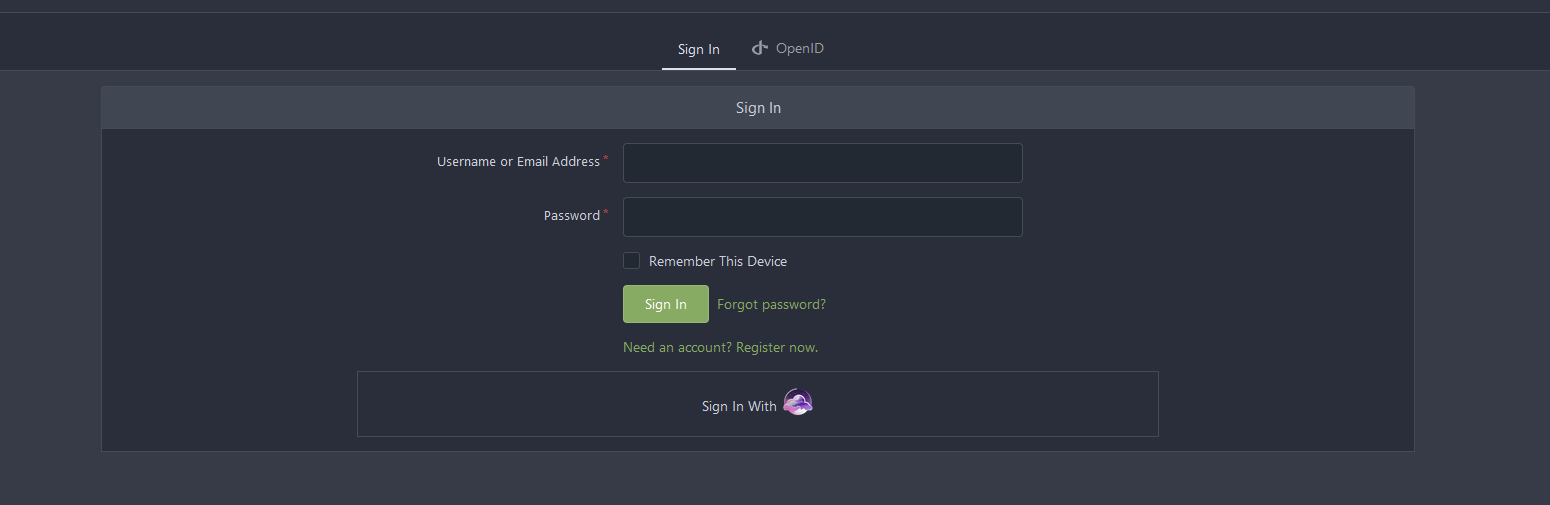
Notice the "Login wth Cosmos" button. Click it and you will be redirected to the Cosmos login page. Enter your Cosmos credentials and then you will see a page asking you to confirm the permissions you are giving to Gitea. Since we are not asking for any special permissions, you can just press "Login" and you will be redirected back to Gitea and logged in.
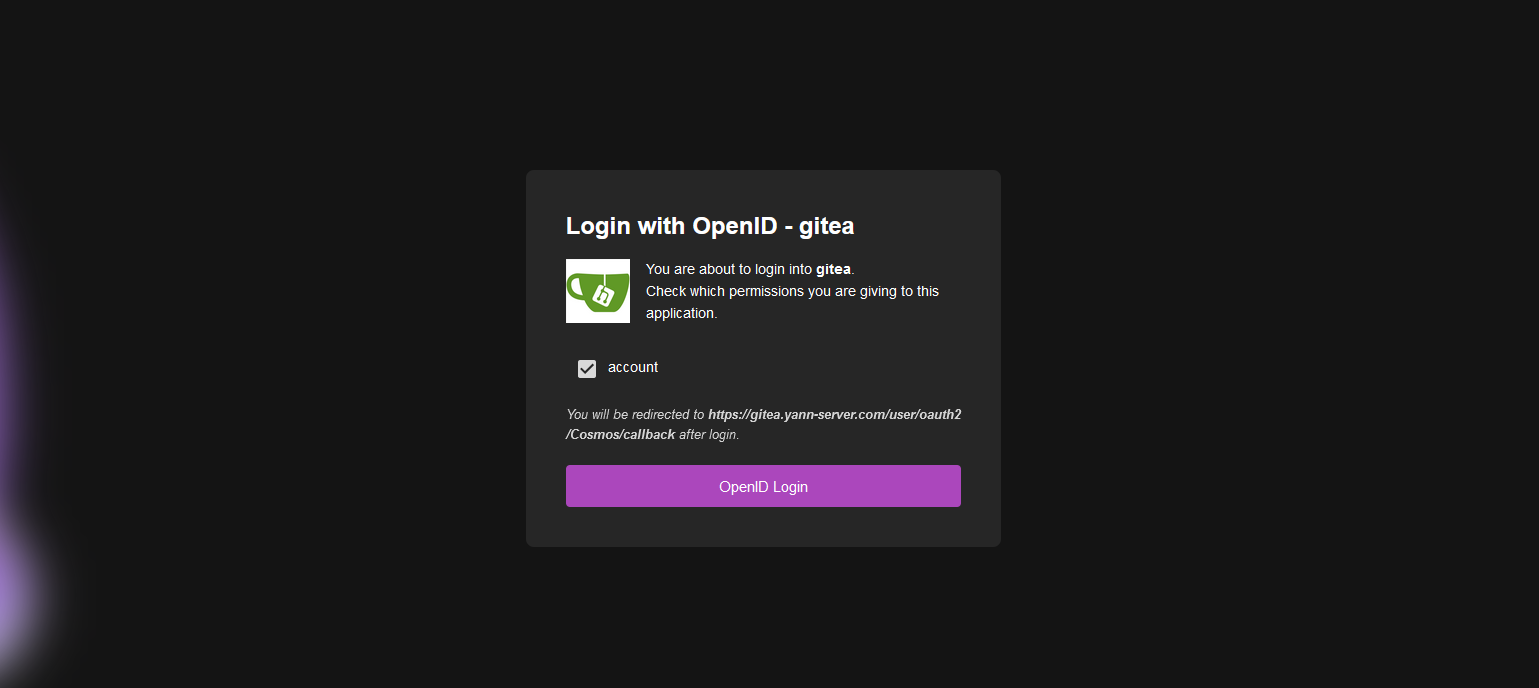
Gitea for the first login will ask you to setup the account associated with your Cosmos account. You can choose to use the same username as your Cosmos account or a different one. You can also choose to use the same email as your Cosmos account or a different one. Once you are done, you will be logged in and you can start using Gitea.
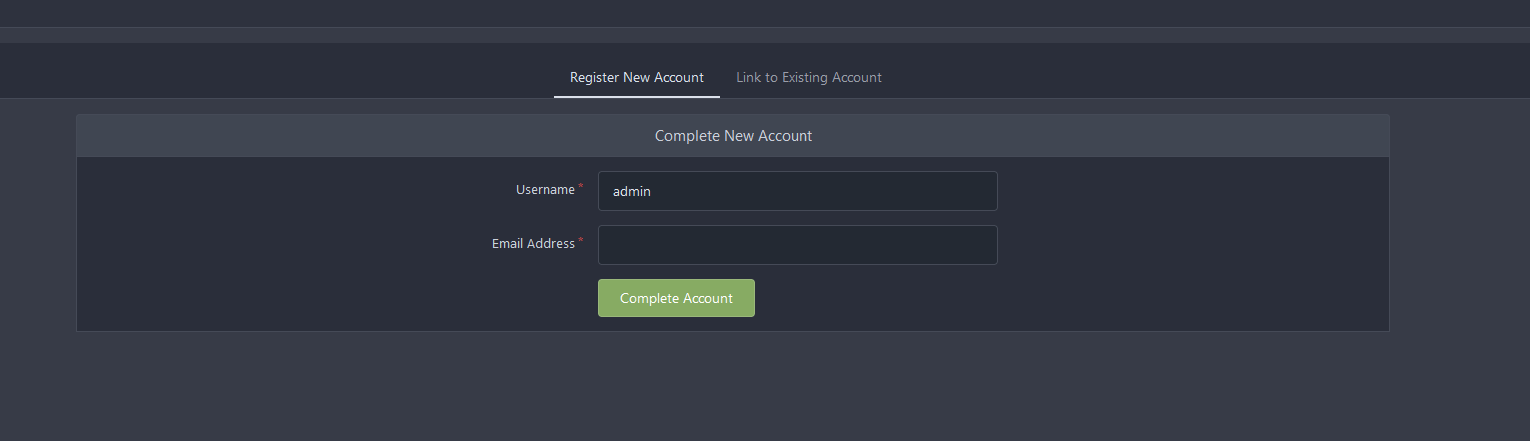
Don't worry it will only ask on the first login. If you want to change the username or email later, you can do so from the Gitea settings page.
## Minio
This is an example configuration that will work to setup Minio with Cosmos OpenID.
This guide assumes you have minio up and running on the subdomain minio.my-domain.com
### Step 1: Create the Minio client
First, visit the OpenID tab, and click create.

Then, fill in the form:
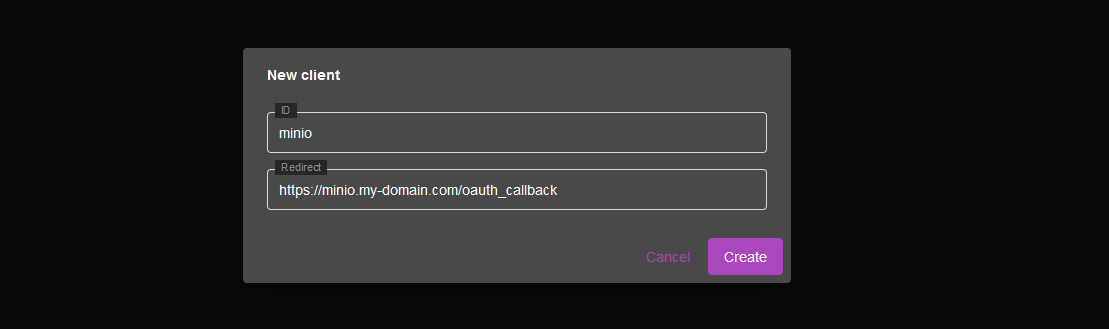
The infos are:
* ClientID: minio
* Redirect: https://minio.my-domain.com/oauth_callback
### Step 2: Create Secret
Press the "Reset Secret" button to generate a secret. Copy the secret somewhere safe, you will need it later.

### Step 3: Setup Minio
Assuming you already created the main Admin account, login and access the admin panel.
Then, go to the "Identity Providers" tab, and "create configuration"
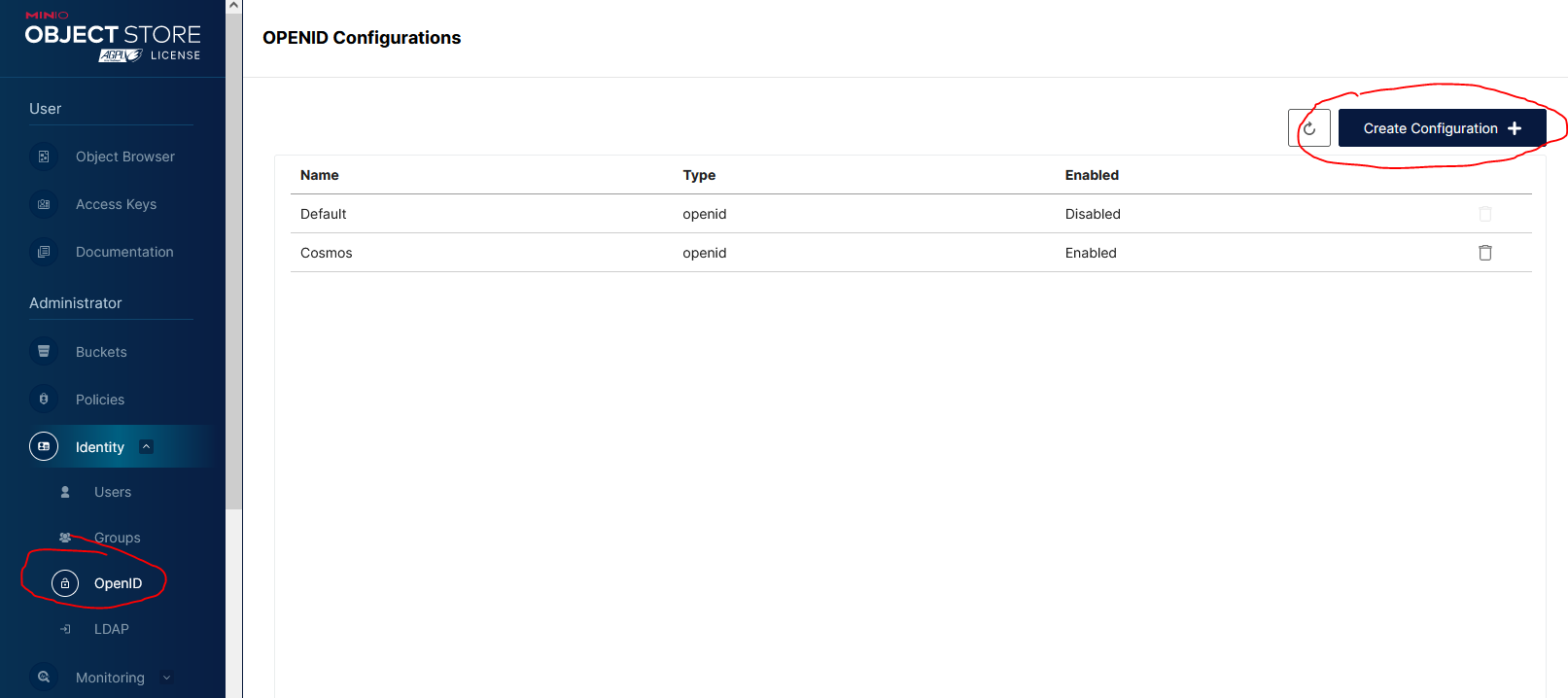
and fill in the form:
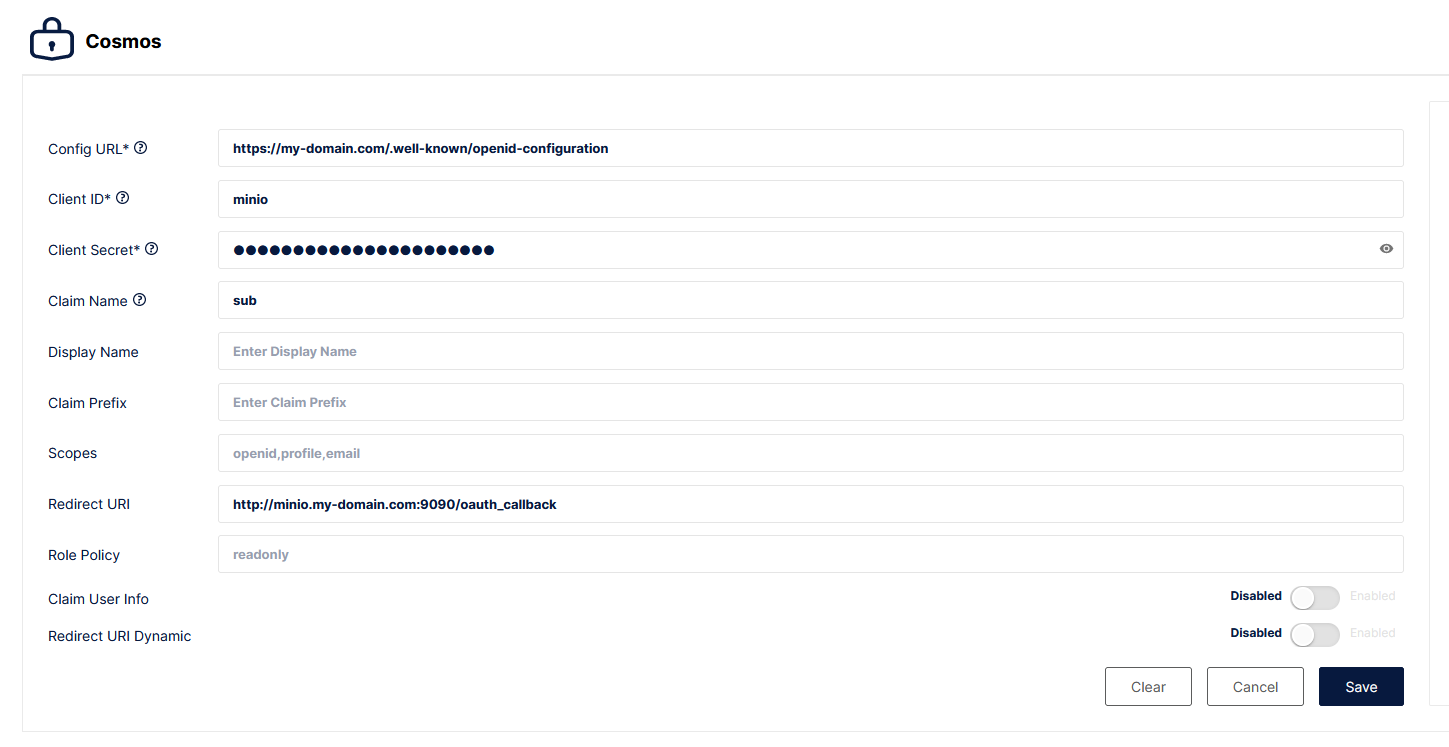
Be careful! Minio uses a policy system which dictates what a user can do (think of it as a permission table). you have 3 differents modes of functionment to choose from:
* Per group policy: **recommended** if you want to use admin and user groups policy
* Per user policy: If you want to setup a different policy for each user
* Single policy: If you want to use a single policy for all users (everyone admin or everyone read-only for example)
The infos are:
* Config URL: https://my-domain.com/.well-known/openid-configuration
* Client ID: minio
* Client Secret: the secret you copied earlier
* Redirect URL: https://minio.my-domain.com/oauth_callback
And then depending on the mode you chose.
For per-group policy:
* Claim Name: role
* Claim User Infos: true
For per-user policy:
* Claim Name: sub
* Claim User Infos: false
For global policy:
* Claim Name: leave it empty
* Claim User Infos: false
* Role Policy: policy name you want (ex: readonly)
You can ignore the rest and press "Save" at the bottom of the page. Minio will ask you to restart the server, do so.
### Step 4: Create a policy for a user or a group
If in the previous screen you selected per-user or per-group policy, we need to create a policy for each user or group. If you selected global policy, you can skip this step.
Let say that we have a user named "bob" and that we want to grant them write rights on Minio. We will need to create a policy for them, with the name "bob". If you want to create a group policy instead (if you selected that option previously) you need to create two policies : user, and admin.
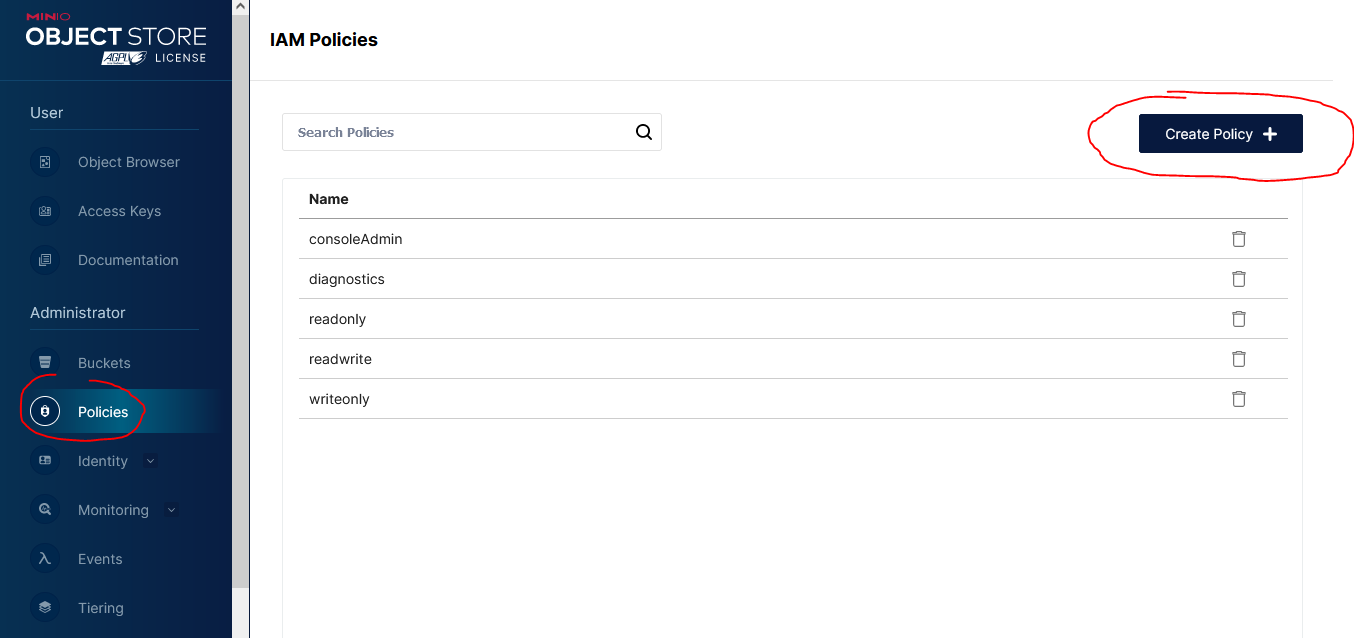
First, head to the policy screen, and click "Create Policy"
Then, fill in the form:
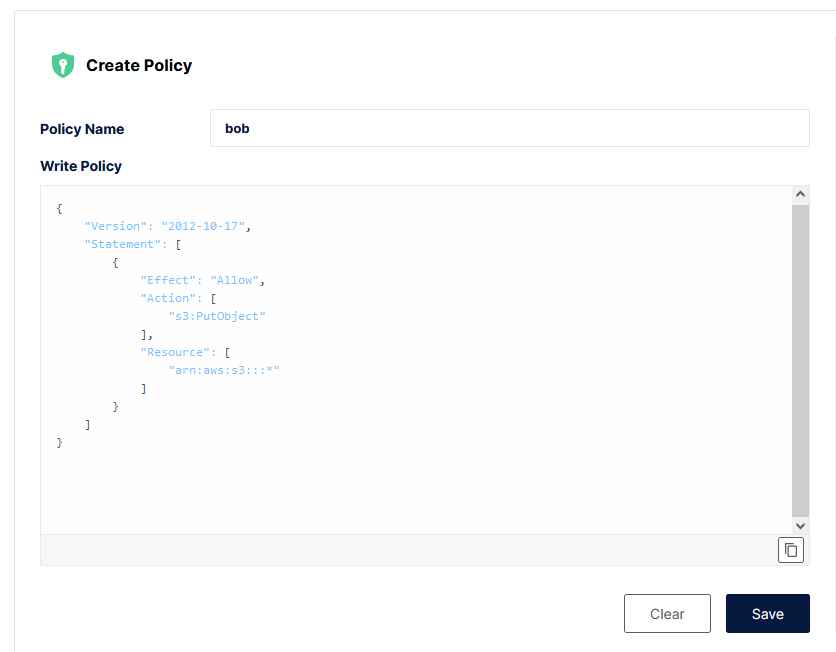
If you are creating a user policy, type their username in the name field, if you are creating a group policy, type "user" or "admin".
Select which policy you want to apply for each users and groups and create them one by one. Please note once again, if you are using per-group policy you need to create **admin** and **user** policies.
The policy to apply for read only rights is:
```json
{
"Version": "2012-10-17",
"Statement": [
{
"Effect": "Allow",
"Action": [
"s3:GetBucketLocation",
"s3:GetObject"
],
"Resource": [
"arn:aws:s3:::*"
]
}
]
}
```
The policy to apply for Read/Write rights is :
```json
{
"Version": "2012-10-17",
"Statement": [
{
"Effect": "Allow",
"Action": [
"s3:PutObject"
],
"Resource": [
"arn:aws:s3:::*"
]
}
]
}
```
And for full admin rights:
```json
{
"Version": "2012-10-17",
"Statement": [
{
"Effect": "Allow",
"Action": [
"admin:*"
]
},
{
"Effect": "Allow",
"Action": [
"kms:*"
]
},
{
"Effect": "Allow",
"Action": [
"s3:*"
],
"Resource": [
"arn:aws:s3:::*"
]
}
]
}
```
### Try to login
Open a private navigation window and go to https://minio.my-domain.com/minio/login you will be prompted with the following screen:
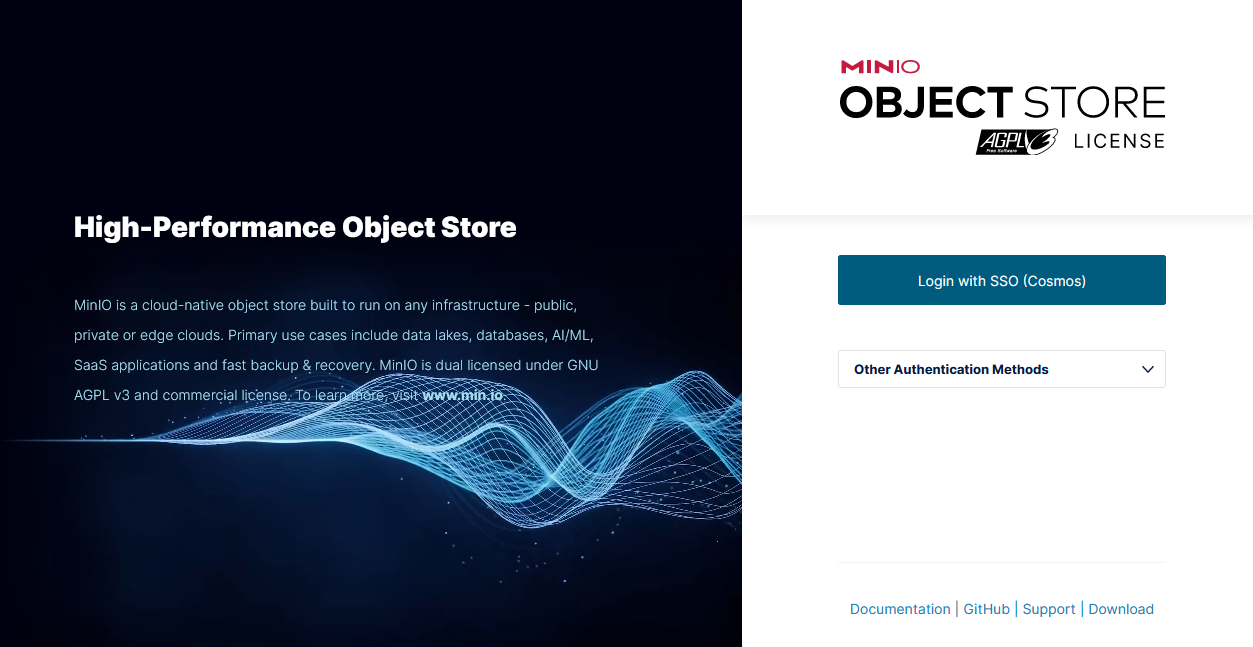
Simply click on login with Cosmos and after login, you will see a screen asking you to confirm the permissions you are giving to Minio. Minio does ask a few things but we only really need to grant it the "email" permission. Everything else is currently ignored by Cosmos.
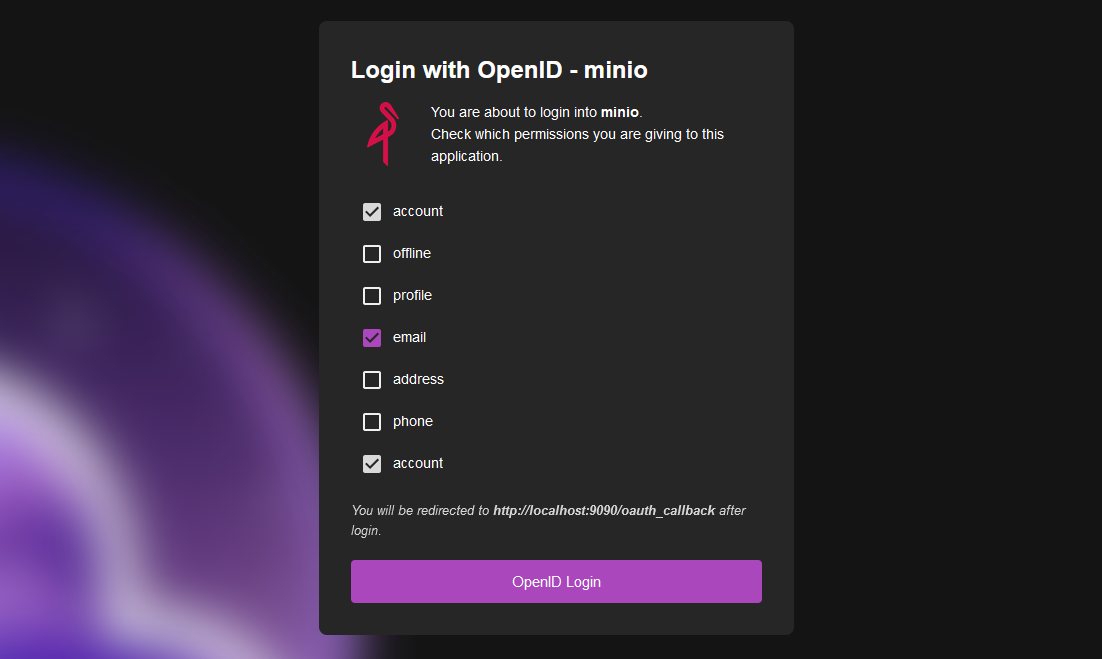
Once you are done, you will be logged in and you can start using Minio.
## Nextcloud
This is an example configuration that will work to setup Nextcloud with Cosmos OpenID.
This guide assumes you have Nextcloud up and running on the subdomain nextcloud.my-domain.com
### Step 1: Create the Nextcloud client
First, visit the OpenID tab, and click create.

Then, fill in the form:
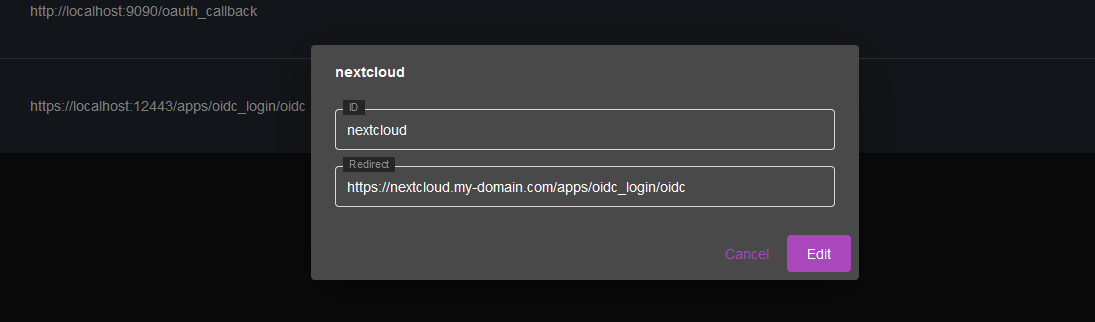
The infos are:
* ClientID: nextcloud
* Redirect: https://nextcloud.my-domain.com/apps/oidc_login/oidc
### Step 2: Create Secret
Press the "Reset Secret" button to generate a secret. Copy the secret somewhere safe, you will need it later.

### Step 3: Setup Nextcloud
Assuming you already created the main Admin account, login and access the admin panel.
Go too "Apps" and install the app called "OpenID Connect Login".
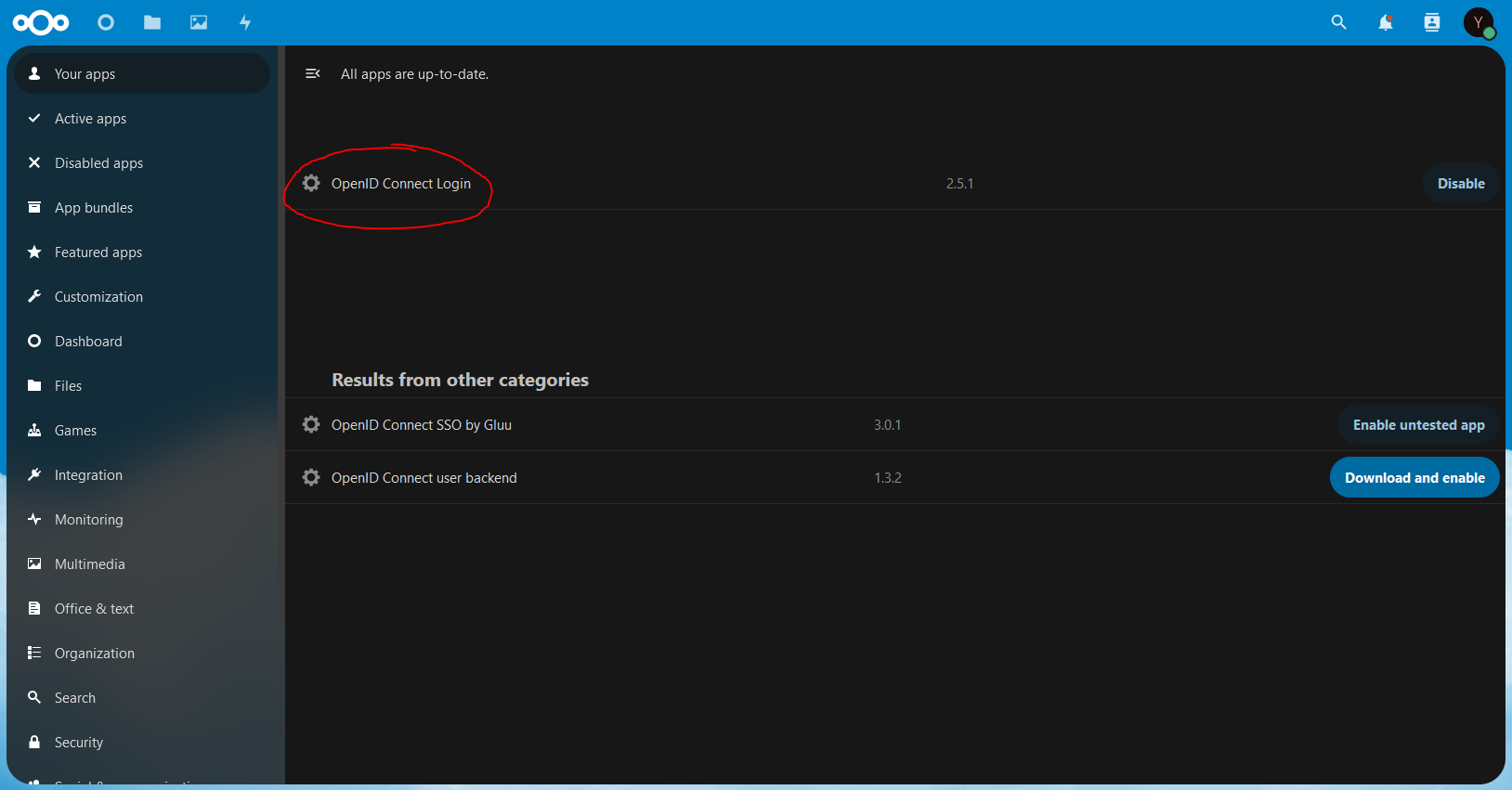
Then, open your config.php file, in /config/www/nextcloud/config/config.php in your Nextcloud container.
Add the following to the file, insde the array (before the closing parenthesis and semicolon)
```php
'overwriteprotocol' => 'https',
'oidc_login_provider_url' => 'https://my-domain.com',
'oidc_login_client_id' => 'nextcloud',
'oidc_login_client_secret' => 'THE SECRET YOU COPIED EARLIER',
'oidc_login_auto_redirect' => false,
'oidc_login_end_session_redirect' => false,
'oidc_login_button_text' => 'Log in with Cosmos',
'oidc_login_hide_password_form' => false,
'oidc_login_use_id_token' => true,
'oidc_login_attributes' => array (
'id' => 'sub',
'name' => 'sub',
),
'oidc_login_default_group' => 'oidc',
'oidc_login_use_external_storage' => false,
'oidc_login_scope' => 'openid profile email groups',
'oidc_login_proxy_ldap' => false,
'oidc_login_disable_registration' => false,
'oidc_login_redir_fallback' => false,
'oidc_login_alt_login_page' => 'assets/login.php',
'oidc_login_tls_verify' => true,
'oidc_create_groups' => false,
'oidc_login_webdav_enabled' => false,
'oidc_login_password_authentication' => false,
'oidc_login_public_key_caching_time' => 6400,
'oidc_login_min_time_between_jwks_requests' => 10,
'oidc_login_well_known_caching_time' => 6400,
'oidc_login_update_avatar' => false,
```
Note that there is a "oidc_login_default_group" which is set to "oidc". This is the group that will be assigned to users that login with Cosmos. You can change this to whatever you want, but you will need to create the group in Nextcloud first.
### Step 4: Create the group
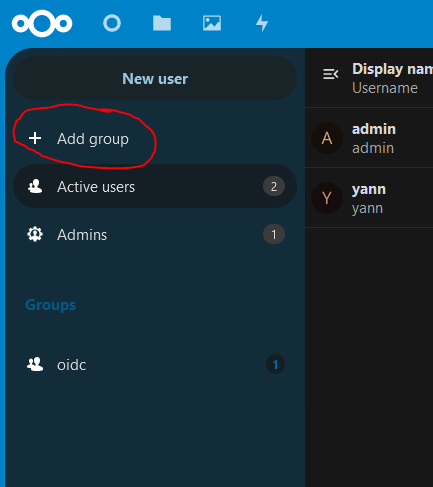
Go to the admin panel, and click on "Groups" then click on "Add group" and type "oidc" in the name field. If you selected another group name, use that instead. If you are using a group you already created before, you can skip this step.
### Try to login
Open a private navigation window and go to https://nextcloud.my-domain.com you will be prompted with the following screen:
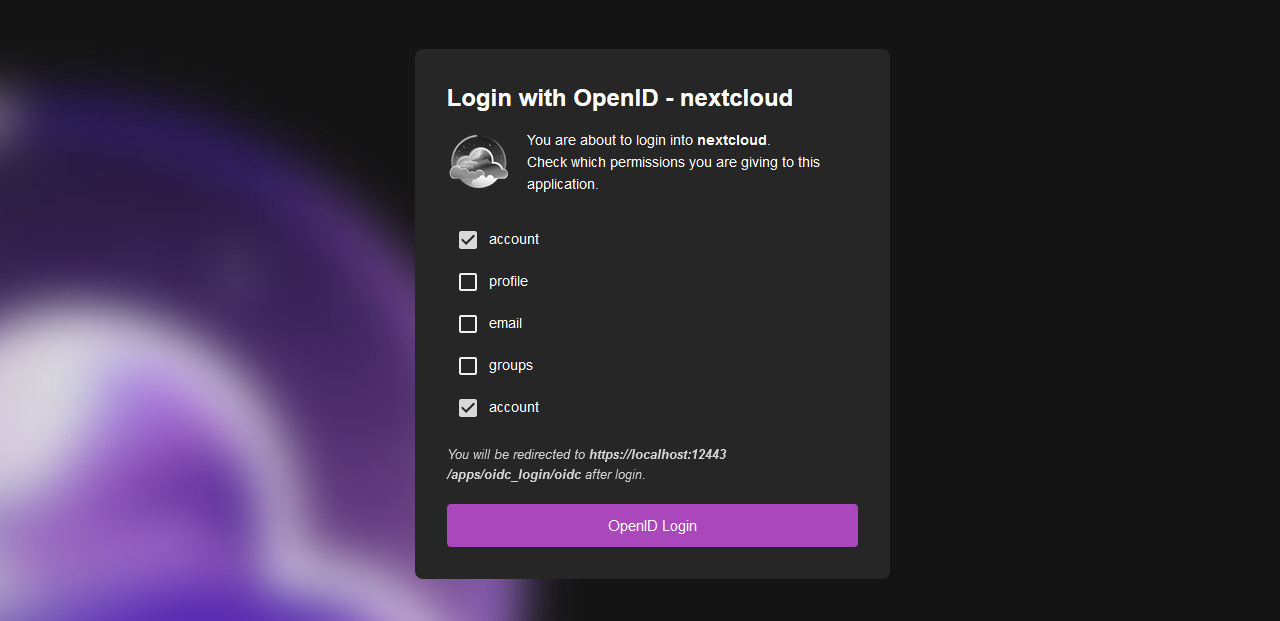
Simply click on login with Cosmos and after login, you will see a screen asking you to confirm the permissions you are giving to Nextcloud. Nextcloud does ask a few things but they are actually not used in Cosmos so it does not matter what you pick here. simply Login and you will be redirected to Nextcloud logged in.
---
# Other Setups
## DNS Challenge and wildcard certificates
DNS providers, wildcard certificates and DynDNS are now set up per domain, from the **Domains** tab of the configuration page. See [Domains and HTTPS](/docs/domains).
As before, you do **not** need to install LEGO/Certbot or set environment variables: the keys and tokens of your DNS provider go in the form, and certificates are renewed automatically.
## Emails
Cosmos can send emails to users. To do so, you need to setup a SMTP server. You can use your own SMTP server, or use a third party service like [Mailgun](https://www.mailgun.com/) or [Gmail](https://www.google.com/gmail/).
The setup is simple in the config:
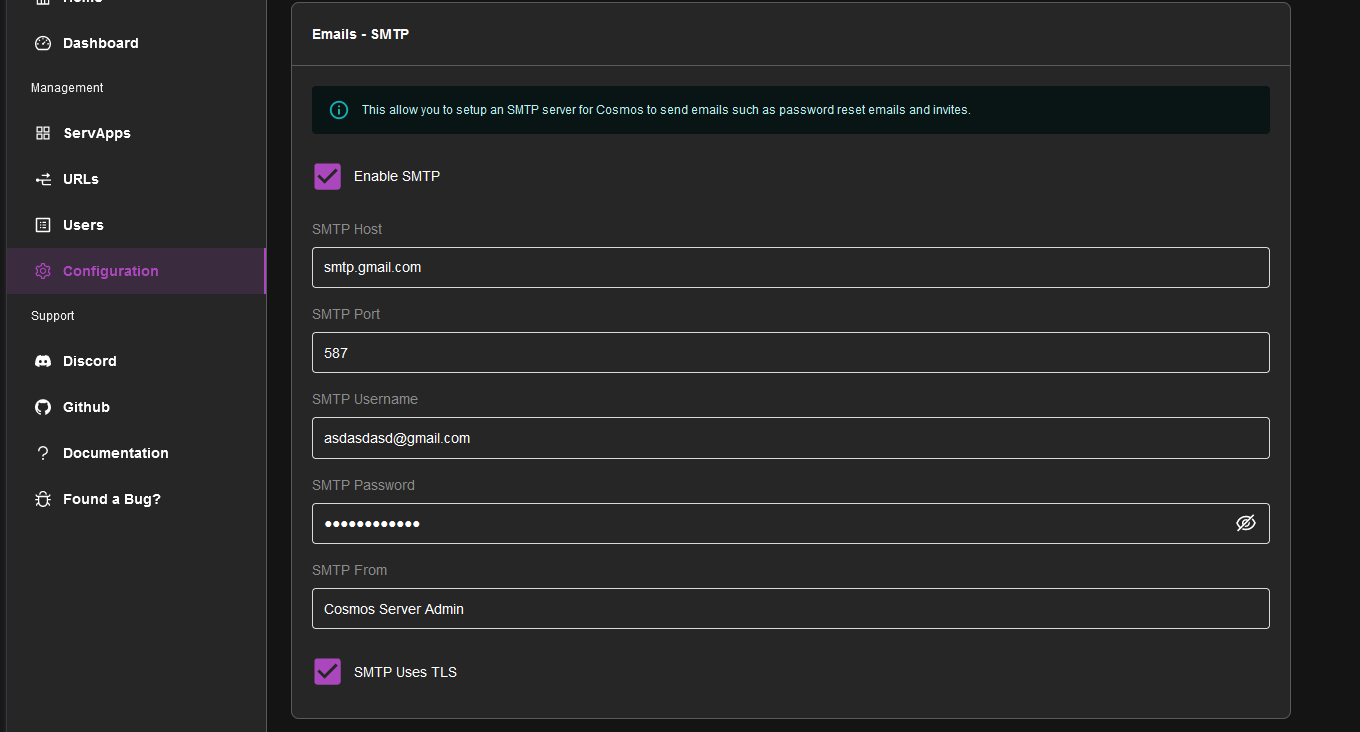
please note that Gmail will require you to create a [App Password](https://support.google.com/accounts/answer/185833?hl=en) to use SMTP.
## Geo-Blocking
Cosmos can block users from specific countries. You can setup the list of blocked countries in the config:
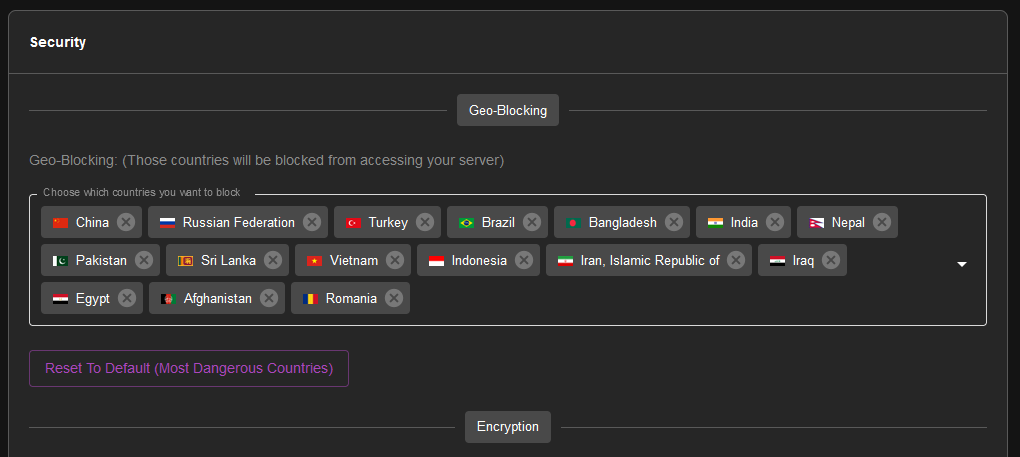
## IPV6
In order for Cosmos to work properly on a server using IPV6, you need to tell Docker to use IPV6. To do so, you need to edit the file `/etc/docker/daemon.json` and add the following:
```json
{
"ipv6": true,
"fixed-cidr-v6": "2001:db8:1::/64"
}
```
In the "fixed-cidr-v6" field, replace "2001:db8:1::/64" with your IPv6 network range.
Restart the daemon to apply changes.
## Env Var
You can set environment variables in the config. This is useful if you want to use a different port or database name. You can use the following variables:
* COSMOS_HTTP_PORT: the port number that the Cosmos server should listen on for HTTP connections.
* COSMOS_HTTPS_PORT: the port number that the Cosmos server should listen on for HTTPS connections.
* COSMOS_HOSTNAME: the hostname or IP address that the Cosmos server should use
* COSMOS_HTTPS_MODE: specifies how the Cosmos server should handle HTTPS certificates. Valid values are "SELFSIGNED" (generate a self-signed certificate), "LETSENCRYPT" (obtain a certificate from Let's Encrypt), or "PROVIDED" (use a custom certificate) or "DISABLED" for no HTTPS.
* COSMOS_GENERATE_MISSING_AUTH_CERT: a boolean flag that determines whether the Cosmos server should automatically generate an authentication certificate if one is missing.
* COSMOS_TLS_CERT: the TLS certificate to use for HTTPS connections.
* COSMOS_TLS_KEY: the TLS private key to use for HTTPS connections.
* COSMOS_AUTH_PRIV_KEY: the path to the private key file used for authentication.
* COSMOS_AUTH_PUBLIC_KEY: the path to the public key file used for authentication.
* COSMOS_LOG_LEVEL: the logging level for the Cosmos server. Valid values are "DEBUG", "INFO", "WARNING", and "ERROR".
* COSMOS_MONGODB: the connection string for the MongoDB database that the Cosmos server should use.
* COSMOS_SERVER_COUNTRY: the two-letter country code that the Cosmos server is located in. This is for whitelisting your country when you are from a country that is blocked by default.
## SE Linux
If you are using SE Linux, you need to allow the container to access the docker socket. To do so, make sure you run the container as priviliged. See details on the [Index Page](/doc/2 setup/#step-1-docker/).
## Details about the mounts
* `/var/run/docker.sock:/var/run/docker.sock`: This is the docker socket, it is needed for Cosmos to be able to manage your containers. If do not provide it, Cosmos can work in Proxy-only mode, but wont be able to manage your containers, as well as disabling multiple other quality of life features.
* `/var/lib/cosmos:/config`: This is where Cosmos will store its config file. It is recommended to mount it to a folder on your host, so you can easily backup your config file. If you do not provide it, Cosmos will use a volume instead, which is not easily accessible.
* `/:/mnt/host`: This is where Cosmos will mount your host filesystem. It is needed to create folder on your host when importing docker-compose files. Without this, Cosmos will only be able to create folders inside the container, which won't be enough for you in most cases, letting you creating folders manually on your host. Note that it is not a security issue to provide this additional mount since with the docker socket, Cosmos can already mount anything it wants on your host.
In case you are wondering if providing the docker socket is a security issue, the answer is no:
* Cosmos is a supervisor. While most supervisor run as root on the host directly (ex. Unraid, CasaOS, ...), Cosmos runs inside a container, offering better security than most alternatives. While other supervisor also run as a container (ex. Portainer, Yatch, ...), they still require access to the docker.sock to be able to manage your containers just like Cosmos does.
* Sources are available, and you can check the code yourself.
* While it is NOT a security issue, it still mean that any vulnerabilities would have greater importance. This is why as an actively maintained project, any vulnerabilities discovered would be patched right away.
**While it's impossible to claim absolute zero risk, the security benefits of running Cosmos as supervisor are in any case far greater than any hypothetical risk.**
---
# Backups
## Introduction
Backups are a critical part of any system. They are the main defense against data loss. In the event of a catastrophic failure, backups are the only way to recover your data. It is important to have a backup strategy in place to ensure that your data is safe and secure.
Cosmos includes an entire backup system that allows you to easily create and manage backups of your data. This system is designed to be flexible and easy to use, allowing you to create backups on a schedule or manually. The backups are also encrypted for your security.
It uses Restic under the hood, allowing you more control, even if you were to stop using Cosmos.
## Getting Started
To get started with backups, navigate to the `Backups` tab on the left-hand side of the Cosmos interface. This will take you to the backups page, where you can view and manage your backups.
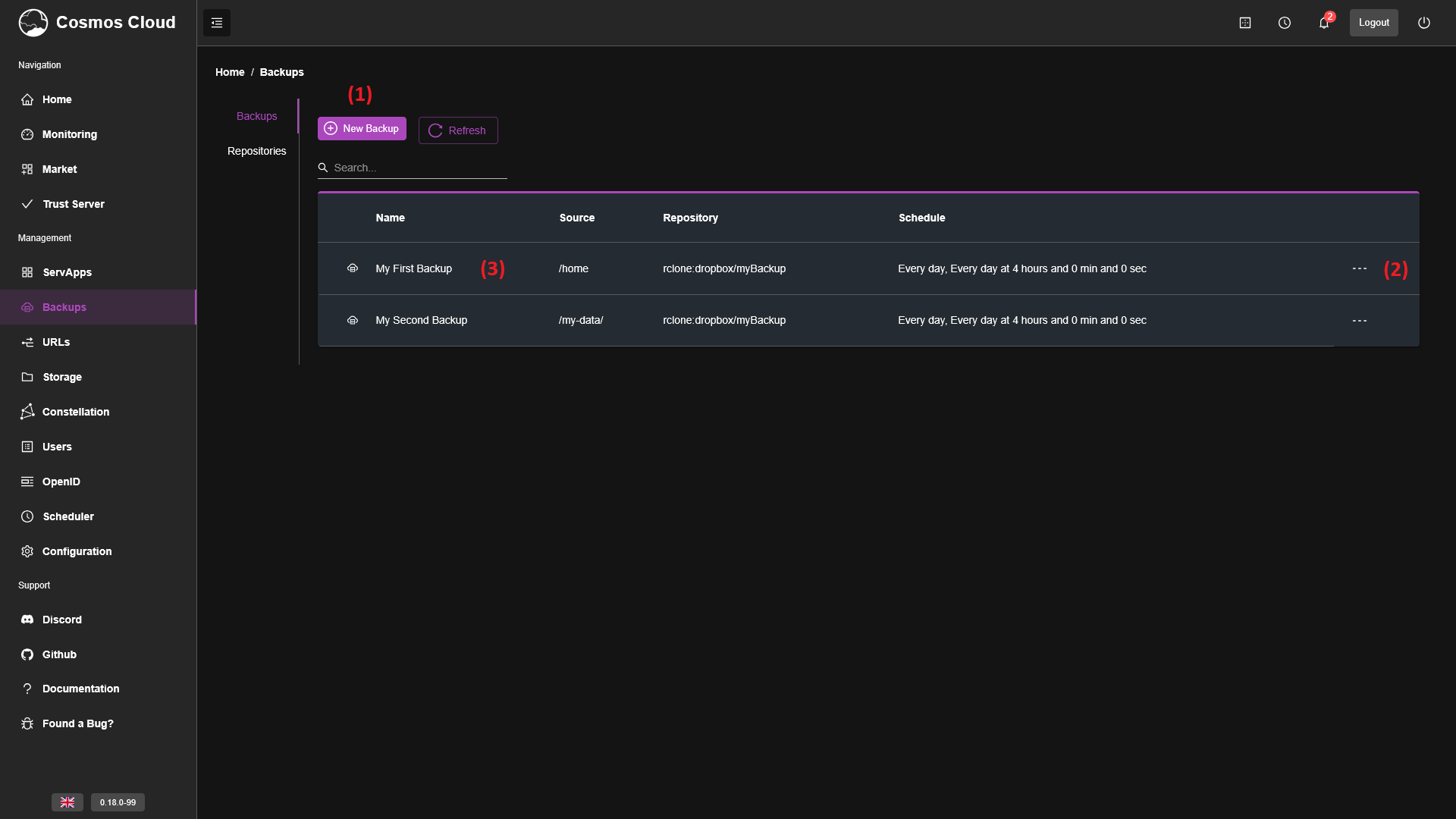
This screen allows you to create backups (1), edit backups (by clicking the 3 dots on the right (2)) or view more details/restore your backup by clicking on the backup itself inside the table (3).
## Creating a Backup
When you click the new backup button, you will see a modal pop up
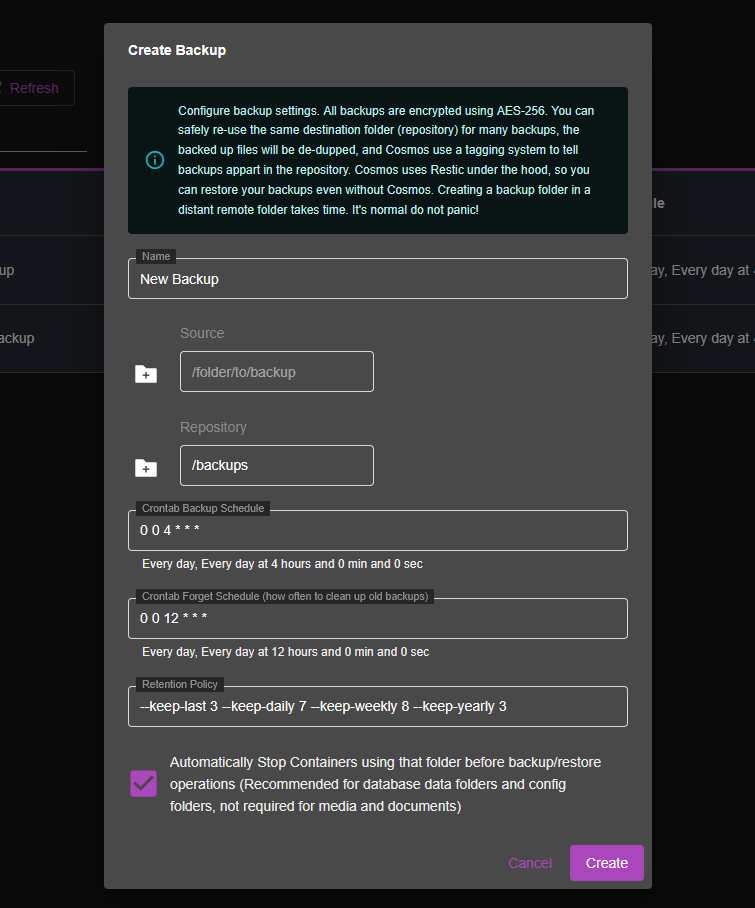
Fill in the form to create a new backup:
* **Name**: The name of the backup, must be unique.
* **Source**: The folder source of the backup, aka. what folder you want to backup. If you are seeking to backup Docker volumes, use `/var/lib/docker/volumes/(name)/_data`. If you are ensure, you can open a container's details, go to storage, and backup the volume directly from there.
* **Repository**: The destination of the backup, aka. where you want to store the backup. This can be a local folder, a remote folder, or a cloud storage service. **it is recommended that you store multiple backups in the same location, as Restic will deduplicate the data, meaning if multiple backups backs up the same file, it will only store it once.**
* **Cron Backup Schedule**: The schedule of the backup. This is a cron expression that determines when the backup will run. It uses the 6 fields of a cron expression: `second minute hour day month day-of-week`. For example, `0 0 * * * *` will run the backup every day at midnight.
* **Cron Forget Schedule**: The schedule of the forget operation. This is a cron expression that determines when the forget operation will run. This operation will prune old backups according to the retention policy.
* **Retention Policy**: The retention policy of the backup. This determines how long the backup will be kept. You can specify the number of backups to keep, or the duration to keep the backups for. For example, `7` will keep the last 7 backups, while `1w` will keep the backups for 1 week.
* **Automatically stop containers**: If enabled, Cosmos will stop the containers that are using the folder/volume before backing it up. This is useful if you want to ensure that the data is in a consistent state before backing it up. It is recommended to enable this option if you are backing up Docker volumes, database data folders, config folders, etc... But if you are backing up large media storage, it is not required, as the data does not change often, also because the backup will be longer, and will keep your containers down for a longer time.
## Managing a Backup
Clicking a backup in the table will get you to your backup details page. Here you can see the details of the backup, and restore it if needed.
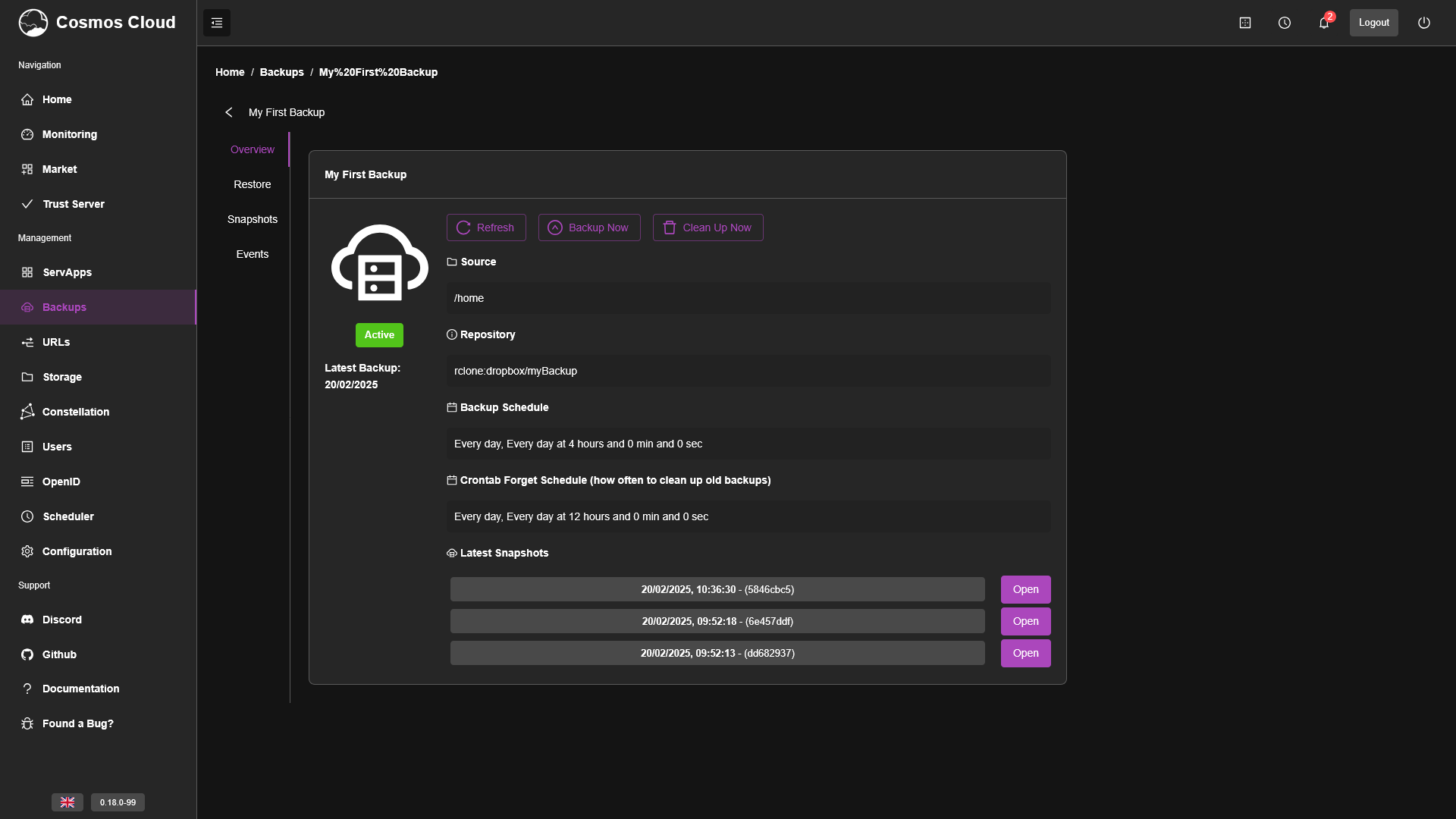
Get to the restore tab to start restoring, or you can also restore from a recent snapshot by clicking the open button next to the snapshot you want to restore.
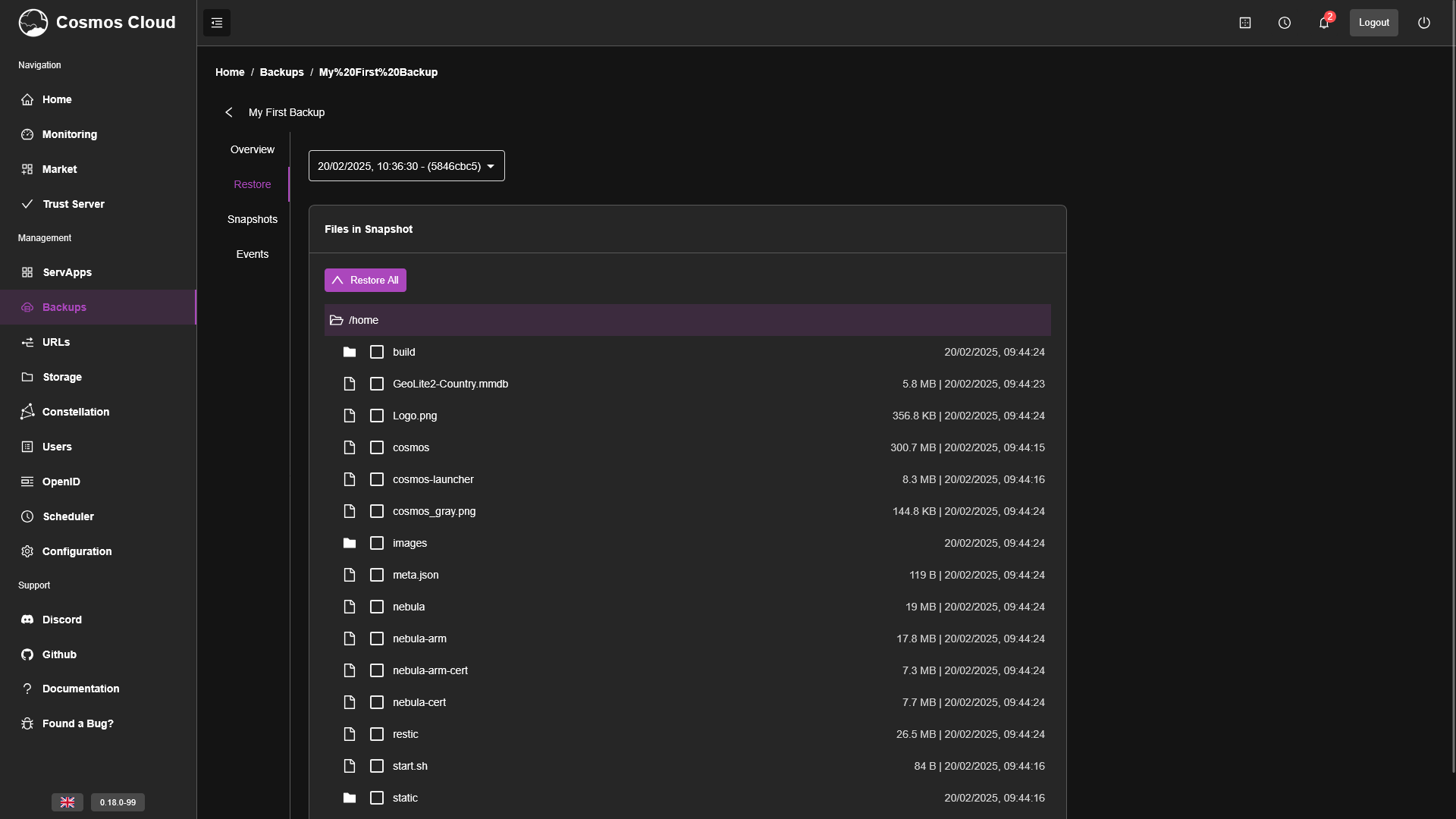
in this screen you will see
* (1) The list of snapshots. A snapshot is a backup at a specific time. You can restore from any snapshot. Select the snapshot you want to restore from, and the folder explorer will show you the files in that snapshot.
* (2) The restore button
* (3) The files explorer showing the files in the snapshot
You can either restore the entire snapshot, or select specific files to restore. Once you have made your choice, click Restore All (or Restore Selected) and it will ask you where you want to restore the files to. By default, it will show you the path of the original backup, to overwrite the current files. You can change this path to restore the files to a different location. **It will not remove extra files that are not in the snapshot, if you want to clean up the folder completely, you will need to manually delete the folder's content before restoring it (or rather than deleting, move it to a different location, so you can revert the operation it if needed).**
You can go to the snapshots tab in order to delete snapshots, and the event tab will show you the history of the backup, in term of successful (or not) operations.
Finally, you can see all the Backup jobs in the Scheduler tab on the left, you can manage, start/stop, and debug the backup operations from there as well.
## Rclone
Cosmos integrates both Restic and Rclone together to allow you to backup your files to a remote location. The operation is quite seamless. Once you have connected a remote location in the storage > external storage tab, it will appear in the folder picker.
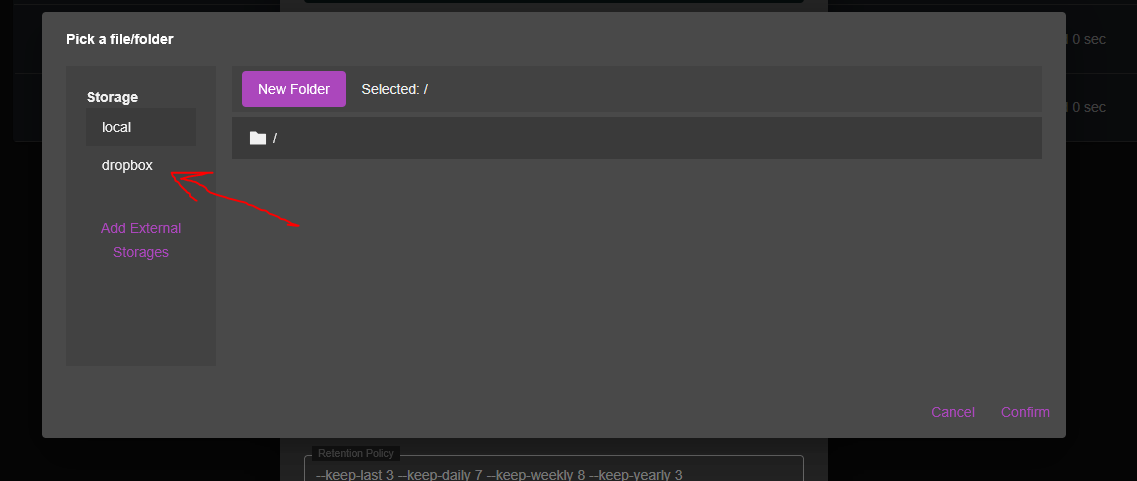
If you select it, the repository location will look like this: `rclone:dropbox:/backups`. This will backup the files to the Dropbox folder in the backups folder. Everything else will be exactly the same as a local backup in terms of configuration.
## Manually use Restic
If you ever need to use Restic manually, in order to manage your backups (ex. if you leave Cosmos) you can do so with this command construction:
```bash
RESTIC_PASSWORD=_PASSWORD_ ./restic _OPERATION_ -o rclone.program="./cosmos" -o rclone args="rclone serve --config=/var/lib/cosmos/rclone.conf restic --stdio --b2-hard-delete --verbose" --repo "/path/to/repo"
```
where `_OPERATION_` is the operation you want to do, like `backup`, `restore`, `snapshots`, `forget`, and _PASSWORD_ is the repo password that you can find in the cosmos config file.
---
# SmartShield
The SmartShield is the protection Cosmos puts in front of your URLs. It watches how much each visitor consumes (requests, bandwidth, time, simultaneous connections) and slows down, then blocks, the ones that behave like an attack or a runaway script. Normal visitors never notice it.
It is enabled per URL (see [URLs](/docs/urls)), and it is recommended to keep it enabled everywhere. This page explains how it decides to block someone, and how to use the **Bans** and **Whitelist** tabs of the URLs page to see what is going on and fix it when someone gets blocked by mistake.
## How it works
For every URL, the SmartShield keeps a budget per visitor over the last hour: number of requests, amount of data, and number of simultaneous connections.
* A visitor going over a budget is first **throttled**: requests still go through, just slower.
* A visitor going far over a budget gets a **strike**: they are blocked for 1 hour.
* 3 strikes within 24 hours become a **temporary ban**. The first one blocks for 4 hours, the second for 24 hours, and the following ones for 72 hours.
* 3 temporary bans within 7 days become a **permanent ban**, which stays until you remove it.
With [Cosmos Pro](/docs/cosmos-pro), the SmartShield never issues permanent bans: a repeat offender gets another 72 hours ban each time. Pro servers often see many people behind a single IP address (an office, a campus), and this avoids locking all of them out for good because of one.
How far is "far over" depends on the **Policy Strictness** of the URL: with **Strict** a strike is issued as soon as the budget is exceeded, with **Normal** at twice the budget, with **Lenient** at three times.
A blocked visitor receives a "Too many requests" error, and the block applies to all your URLs, not only the one where it happened. Strikes and temporary bans are forgotten after 7 days.
### Who is a "visitor"
* Someone logged in to Cosmos is counted **per user**. Several people behind the same internet connection (an office, a family, a university) each get their own budget, and one of them misbehaving does not block the others.
* Anonymous visitors are counted **per IP address**.
### With Constellation
If your servers are connected through [Constellation](/docs/constellation-vpn), strikes and bans are shared: someone banned by one server is blocked by all of them, and the Bans tab shows the whole picture whichever server you open it from.
## The Bans tab
Go to **URLs**, then the **Bans** tab.
The top of the page shows what Cosmos has been blocking. Use **Latest**, **Hourly** and **Daily** to change the time range.
* **Blocked requests**: how many requests were blocked over time.
* **Blocked by reason**: the same, split by what blocked them: bots, geolocation (blocked countries), referer, hostname (usually someone scanning your IP), IP whitelists (including URLs restricted to Constellation), and the SmartShield itself.
Below, **Strikes and bans** lists every visitor that has been struck or banned. You can search by visitor or by URL name.
* **Client**: the IP address, or `user:` followed by the nickname for a logged-in user.
* **Status**: **Strike**, **Temporary ban**, **Permanent ban**, or **Clear** when the visitor has a history but is not blocked at the moment.
* **Blocked until**: when the block ends. `∞` for a permanent ban.
* **Last reason**: which budget was exceeded, by how much and on which URL. For example `requests 36012 of 36000 on jellyfin`.
* **History**: the number of past strikes and bans. Hover it to see each of them with its date, its reason and the server that issued it.
### Unblocking someone
Click **Unban** on the row (or **Clear strikes** if they are not banned yet) and confirm. This wipes the whole history of that visitor, on every server of your Constellation, and they can come back right away.
If the same visitor keeps getting blocked for legitimate reasons, either raise the budgets of the URL they use (see below) or add them to the whitelist.
## The Whitelist tab
IP addresses in the whitelist are never throttled, struck or banned by the SmartShield, on any URL. This is the place to put your office, your home connection, or your monitoring service. The list is global, and applies to HTTP, TCP and UDP URLs.
Click **Add IP**:
* **IP or CIDR**: a single address (`203.0.113.7`) or a range (`10.0.0.0/8`). IPv6 works too.
* **Label**: a note for yourself, to remember what this address is.
* **Bypass geo restrictions**: also let this address through when its country is blocked.
* **Bypass URL IP restrictions**: also let this address reach URLs that are limited to a list of IPs, or restricted to Constellation.
Leave the two options unticked if all you want is to protect an address from bans. To change an entry, delete it and add it again.
## Tuning the SmartShield of a URL
Open a URL from the **URLs** tab and go to its **Security** section. Under **Smart Shield**:
* **Smart Shield Protection**: turns the SmartShield on for this URL.
* **Policy Strictness**: **Strict**, **Normal** or **Lenient**, as explained above.
* **Per User Request Limit**: requests per hour.
* **Per User Byte Limit**: data per hour.
* **Per User Time Budget**: cumulated time spent serving the visitor per hour, in milliseconds.
* **Per User Simultaneous Connections Limit**: connections opened at the same time by one visitor.
* **Max Global Simultaneous Connections Limit**: connections opened at the same time by everyone. Above it, new visitors wait for a free slot.
* **Privileged Groups**: the people the SmartShield ignores on this URL. **Admins only** by default.
Leave a field on `0` (or **Default**) to use the default value:
| Setting | Default | Default with Cosmos Pro |
|---|---|---|
| Policy Strictness | Normal | Lenient |
| Requests per user | 18 000 per hour | 200 000 per hour |
| Data per user | 200 GB per hour | 1 TB per hour |
| Time budget per user | Unlimited | Unlimited |
| Simultaneous connections per user | 100 | 500 |
| Global simultaneous connections | 2 000 | 20 000 |
The defaults are generous on purpose: they are meant to stop abuse, not to get in the way. Lower them on a URL that is expensive to serve, raise them on one that legitimately moves a lot of data (backups, media, a package registry).
---
# Lazy Containers
Many self-hosted applications are only used a few minutes a day, yet they hold on to memory and CPU around the clock. A **lazy container** is a ServApp that Cosmos stops when nobody uses it, and starts again by itself the moment someone opens its URL.
You keep the URL, the bookmark and the icon on your home page. The only difference is that the first visit after a quiet period takes a few seconds longer, while the application starts.
## Enabling it
Go to **ServApps**, open the container, and on the **Overview** tab tick **Lazy start (stop when idle)**, right below **Auto Update Container**.
An **Idle timeout** selector appears: `15m`, `30m`, `1h` (the default), `3h`, `12h` or `24h`. This is how long the application must go without any visit before Cosmos stops it.
That is all. Cosmos takes over starting and stopping the container, so its restart policy is set to **Never**: otherwise Docker would restart what Cosmos just put to sleep. If you turn lazy start off later, set the restart policy back to what you want in the **Docker** tab.
The container needs a [URL](/docs/urls) pointing at it, since visits to that URL are what wakes it up. If Cosmos itself runs inside Docker, it needs to use host networking (which is the recommended setup).
## What your visitors see
When someone opens the URL of a sleeping application, Cosmos starts the container and holds the request until the application is ready. Most applications are up within a few seconds, and the visitor simply gets the page, a little slower than usual.
If the application takes longer than 30 seconds, the browser shows a **Starting the application** page that refreshes by itself until the application answers. Scripts and API clients receive a temporary error asking them to retry shortly.
Cosmos knows the application is ready when its Docker healthcheck says so, or, for containers without a healthcheck, when its port starts answering.
## What keeps a container awake
* Every request through its URL resets the idle timer.
* A request in progress keeps the container awake for as long as it lasts, so long downloads, video streams and websockets are never cut.
* TCP URLs work the same way: a new connection wakes the container, and each open connection keeps it awake.
Only traffic going through a Cosmos URL counts. If you reach the container by a port published directly on the host, or from another container, Cosmos does not see it and may stop the container while you are using it. Browsing the Cosmos interface never wakes your containers: the home page shows their icon without starting them.
## In the interface
A sleeping container shows the **Dormant** status in the ServApps list, instead of **Exited**. Its URLs show a hollow grey dot, with the tooltip **Container is sleeping (lazy start)**.
You can still start it by hand with the usual buttons; Cosmos will stop it again once the idle timeout has passed.
Each wake-up and each stop is recorded in the events of the container, and the monitoring keeps a count of cold starts per container. If a container fails to wake up three times in a row, Cosmos raises a **Lazy container failed to wake up** warning so you can look at its logs.
## From a compose file
Lazy start is driven by labels, so you can enable it directly from a [Cosmos-Compose](/docs/cosmos-compose) file:
```json
{
"services": {
"myapp": {
"image": "myapp:latest",
"container_name": "myapp",
"labels": {
"cosmos-lazy": "true",
"cosmos-lazy-idle": "30m",
"cosmos-lazy-start-timeout": "90s"
}
}
}
}
```
* `cosmos-lazy`: set to `true` to make the container lazy.
* `cosmos-lazy-idle`: the idle timeout, as a duration (`15m`, `1h`, `1h30m`). `1h` by default. Any duration works here, not only the ones offered in the interface.
* `cosmos-lazy-start-timeout`: how long Cosmos gives the application to become ready once started. `60s` by default; raise it for applications that are slow to boot.
## Choosing what to make lazy
Good candidates are applications you open from time to time: admin tools, a wiki, a photo editor, a dashboard, a development environment.
Keep always-on anything that works in the background without being visited: download clients, media servers scanning a library, home automation, anything running scheduled jobs or receiving data from other devices without going through a Cosmos URL.
With [Cosmos Pro](/docs/cosmos-pro), the same mechanism lets a [deployment](/docs/cluster-and-deployments#replica-modes) scale down to zero, and powers [Cloud Functions](/docs/cloud-functions).
---
# Domains and HTTPS
Every [URL](/docs/urls) you create in Cosmos has a hostname, such as `photos.example.com`, and every hostname needs two things to work from the outside: an HTTPS certificate, and a DNS record pointing at your server. The **Domains** page is where Cosmos manages both for you.
A **domain** is a name such as `example.com` with its own HTTPS and DynDNS setup. Every hostname uses the settings of its domain: `photos.example.com`, `cloud.example.com` and `example.com` itself all follow the entry for `example.com`. Give a domain a DNS provider, and Cosmos issues a wildcard certificate for it and keeps its DNS records pointed at the right servers, so a new URL works the moment you create it.
## Where to find it
Go to **Management > Configuration** and open the **Domains** tab. The page has two parts:
* **Domains**: the list of your domains, with a **New domain** button. Each row is saved on its own, from its dialog.
* **HTTPS on this server**: the few things that belong to the server rather than to a domain. This card is part of the settings form, so remember to press **Save** at the bottom of the page after changing it.
The list has a row per domain, with:
* **Domain**: the name. An **auto** chip marks an automatic domain (see below).
* **HTTPS**: how its hostnames are served: **Let's Encrypt (DNS: cloudflare)**, **Let's Encrypt (HTTP challenge)**, **Locally self-sign certificates**, **I have my own certificates** or **Use HTTP Only**.
* **Certificate**: the certificate its hostnames are served with, and when it expires. See [the certificate column](#the-certificate-column).
* **DynDNS**: whether Cosmos manages its DNS records: **off**, **on**, **on + wildcard**, or **error**. Hover the chip to see the records and when they were last checked.
* **Hostnames**: how many hostnames currently use this domain. Hover to list them. In a cluster, this counts the hostnames of every server.
Click a row to open its settings, or use the pencil. The bin deletes the domain.
## Automatic domains
You do not have to create anything for HTTPS to work. Any hostname in use (your Cosmos hostname, the hostname of each URL) that no domain of yours covers is listed as an **automatic domain**, marked with the **auto** chip. An automatic domain is the hostname itself, and it has no DynDNS: you create its DNS record at your registrar. Its HTTPS needs no setting either. A public name such as `photos.example.com` gets a Let's Encrypt certificate, which each server obtains for its own hostnames (HTTP challenge). A name Let's Encrypt cannot certify, such as `nas.local` or an IP address, is served with a self-signed certificate.
If a certificate cannot be obtained, Cosmos keeps serving the previous one, or its self-signed certificate when there is none, and sends you a notification. Nothing else changes: it asks again the next time it starts.
Opening an automatic domain shows its settings; saving it gives it settings of its own, under that exact hostname. Most of the time you want the whole domain instead: use **New domain** and enter `example.com`, and every automatic domain under it disappears from the list, absorbed by the new entry.
Automatic domains are never stored: they come and go with your URLs.
## HTTPS on this server
How a hostname is served is always decided by its domain. The **HTTPS on this server** card holds the rest:
* **HTTPS**: **Enabled: each domain decides its certificate**, or **Use HTTP Only** for a server that should not serve HTTPS at all, for example behind another reverse proxy that already does.
* **Address to advertise in DNS records**: the address the DNS records managed by Cosmos point at for this server. See [the address to advertise](#the-address-to-advertise).
* **Email address for Let's Encrypt**: the contact given to Let's Encrypt with every certificate request. It is optional, and shared by all the servers of a cluster.
* **Force HTTPS Certificate Renewal On Next Save**: tick it and save to re-issue your certificates right away.
The mode you chose during the [first setup](/docs/setup) is turned into domains for you: a self-signed setup or your own certificate becomes a domain with that mode, which you can edit like any other.
## Adding a domain
Click **New domain**. The dialog asks for:
* **Domain**: the name, such as `example.com`. All the hostnames under it follow this entry. It can also be a sub-domain, such as `lab.example.com`: the longest matching domain wins, so hostnames under `lab.example.com` follow that entry and the rest of `example.com` follows its own.
* **HTTPS Certificates**: how the hostnames of the domain are served.
* **Automatically generate certificates using Let's Encrypt (Recommended)**.
* **Locally self-sign certificates**, for a domain only reachable on your network.
* **I have my own certificates**: paste the certificate and its private key, in PEM format. The key is never shown again; when you edit the domain later, leave it empty to keep the current one.
* **Use HTTP Only**: the hostnames of the domain are served over plain HTTP, even on a server that serves HTTPS for its other domains.
* **DNS provider**: the service hosting the DNS of your domain, if you want Cosmos to use it. See below.
Press **Save**. The domain is saved immediately, nothing else to click.
### Picking a DNS provider
The **DNS provider** list has two groups. The providers listed first, marked **certificates + DynDNS**, can do both: get the certificates of the domain through the DNS challenge, and manage its DNS records. They are `cloudflare`, `desec`, `digitalocean`, `duckdns`, `gandiv5`, `hetzner`, `namecheap`, `ovh`, `porkbun` and `route53`. The providers under **Certificates only (no DynDNS)** are the other [Let's Encrypt DNS providers](https://go-acme.github.io/lego/dns/): Cosmos uses them for the certificates of the domain, and you keep managing the records yourself.
Once you pick a provider, a **`` setup** section appears with its credentials. Fill only what your provider needs and leave the rest blank; the link at the top of the section goes to the provider's documentation. You do not need to set environment variables: the tokens go in the form.
A note for Cloudflare: use an API token (`CF_DNS_API_TOKEN`) with DNS edit permission on the zone of the domain (`example.com` for a domain such as `lab.example.com`), not the global API key. Certificates work with either, but DynDNS needs a token.
With a provider, a few options appear:
* **Use a wildcard certificate (*.example.com)**: one certificate for `example.com` and every `*.example.com`, issued through the DNS challenge. New hostnames are covered without a new certificate. Hostnames deeper than one level, such as `a.lab.example.com`, are added to the certificate as they appear. Without this option, the certificate lists exactly the hostnames in use, and is re-issued when a new one appears.
* **Manage the DNS records of this domain (DynDNS)**: let Cosmos write the DNS records of your hostnames. See [managing DNS records](#managing-dns-records).
An **Advanced** section holds the DNS challenge tuning: **Custom DNS Resolvers**, **Disable Propagation Checks** and **Propagation Wait (seconds)**. Leave them alone unless your network redirects DNS requests, which can make the challenge fail to see its own record.
### Without a DNS provider
Leave **DNS provider** on **DISABLE** and Cosmos works like a classic reverse proxy: each server gets the certificates of the domain by itself, through the HTTP challenge, and DNS records stay manual.
For this to work, each hostname must point at your server before you create its URL, and the server must be reachable from the internet on port 80 or 443. If you use Cloudflare, the record must not be proxied (grey cloud, not orange). A wildcard certificate is not possible without a DNS provider.
## Managing DNS records
Tick **Manage the DNS records of this domain (DynDNS)** and Cosmos takes care of the records of every hostname it serves under the domain, so you never touch your registrar again. It is on by default for a new domain with a capable provider.
Concretely, for every hostname in use under the domain, Cosmos writes an `A` record with the address of the server serving it. When your public IP changes, the records follow within a minute or so. When you delete a URL, its record goes away. Records Cosmos did not create are left alone, except at the hostnames you declare: creating a URL on `photos.example.com` is your consent for Cosmos to take that name over, and an existing record or CNAME there is replaced.
The domain does not have to be a DNS zone of its own at your provider. For a domain such as `lab.example.com`, Cosmos finds the zone it lives in, here `example.com`, and writes its records there, as `photos.lab` and so on. Several domains can share one zone, and so can several Cosmos servers or clusters: each one only ever removes the records it wrote itself.
Tick **Point *.example.com at this server or cluster** to also write a wildcard record: a brand new hostname then resolves immediately, with no record to create and no propagation to wait for. It is on by default. Hostnames the wildcard already answers get no record of their own.
Records are written with a short TTL (60 seconds, or the minimum your provider accepts), and Cosmos re-reads the records of the domain every ten minutes to notice changes made elsewhere.
The **DynDNS** column of the list shows the result: **on** or **on + wildcard** when everything is in place, with the records and the time of the last check in the tooltip, or **error** with the provider's message when a write failed. Cosmos tries again by itself, a minute later, then five; after three failures in a row it sends you a notification and tries once a day. Saving the domain, for example with a corrected token, makes it try again right away.
### The address to advertise
By default, the records point at the public IP of the server, as seen from the internet: **Public IP, detected**, with the address found next to it. This is what you want for a server at home behind a router, or on a VPS.
To publish a server on your local network instead, pick one of its network interfaces in **Address to advertise in DNS records**: the records then carry the address of that interface, such as `192.168.1.20`. This gives you real hostnames, with real certificates, for a server that is never exposed to the internet.
The setting belongs to the **HTTPS on this server** card, and is per server: in a cluster, each server advertises its own address. A hostname is never published with a mix of public and private addresses: if both exist, only the public ones are written.
## The certificate column
The **Certificate** column tells you what each domain's hostnames are served with:
* **Certificate of example.com · expires ``**: the domain's own certificate, issued through its DNS provider. Hover to see the names it covers. It is renewed automatically before it expires.
* **pending**: the domain's certificate is being issued. Give it a minute; with a wildcard certificate, the DNS challenge waits for the record to propagate.
* **not covered**: a hostname of the domain is not in the certificate served yet, usually because it was just added. The certificate is re-issued automatically.
* **This server's Let's Encrypt certificate**: the hostnames are in the certificate this server gets by itself, through the HTTP challenge (automatic domains, and domains without a DNS provider).
* **Self-signed certificate**, **Provided certificate**, **HTTPS disabled**: the corresponding HTTPS mode. A provided certificate shows its own expiry date, and **not covered** when it does not list a hostname of the domain.
The same information appears on each URL: open a URL and the **Domain & certificate** block of its overview shows the domain it belongs to, whether DynDNS is on, and the certificate serving it.
## Deleting a domain
Use the bin at the end of the row, and confirm. Its hostnames become automatic domains again (or follow a wider domain of yours, if one covers them), and Cosmos stops managing their DNS records. The records already written stay as they are at your provider, so nothing breaks right away.
Automatic domains cannot be deleted: they exist as long as a URL uses their hostname.
## In a Constellation cluster
With several servers connected through [Constellation](/docs/constellation-vpn), your domains are shared by the whole cluster: create or edit one on any server, and every server knows about it.
* **One certificate per domain.** The certificate of a domain is issued once, by the cluster leader, and shared with every server. A certificate you provide for a domain is shared the same way. Each server presents it for the hostnames it serves, so a URL moved or load-balanced to another server keeps a valid certificate without any new issuance.
* **Records are written by the cluster leader.** The leader sees every hostname of the cluster and which servers answer for it. A URL served by one server points at that server. A URL behind the load balancers (a [deployment](/docs/cluster-and-deployments#urls-and-load-balancing) or a tunneled URL) points at the load balancers, and so does the wildcard record (or at the first manager, when no load balancer is enabled). When a server goes down, its address is withdrawn from the shared records after a short grace period, never leaving a hostname without an address. On the other servers, the **DynDNS** tooltip simply says **Records are written by the cluster leader**.
* **New servers get a hostname.** A server that joins the cluster by uploading its constellation file during the [first setup](/docs/setup) is given the hostname `.` automatically, for example `nas-2.example.com` for a device named `nas-2`. The cluster domain is the domain of the server that generated the file. You can change the hostname in the setup screen before joining. With the wildcard record and wildcard certificate on, the new server is reachable over HTTPS as soon as it has joined.
---
# Constellation VPN
## Introduction
Constellation is a VPN module that allow you to remotely connect to your server. It is based on Nebula, and is a very powerful tool to secure your server. Typically, you would have to open/forward ports to your servers to connect to it remotely. With Constellation, you can connect to your server without opening any ports, and without any risk of being hacked. It is also very easy to setup, and can be used to connect to multiple servers at once.
### Getting Started
When you go to Constellation for the first time you will see this setup screen
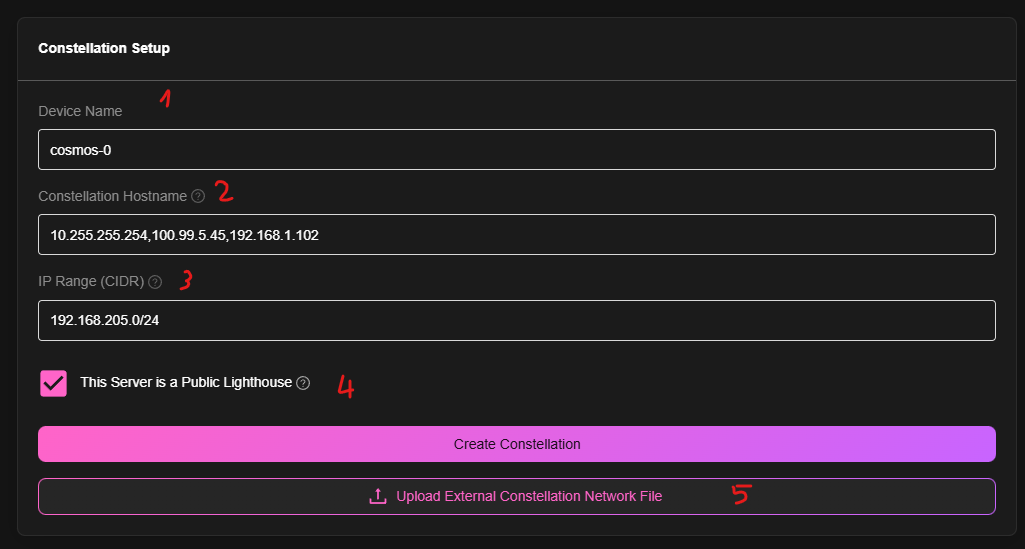
1. This is your server's name. the default cosmos-0 should be fine to keep as is
2. Hostnames: This is very important. Anything you put here will let devices connects directly to your server (see note after)
3. IP Range the VPN will use. I highly recommend NOT changing this
4. This is the second important thing you need to look at: If you are behind CGNAT and you cannot open port, this must be unticked. On the other hand, if you do want to open the port (and therefore the VPN port will be directly opened) Tick this.
Note: If you use a public server, the hostname must contain your public IP so client try to connect to your server directly. If you have a private server, please still add your local IP to the hostname, as it will let devices connect to your server directly when at home (and even work offline!).
### Interface
When going to the Constellation page, you first need to enable the VPN. Once done, you should see this:
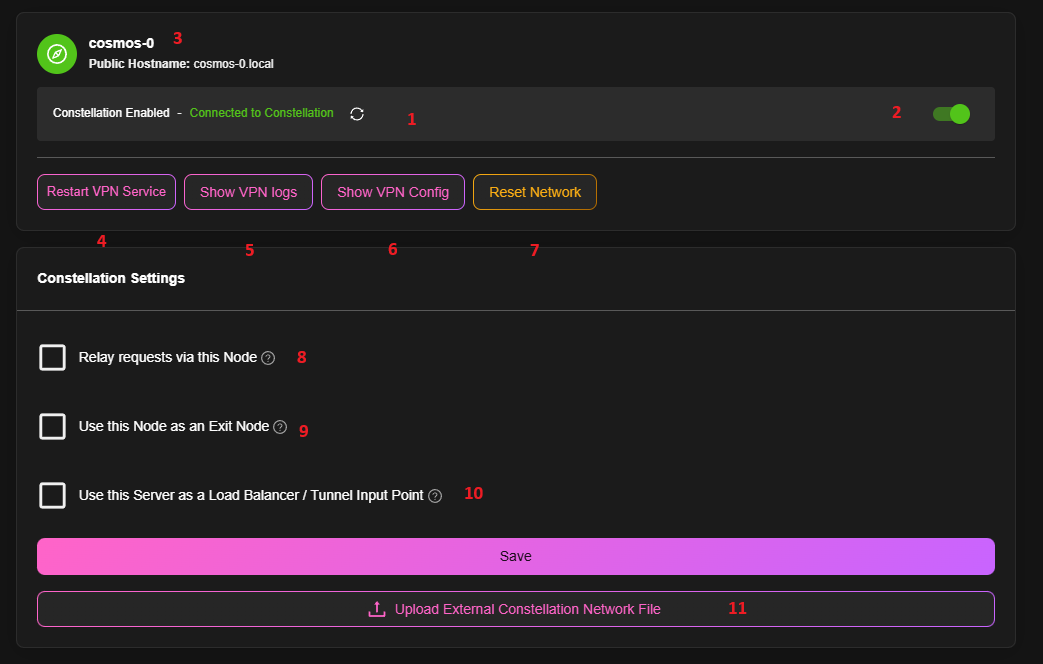
Here's a breakdown:
1. This indicates whether the node is connected to the Constellation communication layers which is used for synchronisation for nodes
2. Enable / Disable Constellation
3. The status of the current node
4. This allows you to restart the internal VPN service (Nebula). This is useful when you change the config, or if the VPN is not working properly.
5. The logs of the service, for debugging purposes
6. Output the config used by the VPN, also useful for debugging
7. Completely destroys your network. If you plan on doing significant work, you should start anew with this button
8. This allows this server to relay request. By default Constellation will try to establish P2P connections between different nodes of our Constellation. Sometime, this is not possible, for example if you are behind certain types of NAT. In this case, you can enable this option, and the server will relay the request for you. This will increase latency, but will allow you to connect to your nodes.
9. This allows client to use this server as an exit node (aka. VPN all the request via this node)
10. Use this as a Tunnel entry point. This allow the server to receive requests that are meant for other servers of your Constellation (Tunneling and/or load balancing)
11. In case this is not your main server (either a public server or just a side server), you can connect it to another Cosmos' Constellation network by uploading the constellation.yml file there
### Create a Device
In order to connect to your network, you need to create a device. To do so, click on the "Add Node" button. You should see this:
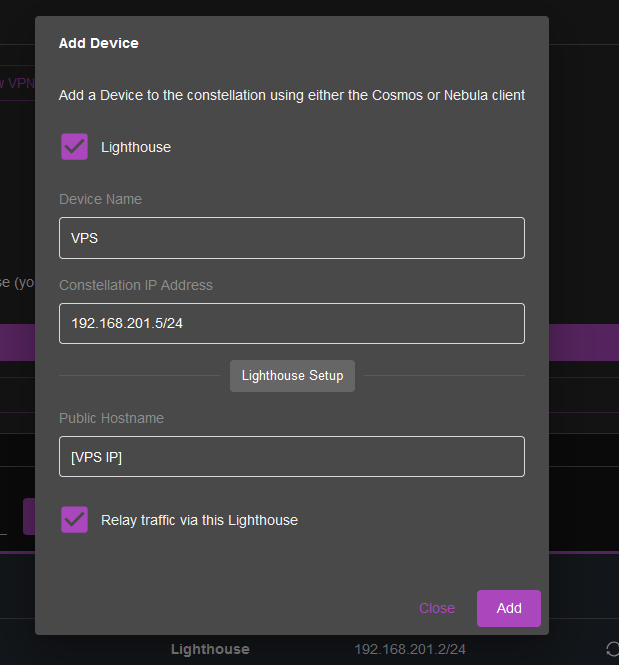
1. Type of devices: This allows you to choose whether the new device is a lighthouse or not. See the next section for more info about lighthouses. If you select it, you will be able to set the hostname of the lighthouse and whether or not it can relay request (see above).
- Client: This is your computers and phones connecting to the network
- Cosmos Server (manager): A complete Cosmos server. This will share your users, licences, etc... across
- Cosmos Server (agent): This is a Cosmos server with lower permissions, useful for lighthouse or tunnel for example
2. The owner of the device, useful for permissions and management (for clients)
3. The name of the device
4. The IP of the device. By default it will automatically select the next available IP in the network. You can change it if you want, but make sure it is not already taken.
5. (Server Only) the Public Hostname is the IP/Hostname your Cosmos Server server will use to communicate with that other server
6. The two other options are the same as for your main server
Once you are done, click on "Add" and your device will be able to connect. You will see a screen with a QR Code and a file to download. You can use either of them to connect to your network.
It is advisable to use the QR Code on your mobile and the file on your computer.
### Client
In order to connect to your network, you need to download the client. You can do so by clicking on the "Download" button. You can find the applications for your platform [here](https://cosmos-cloud.io/clients)
On Linux, the client needs a `chmod +x resources/*` after unzipping.
### Lighthouses and Relaying
Constellation uses a P2P protocol to connect to your devices. This means that your devices will try to connect to each other directly. However, this is not always possible. For example, if you are behind a CGNAT, you will not be able to connect to your devices. In this case, you can use a lighthouse. A lighthouse is a device that is publicly accessible, and that will relay the request for you. You can think of it as some kind of "guide" for your requests.
By default the traffic will not go through the lighthouse, but if the direct connection fails, it will relay the traffic, assuming you enabled the relay option.
### CGNAT and various multi-server setups
The power of this technology lies in its Mesh VPN capabilities. Even if your main server at home is behind a CGNAT, you can still connect to it from anywhere in the world. You can also connect multiple servers together, and they will be able to communicate with each other. For example, you can have a server at home, and a server in the cloud, and they will be able to communicate with each other in a secured, encrypted tunnel.
In order to achieve this:
* Create a Constellation network in your main server
* Create a lighthouse type of device
* Download the config file, and upload it to your secondary server
* Add devices on your main server to connect
A simple $5 DigitalOcean droplet can be used as a lighthouse, and you can connect to your home server from anywhere securely. **It is also recommended that you create the lighthouses before connecting the clients**
Do not use a firewall to isolate the private server completely, as it will block even the traffic that "respond" to outbound traffic. Instead, use the firewall to block inbound traffic on your public IP, for all port except 4242.
### Gateway proxies
Additionally to being a lighthouse, your public server can be used as a gateway to your private assets. Either a secured gateway (within Constellation) or a gateway accepting outside connection. In order to do so, please refer to the [URLs](#urls) section, the part about chaining proxies.
### Securing your containers
One appeal of Constellation is the integration to the reverse proxy and the ability to secure your URLs.
Doing so is extremely easy. In your URL management screen, an option called "Restrict to Constellation network" is available. If you enable it, then only devices connected to your network will be able to access this URL. This is useful to expose private URLs to your network.
### P2P and Meshing
Since Constellation is a P2P meshing VPN, it also means that your devices can connect to each other directly. This is useful if you want for example to share some samba shares between your devices, or even play LAN games. Always remember to use the Constellation IP of your devices when doing so, in order for the connection to work.
### DNS and Constellation
Constellation has its own internal DNS server. This means that you can use Constellation as an alternative to PiHole and Adguard. You can add ads block lists, and also add your own custom DNS records. This is useful to expose private URLs to your network.
The Constellation private DNS is also integrated to your reverse proxy: Whenever you connect to your constellation, it will overwrite all your URL to use your constellation IPs instead of your public IP. This way, all your connections will be secured through your VPN tunnel.
Finally, it will also create hostname for all your clients to talk to each others.
You can setup your DNS entries in the DNS tab of the constellation page.
### Tunneling
When creating a URL, you have an option to tunnel the connection through your constellation network. This is useful if you want to expose a private URL to the public, or if you want to expose your home server to the public, but still want to secure it through strong encryption and gateway proxies.
Once you have your two Cosmos instances connected, you can create a URL on your private server, and tunnel it through your public server.
## Common setup WITHOUT CGNAT: Home server directly exposed
This is the most basic setup. It will simply expose your server publicly (behind the VPN, so still in a secure manner). This is very straightforward
- Make sure the port 4242 (UDP !!) is open on your router
- Setup Constellation with default values (Lighthouse in public mode!)
- Start Connecting devices
## Common setup WITH CGNAT: Home server behind CGNAT with lighthouse
This is a common setup for people who want to connect to their home server from anywhere in the world behind CGNAT. This is also useful if you have multiple servers and want to connect them together. Finally it will also allow you to expose services hosted on your home server to the public, while hiding your home server IP.
IF YOU DON'T HAVE A CGNAT, YOU CAN SIMPLY OPEN THE PORT 4242 ON YOUR ROUTER AND CONNECT TO YOUR HOME SERVER DIRECTLY.
1. Create a Constellation network on your home server
Create a Constellation network on your home server, not much here to do beside making sure the public hostname is how you normally access your server in your local network, and creating the approriate A entry if you are using a domain.
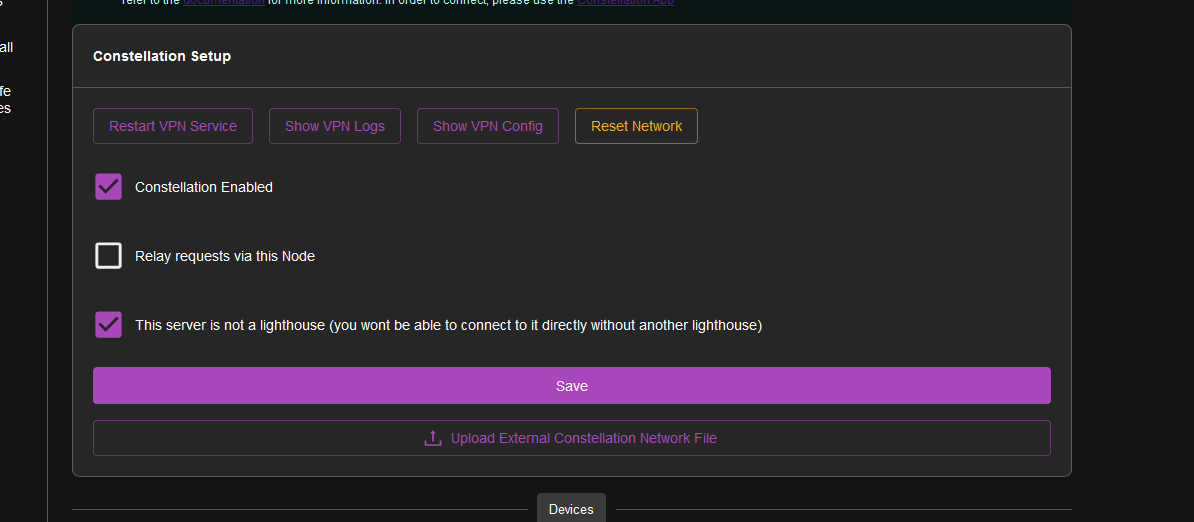
2. Create a lighthouse on a public server
Assuming you have ordered a small (you really don't need much) server from your favourite provider (Digital Ocean works well), create a Device on your home server for this lighthouse of type "Cosmos Server (Agent)". Do not edit the "Constelltion IP" field. But edit the "public hostname" field to be the IP of your public server. Also enable the relay option. It is recommended that you set the type as "Cosmos Server".
IF YOU ARE USING DIGITAL OCEAN WITH A RESERVED IP, THIS IS IMPORTANT: https://docs.digitalocean.com/products/networking/reserved-ips/how-to/outbound-traffic/
Many provider with floating/reserved IPs will have the same issue. ENSURE THE OUTBOUND IP IS THE SAME AS THE NEBULA PUBLIC IP.

3. Upload the config to your public server
After setting up another basic Cosmos instance on your VPS, go to the Constellation page, and upload the config file you downloaded from your home server (at the top of the page you see an upload button). This will connect your public server to your home server. Make sure that both servers show "Connected to Constellation". Sometime on some systems, you may need to restart Cosmos after first uploading the config. If you are using Oracle or similar, it is possible you need to open the 4242 UDP port on their firewall.
4. Create a device on your phones and computers
Create devices for each of your phones and computers you want to connect to your server. You can use the QR code to connect your phone, and the file to connect your computer.
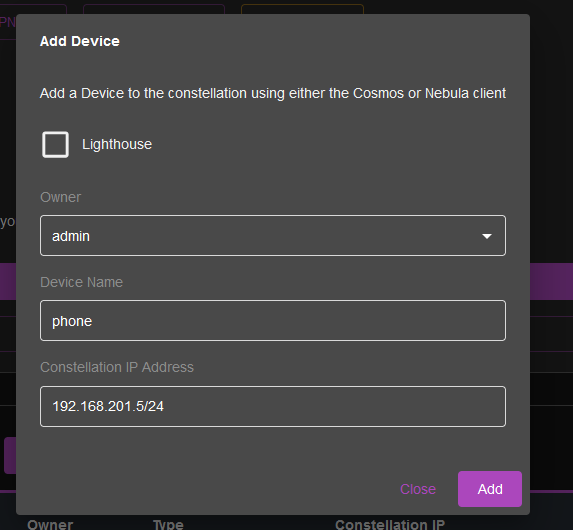
Now you are done! If you go outside and enable 5g on your phone, you should be able to connect to your home server even thought you are not home. The connection will be secured, and you will be able to access all your services with the same domain name as if you were at home.
5. (Optional) Expose services
If you want to expose services on your home server to the public, you can do so by creating URLs and tunneling them through your public server. This way, you can expose services without exposing your home server IP.
First, create a URL on your home server as if you were simply exposing it to your network. Then, edit the URL and enable the "Tunnel through Constellation" option, and select your public server as the gateway. In the hostname field, set the public hostname that you want to use. It should either be the IP of your public server (with a free port) or a domain name that points to your public server.
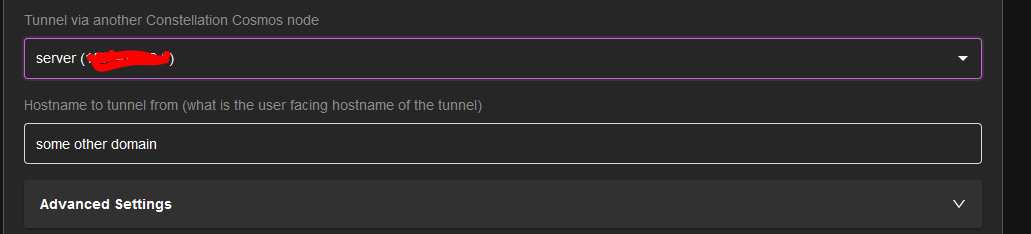
Then you can access your service from anywhere in the world using that hostname, and it will be secured through your VPN tunnel.
## Troubleshoots
### Basic information
If you have trouble connecting to your network, here are some basic information to check:
* By default the VPN is running on the 192.168.201.xxx range, your home server should have the ip 192.168.201.1, while other devices will have an IP as shown in the Constellation tab
* The VPN is using the port 4242. Make sure that this port is open on your server, and that it is not blocked by your firewall if trying to connect directly
* The VPN and its DNS are using the UDP protocol. Make sure that your firewall is not blocking UDP traffic
* You have logs available specific to the VPN in each clients/server's Constellation tab. If you have trouble connecting, you can check the logs to see what is going wrong. You should ideally see "Handshake Received" in the logs of the VPN, indicating that the connection was successful to this particular node.
* If you are using a lighthouse, keep in mind that nodes might take up to 2 minutes to connect to the lighthouse. If you are using a lighthouse, make sure that the lighthouse is connected to the network before connecting the clients.
* Sometime if you manipulated server's networking, Constellation can get blocked connecting in the void. Try to restart Cosmos (via the top right menu) on all servers in your constellation to try to reconnect them together
### I cannot connect to Constellation
If the app struggle to establish a connection:
* if you have never been able to connect, make sure that the port 4242 is open on your server / firewall and that the UDP protocol is allowed. If it is, consider resetting the VPN service completely and resyncing your devices
* if you were able to connect before, but now you can't, see if anything changed in your setup. If not, consider restarting (not resetting) the VPN service on both your lighthouses and home server (can be done easily in the Constellation tab). Also consider restarting the client apps on your devices.
### I can connect to Constellation, but I cannot access Internet
This usually means that while Constellation is working, the DNS is not. This can be due to a misconfiguration in the DNS settings, firewalls, or a clash with another DNS server.
* Check the Cosmos master server logs for any errors related to the DNS
* Check your firewall settings to make sure that the DNS port is open (in UDP)
* Check that there isn't another DNS server running on the same port. If you are using Linux, you usually have either systemd-resolved or dnsmasq running. You can disable them by running `sudo systemctl stop systemd-resolved` and `sudo systemctl disable systemd-resolved` for systemd-resolved, and `sudo systemctl stop dnsmasq` and `sudo systemctl disable dnsmasq` for dnsmasq. You can also change the port of the DNS in the Constellation tab, but you will need to restart the VPN service for the changes to take effect.
### I can connect to Constellation, how do I access my services?
Constellation have a system that automatically remap DNS to point to your server. That includes hostnames for devices names, but also all the URLs you have created in your server.
If you access jellyfin.myserver.com, it will automatically point to the constellation IP of your server. This is useful to secure your connection, without having to remember two set of URLs.
If you are using IPs to connect to your server, consider switching to *.local domain (added in 0.16.0) - but ultimately you can access your server with 192.168.201.1:(port) (the master IP is always 192.168.201.1).
## DNS and Constellation
As mentioned earlier, if you are using a DESKTOP Distro, you might have a DNS server running on your machine. This can cause conflicts with the DNS server of Constellation. You can either disable the DNS server on your machine, or change the port of the DNS server in the Constellation tab. You will need to restart the VPN service for the changes to take effect.
1. Stop the DNS server on your machine
If you are using systemd-resolved, you can stop it by running `sudo systemctl stop systemd-resolved` and `sudo systemctl disable systemd-resolved`. If you are using dnsmasq, you can stop it by running `sudo systemctl stop dnsmasq` and `sudo systemctl disable dnsmasq`.
2. Ubuntu and other systemd-resolved based systems needs to have a new DNS server
If you are runnign a systemd-resolved, the OS will continue to try to resolve the DNS server you just stopped, so we need to fix that.
First of, rm the symlink to /etc/resolv.conf: `sudo rm /etc/resolv.conf`
Then, create a new /etc/resolv.conf file with the following content:
For Google DNS:
```
nameserver 8.8.8.8
nameserver 8.8.4.4
```
For Cloudflare DNS:
```
nameserver 1.1.1.1
nameserver 1.0.0.1
```
(those are the public DNS of Google and Cloudflare, they are recommended to use as they are fast and reliable)
3. Test DNS Resolution
```
dig example.com
ping google.com
```
---
# Storage
## Introduction
Cosmos proposes multiple ways to store and manage your data. Before diving into the different storage options, it is important to understand the different types of storage that Cosmos uses, and when to use which. It is important to note that aside from RAID, all those options can be used without even formatting your disks, it is extremely flexible and always allow you to see all your indidual files in each disk. This setup is described [here](https://perfectmediaserver.com/02-tech-stack/snapraid/)
* Direct Storage: If you just plug-in a disk and start saving data into it. It is the simplest, and works great if you have < 2 disks, and < 1TB of data. In that scenario external backups will allow you to recover your data.
* Parity Disks: If you have more disks/data, you might want to use parity disks. This will allow you to recover your data if a disk fails, without having to re-download a heavy backup from somewhere. It is a good option if you have < 5 disks, and < 10TB of data. The way it works is that you have a parity disk, which is a disk that contains a "parity" (some maths stuff) of all the other disks. If one disk fails, you can recover the data from the parity disk. This is not a backup, but it is a good way to protect your data. If you have 1 parity disk, you can recover from 1 disk failure, if you have 2 parity disks, you can recover from 2 disk failures, etc. More details [here](https://www.snapraid.it/)
* MergerFS: This is best used in situation where you have many disks, it allows you to access them under one folder. This can be used in conjunction with Parity disks. It is a good option if you have < 10 disks, and < 20TB of data. It is a good way to manage your data, and to have a good overview of your storage. more details [here](https://github.com/trapexit/mergerfs)
* RAID: If you have a lot of disks, and a lot of data, you might want to use RAID. RAID is a way to store data on multiple disks, and to recover from disk failures. It is a good option if you have > 6 disks, and > 10TB of data. It is the best way to protect large amount of data, with the best performance. More details [here](https://en.wikipedia.org/wiki/RAID). We recommend using RAID 6, as it allows you to recover from 2 disk failures.
## Direct Storage Management
### Format
Cosmos allows you to format your disks in different formats. The most common format is ext4, but you can also use NTFS, FAT32, exFAT, and XFS. It is recommended to use ext4, as it is the most stable and reliable format. It is also the most supported format in Linux. You can also use NTFS, FAT32, exFAT, and XFS, but they are not as stable and reliable as ext4. You can also use multiple formats on the same disk, but it is not recommended, as it can cause issues.
You will notice the format dialog does not let you customize the partition. This is because it is highly recommended you do not partition your disks. It is best to use the whole disk, as it will make it easier to manage your data. If you need to partition your disk, you can do so using the command line. Cosmos will create a single partition on the disk, and format it with the selected format.
### S.M.A.R.T.
Cosmos allows you to check the S.M.A.R.T. status of your disks. S.M.A.R.T. is a way to check the health of your disks. It is recommended to check the S.M.A.R.T. status of your disks regularly, as it will help you detect disk failures before they happen. You can check the S.M.A.R.T. status of your disks by going to Storage > Disks > Select your disk > S.M.A.R.T.
[More info on S.M.A.R.T.](https://en.wikipedia.org/wiki/S.M.A.R.T.)
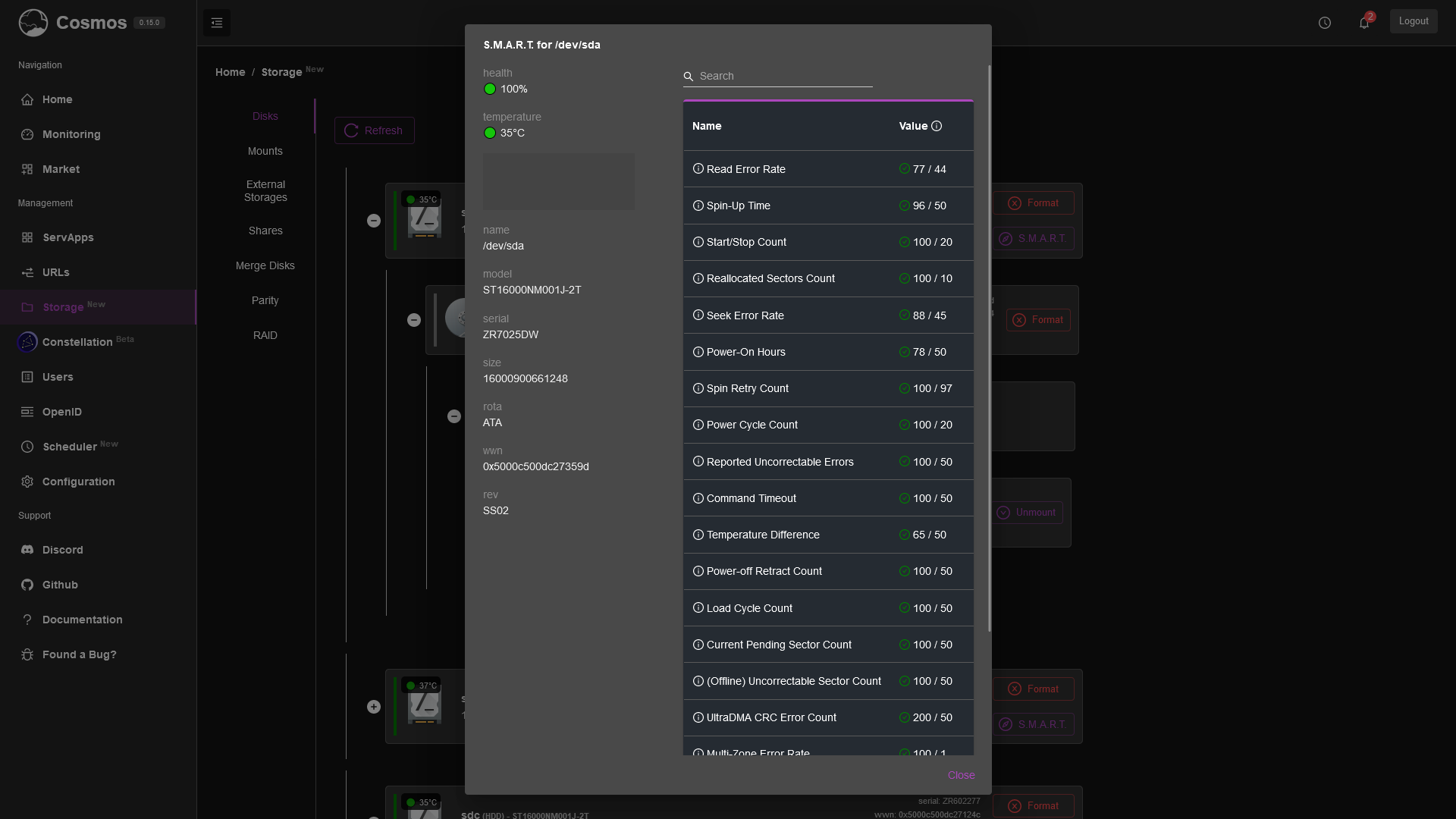
## Parity Disks / SnapRAID
Parity disks are a way to protect your data from disk failures. It is not a backup, but it is a good way to protect your data. The way it works is that you have a parity disk, which is a disk that contains a "parity" (some maths stuff) of all the other disks. If one disk fails, you can recover the data from the parity disk. This is not a backup, but it is a good way to protect your data. If you have 1 parity disk, you can recover from 1 disk failure, if you have 2 parity disks, you can recover from 2 disk failures, etc.
The parity disks in Cosmos are snapshot based: They do not get calculated in real time, instead, they get "sync'd" on a regular basis. When dealing with a few TB of data, this is the best options. Running real time parity is very costly and will slow down your system. The sync process is very fast, and can be scheduled at a time where you do not use your system. If you have more data, you can use RAID which is a much better option than parity disks. being snapshot based, you can recover from any point in time, not just the last sync.
### Setup
To setup Parity Disks, you need to have a few things:
* A few disks: You need at least 3 disks, two for the data, and one for the parity. You can have more disks, but you need at least 3.
* A parity disk: This is a disk that will contain the parity of all the other disks. It is recommended to have 1 parity disk, but you can have more if you want to protect against more disk failures. We recommend using a single Parity disk.
To setup Parity Disks, you need to follow these steps:
* Go to Storage > Parity > New
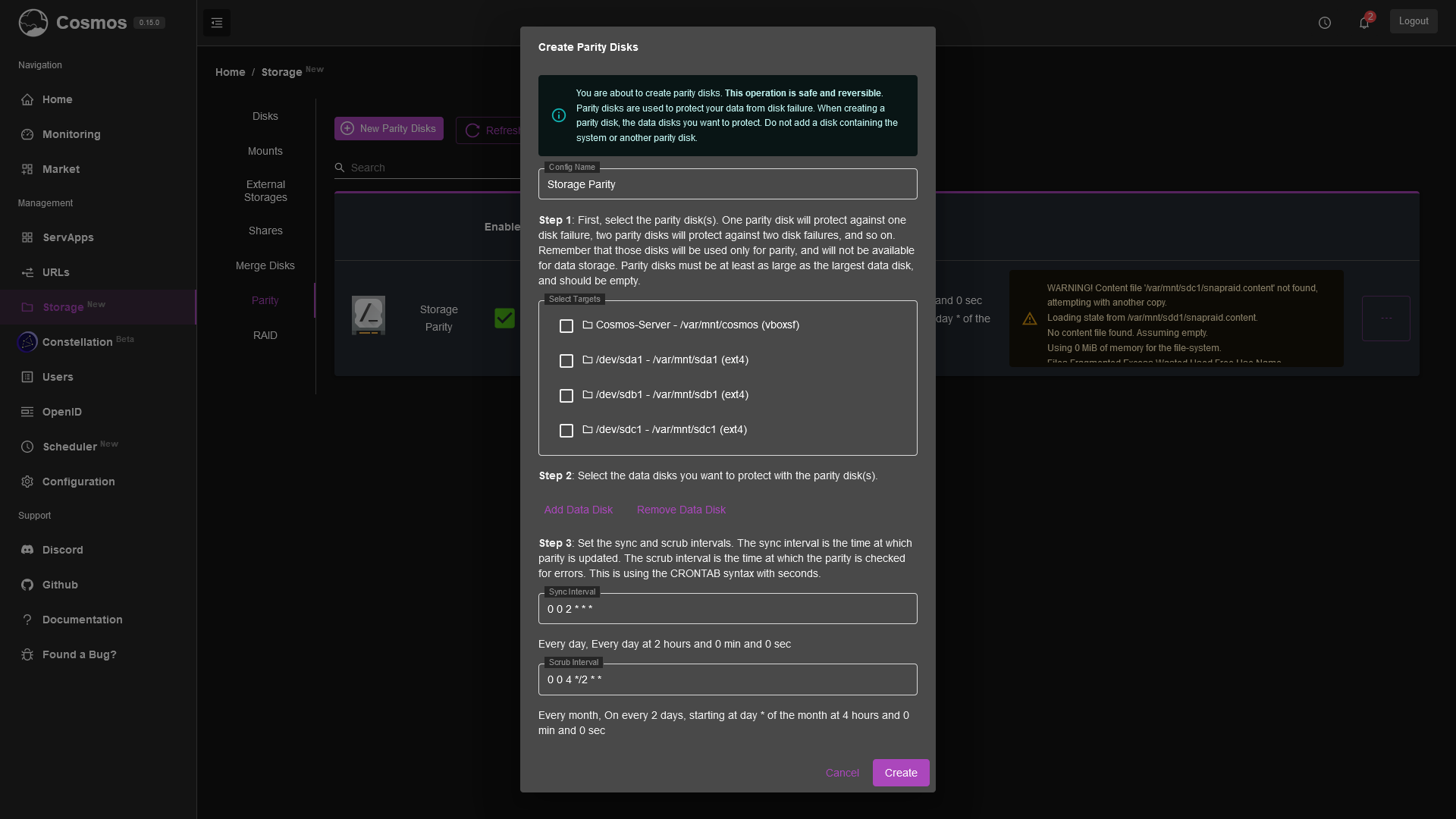
* Follow the steps in the modal, first select a Parity disks. This has to be a disk that is not used for data, and it has to big the same size or bigger than the biggest data disk.
* Then select the data disks, you can select multiple disks. You will notice that disks have a name: disk 1, disk 2. This is important when recovering data.
* You can customize the Sync / Scrub schedule. By default it is set to sync every day at 2am, and scrub every 2 days at 4am. You can change this to your liking.
* click on "Create".
### Sync
The sync process is the process of calculating the parity of all the data disks. This is a very fast process, and can be scheduled at a time where you do not use your system. It is recommended to sync at least once a day, but you can do it more often if you want. The sync process is very fast, and can be scheduled at a time where you do not use your system.
You can manually run a sync or check the logs of each sync in the Scheduler tab:
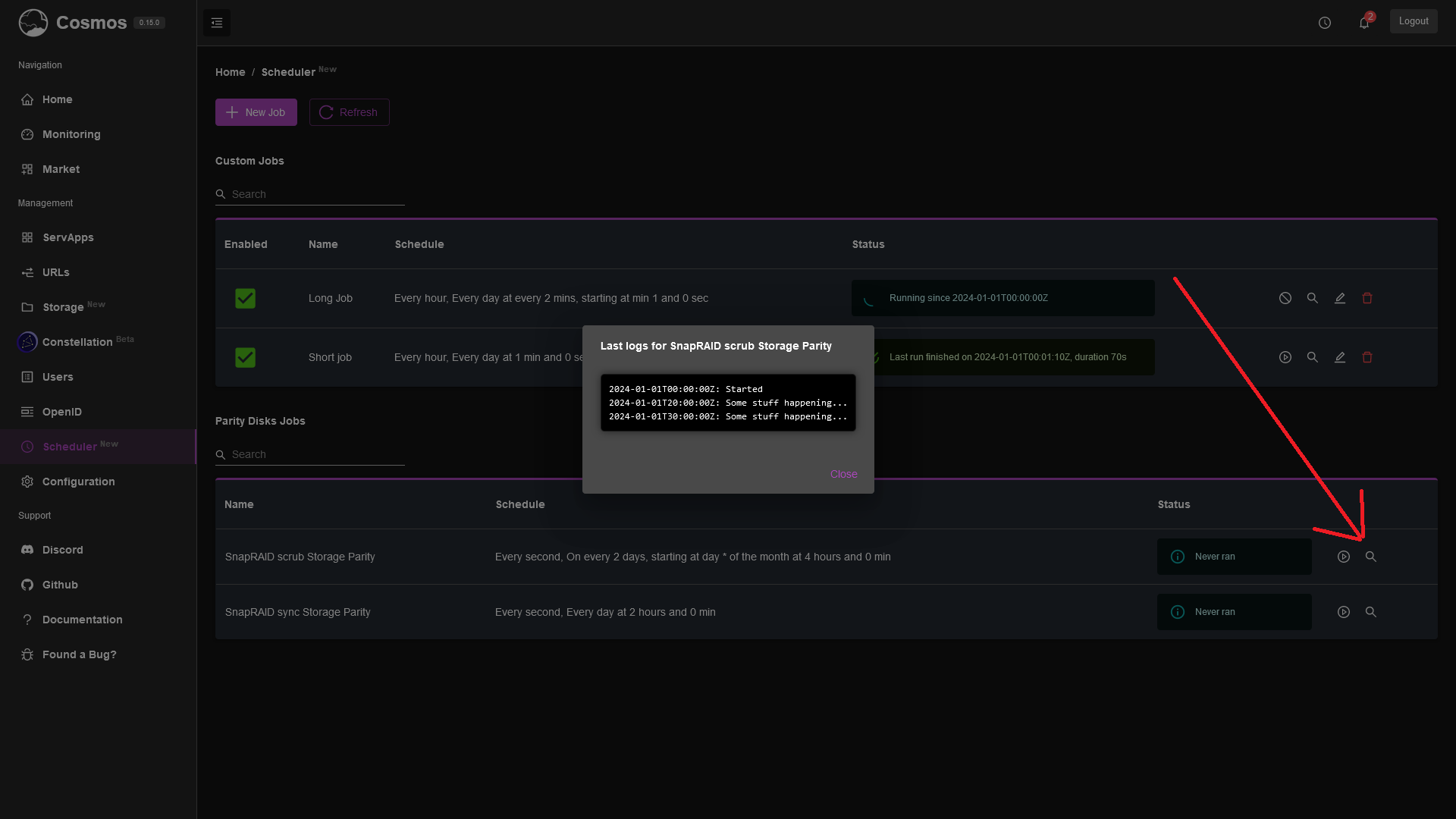
### Scrub
The scrub process is the process of checking the integrity of the data. It is a very important process, as it will detect any corruption in your data. It is recommended to scrub at least once a week, but you can do it more often if you want. The scrub process is very fast, and can be scheduled at a time where you do not use your system.
You can also manually run a scrub or check the logs of each scrub in the Scheduler tab.
### Recover Data (Fix)
If a disk fails, you can recover the data from the parity disk. To do so, you need to follow these steps:
* First, we need to replace the broken disk with a new one: Go to Storage > Parity > Select your storage > Edit.
* In this screen, you will see one of the disk is missing. Select a new disks in the dropdown to replace it:
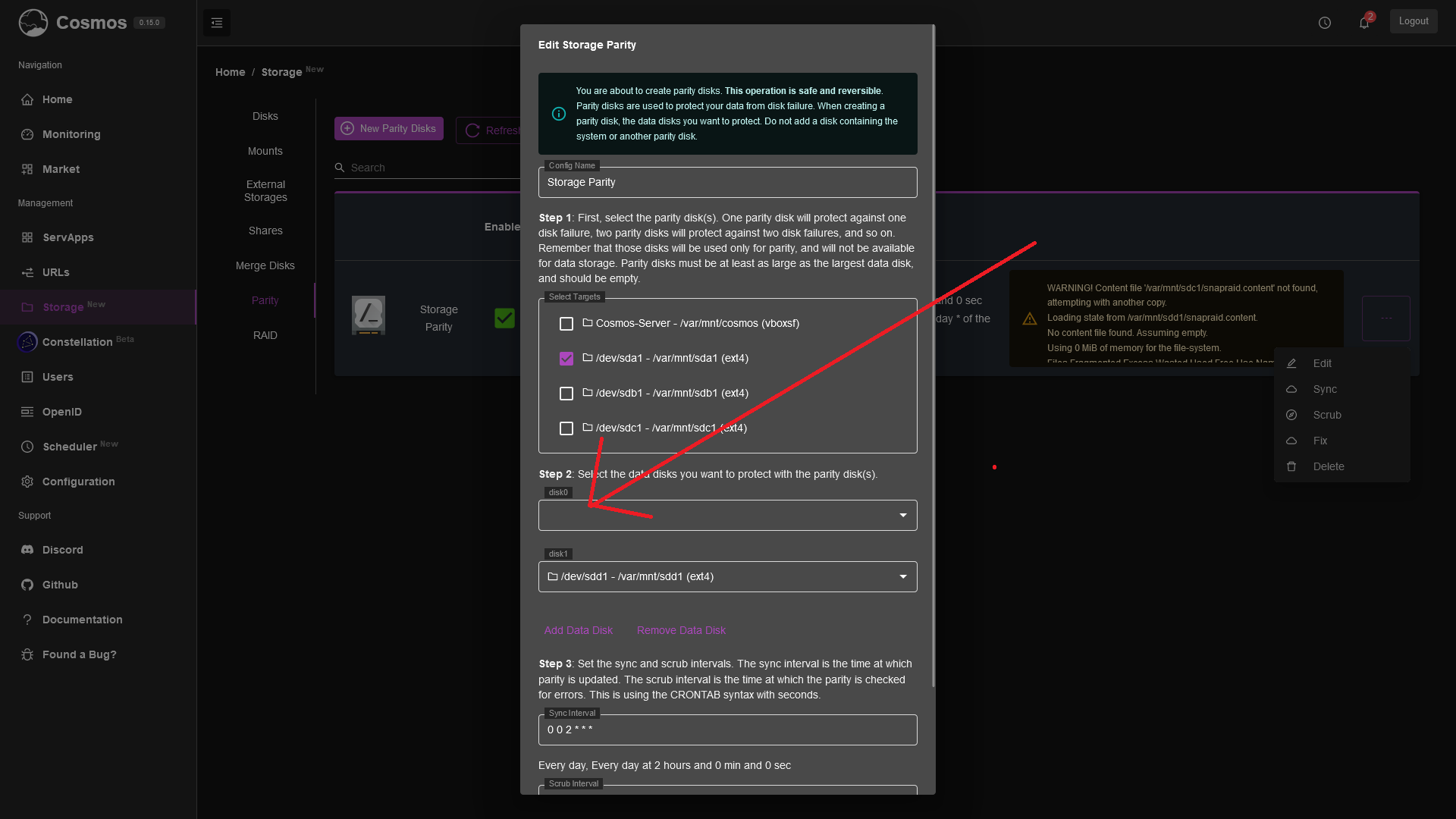
* Click on "Save"
* Then, go to Storage > Parity > Select your storage > Fix. Wait for the process to finish, and your data will be recovered.
## MergerFS
MergerFS is a way to access multiple disks under one folder. It is a good way to manage your data, and to have a good overview of your storage. It is best used in situation where you have many disks, and you want to access them under one folder. This can be used in conjunction with Parity disks. It is safe to remove a disk from MergerFS, as it will not delete the data on the disk. It is also safe to remove MergerFS, as it will not delete the data on the disks.
### Setup
To setup MergerFS, you need to have a few things:
* A few disks: You need at least 2 disks, but you can have more if you want. You can have different size disks, but it is recommended to have the same size disks.
* A mount point: This is the folder where you will access all your disks. It is recommended to have a dedicated folder for this, and not to mix it with other data.
To setup MergerFS, you need to follow these steps:
* Go to Storage > MergerFS > New
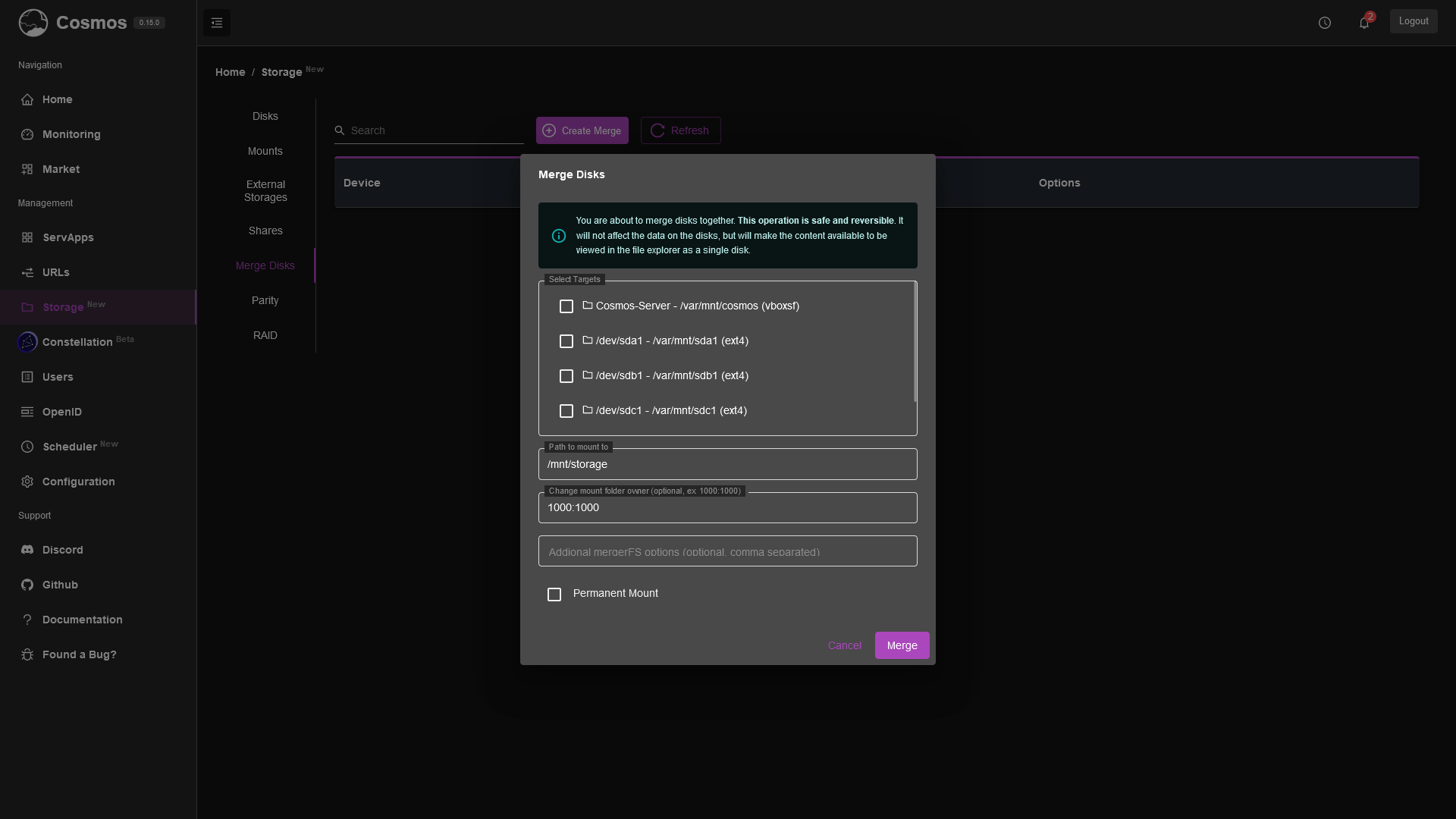
* Follow the steps in the modal, first select a mount point. This is the folder where you will access all your disks. It is recommended to have a dedicated folder for this, and not to mix it with other data.
* Then select the disks, you can select multiple disks. You can customize the options, but the default options are good for most users.
* click on "Create".
## Other options
#### Permanent Mounts
You will notice that those settings allow you to create permanent mounts. This is a good way to mount your disks, as it will survive a reboot. It is recommended to use this option, as it will make sure your disks are always mounted.
#### Chown
By default, the disks are mounted as root. This is not a good idea, as it will make it hard to access your data. You can change the owner of the disks by using the chown option. This is a good way to make sure you can access your data.
---
# Remote Storage
## Overview
Remote storage is a feature that allows you to store your data in a remote location. This can be useful if you want to access your data from multiple devices or if you want to store backups elsewhere.
It currently support:
```
1Fichier, Akamai Netstorage, Amazon S3, Backblaze B2, Box, Citrix ShareFile, Dropbox, Enterprise File, Files.com, FTP, Gofile, Google Cloud, Google Drive, Google Photos, HDFS, HiDrive, HTTP, Internet Archive, Jottacloud, Koofr, Linkbox, Mail.ru, Mega, Memory, Microsoft Azure, Microsoft Azure, Microsoft OneDrive, OpenDrive, OpenStack Swift, Oracle Object, pCloud, PikPak, Pixeldrain, premiumize.me, put.io, Proton Drive, QingStor, Quatrix by, Seafile, SFTP, Sia, SMB, SugarSync, Storj, Uloz.to, Uptobox, WebDAV, Yandex Disk, Zoho WorkDrive
```
It also supports exporting storage as a "share" to other client via NFS, (S)FTP, WebDAV, SFTP. SMB support is planned.
## Setup
Go to Storage > Remote Storage > New
You will see
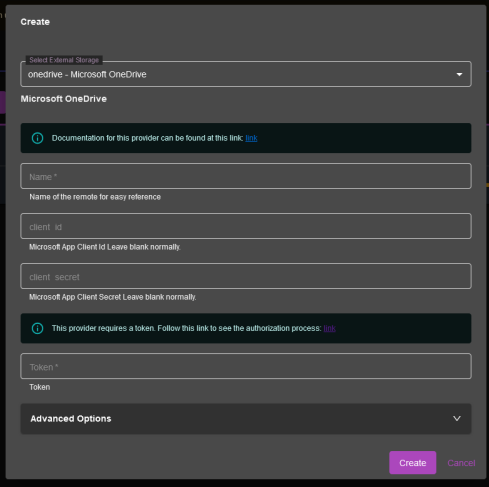
Follow the steps in the modal, first select a remote storage provider. Then fill in the required fields. You can customize the options, but the default options are good for most users. "Name" is usually the important bit, find a simple name, **avoid spaces, special characters, and uppercase.**
One important point is the token field, for some provider you will require a token. In order to get the token, follow those steps:
* Install RClone on your local machine at this link: https://rclone.org/install/
* Run `rclone authorize dropbox` (replace dropbox with the provider you want to use)
* Follow the instructions on the screen
* Copy the token and paste it in the token field
* Enjoy!
Those steps are required because those providers require the use of a browser to authenticate, and it is not possible to do it in a remote web interface without creating a new client for each server (which would be a lot more annoying for you).
The way Cosmos works is by using RClone to mount the remote storage on the server, and then use it as a normal disk.
You can either let Cosmos use your disks via the Rclone API (for example when using network share, that's what happens) or you can see the mounted storage in /mnt/cosmos-(storage-name).
---
# Cosmos Pro
Cosmos Pro is the advanced paid edition of Cosmos for pro. It is the same software, with extra features on top designed for teams and for people running more than one server. Everything described in the standard documentation works the same way in Pro.
## What Pro adds
* [Groups and Permissions](/docs/groups-and-permissions): create your own groups with a tailored set of permissions, instead of only "User" and "Admin".
* [Cluster and Deployments](/docs/cluster-and-deployments): run an application on several Cosmos servers at once. Cosmos places the replicas for you, moves them when a server goes down, scales them with the load, and serves them behind a single URL.
* [Managed Databases](/docs/managed-databases): PostgreSQL databases created in one click, private to your network, with per-application credentials, scheduled backups and restores.
* [Object Storage (S3)](/docs/object-storage): an S3-compatible storage that spreads your files across your servers, with replication, maintenance jobs and backups.
* [Package Registries](/docs/package-registries): your own private registries for Docker images, npm and Python packages, files and static websites.
* [Cloud Functions](/docs/cloud-functions): small pieces of JavaScript or Python that answer on a URL, sleep when idle and scale with the load.
* [CI/CD](/docs/ci-cd): connect a git repository, and every push is built on your nodes and deployed to your cluster, with pull-request previews and rollbacks.
Most Pro features live in the **Constellation** section of the menu, because they rely on the [Constellation](/docs/constellation-vpn) network to talk between your servers. If you have a single server, you still need to enable Constellation on it (the setup takes a minute, and you do not need to add any device).
## Installing Cosmos Pro
Cosmos Pro is installed with the `get-pro.sh` script. It is the same script as the standard installer, with the same options, but it installs the Pro build:
```bash
# Same env variables and flags as get.sh (--dry-run, --beta, --no-docker, --no-dep, --update, --fresh)
curl -fsSL https://cosmos-cloud.io/get-pro.sh | sudo -E bash -s
```
If you already run the standard edition, running the script on top of it switches you to Pro. Your configuration, users and applications are kept.
Once installed, go to **Configuration > General** and enter your **Licence Key**. The Pro pages unlock as soon as the key is saved. The **Manage Licence** button on the same screen lets you review and manage your licence.
## Updates
Updates work like the standard edition: Cosmos checks for new versions and lets you update from the UI. The Pro build updates from the Pro channel automatically, you do not need to run the script again.
---
# Groups and Permissions
By default, Cosmos has two kinds of users: **Users**, who can log in and use the applications you share with them, and **Admins**, who can do everything. Cosmos Pro lets you create your own **Groups** in between: a group is a name and a set of permissions, and every user you put in that group gets exactly those permissions.
This is how you give a family member the ability to restart a container without letting them touch your configuration, or let a colleague manage users without seeing your passwords.
## Where to find it
Go to **Management > Users**. Next to the usual **Users** tab, you will find a **Groups** tab.
The table lists your groups with the number of permissions each one has. From here you can **Create**, **Edit** or **Delete** a group.
## Creating a group
Click **Create**. Give the group a name and tick the permissions you want it to have.
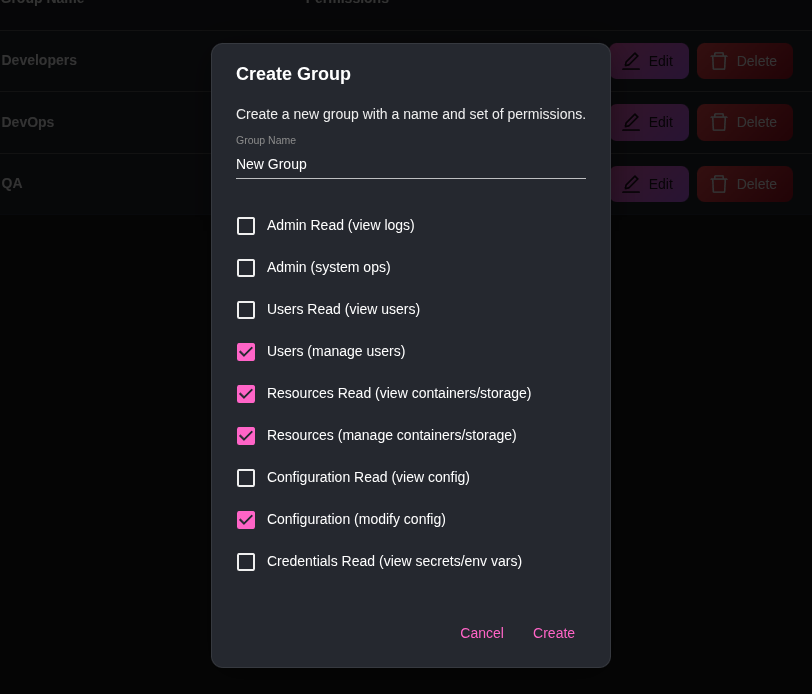
Every group can log in, that permission is always included. The others are:
| Permission | What it allows |
|---|---|
| **Admin Read (view logs)** | Read the server logs, and access URLs marked as "Admin only" |
| **Admin (system ops)** | Restart, shut down and update the server, open the terminal, create API tokens |
| **Users Read (view users)** | See the list of users and groups |
| **Users (manage users)** | Create, edit and delete users, reset their 2FA, manage groups |
| **Resources Read (view containers/storage)** | See containers, storage, backups, scheduled jobs and monitoring |
| **Resources (manage containers/storage)** | Manage all of the above: install apps, restart containers, format disks, run backups... |
| **Configuration Read (view config)** | See the configuration pages |
| **Configuration (modify config)** | Change the configuration, including URLs and DNS |
| **Credentials Read (view secrets/env vars)** | See secrets in clear: environment variables, passwords, API keys |
"Read" permissions only let you look. The corresponding full permission lets you act. You usually want to give both, a group with "Resources" but not "Resources Read" would be able to restart a container but not see the list of containers.
The menu adapts to the group: someone without "Resources Read" will not see the ServApps, Storage or Backups pages at all.
### Examples
* **Family**: no permission ticked. Members can log in and use the apps behind Cosmos authentication, nothing else. This is the same as the built-in "User" role.
* **Helpdesk**: *Users Read* and *Users (manage users)*. Members can invite people, resend invites and reset 2FA, but cannot touch the server.
* **Operators**: *Resources Read* and *Resources*. Members can install and restart applications, manage storage and run backups, but cannot change the URLs or the configuration.
* **Auditors**: *Admin Read*, *Users Read*, *Resources Read* and *Configuration Read*. Members see everything and can change nothing.
## Assigning users to a group
Groups are assigned from the **Users** tab. When you create a user, or when you click on an existing user to edit it, the **Role** dropdown lists the two built-in roles (User, Admin) followed by all your groups. Pick one and save.
A user belongs to one group at a time. The change takes effect immediately, the user does not need to log out and back in.
You can only give a user permissions that you hold yourself. A member of the Helpdesk group can add users to the Family group, but cannot make anyone an Admin.
## Editing and deleting a group
Editing a group changes the permissions of every member right away, which makes it easy to adjust things as your needs evolve.
To delete a group, first move its members to another group. Cosmos refuses to delete a group that still has users in it, so nobody ends up without a role.
## Admin privileges (sudo)
Permissions that can change your server (Admin, Users, Resources, Configuration and Credentials Read) are not active all the time. When a member of a group with one of those permissions logs in, they browse with read-only access until they enable their privileges, a bit like `sudo` on Linux.
An **Admin** chip in the top-right corner of the page opens the **Enable Admin Privileges** dialog. Enter your password, and the privileges stay active for 2 hours of inactivity. Buttons that need privileges are greyed out until then, with a tooltip reminding you to enable them.
This applies to Admins too, it is not specific to groups.
## Groups and URLs
On a URL's **Security** tab, the **Admin only** option restricts the URL to people with the *Admin Read* permission. Give a group *Admin Read* and its members can open your admin-only applications (Cosmos itself, monitoring tools, your NAS interface...), without necessarily being able to manage the server.
## Groups and Constellation
Groups are shared across all the Cosmos servers of your [Constellation](/docs/constellation-vpn). Create a group on one server and it exists on all of them, with the same permissions.
## API tokens
If you use scripts or the Terraform provider, you can create API tokens from **Configuration > API Tokens**. A token is either **Read only** (it can list and view everything) or full access, and can be restricted to an IP whitelist, to the Constellation network, and given an expiry date. As with users, you can only create a token with permissions you hold.
---
# Cluster and Deployments
A **Deployment** is an application that runs on several Cosmos servers at once. You describe the application once, say how many copies (replicas) you want, and Cosmos takes care of the rest: it picks which servers run it, restarts it elsewhere if a server goes down, adds or removes copies when the load changes, and serves all the copies behind a single URL.
Your Cosmos servers connected together through [Constellation](/docs/constellation-vpn) form the **cluster**. No extra software to install: if your servers are in the same Constellation, you already have a cluster.
## Setting up your cluster
### Nodes
Each Cosmos server in your Constellation is a **node**. When you add a server to your Constellation (**Constellation > Add Device**), you choose its type:
* **Cosmos Server (Manager)**: a full Cosmos server. Managers share your users, groups and licence, and one of them is elected **Leader**: the leader is the node that decides where deployments run. If it goes down, another manager takes over within seconds.
* **Cosmos Server (Agent)**: a lighter server managed by the others. Agents run deployments like managers do, they just never become leader.
You need at least one manager for deployments to work. For a resilient cluster, use three managers, so a leader is always available even when one is down.
The device list on the **Constellation** page shows which node is the current leader with a **Leader** chip.
A new server joins by uploading its constellation file during its [first setup](/docs/setup). It gets the hostname `.` automatically, and the certificates and DNS records of your domains are shared with it, see [Domains and HTTPS](/docs/domains#in-a-constellation-cluster).
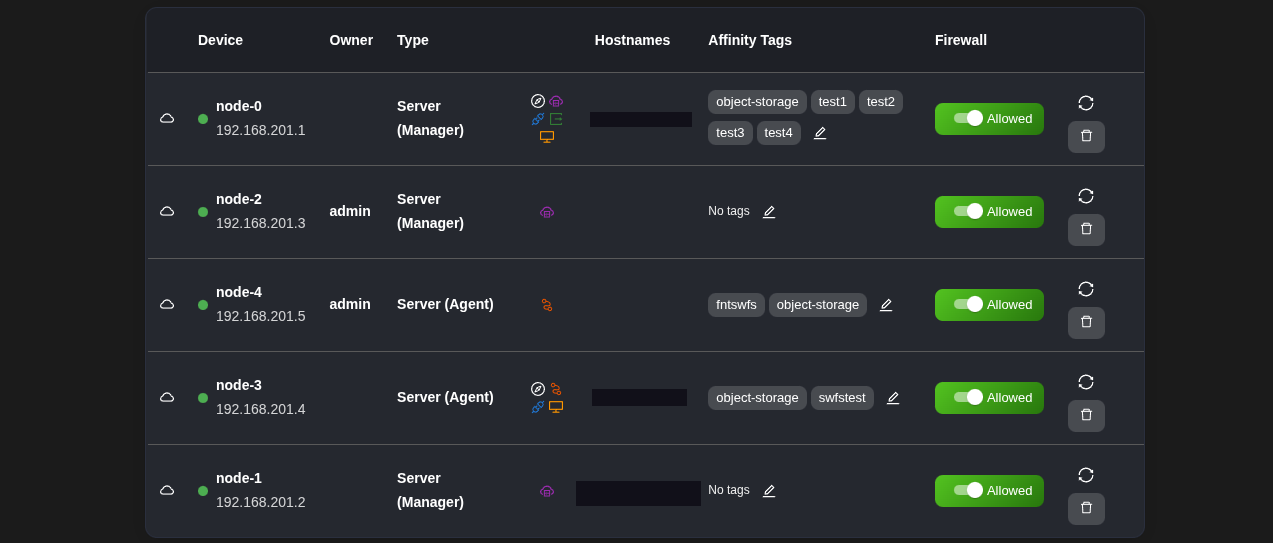
### Tags
Tags are labels you attach to nodes to describe them: `gpu`, `nvme`, `zone-eu`, `home`, `backup`... Deployments can then ask to run only on nodes carrying certain tags.
To tag a node, use the pencil in the **Affinity Tags** column of the device list, and enter a comma-separated list. You can also set tags when adding a device.
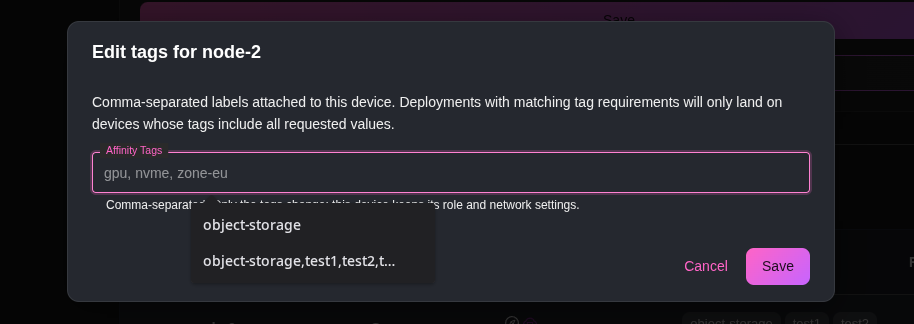
Tags are just words, pick whatever makes sense for you. Good tags describe what a node has (`gpu`, `bigdisk`) or where it is (`office`, `hetzner`).
### Load balancer
For a deployment to answer on a single URL wherever its replicas run, at least one node must be able to receive the requests and forward them. Enable **Load Balancer / Tunnel Input Point** on that node, on the Constellation page. This is typically your public server, or the server your domain name points to. You can enable it on several nodes.
## Creating a deployment
Go to **Constellation > Deployments** and click **Create**.
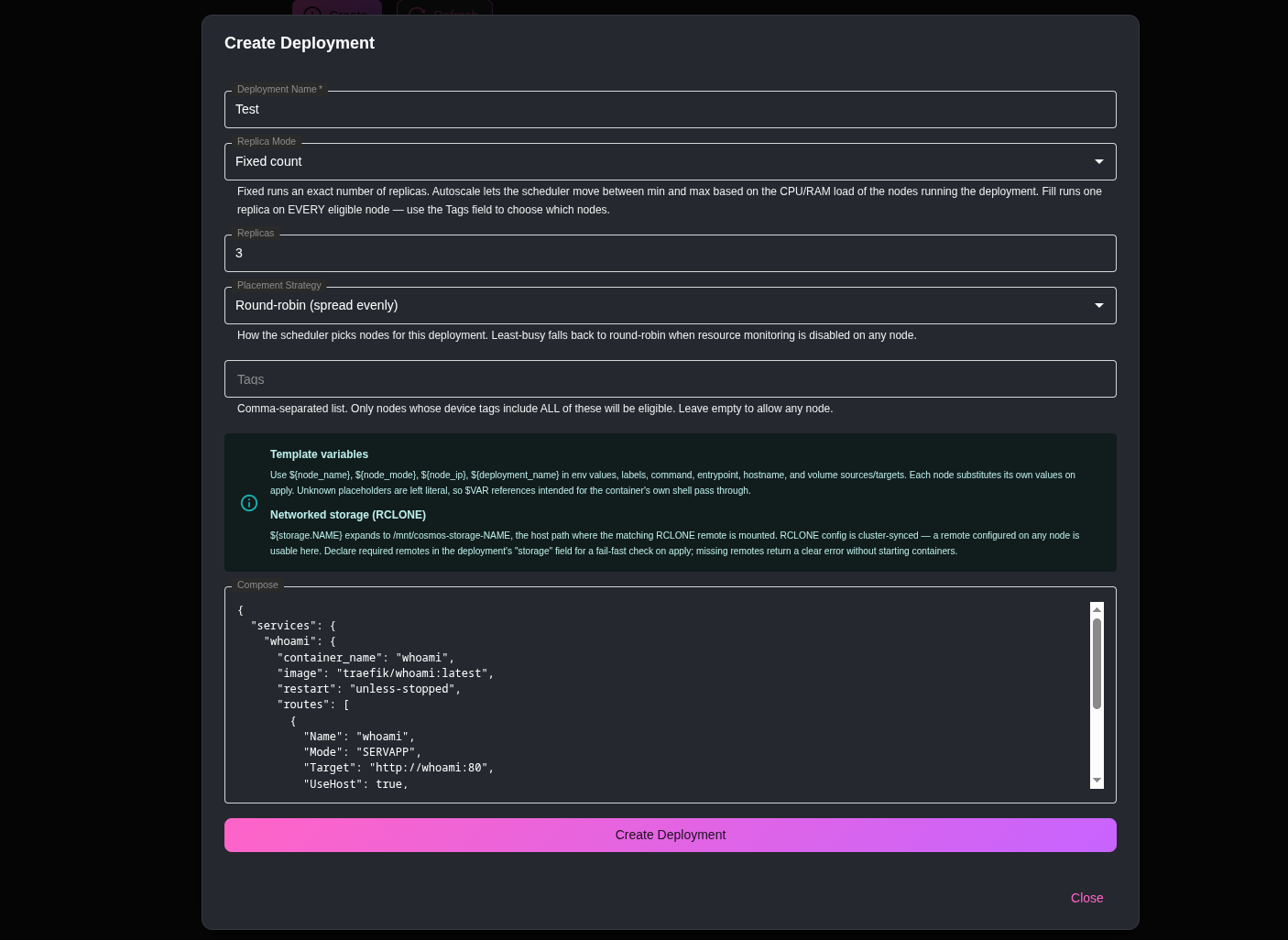
The form has two parts: the settings that tell Cosmos **where and how many** to run, and the compose that tells it **what** to run.
* **Deployment Name**: a unique name made of letters and digits (for example `whoami`, `blog2`).
* **Replica Mode**: **Fixed count**, **Autoscale (min / max)** or **Fill (one per eligible node)**. Depending on the mode, the form asks for **Replicas**, **Min Replicas** / **Max Replicas**, or a **Fill Mode**. See [Replica modes](#replica-modes) below.
* **Placement Strategy**: how Cosmos chooses nodes. **Round-robin** spreads replicas evenly, **Least-busy** prefers the nodes with the most spare CPU and memory.
* **Tags**: comma-separated. Only nodes carrying **all** of these tags are eligible. Leave empty to allow any node.
* **Compose**: the application itself, as a [Cosmos-Compose](/docs/cosmos-compose) file in JSON. This is the same format as the ServApps you install from the market, including the `routes` section that gives your application a URL.
### Your first deployment
Let's run a small web service on two nodes, behind one URL. Fill the form like this:
| Setting | Value |
|---|---|
| Deployment Name | `whoami` |
| Replica Mode | Fixed count |
| Replicas | `2` |
| Placement Strategy | Round-robin |
| Tags | *(empty, any node)* |
And paste this compose:
```json
{
"services": {
"whoami": {
"container_name": "whoami",
"image": "traefik/whoami:latest",
"restart": "unless-stopped",
"routes": [
{
"Name": "whoami",
"Mode": "SERVAPP",
"Target": "http://whoami:80",
"UseHost": true,
"Host": "whoami.mydomain.com",
"Tunnel": "_ANY_",
"AuthEnabled": true
}
]
}
}
}
```
The `"Tunnel": "_ANY_"` line is what makes the URL reach the deployment on any node, see [URLs and load balancing](#urls-and-load-balancing). Click **Create Deployment**, and within a minute the cards on the Deployments page show two replicas starting on two different nodes. Open `https://whoami.mydomain.com` and refresh a few times: the page prints the name of the container answering, and you will see it alternate between the two nodes.
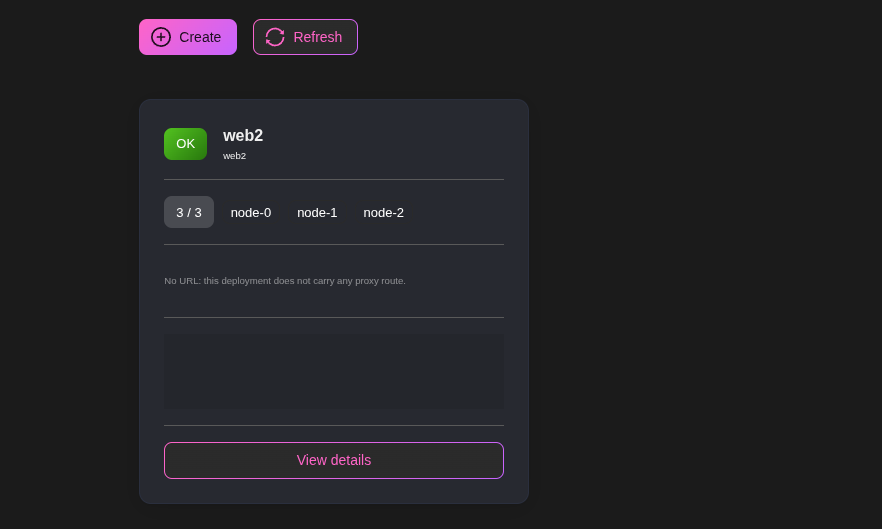
Each card shows the status of the deployment, how many replicas are running out of how many are wanted, which nodes run them, its URLs and a small CPU/RAM graph. **View details** opens the deployment page with its **Overview**, **Edit**, **Monitoring** and **Events** tabs.
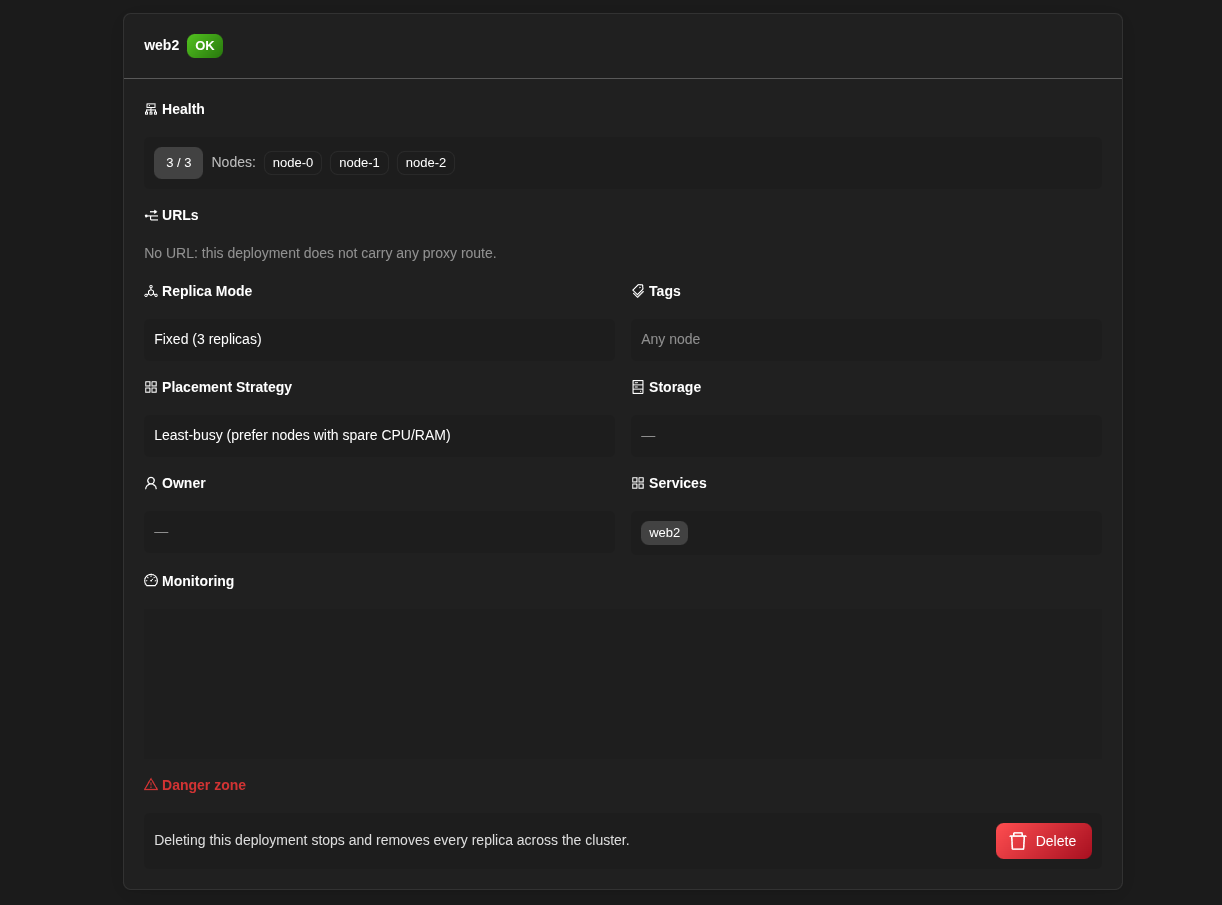
## Examples
Here are a few typical deployments. Each one is just the form settings plus a compose, exactly like the first one.
### A web app that grows with the traffic
An application that runs on one node when nobody uses it, and on up to four nodes when it is busy. It stores its data in a [managed database](/docs/managed-databases) so every replica sees the same data, sends each new visitor to the least busy node, and keeps them on that replica with sticky sessions.
| Setting | Value |
|---|---|
| Deployment Name | `wiki` |
| Replica Mode | Autoscale (min / max) |
| Min Replicas | `1` |
| Max Replicas | `4` |
| Placement Strategy | Least-busy |
| Tags | `web` |
```json
{
"services": {
"wiki": {
"container_name": "wiki",
"image": "requarks/wiki:2",
"restart": "unless-stopped",
"environment": [
"DB_TYPE=postgres",
"DB_HOST=${db.maindb.wiki.host}",
"DB_PORT=${db.maindb.wiki.port}",
"DB_USER=${db.maindb.wiki.user}",
"DB_PASS=${db.maindb.wiki.password}",
"DB_NAME=${db.maindb.wiki.dbname}"
],
"routes": [
{
"Name": "wiki",
"Mode": "SERVAPP",
"Target": "http://wiki:3000",
"UseHost": true,
"Host": "wiki.mydomain.com",
"Tunnel": "_ANY_",
"LBMode": "load_based",
"LBStickyMode": true,
"AuthEnabled": false,
"SmartShield": { "Enabled": true }
}
]
}
}
}
```
Only nodes tagged `web` are considered. When those nodes get busy, Cosmos adds a replica on another `web` node, one every three minutes at most; when they go quiet, it removes one, down to a single replica.
### Something on every node
A monitoring agent that must run on each and every server. **Fill** does exactly that, and `${node_name}` lets each replica report under the name of its node. The port is bound to `${node_ip}`, so the agent is only reachable from inside the Constellation.
| Setting | Value |
|---|---|
| Deployment Name | `nodeexporter` |
| Replica Mode | Fill (one per eligible node) |
| Fill Mode | Full |
| Placement Strategy | Round-robin |
| Tags | *(empty, every node)* |
```json
{
"services": {
"nodeexporter": {
"container_name": "nodeexporter",
"image": "prom/node-exporter:latest",
"restart": "unless-stopped",
"hostname": "${node_name}",
"command": "--path.rootfs=/host",
"ports": ["${node_ip}:9100:9100"],
"volumes": [
{ "Type": "bind", "Source": "/", "Target": "/host", "ReadOnly": true }
]
}
}
}
```
Add a server to your Constellation and the agent appears on it without you doing anything.
### Only on the nodes that have the hardware
A transcoding worker that needs a GPU. Tag your GPU nodes `gpu` and let the deployment pick among them. With two GPU nodes and one replica, Cosmos moves the worker to the other node if the first one goes down.
| Setting | Value |
|---|---|
| Deployment Name | `transcoder` |
| Replica Mode | Fixed count |
| Replicas | `1` |
| Placement Strategy | Least-busy |
| Tags | `gpu` |
```json
{
"services": {
"transcoder": {
"container_name": "transcoder",
"image": "myorg/transcoder:latest",
"restart": "unless-stopped",
"devices": ["/dev/dri:/dev/dri"],
"environment": [
"S3_ENDPOINT=${s3.media.endpoint}",
"S3_ACCESS_KEY=${s3.media.accessKey}",
"S3_SECRET_KEY=${s3.media.secretKey}",
"S3_BUCKET=videos"
]
}
}
}
```
The worker reads and writes its files in your [object storage](/docs/object-storage), so it does not matter which node it runs on.
### Available everywhere at peak, cheap when idle
A public API that should be able to use every `edge` node during the day, but only one at night. **Fill** with the **Bare** mode scales between one replica and all the tagged nodes, based on the load.
| Setting | Value |
|---|---|
| Deployment Name | `api` |
| Replica Mode | Fill (one per eligible node) |
| Fill Mode | Bare |
| Placement Strategy | Least-busy |
| Tags | `edge` |
```json
{
"services": {
"api": {
"container_name": "api",
"image": "myorg/api:1.4",
"restart": "unless-stopped",
"environment": ["DATABASE_URL=${db.maindb.api.url}"],
"routes": [
{
"Name": "api",
"Mode": "SERVAPP",
"Target": "http://api:8080",
"UseHost": true,
"Host": "api.mydomain.com",
"Tunnel": "_ANY_",
"LBMode": "round_robin"
}
]
}
}
}
```
### A tool you use once in a while
An internal tool that nobody opens for days. With the **Empty** fill mode, the last replica is a lazy container: Cosmos stops it after an hour without requests, and the next visit to the URL starts it again. You get the URL, always ready, at zero cost while idle.
| Setting | Value |
|---|---|
| Deployment Name | `pgadmin` |
| Replica Mode | Fill (one per eligible node) |
| Fill Mode | Empty |
| Placement Strategy | Round-robin |
| Tags | `home` |
```json
{
"services": {
"pgadmin": {
"container_name": "pgadmin",
"image": "dpage/pgadmin4:latest",
"restart": "unless-stopped",
"environment": [
"PGADMIN_DEFAULT_EMAIL=me@mydomain.com",
"PGADMIN_DEFAULT_PASSWORD=changeme"
],
"routes": [
{
"Name": "pgadmin",
"Mode": "SERVAPP",
"Target": "http://pgadmin:80",
"UseHost": true,
"Host": "pgadmin.mydomain.com",
"Tunnel": "_ANY_",
"AuthEnabled": true
}
]
}
}
}
```
The first request after a pause takes a few seconds longer while the container starts. That is the only difference you will notice.
## Replica modes
### Fixed count
Runs an exact number of replicas, each on a different node. This is the mode to use for most applications: `2` for something that should survive a server going down, `3` for something important.
Cosmos places each replica on a different node, so choose a number that is at most your number of eligible nodes.
### Autoscale (min / max)
Cosmos moves the number of replicas between **Min Replicas** and **Max Replicas** depending on the load of the nodes running the deployment. When those nodes are busy (over 80% CPU or under memory pressure), Cosmos adds a replica; when they are idle (under 30%), it removes one. It changes by one replica at a time and waits 3 minutes between two changes, so a short spike does not trigger a cascade.
Example: a web application with `Min 1` / `Max 4` runs on one node overnight and grows to four nodes during the day.
### Fill (one per eligible node)
Runs one replica on **every** eligible node. Combined with the Tags field, this is how you run something "on every node that has X": a log collector on every node, a cache on every `edge` node, a worker on every `gpu` node. When you tag a new node, the deployment automatically extends to it.
**Fill Mode** refines this:
* **Full**: always every eligible node. The default.
* **Bare**: between one replica and every eligible node, scaling with the load like Autoscale does. Great for an application you want available everywhere at peak time, without paying for it when idle.
* **Empty**: like Bare, but the last replica is a [lazy container](/docs/lazy-containers): after an hour without requests it is stopped, and the next request starts it again. This lets a deployment scale from zero. Perfect for tools you use once in a while.
## Placement and tags
The tags you set on a deployment are matched against the tags of your nodes: a node is eligible only if it carries **all** the deployment's tags.
* Tags `gpu`: runs only on nodes tagged `gpu`.
* Tags `gpu, zone-eu`: runs only on nodes tagged with both.
* No tags: runs on any node.
Once the eligible nodes are known, the **Placement Strategy** picks among them. Cosmos keeps existing replicas where they are and only chooses nodes for new ones, so editing a deployment does not shuffle everything around.
## Template variables
Each node fills a few variables into the compose when it starts a replica, so the same compose adapts to where it runs. Use them in environment variables, labels, commands, hostnames, ports and volume paths:
| Variable | Value |
|---|---|
| `${deployment_name}` | The name of the deployment |
| `${node_name}` | The name of the node running this replica |
| `${node_ip}` | The Constellation IP of the node |
| `${storage.NAME}` | The mount path of the remote storage `NAME` (see [Remote Storage](/docs/remote-storage)) |
| `${db.NAME.APP.url}` | The connection URL of application database `APP` on [managed database](/docs/managed-databases) `NAME` (also `.host`, `.port`, `.user`, `.password`, `.dbname`) |
| `${s3.NAME.endpoint}` | The endpoint of [object storage](/docs/object-storage) `NAME` (also `.host`, `.port`, `.accessKey`, `.secretKey`, `.url`) |
For example, to run an application that stores its data in a managed database and its uploads in your object storage:
```json
"environment": [
"DATABASE_URL=${db.maindb.myapp.url}",
"S3_ENDPOINT=${s3.media.endpoint}",
"S3_ACCESS_KEY=${s3.media.accessKey}",
"S3_SECRET_KEY=${s3.media.secretKey}",
"NODE=${node_name}"
]
```
Any `$VARIABLE` that Cosmos does not know is left untouched, so variables meant for the container's own shell keep working.
## URLs and load balancing
A deployment gets its URLs from the `routes` of its compose, exactly like a ServApp. What differs is that the replicas live on several nodes, so the URL needs to reach all of them.
Setting the route's tunnel to **Any Node** (`"Tunnel": "_ANY_"` in JSON, or the **Tunnel via the Constellation cluster load balancer** option when editing the URL) tells your load balancer nodes to spread the requests across every node running a replica. Replicas that stop answering are taken out of rotation within seconds and put back when they recover.
Once created, the URL appears in **Management > URLs** on your load balancer nodes, where the **Load Balancing** section lets you fine tune it:

* **Load Balancing Mode**: how the load balancer picks a replica for each request.
* **Default**: always the first healthy replica, which is the local one when the node receiving the request runs a replica. The other replicas only serve when that one is down. Simple and predictable, good for a small cluster where one node does most of the work.
* **Round Robin**: each request goes to the next replica in turn, so all replicas get the same number of requests. Good when your nodes are similar.
* **Load Based**: each request goes to the replica whose node currently has the most spare CPU and memory. Nodes report their load to the cluster every couple of seconds, so a node that is busy with something else (a backup, a transcoding job, another deployment) automatically receives fewer requests, and a bigger server naturally takes a larger share. This is the best choice when your nodes have different sizes or run other things on the side. It relies on monitoring: if a node has monitoring disabled, requests fall back to round robin until it reports again.
* **Sticky Sessions**: a given visitor always reaches the same replica, whatever the mode. Enable this for applications that keep sessions in memory. When the replica goes away, the visitor is reassigned to another one.
If you leave the tunnel empty, each replica only answers on its own node's URL.
## Updating a deployment
Open the deployment and go to the **Edit** tab. Change anything (more replicas, a new image tag, an extra environment variable) and click **Save Changes**.
Cosmos rolls the change out **one node at a time**: it updates a replica, waits for it to be running, then moves on to the next one. The other replicas keep serving during the update. If a replica fails to start with the new version, the rollout pauses so the remaining healthy replicas stay untouched while you fix the compose.
Every save is rolled out this way, even when you only change the number of replicas, so the deployment always runs a single version of your compose.
## When a node goes down
Cosmos notices within a few seconds that a node stopped reporting, and starts the missing replicas on other eligible nodes. When the node comes back, the extra replica is removed so the count matches what you asked. Meanwhile the deployment shows as **Degraded** with the number of running replicas.
If the leader itself goes down, another manager becomes leader within about ten seconds and picks up where it left off.
## Quarantine
If a replica fails to start again and again on a node, Cosmos stops trying there and moves to another node. When every attempt fails, the deployment is marked **Quarantined** with the reason (usually a wrong image name or a mount that does not exist). Fix the compose and click **Clear quarantine** on the card to try again.
Similarly, a node where deployments keep failing is quarantined and skipped for new placements. A banner at the top of the Deployments page lists these nodes with a **Clear node quarantine** button.
The **Events** tab keeps a history of everything the cluster did: replicas deployed and removed, quarantines, leader changes.
## Deleting a deployment
From the deployment's **Overview** tab, the **Danger zone** section has a **Delete** button. All replicas are stopped and removed on every node, along with their volumes.
Some deployments are created by other Pro features (for example the volume servers of an [object storage](/docs/object-storage)). They show a *managed by* badge and are edited from their own page.
## Monitoring
The **Monitoring** tab of the Deployments page graphs the replicas, CPU, memory and network of all your deployments. Each deployment page has its own Monitoring tab with the same graphs for that deployment only, plus the traffic of its URLs.
---
# Managed Databases
Most self-hosted applications need a database, and PostgreSQL is the most common one. Managed Databases let you create a PostgreSQL server in one click, then hand each application its own database with its own credentials, back everything up on a schedule, and restore a snapshot whenever you need.
The database is only reachable from inside your [Constellation](/docs/constellation-vpn) network by default, so it is private to your servers and devices without any firewall work.
## Where to find it
Go to **Constellation > Databases**. The page has three tabs: **Databases** (the list), **Monitoring** and **Events**.
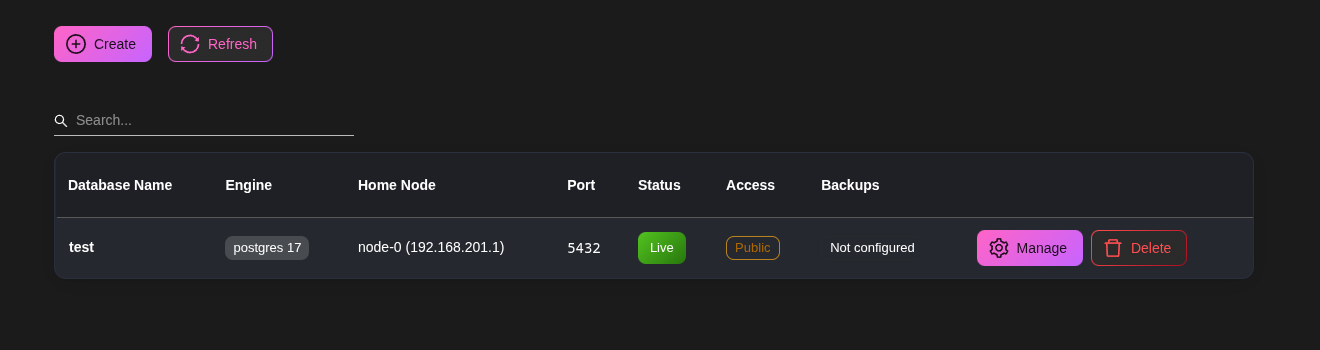
Each row shows the name, engine and version, the **Home Node** (the server it runs on), its port, its **Status** (**Live** or **Down**), whether it is **Constellation only** or **Public**, and whether backups are configured. Click **Manage** to open a database.
## Creating a database
Click **Create**.
* **Database Name**: lower-case letters and digits, starting with a letter (for example `maindb`, `nextcloud`). It becomes part of the container name and of the connection URL.
* **Restrict to Constellation**: ticked by default. Untick it only if applications outside your Constellation need to connect, see [Public access](#public-access).
The database is created on the server you are currently using, which becomes its home node. If you want it on a specific server, open Cosmos on that server before clicking Create.
Creation takes a few seconds. The page may refresh once while the server picks up the new route. The database then appears as **Live** in the list.
## Connecting to your database
Open the database and look at the **Connection** card on the **Overview** tab. It shows the **Host**, **Port**, **Superuser** and **Password**, plus a ready-to-use **Superuser connection URL**. Click the eye icon to reveal a value and the copy icon to copy it. You need your admin privileges enabled to see credentials.
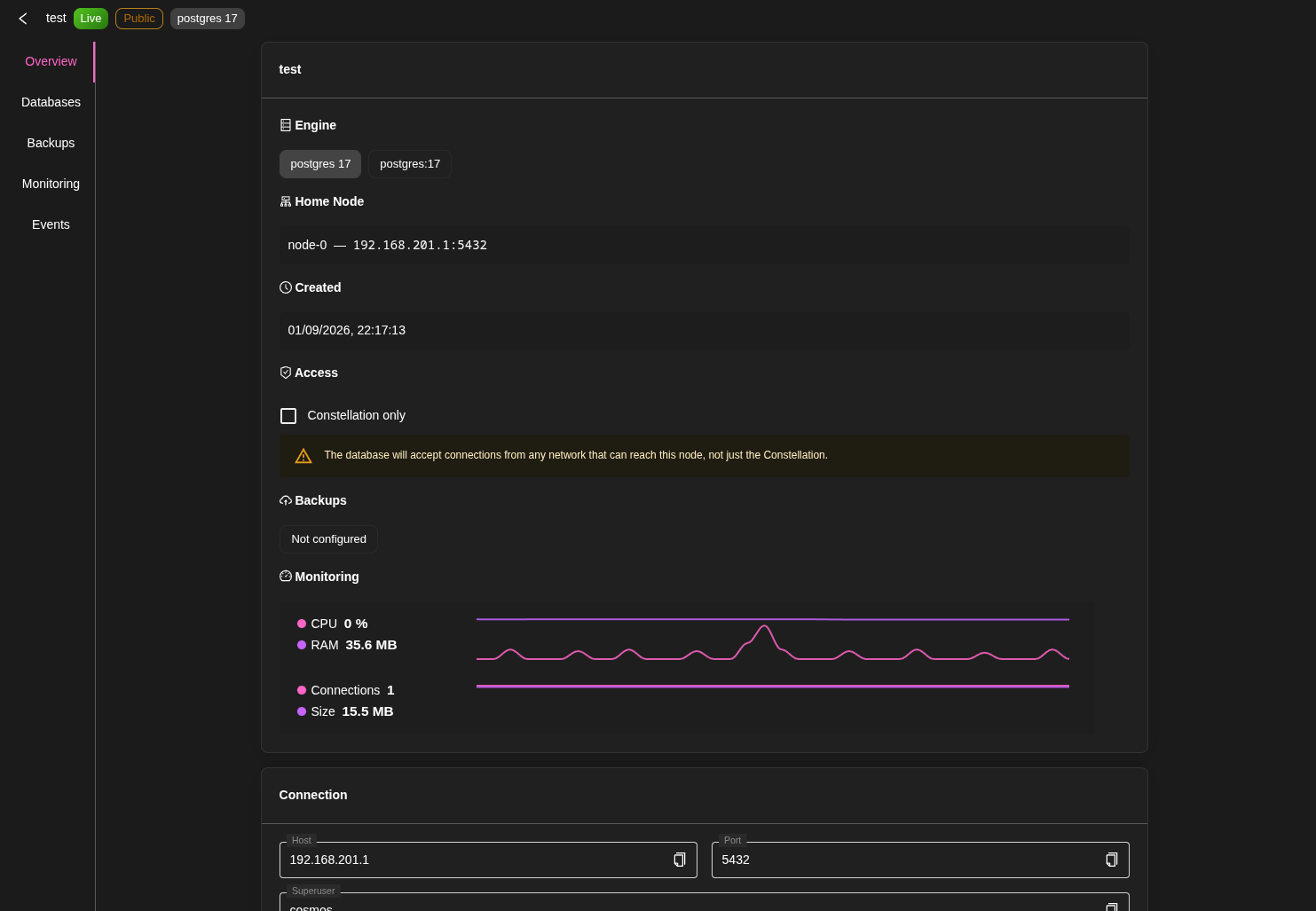
The host is the Constellation IP of the home node, so this URL works from any server or device connected to your Constellation. Connections already travel inside the VPN, which encrypts everything, so the URL uses `sslmode=disable`; keep it that way in your applications.
The superuser has full access to everything. It is handy for a database tool, but applications should get their own database instead, as described next.
## Application databases
The **Databases** tab of a managed database lists its **Application databases**. Each one is a separate database with its own user and password, so one application cannot read the data of another.
Type a name in **New database name** (for example `nextcloud`) and click **Create**. A masked connection URL appears, ready to paste into your application.
* **Rotate password** generates a new password for that database. Connections already open keep working until they reconnect, so update your application and restart it.
* **Delete** drops the database and its user, along with all its data.
## Using it from your applications
When you install an application, paste the connection URL of its application database in its configuration (usually an environment variable such as `DATABASE_URL`). The host, port, user, password and database name are also available separately for applications that want them split.
Inside a compose file, whether for a ServApp or a [deployment](/docs/cluster-and-deployments), you can reference the values with template variables instead of copying them, which keeps the secret out of the compose:
```json
"environment": [
"DATABASE_URL=${db.maindb.nextcloud.url}",
"POSTGRES_HOST=${db.maindb.nextcloud.host}",
"POSTGRES_DB=${db.maindb.nextcloud.dbname}",
"POSTGRES_USER=${db.maindb.nextcloud.user}",
"POSTGRES_PASSWORD=${db.maindb.nextcloud.password}"
]
```
Here `maindb` is the managed database and `nextcloud` the application database. Rotate the password and the next restart of the application picks it up.
## Public access
If an application outside your Constellation needs the database (a service hosted elsewhere, a developer's laptop that is not on the VPN), untick **Constellation only** on the **Overview** tab. The database then accepts connections from any network that can reach the home node on its port. Tick it again at any time to close it.
## Backups
Open the **Backups** tab and click **Configure backups**.
* **Run backups on schedule**: untick it to pause scheduled backups while keeping the repository and the existing snapshots. **Backup now** still works while paused.
* **Repository**: where the backups go. This is a [restic](/docs/backups) repository: a folder on disk, or a remote storage such as `rclone:myremote:/backups/maindb`. The path is used on the database's home node, so make sure it exists there.
* **Backup schedule**: when to back up. The default is every night at 4am.
* **Cleanup schedule** and **Retention policy**: when to prune old snapshots and how many to keep. The default keeps the last 3 backups, 7 daily, 8 weekly and 3 yearly.
Every application database is dumped into the snapshot, so a single backup covers everything on the server. Backups run as jobs on the home node and appear in the **Scheduler** page like your other backup jobs.
Click **Backup now** to take a snapshot immediately. Snapshots are listed under the settings with their date, and a **Refresh** button.
### Restoring
Click **Restore** next to a snapshot. Restoring always creates a **new** managed database, so the current one is never touched: you can restore yesterday's data next to today's, compare, and point your application to whichever you want.
* **New database name**: the name of the database to create.
* **Restore every database in the snapshot**, or pick the application databases you need.
* **Host port (optional)**: leave empty to let Cosmos pick a free port.
The new database is created on the server you are using, so the repository must be reachable from it (a remote storage repository is reachable from anywhere). When the restore completes, the dialog shows the connection URLs of the restored databases with fresh passwords. Copy them right away: they are shown once. You can rotate them later from the Databases tab if you lose them.
## Deleting a database
The **Danger zone** at the bottom of the **Overview** tab deletes the managed database. By default the data volume is kept on the home node, so creating a database with the same name later brings the data back. Tick **Also delete the data volume** to remove everything.
## Monitoring and events
The **Monitoring** tab of a database graphs its size, connections and resources. The **Events** tab lists its history: creation, changes, backups and restores. The page-level tabs show the same for all your databases at once.
Databases named `swfs...` are created automatically by [Object Storage](/docs/object-storage) to hold its file index. Leave them alone, they are removed with the object storage.
---
# Object Storage (S3)
Object Storage gives you your own S3-compatible storage, spread across your Cosmos servers. Anything that can talk to Amazon S3 (backup tools, media apps, Nextcloud, your own code) can store its files in it, and every file is automatically copied to another server so that losing one does not lose your data.
Under the hood it is powered by SeaweedFS, but you never have to deal with it: Cosmos deploys it, spreads it on the nodes you choose, keeps it healthy and backs it up.
## Before you start
* Your cluster needs **at least three Cosmos Server (Manager)** nodes online. See [Cluster and Deployments](/docs/cluster-and-deployments) for how nodes and tags work.
* Decide which nodes will store the data, and give them a tag (for example `object-storage`) from the **Affinity Tags** column of the Constellation page. Any node with the tag stores data; tag more nodes later to grow the storage.
## Where to find it
Go to **Constellation > S3 / Object Storage**. The page has three tabs: the list of your storages, **Monitoring** and **Events**.
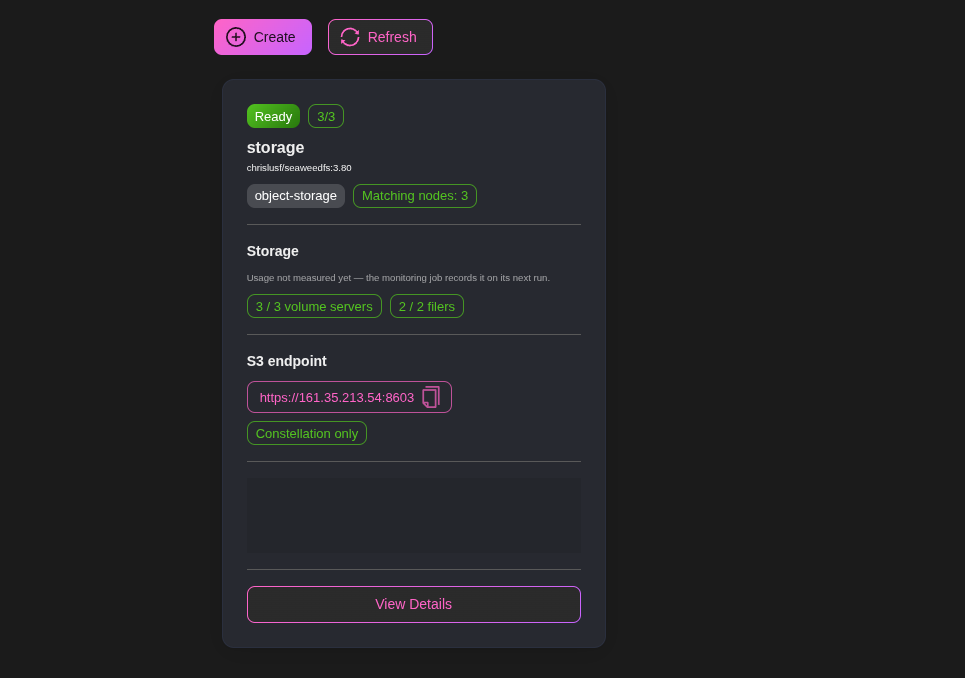
Each card shows the status of the storage, how much space is used and free, how many nodes are storing data, the **S3 endpoint** (click to copy) and whether it is **Constellation only** or **Public**. **View Details** opens the storage page.
## Creating a storage
Click **Create**.
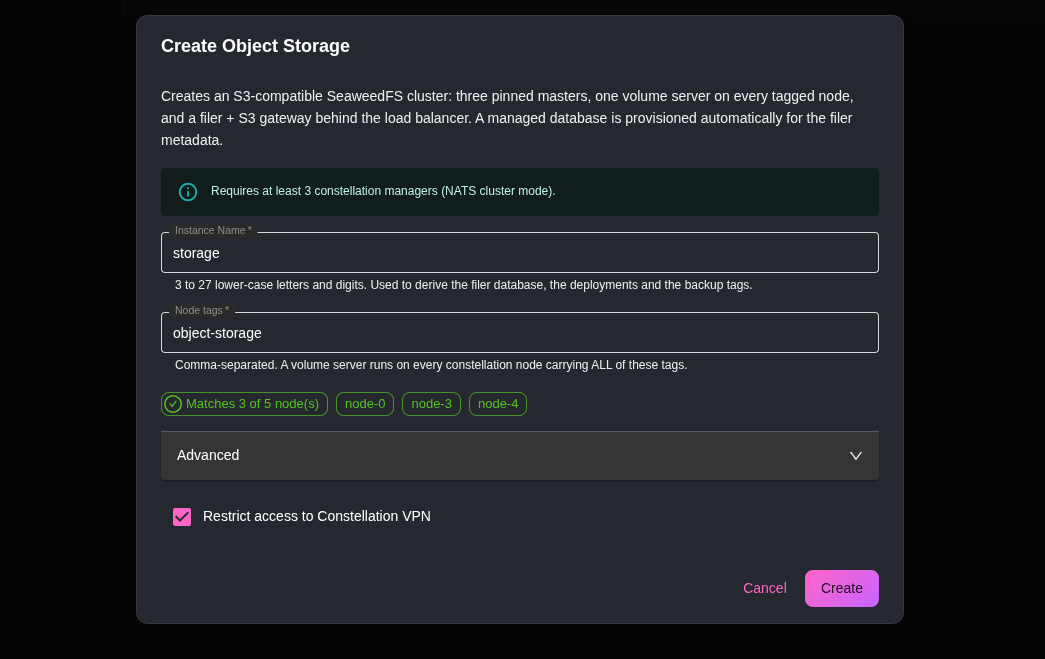
* **Instance Name**: 3 to 27 lower-case letters and digits (for example `media`, `backups`).
* **Node tags**: the nodes carrying **all** these tags store the data. The dialog tells you how many nodes match as you type.
The **Advanced** section is fine on its defaults, but here is what it controls:
* **Filer replicas**: how many S3 gateways to run. With two or more, the S3 endpoint stays available while one restarts. Needs as many matching nodes.
* **Default replication**: how many extra copies of each file are kept on other nodes. `001` (one copy, survives losing one node) is the default; `002` survives losing two nodes; `000` keeps a single copy. This is fixed once the storage is created.
* **Volume size limit** and **Minimum free space**: how files are packed on disk and how much disk each node keeps free. The defaults suit most uses.
* **Max storage per node (GB)**: cap the disk space used on each node. `0` means no cap. You can change this later.
* **Image**: the SeaweedFS version to run.
* **Restrict access to Constellation VPN**: ticked by default, the S3 endpoint only answers from inside your Constellation. See [Public access](#public-access).
Click **Create**. Cosmos then creates, on your behalf, a small managed database to hold the file index, three coordinators on three of your managers, a storage server on every tagged node, and the S3 gateways behind your load balancer. The storage shows as **Provisioning** for a minute or two, then **Ready**.
## Connecting to your storage
Open the storage. The **S3 access** card on the **Overview** tab shows the **S3 endpoint**, the **Access key** and the **Secret key**, with reveal and copy buttons. You need your admin privileges enabled to see the keys.
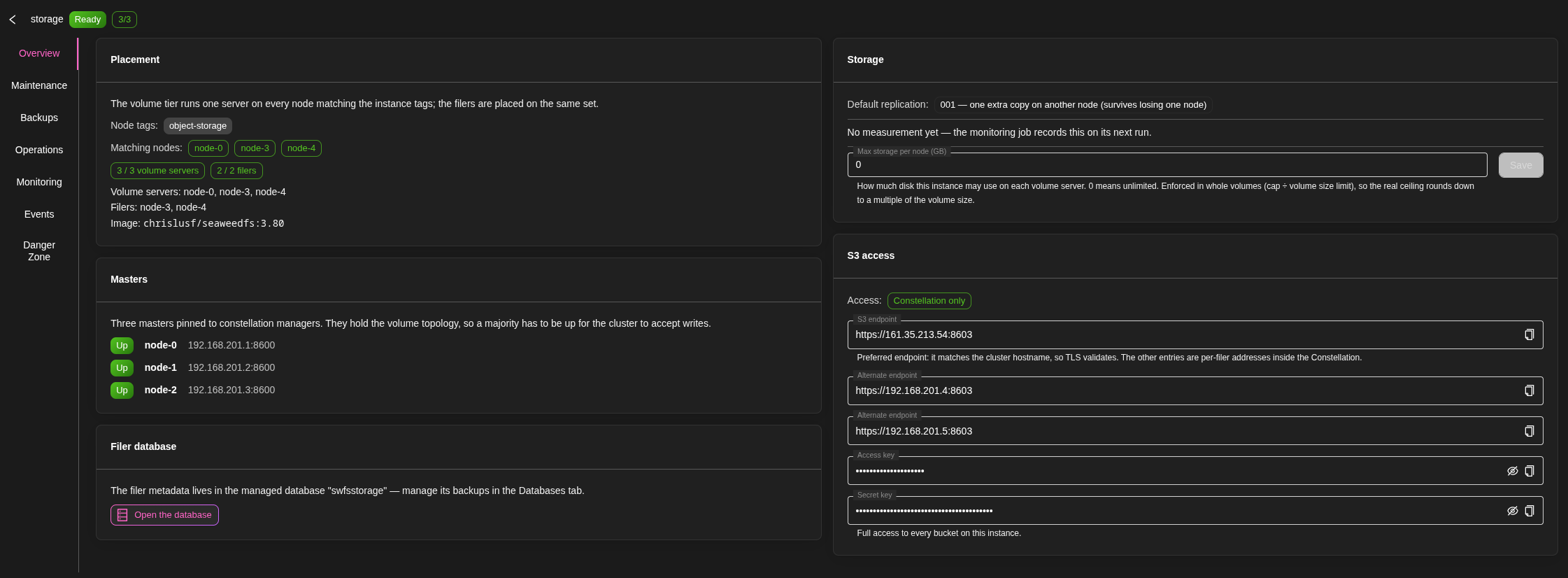
Use them in any S3 client. Buckets are created by the client, there is nothing to declare in Cosmos first. Two things to know for S3 clients:
* Use the **path style** of addressing (most tools have a "force path style" or "path style access" option).
* The region does not matter, but most tools require one: use `us-east-1`.
With the AWS command line:
```bash
aws configure set aws_access_key_id YOUR_ACCESS_KEY
aws configure set aws_secret_access_key YOUR_SECRET_KEY
aws configure set default.region us-east-1
aws configure set default.s3.addressing_style path
aws --endpoint-url https://cosmos.mydomain.com:8600 s3 mb s3://photos
aws --endpoint-url https://cosmos.mydomain.com:8600 s3 cp holiday.jpg s3://photos/
aws --endpoint-url https://cosmos.mydomain.com:8600 s3 ls s3://photos/
```
Recent versions of the AWS tools and SDKs add extra checksums that not every S3 server understands. If uploads fail or come out corrupted, set these two environment variables (or the equivalent SDK options):
```bash
export AWS_REQUEST_CHECKSUM_CALCULATION=when_required
export AWS_RESPONSE_CHECKSUM_VALIDATION=when_required
```
With rclone, which also lets you mount the storage as a folder:
```ini
[cosmos-s3]
type = s3
provider = SeaweedFS
access_key_id = YOUR_ACCESS_KEY
secret_access_key = YOUR_SECRET_KEY
endpoint = https://cosmos.mydomain.com:8600
force_path_style = true
```
The endpoint uses your cluster's hostname, so HTTPS certificates validate like on your other URLs. The **Alternate endpoint** entries are the addresses of the individual gateways inside the Constellation, useful if an application runs on a node and you want to skip the load balancer.
## Using it from your applications
Inside a compose file, whether for a ServApp or a [deployment](/docs/cluster-and-deployments), reference the storage with template variables instead of pasting the keys:
```json
"environment": [
"S3_ENDPOINT=${s3.media.endpoint}",
"S3_ACCESS_KEY=${s3.media.accessKey}",
"S3_SECRET_KEY=${s3.media.secretKey}",
"S3_BUCKET=uploads"
]
```
Here `media` is the name of the storage. The endpoint resolved this way points straight at a gateway inside the Constellation.
## Growing and adjusting
* **More space**: tag another node. A storage server starts on it automatically and new files start landing there. Untag a node to stop storing data on it.
* **Per-node cap**: the **Storage** card on the Overview tab lets you change **Max storage per node (GB)** and **Save**. The storage servers restart one node at a time to apply it. Lowering the cap never deletes data, the node just stops taking new files.
* **Replace a master**: the **Masters** card lists the three coordinators. If one of their nodes is gone for good, click **Replace master** next to it and let Cosmos pick another manager, or choose one.
## Maintenance jobs
The **Maintenance** tab schedules the housekeeping of the storage. The defaults are sensible, and each job can be toggled and rescheduled:
* **Vacuum deleted space**: reclaims the space of deleted files. Runs nightly by default, once a volume has more than 30% of deleted data.
* **Erasure-code cold volumes**: turns rarely-touched data into a more compact form that still survives node failures, using less disk than full copies. Off by default; turn it on for large archives. It needs free space to convert a volume, so it skips nodes below the configured free disk.
* **Repack erasure-coded volumes**: cleans up deleted data inside erasure-coded volumes. Shown when erasure coding is on.
* **Health check**: checks the cluster every few minutes and raises an alert above the configured disk usage (70% by default).
* **Scrub replicas**: reads every copy and checks it against the others to catch silent disk corruption. Monthly by default.
These jobs appear in the **Scheduler** page under **Object Storage Jobs**.
## Backups
Your files are protected by replication across nodes. What a backup adds is a copy of the **file index** (which file is where, with its metadata), so the storage can be rebuilt after a serious incident.
The file index lives in a managed database named `swfs` followed by your storage's name. The **Filer database** card on the Overview tab opens it; configure its backups from there, exactly like any [managed database](/docs/managed-databases#backups).
The **Backups** tab of the storage offers a second, independent backup of the same index into a restic repository, with the same options as database backups (repository, schedule, cleanup and retention) and a **Backup now** button.

## Operations
The **Operations** tab groups the actions on the storage as a whole:
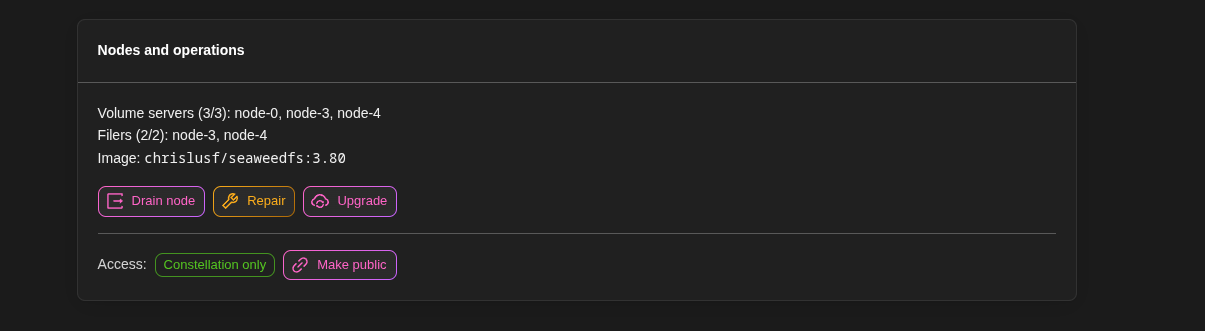
* **Make public** / **Restrict to Constellation**: see [Public access](#public-access). The gateways restart briefly when you switch.
* **Drain**: moves all the data off a node before you take it out of the cluster, so no copy is lost.
* **Repair**: checks that every file has the number of copies it should, and recreates missing ones. Use it after a node has been down for a while.
* **Upgrade**: rolls a new SeaweedFS version across every node, one at a time. Downgrading is not supported by SeaweedFS, so pick the version carefully.
### Public access
By default the S3 endpoint only answers from inside your Constellation. If a service hosted elsewhere needs to reach it, click **Make public** on the Operations tab: the endpoint then accepts requests from any network that can reach your load balancer. Your access keys are still required. Click **Restrict to Constellation** to close it again.
## Deleting a storage
The **Danger zone** tab deletes the storage on every node. By default the files stay on the disks of the nodes, so recreating a storage with the same name brings them back. Tick **Also purge data volumes on every node** to erase them. You can also choose to keep the file index database.
If a Package Registry uses this storage, delete the registry first.
## Monitoring and events
The **Monitoring** tab of a storage graphs the stored objects, disk usage per node, cluster health (live coordinators, missing copies) and S3 traffic. The **Events** tab keeps its history: creation, credentials applied, backups, repairs, drains and upgrades. The page-level tabs show the same for all your storages.
---
# Package Registries
A **registry** is a private place to store what you build, hosted on your own servers: Docker images, npm packages, Python packages, static websites, or simply files. Your usual tools (`docker`, `npm`, `pip`, `twine`, `curl`) talk to it exactly like they talk to Docker Hub, npmjs or PyPI, except everything stays in your cluster.
Registries are also what [CI/CD](/docs/ci-cd) pushes its builds to, and where [Cloud Functions](/docs/cloud-functions) get their code from.
## Before you start
* Registries live in the **Constellation** section, so [Constellation](/docs/constellation-vpn) must be enabled.
* It is recommended to create an [Object Storage](/docs/object-storage) first. A registry stored in it is available from every node and survives losing one. Without it, a registry can use a folder on a single server, which is perfectly fine for a one-server setup.
* Each registry answers on its own hostname (for example `docker.mydomain.com`). Like any other [URL](/docs/urls), that hostname must point to your server.
## Where to find it
Go to **Constellation > Registries**. The page has three tabs: the list of your registries, **Monitoring** and **Events**.
The list shows, for each registry, its type, its status, where it is stored, how much space it uses, its URL (with a **Constellation-only** or **Internet-facing** chip) and how many nodes are serving it. Click a row to open the registry.
## Creating a registry
Click **Create**.
* **Registry name**: 3 to 27 lower-case letters and digits (for example `images`, `npm`, `sites`).
* **What does this registry hold?**: the type of the registry. It cannot be changed later, but you can create as many registries as you want.
* **Docker**: container images, pushed and pulled with `docker`.
* **npm**: npm packages, published with `npm publish` and installed with `npm install`.
* **PyPI**: Python packages, published with `twine`, `uv` or `poetry`, installed with `pip`.
* **Generic**: any file, organised as package / version / file. Installers, archives, models, build outputs...
* **Static site**: websites uploaded as a zip, each served on its own URL, with versions and instant rollback.
* **URL**: the hostname of the registry. Cosmos suggests one from the name, and checks it like it does for your other URLs. A **Static site** registry has no URL of its own: each site gets one.
* **Constellation-only**: when enabled, the registry only answers requests from inside your Constellation: your nodes, VPN clients and CI. Otherwise it is **Internet-facing**: the hostname answers to anyone, but pulls and pushes still need a token.
* **Allow pulls without a token**: lets anyone who can reach the registry install or download from it without a token; pushes always need one. Handy combined with **Constellation-only**, so your own servers can pull freely while the outside world cannot reach it at all.
* **Where should the blobs live?**: **Managed object storage (recommended)**, then pick your Object Storage, or **Local folder on this node**. A local folder lives on one server: only that server can serve the registry, and the data is only as safe as that server.
The **Advanced** section is fine on its defaults:
* **Use an external S3 bucket instead**: store the registry in a bucket at an outside provider (endpoint, bucket, region and keys).
* **Folder** / **Bucket**: choose the folder or bucket name instead of letting Cosmos generate one.
* **Quota (GiB)**: the maximum size of the registry. Empty means unlimited. When the quota is reached, uploads are refused and downloads keep working.
* **Serving node tags**: only the nodes carrying **all** these [tags](/docs/cluster-and-deployments#tags) serve the registry. Empty, the default, means every node. The dialog tells you how many nodes match.
Click **Create**. Cosmos creates the registry and shows you a first **token**, with the command to log in with it.
**Copy the token now**: it is only ever shown once.
## Tokens
A token is the password your tools use to talk to the registry, whether to install from it or to publish to it. Open the registry and go to the **Tokens** tab to manage them.
Click **Create a token**:
* **Token name**: what it is for (`laptop`, `github-actions`...).
* **Pull** and **Push**: what the token can do. **Pull** installs and downloads, **Push** publishes, uploads and deletes. A token for the people or servers that only install from the registry should only have **Pull**; keep **Push** for the machines that publish.
* **Expires**: **Never**, or from 7 days to a year.
The token is displayed once, together with a ready-to-paste snippet. The list then shows each token with its scopes, its expiry and when it was last used. **Revoke** disables a token within seconds, everywhere.
A token only works on its own registry. You will also see tokens that Cosmos creates for itself, named `ci-...` for [CI/CD](/docs/ci-cd) projects and `function-...` for [Cloud Functions](/docs/cloud-functions): they are managed for you.
In the examples below, the token is in the `COSMOS_REGISTRY_TOKEN` environment variable. The **Overview** tab of each registry shows the same commands with your real hostname already filled in.
## Docker
Log in once (any username works, the password is the token), then push and pull as usual. The image name starts with the hostname of the registry:
```bash
echo "$COSMOS_REGISTRY_TOKEN" | docker login docker.mydomain.com -u cosmos --password-stdin
docker tag myapp:latest docker.mydomain.com/myapp:1.0.0
docker push docker.mydomain.com/myapp:1.0.0
docker pull docker.mydomain.com/myapp:1.0.0
```
You can organise images in folders if you like (`docker.mydomain.com/team/myapp:1.0.0`).
### Using your images in ServApps and deployments
Use the full image name (`docker.mydomain.com/myapp:1.0.0`) in your ServApp or in the compose of a [deployment](/docs/cluster-and-deployments). For the nodes to be allowed to pull it, pick one of:
* Images built by [CI/CD](/docs/ci-cd) need nothing: the nodes pull them with the project's own token.
* Enable **Allow pulls without a token** together with **Constellation-only** on the registry: your nodes pull freely, nobody else can reach it.
* Or run `docker login` on each node with a **Pull** token.
## npm
The simplest setup is to give your packages a scope (`@mycompany/...`) and send only that scope to your registry, so public packages keep coming from npmjs. In the `.npmrc` of your project, or of your home folder:
```ini
@mycompany:registry=https://npm.mydomain.com/
//npm.mydomain.com/:_authToken=${COSMOS_REGISTRY_TOKEN}
```
Then use npm normally:
```bash
npm publish # from a package named @mycompany/something
npm install @mycompany/something
```
Tags (`npm dist-tag`), `npm deprecate` and `npm unpublish` work too. A version that already exists cannot be published again: bump the version.
## PyPI
Publish with twine, using `__token__` as the username and the token as the password:
```bash
twine upload --repository-url https://pypi.mydomain.com/ \
-u __token__ -p "$COSMOS_REGISTRY_TOKEN" dist/*
```
With uv: `uv publish --publish-url https://pypi.mydomain.com/`.
Install with pip. Use `--extra-index-url` so that public packages still come from PyPI:
```bash
pip install --extra-index-url \
"https://__token__:${COSMOS_REGISTRY_TOKEN}@pypi.mydomain.com/simple/" mypackage
```
## Generic files
A generic registry stores any file under `package/version/file`. Upload with a simple `curl`:
```bash
curl -fsS -T ./app-1.0.0.tar.gz \
-H "Authorization: Bearer $COSMOS_REGISTRY_TOKEN" \
https://files.mydomain.com/app/1.0.0/app-1.0.0.tar.gz
```
And download:
```bash
# a given file
curl -fsSLO -H "Authorization: Bearer $COSMOS_REGISTRY_TOKEN" \
https://files.mydomain.com/app/1.0.0/app-1.0.0.tar.gz
# whatever the newest version contains
curl -fsSLO -H "Authorization: Bearer $COSMOS_REGISTRY_TOKEN" \
https://files.mydomain.com/app/latest/download
```
`latest` can be used anywhere a version goes, and always points to the newest version. When a version holds several files, `download` needs to know which one: `.../app/latest/download/app-1.0.0.tar.gz`.
Opening `https://files.mydomain.com/`, `.../app` or `.../app/1.0.0` lists the packages, versions and files. A `DELETE` on the same addresses removes a file, a version or a whole package.
You can also upload from the interface: in the **Contents** tab, **New package** (or **Upload** on an existing one), choose a name, a version and your files. A file that already exists in a version is never overwritten: publish a new version instead.
## Static sites
A static site registry hosts websites made of plain files: the output of a React, Vue, Astro or Hugo build, a documentation site, a landing page. Each site has its own URL, and every upload is kept as a **deployment** you can come back to.
### From the interface
Open the registry, go to the **Contents** tab and click **New site**:
* **Site name**: lower-case letters, digits and `-`.
* **Choose a zip**: a zip of your site, with `index.html` at its root (or inside a single folder, as produced by zipping your `dist` folder).
* **Version**: a name for this deployment. Leave empty to use the current date and time.
* **Serve this deployment right away**: ticked by default. Untick it to upload now and go live later.
* **Site URL**: the hostname of the site.
* **Single-page application**: on by default. Unknown addresses fall back to `index.html`, which is what applications with their own router expect. Turn it off for classic sites, to get a real "not found" error instead.
* **Constellation-only** and **Serving node tags**: same as for a registry.
Each site then lists its deployments, one of them marked **Live**, the others **Staged**. **Activate** on any deployment makes it the live one instantly. This is also how you roll back: activate the previous one. **Upload** adds a new deployment, **Route settings** changes the URL and the options above, and the download icon gives you back the zip of any deployment.
### From your terminal or your CI
Uploads go through the address of your Cosmos server, with a token of the registry:
```bash
zip -r dist.zip ./dist
curl -fsSL -X POST \
-H "Authorization: Bearer $COSMOS_REGISTRY_TOKEN" \
-F "file=@dist.zip" \
"https://cosmos.mydomain.com/cosmos/api/constellation/registries/sites/sites/blog/versions?version=1.4.0"
```
Here the registry is named `sites` and the site `blog`. The deployment goes live right away; add `&activate=false` to only stage it. The first upload of a new site can set its URL with `&host=blog.mydomain.com`. Each site shows this command, filled in, under **Deploy from CI**.
If your code lives in a git repository, [CI/CD](/docs/ci-cd) does all of this for you on every push.
## Browsing and cleaning up
The **Contents** tab shows everything the registry holds, whatever its type: images with their tags and layers, packages with their versions and files, each with its size and date. Every file has a **Download** button, and you can delete a package, an image or a single version from there.
Deleting frees the space at the next **garbage collection**. It runs by itself every night, and can be started by hand with **Run garbage collection** (the broom icon in the list, or the **Usage and garbage collection** card). To stay safe with uploads in progress, it never removes anything younger than 24 hours.
## Settings
The **Settings** tab lets you change the **URL**, **Constellation-only**, **Allow pulls without a token**, the **Serving node tags** and the **Quota** at any time. If you change the hostname, remember to update your tools.
Behind the scenes a registry is exposed through a normal Cosmos URL: the **URL** tab gives you its [SmartShield](/docs/smartshield) and the other usual options.
## Monitoring and events
The **Overview** tab shows the space used, the number of packages and versions, and the pulls and pushes. The **Monitoring** tab graphs the stored size and the traffic over time, and **Events** keeps the history: pushes, deletions, garbage collections, tokens created and revoked, and failed logins. The page-level tabs show the same for all your registries.
## Deleting a registry
Use the **Danger zone** tab. The registry stops answering immediately. By default the stored data is kept in its bucket or folder; tick **Also delete every stored blob** to erase it for good.
Before deleting a registry, check that no CI/CD project or function still uses it.
---
# Cloud Functions
A **function** is a small piece of code that answers on a URL, without you having to think about a server, a container or a Dockerfile. You write a function in JavaScript or Python, publish it as a package, and Cosmos gives it a URL.
Functions cost nothing while nobody calls them: they sleep when idle, wake up on the next request, and spread on more of your nodes when the traffic grows. They are ideal for webhooks, small APIs, form handlers, scheduled jobs and all the glue code that does not deserve a full application.
## Before you start
* Functions run on your [cluster](/docs/cluster-and-deployments), so [Constellation](/docs/constellation-vpn) must be enabled. A single server works.
* The code of a function lives in a [Package Registry](/docs/package-registries): create an **npm** registry for JavaScript functions, or a **PyPI** registry for Python ones.
* Your nodes need internet access: the dependencies of your functions are downloaded from the public npm or PyPI.
## Your first function
Let's make a JavaScript function that says hello. We assume an npm registry answering on `npm.mydomain.com`, and one of its deploy tokens in your `.npmrc` (see [npm](/docs/package-registries#npm)).
### 1. Write it
A function is a regular npm package. It exports a function that receives the request and the response, in the same style as Express:
`index.js`
```js
exports.hello = (req, res) => {
const name = req.query.name || "world";
res.json({ message: `Hello ${name}!` });
};
```
`package.json`
```json
{
"name": "@mycompany/hello",
"version": "1.0.0",
"main": "index.js",
"dependencies": {}
}
```
### 2. Publish it
```bash
npm publish --registry https://npm.mydomain.com/
```
### 3. Create the function
Go to **Constellation > Functions** and click **Create**.
* **Function name**: `hello`
* **Runtime**: **Node.js 22**
* **Registry**: your npm registry
* **Package**: `@mycompany/hello`
* **Handler**: `hello`, the name of the exported function
Leave the **URL** section as suggested and click **Create**.
### 4. Call it
```bash
curl "https://functions.mydomain.com/hello?name=Cosmos"
{"message":"Hello Cosmos!"}
```
The very first call takes a little longer, while the function installs its dependencies. After that, waking up a sleeping function only takes a moment.
## Writing functions
Any HTTP request to the URL of the function calls your handler, whatever the method and the sub-path. The part of the path that identifies the function is removed: a call to `/hello/users/12` reaches your code as `/users/12`.
Cosmos sits in front of your function, so the address of the caller is in the `X-Forwarded-For` header and the original scheme in `X-Forwarded-Proto`. Every request also carries an `X-Cosmos-Function` header with the name of the function.
### JavaScript
Available runtimes: **Node.js 22** and **Node.js 20**.
The handler receives `(req, res)`, like an Express route: `req.method`, `req.path`, `req.query`, `req.headers`, `req.body` (already parsed for JSON), and `res.status()`, `res.json()`, `res.send()`.
```js
exports.contact = async (req, res) => {
if (req.method !== "POST") {
return res.status(405).send("Method not allowed");
}
await saveMessage(req.body.email, req.body.message);
res.json({ ok: true });
};
```
The handler is looked up in the `main` file of the package. List what you need in the `dependencies` of your `package.json`, it is installed automatically.
Under the hood, functions run on the [Functions Framework](https://github.com/GoogleCloudPlatform/functions-framework-nodejs), the same one Google Cloud and Firebase use. `req` and `res` are the real Express objects, so everything Express can do works here too: `res.redirect()`, `res.cookie()`, `res.set()` for headers, piping a stream into `res`. A function written for Google Cloud or Firebase usually runs on Cosmos as is, once the vendor wrapper is removed.
#### Checking a webhook signature
Payment providers and git forges sign their webhooks over the exact bytes they sent. Since `req.body` is already parsed, use `req.rawBody` for the check:
```js
const stripe = require("stripe")(process.env.STRIPE_KEY);
exports.stripeWebhook = (req, res) => {
let event;
try {
event = stripe.webhooks.constructEvent(
req.rawBody,
req.headers["stripe-signature"],
process.env.STRIPE_WEBHOOK_SECRET
);
} catch (err) {
return res.status(400).send(`Bad signature: ${err.message}`);
}
// ...handle event
res.json({ received: true });
};
```
#### Files in your package
Your package is installed like any dependency, and the function does not run from inside its folder: a path such as `./template.html` will not be found. Build paths from `__dirname` instead:
```js
const fs = require("fs");
const path = require("path");
const template = fs.readFileSync(path.join(__dirname, "template.html"), "utf8");
```
Only the files listed in the `files` field of your `package.json` (or everything, when there is no such field) end up in the published package. Keep secrets out of it: a private key belongs in the **Environment** of the function, not in the tarball.
#### Native modules
The Node.js runtimes are built on Alpine Linux. Pure JavaScript packages work, and so do native ones that ship a `musl` build, which most popular ones do. A package that only ships `glibc` binaries fails to load: check its documentation for Alpine support, or pick an alternative.
### Python
Available runtimes: **Python 3.12** and **Python 3.11**.
The handler receives a Flask `request`, and returns anything Flask accepts: a string, a dictionary (sent as JSON), or a `(body, status)` pair.
`my_function/__init__.py`
```python
import os
def hello(request):
name = request.args.get("name", "world")
return {"message": f"Hello {name}!", "greeting": os.environ.get("GREETING", "")}
```
Package it like any Python project (a `pyproject.toml` with its `dependencies`), then build and publish it:
```bash
python -m build
twine upload --repository-url https://pypi.mydomain.com/ \
-u __token__ -p "$COSMOS_REGISTRY_TOKEN" dist/*
```
The handler is looked up in the module named after the package (`my-function` becomes `my_function`).
### Several functions in one package
A package can export as many handlers as you want. Create one function per handler, all pointing to the same package: each gets its own name, URL and schedule.
Each function is its own container, with its own memory limit and its own copy of the package. Ten tiny functions are ten containers, each sleeping, waking up and installing on its own. When several endpoints belong together, it is often simpler to make them one function and route on the path inside it:
```js
exports.licences = async (req, res) => {
if (req.path === "/create") return createLicence(req, res);
if (req.path === "/renew") return renewLicence(req, res);
res.status(404).send("Not found");
};
```
With the path `/licences`, this one function answers on `/licences/create` and `/licences/renew`. Keep separate functions for what needs its own limits, its own URL settings or its own schedule.
### Running it on your machine
You do not need a cluster to try a function. Cosmos runs functions with the Functions Framework, and the same framework runs on your laptop: it serves one handler of your package on a local port, and sends it every request, whatever the path.
For JavaScript, add it to your dev dependencies, so it stays out of the published package:
```bash
npm install --save-dev @google-cloud/functions-framework
npx functions-framework --target=hello --port=8080
```
```bash
curl "http://localhost:8080/?name=Cosmos"
{"message":"Hello Cosmos!"}
```
For Python, install it in your virtual environment and point it at your module:
```bash
pip install functions-framework
functions-framework --target=hello --source=my_function/__init__.py --port=8080
```
A `start` script in your `package.json` makes it a habit:
```json
"scripts": {
"start": "functions-framework --target=hello --port=8080"
}
```
A few things differ from the real thing. The framework serves one handler at a time, so run it again with another `--target` to try the next one. There is no Cosmos in front of it: the path arrives untouched (locally you call `/users/12`, which is what your code sees in production too, since the function prefix is stripped), and headers such as `X-Forwarded-For` are only there if you send them. Environment variables come from your shell:
```bash
GREETING=hi DATABASE_URL=postgres://localhost/app npx functions-framework --target=hello
```
To reach a [managed database](/docs/managed-databases) or an [object storage](/docs/object-storage) from your machine, copy the values from its **Connection** card rather than the `${db.*}` template, which only Cosmos expands. Your machine needs to be on the Constellation for them to work.
## The create form
* **Function name**: letters and digits. It identifies the function, and is the default path of its URL.
* **Runtime**: the language and version.
* **Registry**, **Package**, **Handler**: where the code is, and which exported function to call. The package must be published before you create the function.
* **URL**: by default all your functions share one **Hostname**, `functions.` followed by your domain, and each has its own **Path**, `/` followed by its name. You can change both: give a function its own hostname and empty the path, and it owns the whole hostname. A function can also sit next to an existing website: `mydomain.com` with the path `/api/contact` answers there, while the site keeps every other path. A hostname of their own is simpler, though: nothing on the site can ever get in the way. Like any other [URL](/docs/urls), the hostname must point to your server, and Cosmos refuses a hostname and path already taken by another URL.
* **Environment**: variables passed to your code. The [template variables](/docs/cluster-and-deployments#template-variables) of deployments work here, which is the easy way to connect a function to a [managed database](/docs/managed-databases) or an [object storage](/docs/object-storage):
| Key | Value |
|---|---|
| `DATABASE_URL` | `${db.main.app.url}` |
| `S3_ENDPOINT` | `${s3.media.endpoint}` |
| `S3_ACCESS_KEY` | `${s3.media.accessKey}` |
| `S3_SECRET_KEY` | `${s3.media.secretKey}` |
Template variables only exist for what Cosmos manages. Anything else, an API key or the connection string of a database hosted elsewhere, goes in as a plain value.
The **Advanced** section is fine on its defaults:
* **Entry**: the file (JavaScript) or module (Python) that exports the handler, when it is not the main one. For example `lib/api.js` or `my_function.api`.
* **Version**: the version of the package to deploy. Empty means the latest published.
* **Tags**: only the nodes carrying **all** these [tags](/docs/cluster-and-deployments#tags) can run the function. Empty means any node.
* **Memory (MB)**: `256` by default. **CPUs**: no limit by default.
* **Timeout (seconds)**: `60` by default. Requests running longer are cut. It goes up to 24 hours, for the long jobs run on a schedule.
* **Idle before sleep**: `1h` by default. How long a function stays awake without being called (`30m`, `2h`...).
* **Runtime image override**: use your own runtime image, for example from a mirror.
Your code can also read `COSMOS_FUNCTION` (the name of the function), `COSMOS_FUNCTION_REV` (the release number) and `COSMOS_NODE` (the node it runs on).
## Sleeping, waking up and scaling
One copy of the function is always placed on a node, ready to go, and asleep when idle: it uses no CPU and no memory. The next request wakes it up, and Cosmos holds that request until the function is ready. This is the same mechanism as [lazy containers](/docs/lazy-containers).
Waking up takes a second or two. The very first start of a version is longer, because the package and its dependencies are installed then; Cosmos waits up to three minutes for it. The install is kept, so later wake-ups do not repeat it. If the callers of your function have a short timeout of their own, keep that first start in mind when you deploy.
When the nodes running the function get busy, Cosmos starts copies on more nodes, up to one per eligible node, and spreads the requests between them. When the load drops, the extra copies go away.
The URL of a function answers from any node of your cluster.
## Securing the URL
A new function is public, protected by the [SmartShield](/docs/smartshield) and the bot blocker. The **URL** tab of the function is the usual Cosmos URL form: from there you can require a login, restrict the function to your Constellation or to a list of IPs, tune the SmartShield, or set CORS.
For a function called by an outside service (a payment provider, a git webhook), keep it public and check a secret in your code. For a function only called by your own applications, restrict it to the Constellation.
## Shipping a new version
Publishing a new version of the package does not change what is running: a function always stays on the exact version it was deployed with, until you decide otherwise.
Open the function, and in the **Releases** card of the **Overview** tab click **Deploy**. Choose **Latest published version** or a specific one. Every copy of the function is replaced with the new version.
The **Releases** card keeps the history of the deployments, with who did them and when. **Roll back** next to a release puts that version back in a click.
If your code is in a git repository, [CI/CD](/docs/ci-cd) can publish and deploy your functions on every push.
The **Edit** tab changes everything else (runtime, package, handler, environment, limits), and the **Test invocation** card of the Overview tab lets you call the function right from the interface, choosing the method, the path and the body, and shows the answer with its duration.
## Running on a schedule
The **Triggers** tab calls your function on a schedule. Click **Add**:
* **Name**: what this schedule is for (`nightly-cleanup`).
* **Schedule**: a crontab with seconds first. `0 0 * * * *` is every hour, `0 0 3 * * *` every night at 3.
* **Method**, **Path** and **Body**: the request to send. The body is sent as JSON.
The runs and their results appear in the **Scheduler** page, under **Functions**. A run is marked as failed when the function answers with an error.
Scheduled calls go through the URL of the function, so the URL must not require a login. To keep a scheduled function private, restrict its URL to the Constellation instead.
A scheduled call is a plain HTTP request from the cluster. Your code can tell it apart from a call made by anyone else with the `X-Cosmos-Trigger` header, which carries `cron:` followed by the name of the schedule. This lets one function serve both:
```js
exports.reports = async (req, res) => {
if (req.headers["x-cosmos-trigger"]) {
await sendNightlyReport();
return res.send("done");
}
res.json(await listReports());
};
```
The call is sent to a node holding a copy of the function. If that node is busy restarting, the next one is tried. Whatever your function answers is kept with the run, so a short summary (`"42 emails sent"`) is worth returning.
## Monitoring and events
Each function card shows its status, its version, the nodes holding a copy and its URL. On the function page, the **Monitoring** tab graphs the number of copies, the invocations (successes, errors, response time, data) and the CPU and memory used. The **Events** tab keeps the history: created, deployed, updated.
What your code prints (`console.log`, `print`) goes to the logs of the container named `fn-` followed by the function name, visible in the **ServApps** page of the node running it.
## Deleting a function
The **Danger zone** card of the Overview tab removes the function from every node, along with its URL. The package stays in the registry.
## Moving from another platform
Functions written for Google Cloud Functions, Firebase, or as plain Express handlers are the easiest to bring over: remove the vendor wrapper, read your configuration from `process.env`, fix the file paths as explained above, and publish.
```js
// Before, on Firebase
const functions = require("firebase-functions/v1");
const apiKey = defineString("API_KEY");
exports.hello = functions.https.onRequest((req, res) => { /* ... */ });
// After, on Cosmos
const apiKey = process.env.API_KEY;
exports.hello = (req, res) => { /* ... */ };
```
## Functions are deployments
Behind the scenes, a function is a [deployment](/docs/cluster-and-deployments) named `fn` followed by its name, using the **Fill** replica mode with the **Empty** fill mode. You will see it in the **Deployments** page, with its replicas and its events.
You can also write it yourself: in the deployment form, switch **Specification** from **Compose** to **Function** and describe the package and all its handlers at once. Each handler becomes a function of the Functions page, and they are all deployed and rolled back together:
```json
{
"runtime": "node22",
"source": { "registry": "npm", "package": "@mycompany/api" },
"env": { "DATABASE_URL": "${db.main.app.url}" },
"limits": { "memoryMB": 256, "timeoutSec": 60, "idleTTL": "1h" },
"handlers": [
{
"name": "hello",
"handler": "hello",
"route": {
"Host": "functions.mydomain.com",
"PathPrefix": "/hello",
"StripPathPrefix": true,
"BlockCommonBots": true,
"SmartShield": { "Enabled": true }
}
},
{
"name": "cleanup",
"handler": "cleanup",
"entry": "lib/jobs.js",
"env": { "DRY_RUN": "0" },
"route": {
"Host": "functions.mydomain.com",
"PathPrefix": "/cleanup",
"StripPathPrefix": true,
"RestrictToConstellation": true
},
"triggers": {
"cron": [
{ "name": "nightly", "enabled": true, "crontab": "0 0 3 * * *", "method": "POST", "path": "/", "body": "{}" }
]
}
}
]
}
```
The `env` of the deployment is shared by every handler; a handler can add its own, which wins when the same key is in both.
Choose the **Fill** replica mode with the **Empty** fill mode to get the same sleep and scale behaviour as the functions created from the Functions page.
---
# CI/CD
CI/CD connects a git repository to your cluster: every time you push, Cosmos builds your code on one of your nodes, stores the result in your own [registry](/docs/package-registries), and deploys it. Push to `main`, and a minute later the new version is live. This is the workflow of Vercel, Netlify or Railway, on your own servers.
It can build and deploy three kinds of projects:
* **Containers**: an application built into a Docker image and run as a [deployment](/docs/cluster-and-deployments), with or without a Dockerfile.
* **Static sites**: a website served from a [static site registry](/docs/package-registries#static-sites).
* **Functions**: [Cloud Functions](/docs/cloud-functions) published and deployed from your repository.
## Before you start
* CI/CD lives in the **Constellation** section, so [Constellation](/docs/constellation-vpn) must be enabled. A single server works.
* Create the [registry](/docs/package-registries) the builds will go to: a **Docker** registry for containers, a **Static site** registry for websites, an **npm** or **PyPI** registry for packages and functions. You can also create it from the wizard.
* Your repository must be reachable over `https`, on GitHub, GitLab, Gitea / Forgejo, Bitbucket or any other git server. Cosmos clones with the access token, so `ssh` keys are not needed: an `ssh` address pasted in the wizard is converted to its `https` form.
* For pushes to start builds, your git provider must be able to reach your Cosmos server from the internet. Otherwise, you can still start builds by hand.
## Git connections
A **Git connection** is an access token Cosmos keeps for a provider, or for one self-hosted instance, and that every project on that provider shares. Create it once in the **Git connections** tab of **Constellation > CI / Builds**, and connect repositories without pasting a token again. Rotate the token on the connection, and every project follows from its next build.
* **Provider**: GitHub, GitLab, Gitea / Forgejo, Bitbucket, or **Git** for any other server. For GitHub Enterprise or your own GitLab, tick **Self-hosted instance** and give the **Git host** (`git.example.com`, a pasted address is reduced to it); Gitea / Forgejo and Git servers always ask for it. The wizard offers the connection for repositories on that host, and lists the repositories the token can reach on it.
* **Access token**: a token created on your git provider, that lets Cosmos list and read the repositories, install the webhooks and report the build results on your commits:
* **GitHub**: a fine-grained token with *Contents: read*, *Webhooks: write* and *Commit statuses: write* (plus *Pull requests: read* if you build pull requests from collaborators). Give it access to the repositories you want to build: these are the ones the wizard lists.
* **GitLab**: a personal or group access token with the `api` scope.
* **Gitea / Forgejo**: an access token with repository read and write.
* **Bitbucket**: an app password with *Repositories: read* and *Webhooks: read and write*, and your **Username**.
* **Git**: the password or token to clone with, and the **Username**, for any other git server.
* **Connection name**: lower-case letters, digits and dashes. It cannot be changed later.
For a self-hosted instance whose API is not at the address of the repositories (behind a path prefix, or on another subdomain), set the connection's `apiUrl` through the API or Terraform (for example `https://git.example.com/api/v4`); the address of the repositories is right for everyone else.
A connection in use cannot be deleted: move its projects to another connection first. The token is never shown again once saved.
## Connecting a repository
Go to **Constellation > CI / Builds** and click **Connect a repository**. A short wizard takes you through it.
### 1. Repository
* **Credentials**: the [Git connection](#git-connections) to use. The wizard picks the one matching the repository's host, or the only one you have. Choose **A token for this project only** to paste an access token instead, with the same permissions as above, for a repository that should keep its own credentials.
* **Repository URL**: with a connection, pick the repository in the list of what the token can reach, or type its address. With a token, type the address; the **Provider** is recognised from it. Both the `https` and the `ssh` forms of the address work.
* **Project name**: suggested from the repository. Lower-case letters, digits and dashes. It cannot be changed later.
In **Advanced**: the **Root directory** to build when the repository holds several projects, the **Default branch**, a **Branch filter** to only build some branches (`main, release/*`), and **Build node tags** to choose which nodes run the builds.
### 2. Build
Cosmos clones the repository and tells you how it is going to build it. It looks, in this order, for:
1. a `cosmos.json` file, where you describe the build and the deployment yourself (see [cosmos.json](#cosmosjson));
2. a `.woodpecker.yml` pipeline, which is run as it is;
3. a `Dockerfile`, which is built into an image;
4. a known language. Cosmos recognises Node, Python, Go, PHP, Ruby, Java, Rust, Deno, .NET, Elixir and more, and builds an image by itself, no Dockerfile needed.
The result is the first entry of **Build strategy**, for example *Auto-detected: Dockerfile* or *Auto-detected: Railpack (node)*, and most of the time there is nothing to change. The other entries force what the build produces:
* **Dockerfile** or **Railpack**: a container image, from the `Dockerfile` whose path is filled in for you, or from the sources.
* **Static site**: a website, from the **Folder to publish** (`dist`, `public`...).
* **npm package** or **PyPI package**: the package of the repository, published to a package registry of your cluster instead of built into an image. See [Publishing a package](#publishing-a-package).
* **Woodpecker pipeline**: the repository's own `.woodpecker.yml`, run as it is.
* **No build**: only the `ci.steps` of `cosmos.json` run.
In **Advanced**, the **Build-time environment** variables. For anything sensitive, use [secrets](#secrets) instead. The image platform, the build timeout (60 minutes) and the artifact quota are set from [cosmos.json](#the-build-block) when the defaults do not fit.
### 3. Registry & deploy
The step asks for the registry that matches what the build produces, and picks it for you when you have only one of that kind. **Add a registry** at the bottom of the list creates one of the right kind without leaving the wizard.
* **Docker registry** and **Image name** for images. Cosmos creates its own token on the registry, and the nodes use it to pull the images: nothing to configure.
* **Static-site registry** for static sites.
* **Package registry** for npm and PyPI packages. A package build has nothing to deploy, so the deploy settings below do not apply.
* **Deploy the artifact**: on by default. Turn it off to only build. An image is deployed as a container deployment, a site as a static site.
* **Deployment name** (or **Site name**): the deployment is created on the first build, and updated with the new image on every build after.
* **Replicas**, **Container port** and **Hostname**: with a hostname and a port, Cosmos creates the URL of the application, load balanced between the replicas and protected by the [SmartShield](/docs/smartshield).
* **Runtime environment of the created deployment**: the environment variables of the application.
These settings are applied again on every build: change the replicas or the hostname here and the next build carries them over. Everything else you add to the deployment from the **Deployments** page (volumes, extra services, more environment variables) is kept. A deployment you switched to autoscaling keeps its autoscaling, and a `cosmos.json` in the repository takes over for what it declares (see below).
* **Single-page application**, for static sites: unknown addresses fall back to `index.html`.
The **Environments**, **Pull-request previews** and **Pull requests** settings are explained below. Their defaults are safe: the default branch is deployed, and pull requests are built without any access to your secrets.
### 4. Done
Cosmos installs the webhook on your git provider, and from now on every push starts a build. If it could not (plain git server, token without the webhook permission), the last screen gives you the **Webhook URL** and the **Webhook secret** to add by hand on the repository, for push and pull-request events, in JSON. You can find them again, retry with **Register on the provider**, or **Rotate the secret**, from the **Overview** tab of the project.
Push a commit, or click **Run a build** on the project page, and watch your first build.
## Following a build
The **Builds** tab, on the main page for all projects or inside a project, lists the builds with their status, the branch and commit that triggered them, what they produced and where it was deployed. Click a build to open it.
The build page shows the **Steps** on the left (`prepare`, then checkout, your own steps, **Build & push** or **Publish**, then **Deploy**) and the log of the selected step on the right, live while it runs. The first step, `prepare`, sums up what Cosmos decided: the strategy, the image name, the deployment target. A repository that declares [several builds](#several-builds-in-one-repository) shows one block of steps per job, each with the node it ran on. The **Result** card gives the image that was built (with a link to the registry), the files each job kept, and the deployment that was created or updated, with its URL.
A build is **Queued**, **Running**, then **Passed** or **Failed**. It can also be **Canceled**, **Skipped** when the rules of your pipeline exclude the commit, or **Awaiting approval** (see [Pull requests](#pull-requests)).
The buttons, on the build page and in the list:
* **Cancel build**: stops a queued or running build. Pushing a new commit on a branch also cancels the builds of that branch that are still waiting.
* **Run again**: builds the same commit again. On a failed build with several jobs, the jobs that passed are kept as they were and only the others run again.
* **Deploy this build**: deploys again what this build produced, without rebuilding. This is how you **roll back**: open the last good build and deploy it.
* **Approve**: lets a pull request waiting for approval run.
The result of each build is also reported on the commit on your git provider, with a link back to the build page. When a build fails, admins get a notification, and a **CI Build Failed** alert is created for you in the monitoring alerts, where you can add an email or tune it.
Images are named after the registry, the project and the application, and tagged with the commit (`docker.mydomain.com/myproject/myapp:sha-1a2b3c4d5e6f`), plus a tag that follows the branch (`:main`).
## Branches and environments
By default, only the default branch is deployed. Other branches are built, which is handy to know they still compile, and not deployed.
**Environments**, in the project settings, decide which branch deploys where. Click **Add an environment** for each:
* **Branch (glob)**: `main`, `develop`, `release/*`...
* **Environment**: a name, such as `production` or `staging`.
* **Deployment name** and **Hostname**: where this branch goes. Each environment is its own deployment, with its own URL: the hostname of the environment replaces the one of the application's routes, including the routes declared in `cosmos.json`.
* **auto**: on by default. Turn it off for an environment you want to deploy by hand: builds are prepared, and go live when you click **Deploy this build**.
* **Variables**: environment variables set on the deployed application for this environment only, on top of the **Runtime environment** of the project. `${NAME}` inserts a [secret](#secrets), and `${COSMOS_BRANCH}`, `${COSMOS_ENVIRONMENT}` and the other build variables work too. With a `cosmos.json`, they are set on the services that take the built image.
A classic setup: `develop` deploys automatically to `staging.mydomain.com` with `LOG_LEVEL=debug`, and `main` to production with **auto** turned off.
## Pull requests
### Previews
Turn on **Deploy a preview per open pull request** and every pull request gets its own temporary deployment, with its own URL, to review the change for real before merging.
* **Preview hostname**: a pattern such as `pr-{{pr}}.preview.mydomain.com`. Empty, Cosmos prefixes the hostname of the application with `pr-` and the number of the pull request.
* **Preview lifetime**: `72h` by default, counted from the last build of the pull request.
Previews are removed when the pull request is closed or merged, or at the end of their lifetime. The live ones are listed on the **Overview** tab of the project. Previews are made for container deployments, and need pull requests to run the full pipeline, which brings us to the next setting.
### Who can run what
A pull request runs code written by someone else, on your servers, potentially with your secrets. The **Pull requests** setting decides how much you trust them:
* **Build without secrets and without pushing** (the default): pull requests are only compiled, to check that they build. Nothing is pushed or deployed.
* **Full pipeline for collaborators, without secrets for others**: people with write access to the repository get the full pipeline, previews included. Others are only compiled.
* **Wait for an administrator's approval**: the build waits as **Awaiting approval** until someone clicks **Approve** in Cosmos, then runs the full pipeline.
* **Do not build pull requests**.
## Secrets
The **Secrets** tab of a project holds the sensitive values your builds need: API keys, tokens, passwords. They are stored once and never shown again, and they are hidden from the build logs.
Secrets are available as environment variables in every step of the build. In a Dockerfile, they are mounted the BuildKit way, so they never end up in the image:
```dockerfile
RUN --mount=type=secret,id=NPM_TOKEN \
NPM_TOKEN=$(cat /run/secrets/NPM_TOKEN) npm ci
```
In a `.woodpecker.yml`, use them with `from_secret` and the name in lower case.
Secrets also reach the deployed application: write `${NAME}` anywhere in the `deploy` block of `cosmos.json`, typically in the environment of a service, and the build fills it in when it deploys. See [cosmos.json](#cosmosjson).
Each secret has a **PR builds** switch, off by default: even a trusted pull request only receives the secrets you explicitly allow, in its steps and in its preview deployment alike.
**Copy from another project** takes the secrets, the build-time environment and the runtime environment of another project and sets them on this one. Entries with the same name are replaced, the others kept. The values are copied on the server: they never pass through your browser.
## cosmos.json
Everything above can be set from the interface. But you can also commit a `cosmos.json` file at the root of the repository, and keep the build and the deployment next to the code. When the file exists, it takes over from the settings of the project for what it declares.
### A container application
```json
{
"ci": {
"steps": [
{ "name": "test", "image": "node:22-alpine", "commands": ["npm ci", "npm test"] }
]
},
"deploy": {
"name": "myapp",
"replicas": 2,
"compose": {
"services": {
"myapp": {
"container_name": "myapp",
"image": "${artifact}",
"restart": "unless-stopped",
"environment": ["DATABASE_URL=${db.main.app.url}"],
"routes": [
{
"Name": "myapp",
"Mode": "SERVAPP",
"Target": "http://myapp:8080",
"UseHost": true,
"Host": "app.mydomain.com",
"Tunnel": "_ANY_",
"LBMode": "load_based",
"SmartShield": { "Enabled": true }
}
]
}
}
}
},
"environments": {
"main": "production"
}
}
```
* `ci.steps` run before the build, each in the container image of your choice. If a step fails, the build stops there: this is where your tests go.
* `deploy` is exactly what you would write in the [deployment form](/docs/cluster-and-deployments#creating-a-deployment): name, replicas or autoscaling, tags, and the compose. Everything a deployment can do is available, including [template variables](/docs/cluster-and-deployments#template-variables).
* `${artifact}` is replaced by the image that was just built. Other services of the compose (a Redis, a worker using a public image) are left as they are.
* The build variables and the project [secrets](#secrets) are available anywhere in `deploy`: `${COSMOS_BRANCH}`, `${COSMOS_SHA}`, `${COSMOS_BUILD}`, `${COSMOS_ENVIRONMENT}`, `${COSMOS_PR}` and the others listed in [Using your own pipeline](#using-your-own-pipeline), and `${NAME}` for a secret. `"environment": ["APP_VERSION=${COSMOS_SHA}", "DATABASE_PASSWORD=${DB_PASSWORD}"]` stamps the running container with its build and gives it its credentials.
* What `deploy` leaves out falls back to the project settings: no `replicas` in the file means the **Replicas** of the project.
* `environments` maps branches to environments, like the Environments table. The long form gives each branch its own target, and its own `env` variables. Add `"autoDeploy": false` to an environment you want to deploy by hand:
```json
"environments": {
"main": "production",
"develop": { "name": "staging", "deployment": "myappstaging", "host": "staging.mydomain.com", "env": { "LOG_LEVEL": "debug" } }
}
```
### A static site
```json
{
"build": { "strategy": "static", "publishDir": "dist" },
"ci": {
"steps": [
{ "name": "build", "image": "node:22-alpine", "commands": ["npm ci", "npm run build"] }
]
},
"deploy": { "type": "static", "site": "blog", "host": "blog.mydomain.com", "spa": false }
}
```
The steps build the site, then the `dist` folder is published as a new version of the site `blog` and goes live. The previous versions stay in the registry, one click away from a rollback.
### Functions
```json
{
"build": { "strategy": "none" },
"deploy": {
"type": "function",
"name": "myfunctions",
"function": {
"runtime": "node22",
"source": { "registry": "npm" },
"handlers": [
{ "name": "hello", "handler": "hello", "route": { "Host": "functions.mydomain.com", "PathPrefix": "/hello", "StripPathPrefix": true } },
{ "name": "contact", "handler": "contact", "route": { "Host": "functions.mydomain.com", "PathPrefix": "/contact", "StripPathPrefix": true } }
]
}
}
}
```
On every push, Cosmos publishes the package of the repository (read from its `package.json` or `pyproject.toml`) to the registry, and deploys that exact version to the functions. The `function` block is the one described in [Cloud Functions](/docs/cloud-functions#functions-are-deployments). For Python packages, remember to bump the version when the code changes.
### Publishing a package
A library, a CLI or a shared module does not need a container: pick **npm package** or **PyPI package** as the build strategy (or set it in `cosmos.json`) and the project's **Package registry**, and every push publishes the package of the repository, read from its `package.json` or `pyproject.toml`, with the project's own token on the registry.
An npm package is installed and built exactly like a Node application: the Node version comes from `.nvmrc` or `engines`, the package manager from the lockfile (npm, pnpm, yarn or bun), then `npm run build` when the package has a build script, and `npm publish` runs from the built folder. The `files` field of `package.json` decides what goes in, as with a manual publish. A PyPI package is built with `python -m build`, so any build backend declared in `pyproject.toml` works.
```json
{
"build": { "strategy": "npm" }
}
```
The version follows the branch:
* a push to the default branch publishes the version of the manifest as it is, tagged `latest`. When the registry already holds that version, the build says so and keeps it as its result instead of failing, so bump the version when the code changes;
* any other branch publishes a prerelease of it, `1.2.3-1a2b3c4d5e6f` for npm under a dist-tag named after the branch (`npm install mylib@feature-login`), `1.2.3+1a2b3c4d5e6f` for PyPI, so a branch build never takes a real version.
The build page shows the published `name@version` with a link to the registry, and pull requests from outside collaborators build the package without publishing it.
### The build block
`build` accepts the same settings as the Build step of the wizard, plus the ones the wizard leaves at their defaults: `strategy` (`dockerfile`, `railpack`, `static`, `npm`, `pypi`, `woodpecker` or `none`), `dockerfile`, `publishDir`, `platform` (the image architecture, `linux/arm64` for instance; the build node's own by default), `timeoutMinutes` (60) and `env`. Leave it out to let Cosmos detect the build. `rootDir`, at the top of the file, selects a sub-folder.
### Several builds in one repository
A repository can hold more than one thing to build: a frontend and a backend, the same service for two CPU architectures, a test suite that must pass before anything is published. Replace `build` and `ci` with a `builds` map, one entry per job:
```json
{
"builds": {
"fe": {
"rootDir": "web",
"steps": [{ "image": "node:22", "commands": ["npm ci", "npm run build"] }],
"artifacts": { "dist": "dist" },
"output": "none"
},
"be": {
"rootDir": "api",
"strategy": "dockerfile",
"needs": ["fe"]
}
},
"deploy": {
"compose": { "services": { "api": { "image": "${artifact.be}" } } }
}
}
```
Each entry accepts everything [the build block](#the-build-block) does, plus:
* `rootDir`: the folder of the job, under the root folder of the project.
* `steps`: the job's own steps, as in `ci.steps`.
* `needs`: the jobs that must pass before this one starts. Jobs with no dependency run at the same time, each on its own node; a job whose dependency fails is skipped and the build fails.
* `tags`: the node tags the job needs, on top of the project's **Build node tags**. This is how an `arm64` image gets built on an ARM node: tag the node, put the tag on the job. Without a tag, any node builds it, with QEMU emulation when the platform is not the node's own (see [Where builds run](#where-builds-run)).
* `artifacts`: files to keep for the jobs that need this one, and for download: a name and a path inside the job folder. See [Build artifacts](#build-artifacts).
* `output`: what the job produces, `image`, `site`, `package` or `none`. Cosmos infers it from the strategy; set `none` for a job that only runs tests, `site` with a `publishDir` to publish a folder from a job of any strategy.
Images are named after the entry: `docker.mydomain.com/myproject/be:sha-1a2b3c4d5e6f`. In the `deploy` block, `${artifact.}` is the image of that job, and `${artifact}` still works when exactly one job produces an image. A static or function deploy takes the one job that produces a site or a package.
Every step of a job that `needs` another sees that job's image or package as `${artifact.}` in its commands and environment, and as the variable `COSMOS_ARTIFACT_`.
#### A multi-platform image
Build the image once per platform on the right nodes, then merge them with a job of strategy `manifest`:
```json
{
"builds": {
"be-amd64": { "strategy": "dockerfile", "platform": "linux/amd64", "tags": ["amd64"] },
"be-arm64": { "strategy": "dockerfile", "platform": "linux/arm64", "tags": ["arm64"] },
"be": { "strategy": "manifest", "needs": ["be-amd64", "be-arm64"] }
},
"deploy": {
"compose": { "services": { "api": { "image": "${artifact.be}" } } }
}
}
```
The `be` job runs no container: it writes an image index under its own name, tagged like any build, that Docker resolves to the right platform on every node. The per-platform images stay in the registry as the parts of that index; their own tags are removed when the build is deleted.
## Build artifacts
A job that declares `artifacts` keeps the named folders or files once its steps have run. The jobs that `need` it find them under `/cosmos/artifacts//` in every step (the path is also in `COSMOS_ARTIFACTS`), and a Dockerfile copies them from the context `artifact.`:
```dockerfile
FROM nginx:alpine
COPY --from=artifact.fe dist/ /usr/share/nginx/html/
```
The files are stored in a registry named **ciartifacts** that Cosmos creates the first time a build keeps something: a generic package registry, internal to the constellation, managed by CI/CD and listed with your other registries, where each project is a package and each build a version. The build page links every file for download. A node that built or already fetched a file does not download it again.
Each project can keep up to 8 GiB of files, a limit you can change in the project's settings (`registry.artifactQuotaBytes` through the API or Terraform). Deleting a build frees its files, and Cosmos deletes the oldest builds past the last 200. The registry itself cannot be deleted by hand; it goes away with the last CI/CD project.
## Using your own pipeline
If the repository already has a `.woodpecker.yml`, Cosmos runs it as it is, with its steps, services and `when` rules. You can also call it from `cosmos.json` with a step of type `woodpecker`, and keep the deployment in `cosmos.json`.
Every step, in either format, receives variables describing the build: `COSMOS_PROJECT`, `COSMOS_BUILD`, `COSMOS_BRANCH`, `COSMOS_SHA`, `COSMOS_ENVIRONMENT`, `COSMOS_PR` (for pull requests), `COSMOS_ROOT_DIR`, and for pipelines that push the image themselves, `COSMOS_IMAGE`, `COSMOS_IMAGE_REPO`, `COSMOS_IMAGE_TAGS`, `COSMOS_REGISTRY_HOST`, `COSMOS_REGISTRY_USER` and `COSMOS_REGISTRY_TOKEN`. An image pushed as `COSMOS_IMAGE` is picked up and deployed like the ones Cosmos builds. The same variables can be used in the `deploy` block of `cosmos.json`.
## Where builds run
Builds run on the nodes of your cluster. For each build, Cosmos picks the least busy node among those carrying the **Build node tags** of the project (any node when empty); that node reads the repository and starts the first job, and every other job of the build goes to the least busy node carrying the project's tags and the job's own. A node runs up to two jobs at a time, and a project builds one commit at a time, so deployments always happen in order.
The **Build nodes** tab shows, for each node, the platforms it can build an image for: its own, and the ones it emulates with QEMU when the host has `binfmt` handlers registered (the `tonistiigi/binfmt` image installs them). An emulated build is many times slower than a native one; for an image used on both architectures, prefer one job per platform on the matching nodes, merged by a `manifest` job.
Building is demanding: on a cluster that also serves traffic, it is a good idea to dedicate a node or two with a `build` tag. The **Build nodes** tab shows your nodes, their tags and what they are building.
Cosmos keeps the last 200 builds of each project, with their logs.
## Monitoring and events
The **Monitoring** tab graphs the builds that passed and failed and how long they took, for all projects or for one. The **Events** tab keeps the history: builds queued, started, passed, failed, approved, deployments and previews. Each deployment made by CI/CD is also recorded in the events of the deployment itself.
## Deleting a project
The **Danger Zone** tab disconnects the repository: the project, its builds and logs are removed, along with its webhook, its registry tokens and its pull-request previews. What was deployed keeps running, and stays yours to manage from the **Deployments** and **Registries** pages.
---
# Common Issues and Troubleshooting
## Check the logs
Whatever issue you are experiencing, the first thing you should do is to check the logs. You can do so by running the following command:
```bash
docker logs cosmos-server
```
You can also check them from Cosmos directly in the Servapp page (if it is still accessible) or from Portainer.
## Change the configs
Everything in Cosmos can be changed from the terminal in case of rescue situation. Simply navigate to your config folder (by default /var/lib/cosmos) and open the file cosmos-config.json. You can change any value in there, and restart the container to apply the changes.
## Issues with the installation of the software
If the installation was unsuccessful for any reason, after checking the logs and resolving your issue, please retry the setup. You can flush all your data by deleting the `cosmos` folder in `/var/lib` and restarting the container. If you had already created a DB you should also delete it in order to start on a clean slate.
If you have already completed the setup and want to do it again, you can go in your config file and change NewInstall to true, then restart the container. This will reset your setup and you will be able to do it again.
## Issues with HTTPS
It is possible that your certificate fails to be automatically renewed by Let's Encrypt. Usual culprits are
* Your domain is not pointing to your server
* One of the subdomains is not pointing to your server (especially if you just added a new URL/app)
* You haven't disabled Cloudflare proxy for your domain / subdomains
If you are using the DNS challenge, you should also check that your tokens are correct. Remember, for Cloudflare you must use either a TOKEN or an API KEY, not both, and make sure they are in the right variable. The **Certificate** column of the [Domains](/docs/domains#the-certificate-column) page shows what each hostname is served with.
When you have such issue, Cosmos will start in HTTP Mode. You can then change your settings, or remove any new URL added that might cause the issue.
## Cannot login / Issues with the database
If you cannot login at all even if you are sure that your credentials are correct, it is highly possible that your database setup is broken. Make sure that
* Your database is up and running, do not hesitate to check the MongoDB logs
* You have setup the correct database setup in the config
* You have the correct credentials for your database
## Issues with Constellation
When debugging Constellation, first and foremost always check the VPN logs in the Constellation tab. The most common reasons for not being able to connect are:
* Your client is using an outdated certificate,try recreating a device from scratch
* Your Cosmos container does not have the port 4242 exposed (**it must be a UDP port!**)
* Your Cosmos container does not have the --privileged flag. If you do not want to give that flag, you can still get Constellation to work by adding the following capabilities: NET_ADMIN
* Make sure you have at least one publicly accessible lighthouse in your network. If you are behind a CGNAT, you can use a $5 DigitalOcean droplet as a lighthouse.
* You cannot run two VPN on the same server. If you are using Wireguard, you must disable it first.
Do not forget to check the logs of the VPN (both on the constellation tab and on your device) for details.
If you see "Failed to get a tun/tap device" it means your server cannot start the VPN at all, which is usually a permission issue (make sure you have the --privileged flag).
if you see an error saying that the port 4242 is busy, restart the app / container it should go away.
If your issue persist, make sure to take the common troubleshooting steps
* Restart the VPN (Constellation tab)
* Restart the Cosmos container
* Restart the client on your device
* Reconnect your devices from scratch (delete the device, create a new one, reconnect)